CO2 Regulator Bubble Counter Not Working: Setup

Fix an aquarium co2 regulator bubble counter that stays still, empties, or bubbles unevenly. Check assembly, leaks, pressure, tubing, and safe CO2 flow.
If Voicemeeter meters move but nobody can hear you in Discord, or Discord receives silence, the usual cause is a routing mismatch: Discord is listening to a different device than the Voicemeeter output you intended to send. The fix is to select the matching virtual device in both apps and confirm the signal reaches it.
Voicemeeter separates physical hardware from virtual inputs and outputs. Audio can appear on a mixer strip without reaching Discord, especially after a Windows device change, an AirPods reconnect, or an app update.
In Voicemeeter, identify the virtual output you want to send: commonly B1, which is exposed as a Voicemeeter Output recording device. In Discord, open User Settings > Voice & Video > Input Device and select that matching Voicemeeter Output entry by name. Speak and check whether Discord's input indicator moves. If it does, the route is reaching Discord; if not, continue below.
In Voicemeeter, find the strip receiving your microphone. Select the correct hardware input from its device selector, then enable the strip's B1 routing button. Confirm the strip meter responds when you speak and that B1 is lit. If the meter moves but Discord's indicator does not, verify that Discord is set to the corresponding Voicemeeter Output; B1 and B2 are separate routes.
Open Settings > System > Sound > Input, choose the actual microphone, and use its test or input meter. Then check Settings > Privacy & security > Microphone and allow microphone access for desktop apps. Speak and confirm Windows detects input. If Windows shows no signal, fix the physical device, connection, or permissions before changing Voicemeeter routing.
In User Settings > Voice & Video, choose the Voicemeeter device explicitly instead of relying on Default. Set the input mode to Voice Activity for a quick test, then use Reset Voice Settings if the device selection or processing appears stuck. Temporarily disable noise suppression or other voice processing if it suppresses your routed signal. The input indicator should respond to speech without clipping.
If you use AirPods on Windows, reconnect them and check Settings > System > Sound to see which input and output devices Windows exposes. Bluetooth may switch profiles when the AirPods microphone is used, changing sound quality or the active device. For a clean test, select a separate microphone in Voicemeeter and use the AirPods only for listening. The fix is confirmed when the intended microphone meter moves and Discord receives it consistently.
Close Discord and Voicemeeter. In Windows, open Settings > System > Sound > More sound settings, open the relevant recording and playback device properties, and check the Advanced tab's default format. Set compatible formats across the devices and Voicemeeter, following the options each device supports; avoid choosing a rate just because it appears in another guide. Reopen Voicemeeter first, then Discord. Stable meters and a moving Discord input indicator confirm the audio engine has recovered.
For diagnosis, temporarily close OBS and other apps that may hold an audio device, and bypass Equalizer APO if it is installed on the relevant endpoint. If you use ASIO, verify that Voicemeeter's selected driver is available and that the microphone is not exclusively held by another app. Test the simple microphone-to-B1 route again. If it works only after closing or bypassing one component, re-enable components one at a time to find the conflict.
| Cause | Symptom | Quick test |
|---|---|---|
| Wrong Discord input | Voicemeeter meter moves; Discord is silent | Select the Voicemeeter Output linked to the active bus |
| Microphone not routed | Microphone strip moves; virtual output does not | Enable B1 on that strip and watch the bus |
| Windows or AirPods switched devices | Input disappears after reconnecting | Check Windows Sound input and test the device |
| Audio app or driver conflict | Signal works only after restart or app closure | Close OBS and retest the basic route |
Discord may be listening to a different Voicemeeter virtual output, or the microphone strip may not be routed to B1. Select the matching Voicemeeter Output in Discord and check that B1 is enabled on the microphone strip.
Choose the virtual output that receives the strip you want Discord to hear. If you routed the signal to B1, use its matching Voicemeeter Output; if you routed it to another bus, select that bus's corresponding device.
Windows may switch the active Bluetooth input or profile when AirPods reconnect or their microphone is selected. Check Windows Sound input, then verify Voicemeeter still uses the intended microphone and Discord still selects the matching virtual output.
Most cases are fixed by matching Discord's input device to the Voicemeeter bus receiving your microphone. If the route still fails, test a direct microphone in Discord, then rebuild the Voicemeeter route one device at a time and check the device maker's driver guidance.
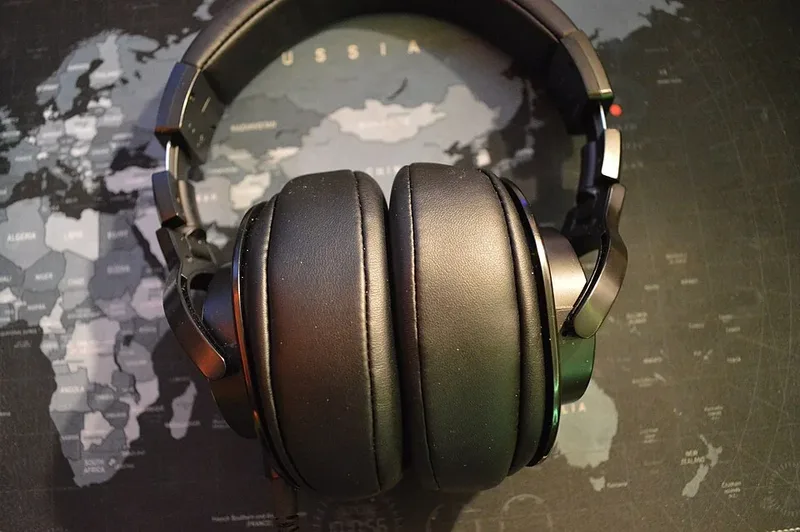
Photo: P0lykey / CC0 (Wikimedia Commons)
Fix an aquarium co2 regulator bubble counter that stays still, empties, or bubbles unevenly. Check assembly, leaks, pressure, tubing, and safe CO2 flow.
Fix an aquarium ato float switch stuck by checking buildup, movement, wiring, and controller status, then add safe ATO limits to reduce overflow risk.
Fix reef tank dosing pump calibration with a measured three-point check, tubing inspection, priming, controller steps, and a safe verification run.
Fix apex controller not connecting to wifi by checking AquaBus communication, network compatibility, signal, and Fusion status with practical steps you can try today.
Fix tractive not charging red light issues by checking the charger, contacts, power source, and battery condition, with practical tests to identify the cause.
Fix a tractive tracker not connected to network issue by checking coverage, charging, SIM status, and LTE compatibility before contacting Tractive support.
Fix a petlibro feeder not dispensing by checking food flow, portion settings, the motor, and app connection, with safe steps to confirm the cause.
Fix a Petlibro feeder camera icon that keeps flashing: check Wi-Fi, power, app status, and setup steps to bring the camera back online today.
Petlibro feeder won t connect to wifi? Check your model’s Wi-Fi band, router settings, app permissions, and pairing mode with these practical fixes.
Fix the litter robot 4 pinch detect error by checking the waste drawer, cleaning pinch contacts, reseating the bonnet, and safely testing the cycle.








