CO2 Regulator Bubble Counter Not Working: Setup

Fix an aquarium co2 regulator bubble counter that stays still, empties, or bubbles unevenly. Check assembly, leaks, pressure, tubing, and safe CO2 flow.
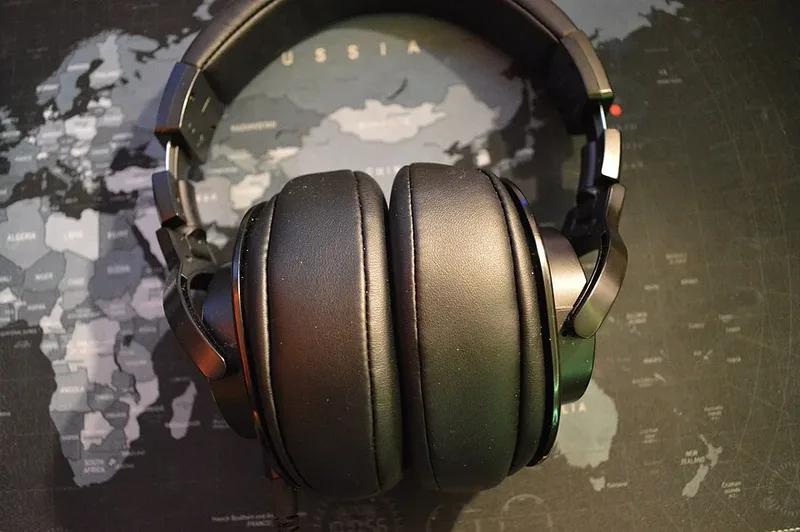
If voicemeeter keeps going robotic, audio may sound metallic, stutter, or break into rapid bursts. The most common cause is an audio buffer that is too small for the PC to process reliably, often made worse by mismatched sample rates or competing audio drivers.
Voicemeeter moves audio between Windows, hardware, and apps in real time. When any part of that chain cannot deliver audio on time, the result can sound robotic even though the device is not damaged.
Open Voicemeeter and select Menu > System Settings / Options. Find the buffer settings for the active driver type, such as WDM, KS, or MME, and raise the relevant buffer modestly. If you use ASIO, check its buffer in the driver’s own control panel; the control is driver-specific. Restart the audio engine or Voicemeeter if prompted. If the robotic sound stops, the previous buffer was too aggressive; keep the lowest setting that stays clean during normal use.
In Voicemeeter’s system settings, note the preferred sample rate. In Windows, open Settings > System > Sound, select each relevant output or input device, and open its format settings (the exact path varies by Windows version). Set compatible devices and apps to the same rate where available, then restart Voicemeeter and the apps using audio. Clear playback confirms the mismatch or resampling path was contributing; if a device does not offer that rate, use a rate supported by all devices.
In Voicemeeter, click the hardware output selector, such as A1, and choose the correct device using its appropriate driver type. If WDM crackles or turns robotic, try the same device through MME as a diagnostic; it may have more latency. Avoid selecting a device that has disappeared or is currently being used in an exclusive mode. A stable sound after reselecting points to a stale device connection or driver path.
AirPods on Windows can switch to a hands-free headset mode when an app opens the microphone, changing the available audio path and quality. In Settings > System > Sound, check that the output is the AirPods stereo playback device, and choose a separate microphone temporarily. Close calling apps that may claim the headset microphone, reconnect the AirPods, and test again. If playback becomes clean when the microphone is not in use, the Bluetooth hands-free path is likely involved; available device names and controls vary by Windows and Bluetooth adapter.
If you use an ASIO device, open its control panel from Voicemeeter’s ASIO device selection or the manufacturer’s audio software. Try a more forgiving buffer setting, then close other apps that may be using the device directly. In Windows, device properties may also have an Advanced option to allow applications to take exclusive control; temporarily disable it for a shared-device test if present. Clean audio after closing the competing app or changing the buffer identifies a driver or access conflict.
Windows audio enhancements or Equalizer APO can add another processing stage. Open the affected device’s sound properties and turn off audio enhancements if that option is available. If Equalizer APO is installed, use its Configurator to temporarily remove it from the affected endpoint, then restart Windows or the audio service as directed by the tool. If the sound clears, re-enable processing gradually to find the conflicting effect or endpoint configuration.
In OBS, open Settings > Audio and check the sample rate and selected devices against the Voicemeeter routing you intend to use. Avoid capturing the same signal through multiple routes at once, which can cause echoes or confusing monitoring. Test a short recording with only one capture path enabled. If the recording is clean while live monitoring is robotic, focus on the monitoring route; if both are affected, continue checking the shared device and buffer.
| Likely cause | Typical symptom | Quick test |
|---|---|---|
| Small buffer | Crackles or robotic sound under load | Raise the active driver’s buffer |
| Bluetooth hands-free mode | Quality changes when a mic app opens | Use a separate microphone temporarily |
| Rate or device mismatch | Problem starts after switching devices or apps | Match supported rates and reselect output |
| Extra processing or capture path | Only one app or route sounds wrong | Disable enhancements or isolate OBS capture |
A buffer that is barely stable may fail when CPU load rises or another app starts using audio. Increase the relevant buffer, then check whether the problem begins with a particular app or device change.
Windows may switch to a Bluetooth hands-free profile when an application uses the AirPods microphone. Test playback with a separate microphone and the AirPods selected as the stereo output.
Use a rate supported by the devices and apps in your chain, and keep their settings consistent where possible. The available choices depend on the hardware and driver, so check each device’s format menu rather than forcing an unsupported value.
If the audio is still robotic, test one device and one app at a time, then update or reinstall the affected device’s audio driver from its manufacturer. Note which driver type, device, and app trigger the problem so you can narrow down the failing link.
Photo: P0lykey / CC0 (Wikimedia Commons)
Fix an aquarium co2 regulator bubble counter that stays still, empties, or bubbles unevenly. Check assembly, leaks, pressure, tubing, and safe CO2 flow.
Fix an aquarium ato float switch stuck by checking buildup, movement, wiring, and controller status, then add safe ATO limits to reduce overflow risk.
Fix reef tank dosing pump calibration with a measured three-point check, tubing inspection, priming, controller steps, and a safe verification run.
Fix apex controller not connecting to wifi by checking AquaBus communication, network compatibility, signal, and Fusion status with practical steps you can try today.
Fix tractive not charging red light issues by checking the charger, contacts, power source, and battery condition, with practical tests to identify the cause.
Fix a tractive tracker not connected to network issue by checking coverage, charging, SIM status, and LTE compatibility before contacting Tractive support.
Fix a petlibro feeder not dispensing by checking food flow, portion settings, the motor, and app connection, with safe steps to confirm the cause.
Fix a Petlibro feeder camera icon that keeps flashing: check Wi-Fi, power, app status, and setup steps to bring the camera back online today.
Petlibro feeder won t connect to wifi? Check your model’s Wi-Fi band, router settings, app permissions, and pairing mode with these practical fixes.
Fix the litter robot 4 pinch detect error by checking the waste drawer, cleaning pinch contacts, reseating the bonnet, and safely testing the cycle.








