CO2 Regulator Bubble Counter Not Working: Setup

Fix an aquarium co2 regulator bubble counter that stays still, empties, or bubbles unevenly. Check assembly, leaks, pressure, tubing, and safe CO2 flow.
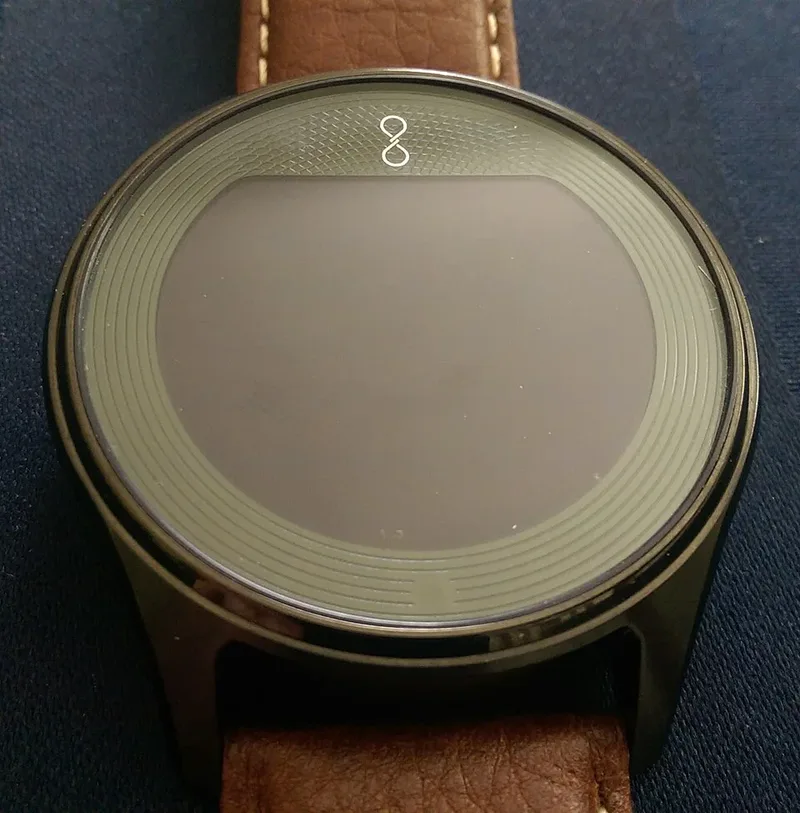
If whoop keeps saying off body while the band is on your wrist, the most common cause is weak skin contact because the sensor is sitting too loosely or has shifted. WHOOP reads light reflected from your skin, so a small gap can make it think the device has been removed. Adjust the fit first, then check the sensor and app if the warning returns.
WHOOP uses its underside sensors to detect contact and collect heart-rate data. A loose band, sweat or residue, or a sensor placed over an area that interferes with optical readings can interrupt that contact. Bluetooth trouble can delay updates in the app, but it does not usually explain a repeated on-wrist detection warning by itself.
Slide the band about one inch (2–3 cm) above your wrist bone, with the sensor flat against the underside of your wrist. Tighten it until it does not slide when you move your arm, but leave it comfortable and avoid cutting off circulation. If you can see the sensor LEDs while wearing the band, the fit is likely too loose. Wear it for several minutes and check whether the warning stops and heart-rate readings resume.
Remove the band and rinse the sensor and band with water; use mild soap if needed, then dry them thoroughly before putting the device back on. Wipe the sensor window gently with a soft cloth. Check for lotion, sunscreen, sweat, lint, or residue on the sensor and your skin. A clean, dry sensor that stays in contact should produce a steadier reading; avoid applying moisturizer directly beneath it.
Try moving the band slightly up or down your wrist so the sensor rests on a flatter patch of skin. Tattoos, dense hair, prominent wrist bones, or repeated movement under the band can make optical readings less reliable for some wearers. If one spot keeps triggering the warning, test a nearby area. WHOOP Body apparel can also support approved alternate placements; follow the garment instructions so the sensor is inserted and aligned with its skin-contact area.
Look for stretched fabric, a loose clasp, damage, or a pod that lets the sensor shift. If you wear the sensor in WHOOP Body apparel, confirm it is seated correctly in the pod and pressed against the intended skin-contact area. Refit or replace a worn accessory, then move around for a few minutes. If the sensor stays in place and the warning clears, the accessory fit was likely the cause.
If the band fits and is clean but the warning persists, restart the sensor using the WHOOP app’s device settings. Open the app, tap the device indicator, and look under Device Settings for the restart or reboot option; labels can vary, so check your model’s menu. Keep the phone near the band during the restart. When the device reconnects, check whether the app shows live data and the off-body warning has stopped.
Keep WHOOP and your phone close together, with Bluetooth enabled, and open the WHOOP app to let it sync. Check the app’s device settings for available firmware updates and install one if offered, keeping the sensor nearby until the update completes. If data is delayed, use the app’s sync option if it appears in your device settings. A completed sync should bring recent readings up to date; it will not fix a sensor that still loses skin contact.
Use this quick check to narrow down the likely cause before contacting support:
| Possible cause | Common clue | Quick test |
|---|---|---|
| Loose fit | Warning appears during movement | Tighten and wear above the wrist bone |
| Residue or moisture | Readings are inconsistent after exercise | Clean and fully dry the sensor |
| Pod or band shift | Sensor moves under clothing | Refit the accessory and check contact |
| Device issue | Warning persists despite good contact | Restart, sync, then contact WHOOP support |
The sensor may not be making consistent contact with your skin, often because the band is loose or has shifted. Sweat, residue, or placement can also affect readings. Clean the sensor and adjust the fit before troubleshooting the app.
It should sit flat and snugly against your skin without sliding during normal movement, but it should still feel comfortable. Wear it above your wrist bone and adjust the position if the sensor lifts or the LEDs are visible while it is on.
Restart the device from its settings in the WHOOP app, then reconnect and sync with your phone nearby. Check for a firmware update if one is offered. If the alert continues with a clean sensor and secure contact, contact WHOOP support with your device model and what you have tried.
In most cases, a snug, clean, correctly positioned sensor stops the warning and restores steady readings. If it persists after a restart and update, contact WHOOP support so they can check for a device or accessory fault.
Photo: United States Federal Communications Commission / Public domain (Wikimedia Commons)
Fix an aquarium co2 regulator bubble counter that stays still, empties, or bubbles unevenly. Check assembly, leaks, pressure, tubing, and safe CO2 flow.
Fix an aquarium ato float switch stuck by checking buildup, movement, wiring, and controller status, then add safe ATO limits to reduce overflow risk.
Fix reef tank dosing pump calibration with a measured three-point check, tubing inspection, priming, controller steps, and a safe verification run.
Fix apex controller not connecting to wifi by checking AquaBus communication, network compatibility, signal, and Fusion status with practical steps you can try today.
Fix tractive not charging red light issues by checking the charger, contacts, power source, and battery condition, with practical tests to identify the cause.
Fix a tractive tracker not connected to network issue by checking coverage, charging, SIM status, and LTE compatibility before contacting Tractive support.
Fix a petlibro feeder not dispensing by checking food flow, portion settings, the motor, and app connection, with safe steps to confirm the cause.
Fix a Petlibro feeder camera icon that keeps flashing: check Wi-Fi, power, app status, and setup steps to bring the camera back online today.
Petlibro feeder won t connect to wifi? Check your model’s Wi-Fi band, router settings, app permissions, and pairing mode with these practical fixes.
Fix the litter robot 4 pinch detect error by checking the waste drawer, cleaning pinch contacts, reseating the bonnet, and safely testing the cycle.








