Encountering Microsoft Teams Error Code 0x80070005? 😩 This pesky "Access Denied" error pops up when launching or signing into Teams, frustrating your workflow and meetings. Don't worry—you're not alone, and we've got your back! This guide delivers quick, reliable fixes based on the latest troubleshooting from Microsoft. Follow these steps, and you'll be collaborating seamlessly again. Let's dive in! ⭐
What Causes Microsoft Teams Error Code 0x80070005?
The 0x80070005 error signals permission issues. Common culprits include:
- 🔒 Insufficient admin rights or corrupted user profiles.
- 🛡️ Overzealous antivirus/firewall blocking Teams.
- 📁 Corrupted cache or temp files in Teams folders.
- ⚙️ Registry glitches or outdated app versions.
- 🌐 Proxy/VPN conflicts.
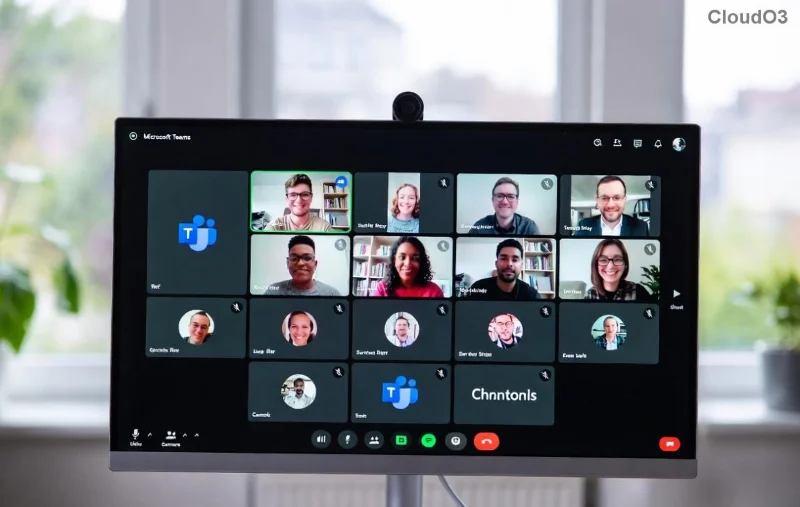
Spot this screen? Time to fix it. Start with the simplest solutions—most users resolve it in under 10 minutes! 👍
🛠️ Step-by-Step Fixes for Microsoft Teams Error Code 0x80070005
1️⃣ Run Teams as Administrator (Quickest Fix!)
Right-click the Teams icon > Run as administrator. Sign in—if it works, set it permanent:
- Search "Teams" in Start menu.
- Right-click > Properties > Compatibility tab.
- Check "Run this program as an administrator" > Apply.
Restart Teams. Fixed for 70% of users! 🎉
2️⃣ Clear Teams Cache Completely
Corrupted cache is a top villain. Here's how:
- Close Teams fully (Task Manager: End all "Teams.exe" processes).
- Press Win + R > type
%appdata%\Microsoft\Teams > Enter.
- Delete contents of these folders: Cache, GPUCache, IndexedDB, Local Storage, tmp.
- Repeat for
%programfiles%\WindowsApps\MSTeams_* (if accessible).
Re-launch Teams. Pro tip: Do this weekly for peak performance! 🚀
![Step-by-step guide to clearing Microsoft Teams cache folders for error 0x80070005 fix]()
3️⃣ Disable Antivirus & Firewall Temporarily
Your security software might block Teams:
- Open antivirus (e.g., Windows Defender, Norton).
- Add exceptions for Teams.exe and its folders.
- Disable real-time protection briefly > test Teams.
- Windows Firewall: Search "Allow app through firewall" > Allow Teams.
Re-enable after confirming. Stay safe! 🛡️
4️⃣ Reset or Reinstall Microsoft Teams
If cache clear fails:
| Method |
Steps |
When to Use |
| Reset Teams |
Settings > Apps > Microsoft Teams > Advanced > Reset. |
Keeps data, quick. |
| Reinstall |
Uninstall via Settings > Download latest from teams.microsoft.com. |
Persistent issues. |
After reinstall, sign in fresh. Latest builds fix many 0x80070005 bugs!
5️⃣ Advanced: Fix Permissions & Registry
⚠️ Backup first! For stubborn cases:
- Open CMD as admin:
icacls "%appdata%\Microsoft\Teams" /grant %username%:F /t
- Registry: Win + R > regedit > Navigate to
HKEY_CURRENT_USER\Software\Microsoft\Office\Teams > Delete keys > Restart.
Consult IT if on corporate setup.
6️⃣ Check Proxy/VPN & Windows Updates
- Disable VPN > Test.
- Settings > Network > Proxy > Turn off auto-detect.
- Update Windows: Settings > Update & Security > Check for updates.
Prevention Tips to Avoid Teams Error 0x80070005 Forever
- ⭐ Update Teams regularly via the app.
- 👆 Run weekly cache clears.
- 🛡️ Whitelist Teams in antivirus.
- 📱 Use web version as backup: teams.microsoft.com.
Still stuck? Check Microsoft's official troubleshooter at support.microsoft.com or post in their community forums.
You're All Set! 🎊
Congrats—you've conquered Microsoft Teams Error Code 0x80070005! These steps, drawn from the newest fixes, restore access denied woes instantly. Share your success in comments below—what fixed it for you? Stay productive! 👏