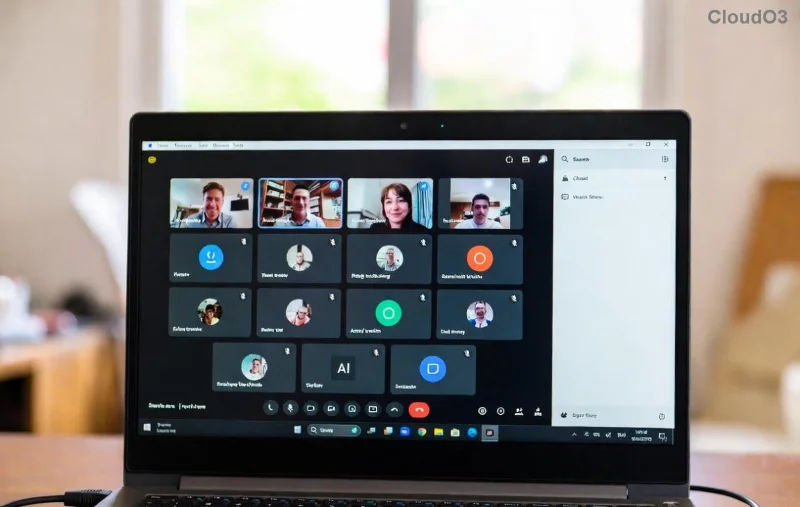
Ever opened Outlook expecting to spot the Microsoft Teams icon for a quick meeting or chat, only to find it mysteriously gone? You're not alone! 😩 Many users search for "where is Microsoft Teams in Outlook" after recent updates shuffled things around. Don't worry—this guide cuts straight to the chase with proven steps to locate the missing icon and get your workflow humming again. Let's dive in and fix it fast! 🚀
Why Has the Teams Icon Disappeared from Outlook? ⭐
The Teams icon missing in Outlook often stems from Microsoft's push toward a unified experience in Microsoft 365. In the latest New Outlook (the modern app replacing classic versions), Teams integration has evolved:
- New Outlook for Windows/Mac: Teams chats and meetings are now embedded in a sidebar, not always as a standalone ribbon icon.
- Outlook Web: The icon might hide under the "New" menu or require enabling.
- Classic Outlook: Add-ins or updates can toggle visibility.
- Quick toggles or profile switches can accidentally hide it.
Good news: It's rarely gone for good. Follow our steps below to reveal it! ✅
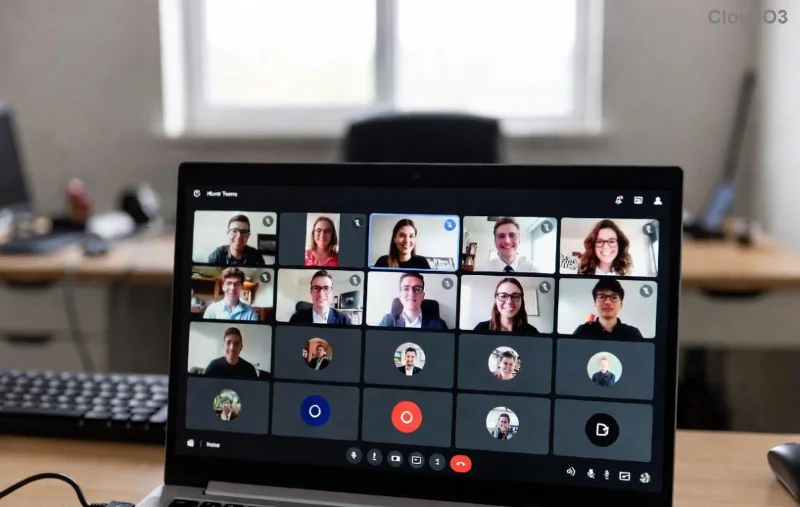
Where Exactly is Microsoft Teams in Outlook? By Version
Pinpointing Microsoft Teams in Outlook depends on your app. Here's the breakdown:
| Outlook Version |
Teams Location |
Quick Access Tip |
| New Outlook (Windows/Mac) |
Left sidebar under "Chat" tab or "Meet Now" button |
Toggle "New Outlook" switch off/on |
| Outlook Web (outlook.office.com) |
Apps icon (grid) or "New Items" > Teams Meeting |
Pin to taskbar via customize |
| Classic Outlook Desktop |
Home tab ribbon or Add-ins section |
File > Manage Add-ins |
Stuck? Keep reading for hands-on steps that work every time. 👇
Step-by-Step: Locating the Missing Teams Icon in Outlook
Ready to reclaim your Teams icon? These numbered steps are battle-tested for the newest updates. Number 1 takes under 30 seconds!
- Check Your Outlook Toggle ✅
Open Outlook > Look for the toggle switch in the top-right corner (says "New Outlook"). If on, slide it off to revert to classic view where the Teams ribbon button shines bright. Slide back on and check the sidebar for integrated chats.
- Enable Teams Add-in 🔧
Go to File > Manage Add-ins (or Get Add-ins). Search "Teams" and hit Add. Restart Outlook—boom, icon restored!
- Pin Teams to Quick Access or Ribbon ⭐
Right-click the ribbon > Customize the Ribbon. Drag Teams Meeting or Meet Now to your Home tab. For New Outlook, click the pencil icon in the sidebar to customize.
- Sidebar Magic in New Outlook ✨
Click the Chat or Calendar icon on the left. Teams lives here now—schedule meetings directly or jump into channels.
- Update and Restart 🔄
File > Office Account > Update Now. Close/reopen Outlook. Persistent issues? Sign out/in of your Microsoft 365 account.
![Step-by-step screenshot enabling Teams add-in in Outlook]()
Visual learner? The image above shows enabling the add-in—your missing icon is just clicks away!
Troubleshooting: When the Icon Still Won't Appear ❌
If steps above don't click, try these fixes:
- Admin Restrictions: Corporate policies might block it. Contact your IT admin.
- Cache Clear: Outlook > File > Options > Advanced > Clear Outlook cache.
- Reinstall Teams/Outlook: Uninstall via Settings > Apps, then reinstall from Microsoft's official site.
- Web Fallback: Use outlook.office.com—Teams is always accessible via the app launcher.
![Outlook sidebar with Microsoft Teams chat and meetings visible]()
See that sidebar glow? That's your Teams in Outlook fully unlocked—like the screenshot above!
Pro Tips for Seamless Microsoft Teams-Outlook Integration 🎉
Once located, supercharge your setup:
- Keyboard Shortcut: Alt + H + FN for instant Teams meetings.
- Shared Channels: Link Outlook calendars to Teams for auto-sync.
- Mobile Sync: The Outlook app mirrors desktop perfectly.
- Customize notifications to avoid chat overload. 😊
For official deep dives, check Microsoft's support: Teams in Outlook Guide.
FAQ: Quick Answers to "Where is Microsoft Teams in Outlook?"
Q: Does the New Outlook hide Teams permanently?
A: Nope! It's integrated smarter—just toggle views.
Q: Why did my icon vanish after an update?
A: Updates prioritize sidebar for better flow. Use our steps to pin it back.
Q: Works on Mac?
A: Yes! Same steps apply to Outlook for Mac.
Congrats—you've mastered locating the missing icon! Your productivity just leveled up. 👏 Share this if it saved your day, and drop a comment below for more tips. Stay tuned for app updates! 🚀