Planning a well-deserved vacation or just stepping away for a few days? Don't let work notifications ruin your break! 🌴 Microsoft Teams makes it super simple to set an out of office status (also called automatic replies or OOO), so your colleagues and clients know you're unavailable—and when you'll be back.
Setting your Teams out of office also syncs beautifully with Outlook automatic replies, giving everyone clear expectations. Let's dive into the step-by-step ways to do it! 💻📱
What Is Microsoft Teams? Quick Overview
Microsoft Teams is your all-in-one hub for chat, video meetings, file sharing, and collaboration—perfect for teams, students, and remote workers alike. Like any great communication tool, it lets you show your availability with status indicators (Available, Busy, Away, etc.) and custom messages.
Pro tip: A clear out of office message in Teams prevents confusion and lets you truly unplug. 🏖️ Plus, it auto-syncs with your Outlook calendar for seamless email replies!
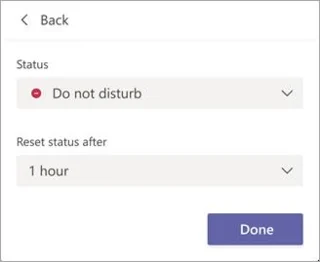
Change your status in Microsoft Teams - Microsoft Support
How to Set Out of Office Status on Microsoft Teams Desktop (Windows/Mac) 🖥️
There are two quick ways to schedule your Teams out of office with automatic replies. Both work great for short getaways or longer vacations.
Method 1: Via Your Profile Picture (Fastest Way!) ✨
- Open Microsoft Teams on your computer.
- Click your profile picture in the top-right corner.
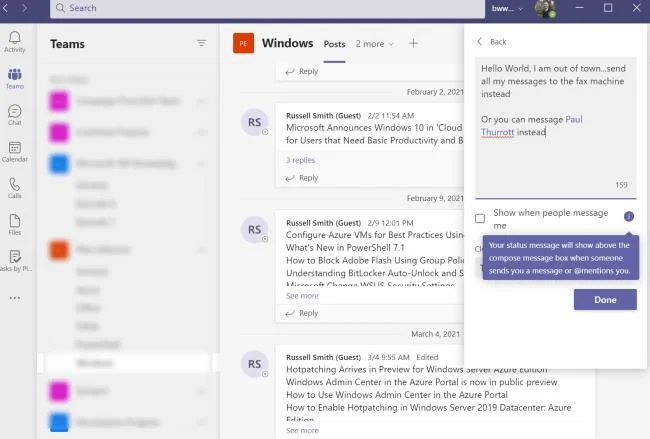
- Select Set status message.
![How to Set Out of Office in Teams and Stay Connected]()
How to Set Out of Office in Teams and Stay Connected
- At the bottom, click Schedule out of office.
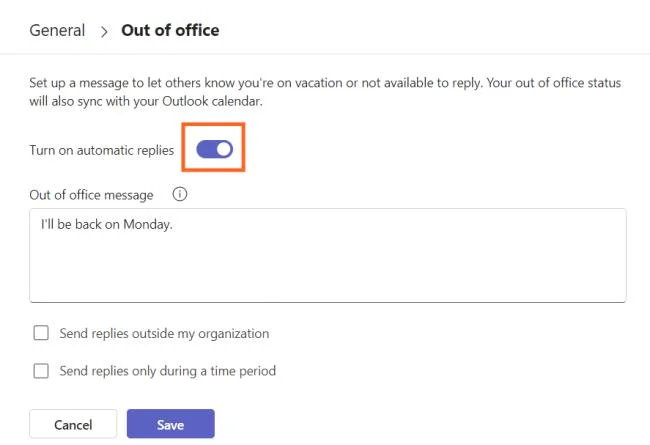
- Toggle Turn on automatic replies ON.
- Type your custom message (e.g., "I'm out of the office until [date]. I'll reply when I'm back! 🌟 For urgent matters, contact [colleague name].").
- This message shows in Teams chats/profiles and sends as an auto-reply in Outlook.
![How to Set an Out of Office automatic reply in Teams]()
How to Set an Out of Office automatic reply in Teams
- (Optional) Enable Send automatic replies to people outside my organization if you deal with clients/external contacts.
- Choose: "Only to my contacts" or "To all external senders".
- Customize the external message if needed.
- Check Send replies only during a time period and set your start/end dates & times.
- Hit Save—you're all set! 🎉
![Schedule an out of office status in Microsoft Teams - Microsoft ...]()
Schedule an out of office status in Microsoft Teams - Microsoft ...
Your status will update to "Out of office" during that window.
Method 2: Through Teams Settings ⚙️
- Open Teams.
- Click the three dots (...) next to your profile picture → Settings.
- Go to General in the left menu.
- Scroll down to the Out of Office section and click Schedule.
![How to set out of office in Teams | Zapier]()
How to set out of office in Teams | Zapier
Follow the same steps as Method 1 from toggling automatic replies onward.
How to Set Status Message on Microsoft Teams Mobile App (iOS/Android) 📱
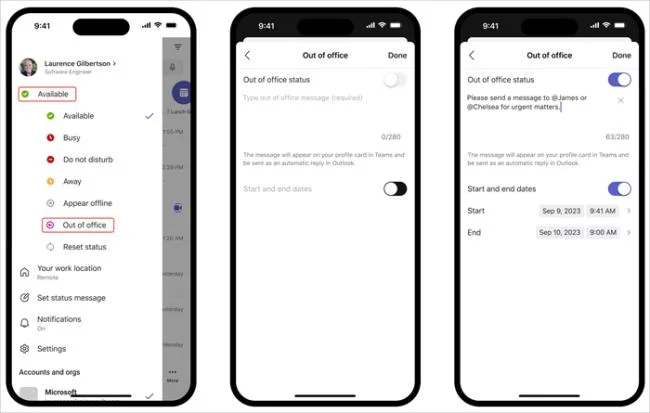
Full automatic out-of-office replies (with Outlook sync) aren't available directly in the mobile app yet. But you can still set a custom status message with a timer—perfect for short absences, meetings, or a few hours away! ⏰
- Open the Microsoft Teams app on your phone.
- Tap your profile picture in the top-left corner.
- Tap Set status message.
![Microsoft Teams Mobile App Basics | Dataprise]()
Microsoft Teams Mobile App Basics | Dataprise
- Type your message (e.g., "Out of office today – back tomorrow! 📅").
- Toggle Show when people message me ON if you want it visible in chats.
- Set a duration: Choose how long the message lasts (e.g., 1 hour, end of day, custom date/time).
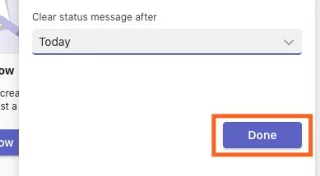
- Tap Done (✔) in the top-right.
Your contacts will see this whenever they message or mention you. Remember to clear it manually when you return!
How to Turn Off or Remove Out of Office in Teams ❌
Ready to get back to work? Here's how to disable it quickly:
- Go back to the Out of Office settings (via profile picture → Set status message → Schedule out of office, or Settings → General → Out of Office).
- Toggle Turn on automatic replies OFF.
- Click Save.
Your status will reset to normal (usually "Available" based on activity), and auto-replies stop.
![How to set out of office in Teams | Zapier]()
Final Thoughts: Enjoy Your Break Worry-Free! 🌟
Setting an out of office in Microsoft Teams is a game-changer for work-life balance. With automatic replies, timed statuses, and Outlook sync, your team stays informed while you recharge—no more guilty "sorry I missed this" feelings!
Pro tips:
- Keep messages clear, polite, and specific (include return date & backup contact).
- Test it with a colleague before going offline.
- For mobile-only users, combine with Outlook's auto-reply for full coverage.
Now go ahead—schedule that vacation and unplug! ✈️ Have questions? Drop them in the comments. Happy Teams-ing! 😊