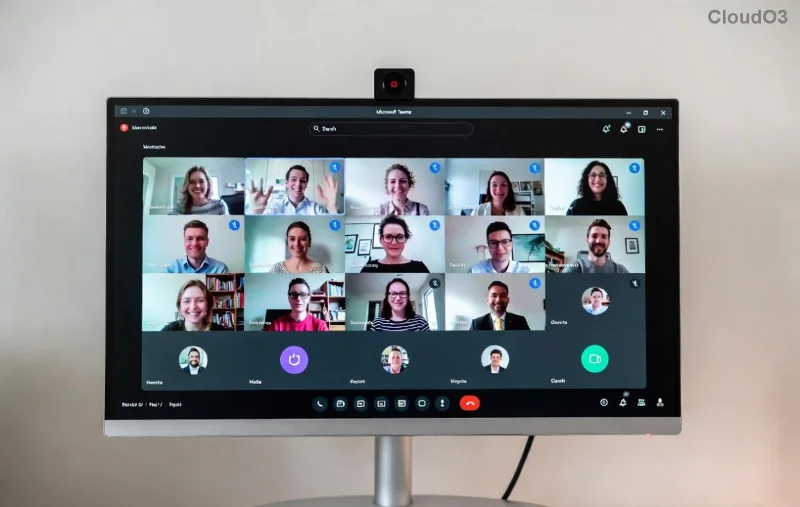
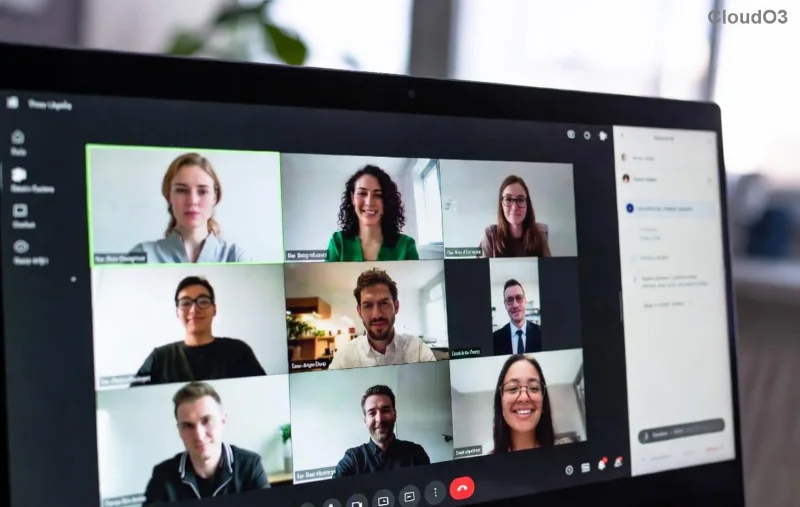
Imagine transforming your next Microsoft Teams meeting from a monotonous monologue into interactive, dynamic sessions where every participant shines. That's the magic of breakout rooms in Microsoft Teams! Whether you're leading workshops, team brainstorms, or virtual classes, setting up breakout rooms before a meeting lets you pre-assign groups for seamless collaboration. No more mid-meeting chaos—just pure productivity. 😊
In this guide, we'll walk you through how to create breakout rooms in Microsoft Teams before a meeting using the latest features. Perfect for educators, managers, and event hosts. Let's dive in and level up your meetings!
Why Use Pre-Meeting Breakout Rooms? The Game-Changers ⭐
Pre-configuring breakout rooms in Microsoft Teams saves time and amps up engagement:
- Custom Groups: Assign specific participants to rooms for targeted discussions.
- Random Magic: Auto-distribute attendees for fresh perspectives.
- Time Efficiency: Everything's ready when the meeting starts—no fumbling!
- Scalability: Handle up to 50 rooms with 200 participants per meeting.
Ready to unlock these? First, ensure you're the meeting organizer or have editing permissions. Works on Teams desktop, web, or mobile (desktop recommended for full control). 👍
Step-by-Step: How to Create Breakout Rooms in Microsoft Teams Before a Meeting
Follow these exact steps for flawless setup. We'll use the Calendar app in Microsoft Teams.
- Schedule or Edit Your Meeting
Open Microsoft Teams and click Calendar on the left. Hit New meeting or select an existing one and click Edit. Fill in basics like title, time, and invitees.
- Access Breakout Rooms
In the meeting details pane (right side), scroll to the Breakout rooms section. Toggle Turn on breakout rooms to enable it. Boom—your canvas is ready! 🎉
- Create Your Rooms
Click Add a room. Name it (e.g., "Group Alpha - Brainstorm") and repeat for more rooms. Pro tip: Use descriptive names for easy navigation.

Visualizing it? Here's where the magic happens:
- Assign Participants
Choose Manually or Randomly:
| Method |
Best For |
How-To |
| Manually |
Targeted teams or roles |
Search/add people to rooms |
| Randomly |
Icebreakers, large groups |
Set count, auto-assign |
| From grid |
Visual drag-and-drop |
Drag attendees to rooms |
- Customize Room Settings
Per room: Set timers, allow renaming, or enable move between rooms. Global options include countdown timers for smooth transitions.
- Save and Preview
Click Save. Your pre-meeting breakout rooms are locked in! During the meeting, just hit Open breakout rooms from the toolbar.
![Assigning participants to breakout rooms in Microsoft Teams pre-meeting]()
Pro Tips for Breakout Room Mastery 💡
Elevate your setup:
- 1️⃣ Pre-Notify: Mention rooms in your invite to build excitement.
- 2️⃣ Timers Rule: Set 5-15 min per room with auto-close for pacing.
- 3️⃣ Rotate Participants: Enable swapping for diverse input.
- 📱 Mobile Access: Participants join via app—mirrors main meeting.
- Record Rooms: Enable per-room recording for absentees.
![Breakout room management options during Microsoft Teams meeting]()
Common Issues? Quick Fixes ⚠️
Troubleshoot like a pro:
- No Breakout Option? Must be organizer; check Microsoft's official guide.
- Can't Assign? Ensure guests are invited properly.
- Limits Hit? Max 50 rooms, 200/room—scale wisely.
- Glitches? Update Teams to the latest version.
Ready to Wow Your Team? Start Now! 👏
With these steps, creating breakout rooms in Microsoft Teams before a meeting is a breeze. Your sessions will spark ideas, foster connections, and deliver results. Try it in your next meeting and watch engagement soar! Got questions? Drop them below—we're here to help. 🚀
Boost your Teams skills further: Explore advanced polls or live captions next!