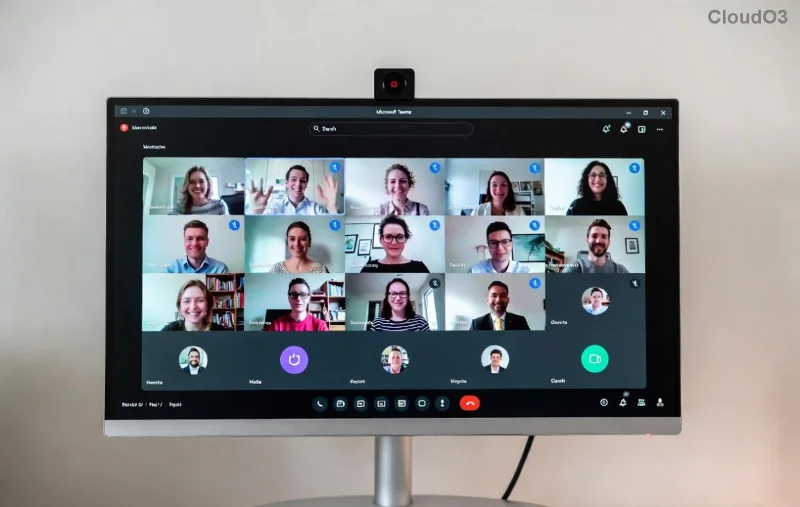
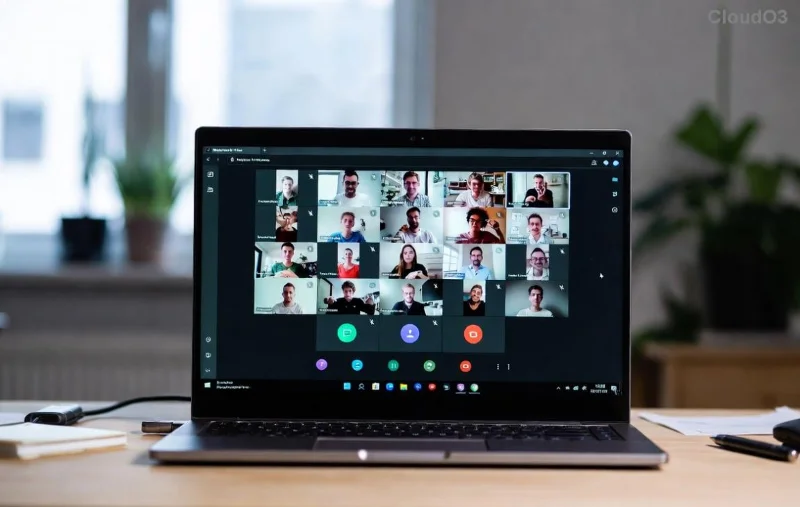
Imagine transforming chaotic large meetings into focused, productive discussions. That's the magic of breakout rooms in Microsoft Teams. Whether you're a teacher dividing students into groups or a manager facilitating workshops, mastering how to assign participants to breakout rooms in Microsoft Teams is your key to success. This guide delivers precise, up-to-date steps to get you started—quickly and confidently. Ready to elevate your virtual sessions? Let's dive in! 👆
What Are Breakout Rooms in Microsoft Teams?
Breakout rooms let meeting organizers split participants into smaller, private groups for targeted discussions, brainstorming, or problem-solving. Participants return to the main room when time's up or you call them back. Perfect for hybrid teams, this feature boosts engagement and deepens collaboration.
Pro Tip: Only organizers or co-organizers with proper permissions can create and manage rooms. Ensure your Teams license supports this—most do in the latest versions.
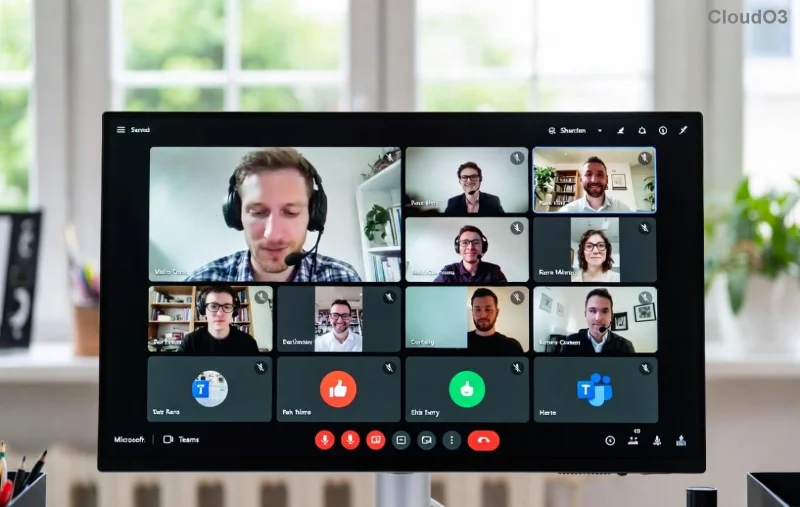
Prerequisites: Before You Assign Participants
- 🟢 Be the meeting organizer or a co-organizer.
- 🟢 Schedule or start a meeting with at least 3 participants (including yourself).
- 🟢 Use the desktop app, web version, or Teams mobile for full control—web works for basics.
- 🟢 Enable Meet now or scheduled meetings seamlessly.
Got these? Great! Now, explore two powerhouse methods: automatic assignment or manual assignment.
Method 1: Automatic Assignment to Breakout Rooms
The fastest way for even distribution. Ideal for quick setups with many attendees.
- Open your Teams meeting and click Breakout rooms in the meeting toolbar.
- Select Create and choose the number of rooms (up to 50!).
- Pick Automatically 👉 Teams evenly distributes participants.
- Click Add now to send everyone to their rooms.
✨ Bonus: Edit assignments pre-meeting via the Breakout rooms tab in the meeting options.
Method 2: Manual Assignment – Precision Control
For custom grouping—like pairing experts or mixing roles—manual is your go-to.
![Manual assignment options in Teams breakout rooms]()
- 👆 In the meeting, hit Breakout rooms > Create rooms.
- Enter room count and select Manually.
- Drag participants' names into rooms or use Add buttons.
- Preview, then Add now or Open breakout rooms.
Why Manual Wins: Tailor groups by department, skill, or randomly for fresh perspectives—spark innovation!
Pro Tips for Managing Breakout Rooms in Microsoft Teams
Don't stop at assignment. Maximize impact with these:
| Action |
How-To |
Benefit |
| Recreate Rooms |
Close all > Recreate |
Fresh groupings mid-meeting |
| Move Participants |
Select > Move to... |
Fix imbalances instantly |
| Timers & Countdowns |
Set in room options |
Keep sessions on track ⏰ |
| Return All |
One-click recall |
Seamless main room reunion |
Pre-Meeting Assignment: Plan Ahead Like a Pro
Supercharge with advance setup:
- Edit meeting > Breakout rooms tab.
- Create rooms and assign names from invite list.
- Customize names, timers, and permissions.
- Save—activates automatically at start!
![Pre-meeting breakout room assignment in Teams]()
⭐ Game-Changer: Share room details with co-organizers for collaborative planning.
Troubleshooting Common Issues
Hit a snag? Quick fixes:
- ❌ No Breakout Button? Check permissions or update Teams.
- ❌ Guests Not Assigning? Ensure they're admitted and licensed.
- ❌ Mobile Limitations? Use desktop for full management.
- ❌ Large Meetings? Cap at 50 rooms; use channels as alternative.
For official troubleshooting, check Microsoft's guide.
Best Practices to Wow Your Team
Make every session unforgettable:
- 📋 Set clear instructions per room.
- 🔄 Rotate groups for diverse input.
- 🎤 Announce via main room broadcast.
- 📊 Debrief: Share key takeaways post-reunion.
Teams continuously refines this feature—stay updated via app notifications for the smoothest experience.
Ready to Transform Your Meetings?
You now know exactly how to assign participants to breakout rooms in Microsoft Teams. From auto-magic splits to manual mastery, these steps will make your sessions dynamic and results-driven. Try it in your next meeting and watch engagement soar! Got questions? Drop a comment below—we're here to help. 🚀