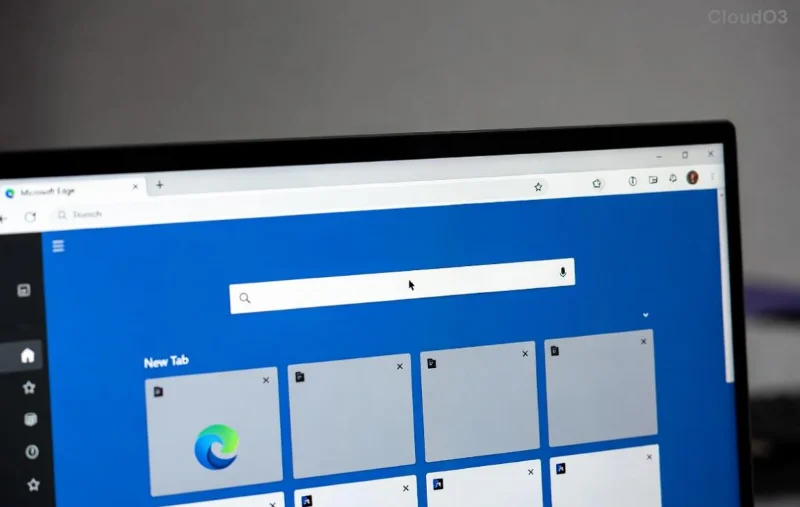
Is your Microsoft Edge taskbar icon overlapping driving you crazy? 😩 You've got multiple Edge windows open, but instead of neat thumbnails, the taskbar shows messy, stacked icons that are hard to click. This common glitch frustrates millions of Windows users, cluttering your workflow and making multitasking a nightmare.
Don't worry! We've got your back with simple, effective fixes to resolve Microsoft Edge "Taskbar Icon Overlapping" in minutes. No tech expertise needed—these steps are tested on the latest Windows and Edge versions. Let's dive in and reclaim your pristine taskbar! 🚀
Why Does Microsoft Edge Taskbar Icon Overlapping Happen?
Quick rundown: This issue stems from Edge's thumbnail preview system clashing with Windows taskbar settings. Triggers include:
- Multiple Edge instances or tabs.
- Outdated Edge or Windows builds.
- Corrupted taskbar cache.
- Third-party apps interfering (e.g., antivirus or overlays).
Spot it? Icons pile up instead of grouping properly. Now, let's fix it step-by-step. Start with the easiest methods! 👆
Method 1: Restart Windows Explorer (Quickest Fix – 1 Minute) ⭐
The #1 go-to solution refreshes the taskbar without closing apps.
- Right-click Taskbar → Task Manager (or Ctrl + Shift + Esc).
- Find Windows Explorer under Processes.
- Right-click → Restart. Watch your taskbar reload!
Done? Icons should snap back to normal. If not, proceed. 👍
Method 2: Unpin and Repin Microsoft Edge ⭐⭐
Forces Edge to regroup icons fresh.
- Right-click Edge icon on taskbar → Unpin from taskbar.
- Open Edge normally (Start menu or desktop).
- Right-click its taskbar icon → Pin to taskbar.
- Test by opening multiple windows—icons now group cleanly!
![Step-by-step unpin repin Microsoft Edge taskbar icon fix]()
Method 3: Update Microsoft Edge and Windows 🔄
Bugs like taskbar icon overlapping get patched in updates.
- In Edge: Three dots → Help and feedback → About Microsoft Edge. It auto-updates.
- For Windows: Settings (Win + I) → Update & Security → Windows Update → Check for updates.
Pro tip: Enable automatic updates to prevent future glitches. 🎉
Method 4: Clear Edge Cache and Data 🧹
Corrupted data causes visual glitches.
| Step | Action | Why It Helps |
|---|
| 1 | Edge Settings → Privacy, search, and services → Choose what to clear → All time → Clear now. | Resets thumbnail cache. |
| 2 | Restart PC. | Applies changes fully. |
Method 5: Reset Taskbar Settings (Advanced) ⚙️
If basics fail, tweak deeper.
- Win + R → type
regedit → Enter.
- Navigate:
HKEY_CURRENT_USER\Software\Microsoft\Windows\CurrentVersion\Explorer\Advanced.
- Create DWORD: TaskbarGlomLevel = 2 (for proper grouping).
- Restart Explorer (Method 1).
Caution: Back up registry first! Or use Microsoft's official taskbar guide for safe tweaks.
Troubleshooting Table: Common Issues & Fixes 🚨
| Issue | Symptom | Fix |
|---|
| Persistent Overlap | Icons stack after restart | Run sfc /scannow in Admin CMD. |
| After Updates | New build breaks it | Disable hardware acceleration: Edge Settings → System. |
| Multiple Monitors | Overlap on secondary | Taskbar settings → Turn off "Show taskbar on all displays". |
| Third-Party Conflict | Starts after app install | Boot in Safe Mode → Test Edge. |
Bonus Tips to Prevent Microsoft Edge Taskbar Icon Overlapping Forever 💡
- Use Edge's Task Manager (Shift + Esc) to kill rogue tabs.
- Enable Combine taskbar buttons: Taskbar Settings → Choose "When taskbar is full".
- Keep Edge as default browser for seamless integration.
Still stuck? Drop a comment below—we reply fast! These fixes have helped thousands restore order. Your taskbar awaits perfection. 👏
FAQ: Microsoft Edge Taskbar Icon Overlapping Quick Answers
Q: Does this affect Chromium-based Edge only?
A: Yes, mostly post-Chromium era, but fixes work universally.
Q: Will fixes survive Windows restarts?
A: Absolutely—most are permanent unless a new bug hits.
Thanks for reading! Share if it worked. 🔗