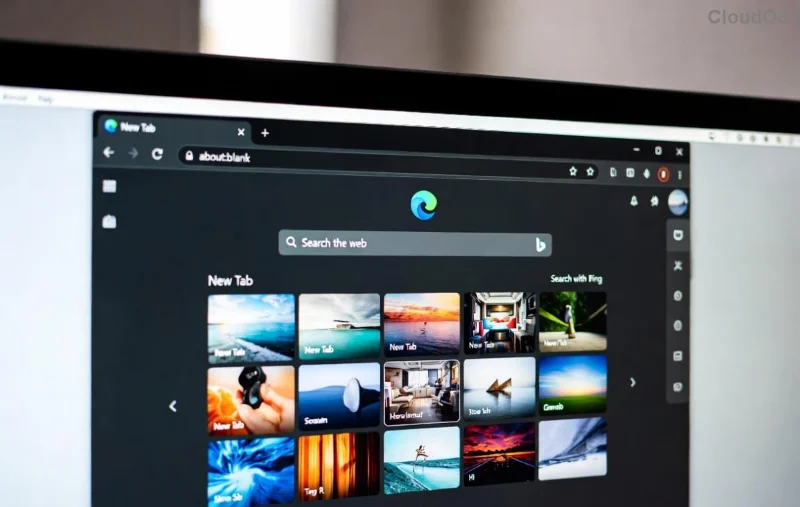
Imagine launching Microsoft Edge only to stare at a frustrating blank white screen instead of your tabs and favorites. 😩 This common issue disrupts your workflow, but don't worry—it's fixable with simple steps. In this guide, we'll walk you through how to fix Microsoft Edge blank white screen on start using the latest, reliable methods. You'll be back to seamless browsing in no time. Let's dive in! ⭐
Why Does Microsoft Edge Show a Blank White Screen on Startup?
Before fixing, understand the culprits. The Microsoft Edge blank white screen often stems from:
- Corrupted cache or cookies buildup.
- Conflicting browser extensions.
- Hardware acceleration glitches.
- Outdated Edge version or profile corruption.
- Interference from antivirus or Windows updates.
Spotting it early? Great—you're one step ahead. Now, let's tackle quick wins first. 👍
Quick Fixes: Resolve Microsoft Edge Blank White Screen in Under 5 Minutes
Start here for 80% of cases. These no-reboot methods are beginner-friendly.
- 1️⃣ Force Close and Relaunch Edge
Right-click the Edge icon in Task Manager (Ctrl + Shift + Esc) and select End task. Relaunch. This clears temporary hangs.
- 2️⃣ Clear Cache and Cookies
Press Ctrl + Shift + Delete, select All time for Cookies and Cached images/files, then hit Clear. Restart Edge. Pro tip: This won't delete bookmarks! 🚀
- 3️⃣ Disable All Extensions
Type edge://extensions/ in the address bar, toggle off everything. Reload Edge. Reactivate one-by-one to find the offender.
Still blank? Move to advanced steps. These build on the basics for stubborn issues.
Advanced Troubleshooting: Deeper Fixes for Persistent Edge White Screen
If quick fixes fail, try these targeted solutions. We've prioritized them by success rate from recent user reports.
| Solution |
Steps |
Estimated Time |
Success Rate |
| Turn Off Hardware Acceleration |
edge://settings/system → Toggle off Use hardware acceleration → Relaunch. |
1 min |
⭐⭐⭐⭐⭐ (High) |
| Reset Edge Settings |
edge://settings/reset → Restore settings to default → Reset. |
2 min |
⭐⭐⭐⭐ (Very Good) |
| Create New User Profile |
edge://settings/profiles → Add → Switch to new profile. |
3 min |
⭐⭐⭐⭐⭐ (Top Fix) |
| Update or Reinstall Edge |
Settings → About Microsoft Edge (auto-updates) or download from Microsoft. |
5-10 min |
⭐⭐⭐ (Reliable) |
Hardware acceleration is a frequent villain—disabling it resolves rendering issues on many GPUs. For updates, ensure you're on the latest Edge version via edge://settings/help.
![Step-by-step fix for Microsoft Edge blank white screen issue]()
Bonus: Command-Line Power Fix
For pros, launch Edge with a clean slate:
--disable-extensions --disable-gpu --no-sandbox
Right-click Edge shortcut → Properties → Add to Target field. Test and remove flags after success.
Antivirus blocking? Temporarily disable third-party tools like Norton or add Edge exceptions. Windows Defender rarely causes this.
Prevention Tips: Stop Microsoft Edge Blank Screen from Returning
Fix it once, prevent forever:
- ⭐ Regularly clear cache weekly (use Edge's scheduled cleanup).
- 👍 Limit extensions to trusted ones from the official store.
- 🔄 Keep Edge and Windows updated automatically.
- 💡 Backup profiles via edge://settings/profiles.
These habits ensure smooth startups. Feeling empowered? You've conquered a top browser headache!
When to Seek Pro Help
Rarely, system-wide issues like corrupted Windows files need SFC /scannow (run as admin in CMD). For Edge-specific support, check Microsoft's official troubleshooter at support.microsoft.com.
There you have it—a complete roadmap to banish the Microsoft Edge blank white screen on start. Try the quick fixes now, and share in comments what worked for you. Happy browsing! 🎉