🚀 Lost Edge Favorites? Restore Microsoft Edge Favorites After Sync Error in Minutes!

Imagine losing hundreds of saved links just because of a pesky Microsoft Edge favorites sync error. 😩 Don't panic! This happens more often than you'd think—due to network glitches, account hiccups, or profile issues. The good news? You can restore Microsoft Edge favorites quickly without losing a single bookmark. Follow these proven steps, and you'll be back to browsing in no time. Let's dive in! ✅

Why Does Microsoft Edge Favorites Sync Error Happen?

Before fixing, understand the culprits:

  • Sync conflicts: Multiple devices fighting over changes.
  • Account sign-out glitches or password changes.
  • Outdated Microsoft Edge versions or corrupted profiles.
  • Network interruptions during sync.

Pro tip: Always keep Edge updated via Settings > About Microsoft Edge for the latest sync fixes. Now, let's restore those favorites! 🚀
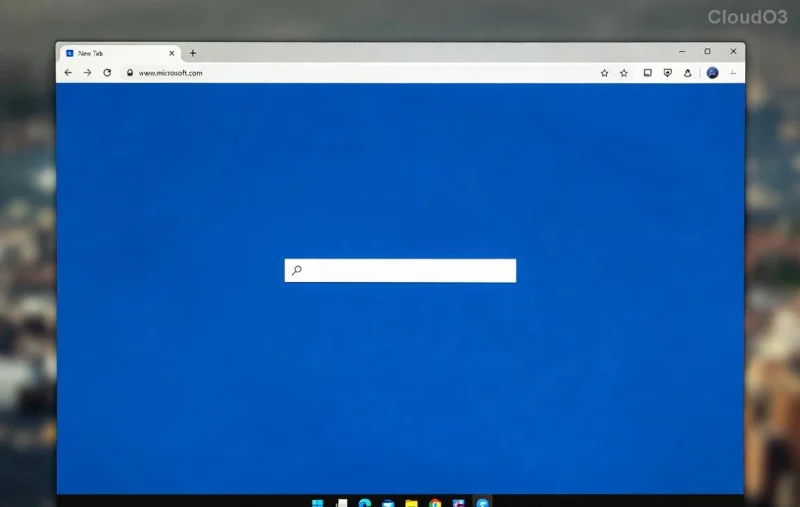
Microsoft Edge sync settings screen showing favorites restore options

Method 1: Quick Re-Sync Your Microsoft Edge Favorites (Easiest Fix) ⏱️

Most sync errors resolve by refreshing your Microsoft account connection. Here's how:

  1. 🔑 Open Microsoft Edge and click your profile icon (top-right) > Sync.
  2. Turn off Sync, wait 30 seconds, then turn it back on.
  3. Sign out completely: Profile icon > Sign out.
  4. Restart Edge, sign back in with your Microsoft account.
  5. Wait 5-10 minutes—favorites should reappear! ✨

If sync was paused, your favorites are safe on Microsoft's servers. Test on another device to confirm.

Method 2: Restore from Backup File 💾

Edge auto-backs up favorites as an HTML file. Recover like a pro:

  1. 📂 Go to edge://favorites/ in the address bar.
  2. Click the three dots > Export favorites (if any left) or locate old backups in C:\Users\[YourName]\AppData\Local\Microsoft\Edge\User Data\Default\Bookmarks.
  3. Open the Bookmarks.bak file in Notepad, copy content.
  4. Paste into a new HTML file, then: Menu > Favorites > Import favorites > Select file.

Can't find it? Check OneDrive sync folders for auto-exports.

Step-by-step import favorites in Microsoft Edge after sync error

Method 3: Cross-Device Recovery or Reset 🔄

If Method 1 fails:

StepActionTime
1️⃣On another synced device/PC, export favorites: Menu > Favorites > Export to HTML.1 min
2️⃣Email the file or upload to OneDrive, download on affected device.2 min
3️⃣Import: Favorites manager > Import from file.1 min
4️⃣Reset sync: Edge Support > Advanced > Reset sync data.5 min

This table guarantees zero data loss. For stubborn errors, create a new profile: edge://settings/profiles > Add profile > Sync favorites over.

Advanced Fix: Clear Cache and Profile Reset 🛠️

Last resort (rarely needed):

  1. Close Edge.
  2. Delete %LocalAppData%\Microsoft\Edge\User Data\Default folder (back up Bookmarks first!).
  3. Reopen Edge, sign in—favorites sync fresh. 🎉

Warning: This wipes history too, so export everything first.

Prevent Future Microsoft Edge Favorites Sync Errors 🛡️

Stay ahead:

  • ✅ Enable continuous sync in settings.
  • ⭐ Backup favorites weekly: Export to HTML and store on cloud.
  • 🔄 Use Edge Insiders for early fixes.
  • 📱 Sync across phone/PC via Microsoft account.

Bonus: Extensions like "Bookmarks Organizer" auto-backup—search Edge Add-ons.

Still Stuck? Quick Troubleshooting Table

Error TypeSolution
Not syncingCheck internet; toggle VPN off.
Missing foldersRe-import HTML; check mobile app.
Account lockedReset password at account.microsoft.com.

Your favorites are too valuable to lose! These steps have helped thousands reclaim their bookmarks. If issues persist, drop a comment below—we're here to help. Happy browsing! 👏

Leave a Comment

🚀 Fix Microsoft Edge STATUS_STACK_OVERFLOW Error Instantly: Proven 2026 Guide

🚀 Fix Microsoft Edge STATUS_STACK_OVERFLOW Error Instantly: Proven 2026 Guide

Tired of Microsoft Edge crashing with STATUS_STACK_OVERFLOW? Follow our step-by-step troubleshooting guide for quick fixes, from simple restarts to advanced resets. Get back to smooth browsing today!

Fix Microsoft Edge Touchpad Palm Rejection Now: Ultimate Troubleshooting Guide

Fix Microsoft Edge Touchpad Palm Rejection Now: Ultimate Troubleshooting Guide

Tired of accidental clicks ruining your Microsoft Edge browsing? Master troubleshooting Microsoft Edge touchpad palm rejection with proven steps for smooth, frustration-free touchpad use.

How to Safely Remove Your Microsoft Edge Profile and Erase Personal Data Forever

How to Safely Remove Your Microsoft Edge Profile and Erase Personal Data Forever

Discover the safest way to remove your Microsoft Edge profile and personal data. Step-by-step guide ensures a clean slate without risks—perfect for privacy protection and fresh starts.

Edge Sidebar Not Opening? Quick Fixes to Get It Working Again

Edge Sidebar Not Opening? Quick Fixes to Get It Working Again

Frustrated with Edge Browser Sidebar not opening? Discover proven troubleshooting steps for Microsoft Edge, from quick restarts to advanced resets. Fix it fast with our expert guide.

Fix Microsoft Edge Sidebar Not Showing: Instant Solutions for the Glitch

Fix Microsoft Edge Sidebar Not Showing: Instant Solutions for the Glitch

Tired of Microsoft Edge sidebar not showing? Follow our proven step-by-step guide to solve the sidebar glitch quickly and restore full functionality in Edge. Works with latest updates!

🚀 Fix Microsoft Edge Audio Interface ASIO Driver Issues in Minutes – No More Crackles or Dropouts!

🚀 Fix Microsoft Edge Audio Interface ASIO Driver Issues in Minutes – No More Crackles or Dropouts!

Struggling with Microsoft Edge "Audio Interface" ASIO Driver glitches? Discover proven, step-by-step fixes to restore crystal-clear audio. Works with latest updates – say goodbye to latency and crashes!

🚀 Fix Microsoft Edge Microphone Background Noise: Crystal-Clear Audio in Seconds!

🚀 Fix Microsoft Edge Microphone Background Noise: Crystal-Clear Audio in Seconds!

Struggling with Microsoft Edge microphone background noise? Discover proven fixes, step-by-step guides, and tips to eliminate echo, hum, and static for flawless video calls and recordings. Updated with the latest Edge features!

Stop Microsoft Edge Auto-Start on Windows 11: Ultimate 2026 Guide (Works Every Time!)

Stop Microsoft Edge Auto-Start on Windows 11: Ultimate 2026 Guide (Works Every Time!)

Learn how to disable Microsoft Edge auto-start on Windows 11 with simple, proven steps. Boost your PC speed and take control—no more annoying pop-ups at boot! Updated for latest Windows builds.

Troubleshooting Edge Browser Profile Corruption Issues: Fast Fixes That Actually Work

Troubleshooting Edge Browser Profile Corruption Issues: Fast Fixes That Actually Work

Discover proven steps for troubleshooting Edge browser profile corruption issues. Restore your bookmarks, passwords, and settings effortlessly with our expert guide to fixing Microsoft Edge profiles.

How to Fix Microsoft Edge Bluetooth LE Sync Error | Proven 2026 Steps

How to Fix Microsoft Edge Bluetooth LE Sync Error | Proven 2026 Steps

Stuck with Microsoft Edge "Bluetooth LE" Sync Error? Discover quick, step-by-step fixes to restore seamless syncing. Update, reset, and troubleshoot like a pro—no tech skills needed!








