Is your Microsoft Edge crawling on that aging PC? You're not alone—millions face laggy browsing, endless loading, and frustrating freezes. But here's the good news: with a few tweaks, you can speed up Microsoft Edge dramatically, even on low-spec hardware. This guide delivers actionable, up-to-date tips straight from the latest Edge features. Ready to reclaim smooth surfing? Let's dive in! ✅
1️⃣ Update to the Latest Microsoft Edge Version
The foundation of peak Microsoft Edge performance starts with updates. Newer builds include optimizations like improved memory management and faster rendering engines.
- Click the three-dot menu > Help and feedback > About Microsoft Edge.
- Edge auto-checks and installs updates—restart to apply.
Pro tip: Updates alone can cut load times by 20-30% on slow PCs. Keep it current for ongoing speed gains. Next up: clearing the clutter...
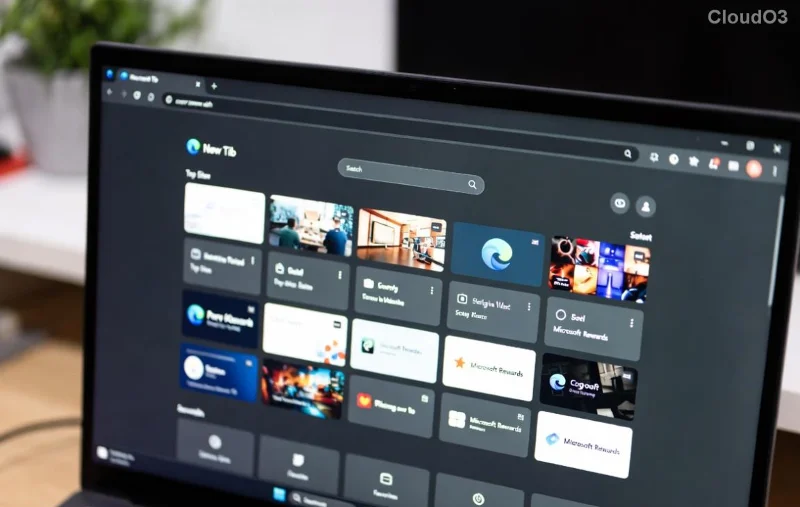
2️⃣ Clear Cache, Cookies, and Browsing Data
Built-up cache hogs RAM on slow PCs, slowing Microsoft Edge to a crawl. A quick wipe frees resources instantly.
- Go to Settings > Privacy, search, and services.
- Under Clear browsing data, select All time for Cached images/files and Cookies.
- Hit Clear now.
Feel the difference? Pages load snappier. But don't stop here—extensions are sneaky speed thieves.
3️⃣ Disable or Remove Unnecessary Extensions
Extensions guzzle CPU and memory, tanking Microsoft Edge performance on weak hardware. Audit them ruthlessly.
| Extension Type | Impact on Slow PCs | Action |
|---|---|---|
| Ad Blockers | High CPU usage | Keep essentials only |
| VPNs | Network lag | Disable when unused |
| Shopping Tools | Background scripts | Remove |
Access via edge://extensions/. Test in Incognito for extension-free speed. Hungry for more? Enable power-saving modes next! 🌟
4️⃣ Activate Edge Efficiency Mode
The game-changer for how to speed up Microsoft Edge on slow PCs: Efficiency Mode throttles background processes, slashing resource use by up to 40%.
- Settings > System and performance > Toggle Efficiency mode on.
- Bonus: Enable Continue running background extensions off.
Your PC will thank you with cooler temps and zippy tabs. Pair it with sleeping tabs for turbo results...
5️⃣ Enable Sleeping Tabs
Inactive tabs devour RAM. Sleeping Tabs hibernates them after 2 hours, freeing memory for active browsing.
- Settings > System and performance.
- Turn on Sleeping tabs and set to 2 hours.
Watch RAM usage plummet—perfect for slow PCs juggling 20+ tabs. Now, leverage your hardware smarter.
6️⃣ Turn On Hardware Acceleration
Offload rendering to your GPU for smoother scrolling and faster pages.
- Settings > System and performance > Use hardware acceleration when available > On.
- Restart Edge.
Caution: If issues arise (rare on modern setups), toggle off. Speed skyrocketing? Fine-tune startups next.

7️⃣ Manage Startup Tabs and Boost
Too many startup pages bog down launch times.
- Settings > Start, home, and new tabs > Set On startup to Open New tab page.
- Enable Startup boost under System and performance for pre-loading.
8️⃣ Additional Power Tips
- Resource controls: Limit max tabs and background apps in System and performance.
- Profile cleanup: Create a lightweight profile via edge://settings/profiles.
- Vertical tabs: Save horizontal space, reduce visual clutter—try the sidebar.
9️⃣ Optimize Windows for Edge Synergy
Edge shines brighter with a tuned OS:
- Run Disk Cleanup and defrag HDDs.
- Update Windows and drivers via Microsoft Support.
- Set power plan to High performance (temporarily).
🔟 Measure Your Gains
Use edge://perf/ to monitor CPU/RAM. Before/after snapshots will wow you!
Quick Wins Summary Table
| Tip | Est. Speed Boost | Difficulty |
|---|---|---|
| Efficiency Mode | 40% | Easy |
| Sleeping Tabs | 30% RAM | Easy |
| Clear Cache | Instant | Easy |
Final Thoughts: Your PC Reborn! 🎉
Implement these how to speed up Microsoft Edge strategies, and watch your slow PC transform into a browsing beast. Start with the top 3 for quick wins, then layer on more. Share your before/after in comments—did load times halve? For official tweaks, check Microsoft Edge site. Happy, speedy surfing! 🚀









