Feeling bogged down by endless Microsoft Edge search history or sluggish performance from bloated Microsoft Edge cache? You're not alone! Clearing these builds up storage, speeds up browsing, and protects your privacy. This guide delivers precise, up-to-date methods to delete Microsoft Edge search history and cache completely—no remnants left behind. Ready to refresh? Let's dive in! 😊

Why Clear Microsoft Edge Cache and Search History? Quick Wins for You
- ⭐ Frees up gigabytes of disk space instantly.
- ⚡ Boosts browser speed by removing outdated files.
- 🛡️ Enhances privacy—no more traces for prying eyes.
- 🔧 Fixes glitches like slow loading or broken sites.
Pro tip: Do this weekly for peak performance. Now, let's get to the action!
1️⃣ Method 1: Clear Cache and History via Edge Settings (Easiest for Beginners)
The built-in tool is your best friend for a thorough wipe. Follow these steps:
- 🔓 Open Microsoft Edge and click the three-dot menu (⋮) in the top-right corner.
- 📱 Select Settings > Privacy, search, and services.
- 🧹 Scroll to Clear browsing data and hit Choose what to clear.
- ⏰ Set time range to All time for complete deletion.
- ✅ Check boxes: Browsing history, Download history, Cookies, Cached images and files, Passwords (optional), and Search history.
- 🗑️ Click Clear now. Boom—done! Edge restarts fresh.
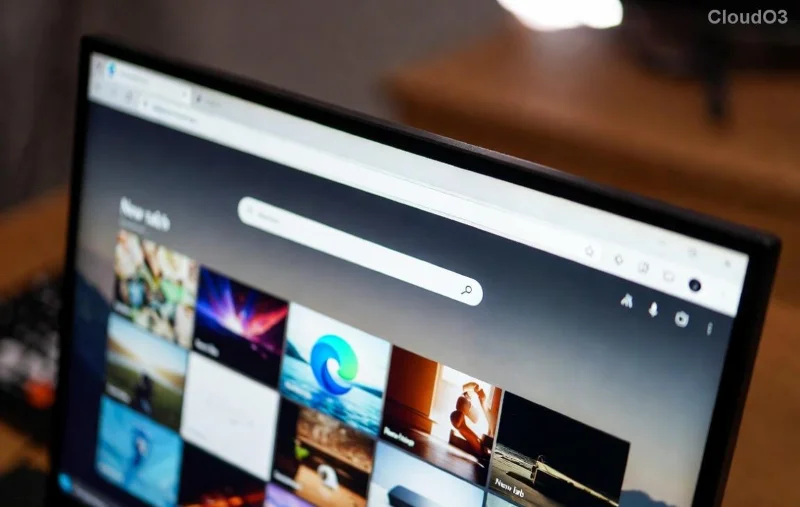
Want visual proof? Check the image above for the exact screen.
2️⃣ Method 2: Turbo Delete Microsoft Edge Search History with Keyboard Shortcut
For speed demons, skip menus:
- ⌨️ Press Ctrl + Shift + Delete (Windows/Linux) or Command + Shift + Delete (Mac).
- ⏰ Choose All time.
- ✅ Select Cached images and files and Browsing history (includes searches).
- 🗑️ Hit Clear now.
👏 Instant results—your Microsoft Edge cache vanishes in seconds!
![Step-by-step Microsoft Edge data clearing dialog]()
3️⃣ Completely Delete Microsoft Edge Cache Across All Devices (Sync Killer)
If you use Edge sync, history lingers online. Here's the full purge:
- 🔗 In Settings > Profiles > Sync, turn off sync temporarily.
- 🌐 Visit account.microsoft.com/privacy and review activity.
- 🗑️ Go to Microsoft Edge settings > Clear browsing data > check All devices if available.
- 🔄 Restart Edge and re-enable sync (optional).
Stuck? Edge's latest updates make "All devices" a one-click wonder.
📊 Quick Reference Table: What to Clear Microsoft Edge Cache and History Items
| Data Type |
What It Includes |
Why Delete It? |
| Browsing History |
Websites visited, search history |
Privacy boost, stops auto-complete leaks |
| Cached Images/Files |
Temporary site data, Edge cache |
Frees space, fixes display issues |
| Cookies & Site Data |
Login info, trackers |
Blocks ads, fresh starts |
| Passwords |
Saved logins |
Security if shared device |
4️⃣ Advanced: Nuke Everything with Profile Reset
For ultimate clean slate:
- ⚙️ Settings > Reset settings > Restore settings to default.
- 🚫 Or delete profile folder: %LocalAppData%\Microsoft\Edge\User Data\Default (backup first!).
- 💻 Restart—Microsoft Edge search history and cache obliterated.
⚠️ Warning: This erases extensions too. Test on a new profile first.
❌ Common Pitfalls & Fixes to Keep You Smooth Sailing
- ❌ Cache rebuilds fast? Clear weekly via Task Scheduler.
- ❌ History syncs back? Disable in Microsoft Support.
- ❌ Mobile Edge? Use app settings identically.
💡 Bonus Tips: Stay Cache-Free Forever
- ⭐ Enable Clear browsing data on exit in Privacy settings.
- 🛡️ Use extensions like "Auto Clear Cache" from Edge Add-ons.
- 🔒 Switch to InPrivate mode for zero-trace sessions.
You've nailed it! Your Edge is now lightning-fast and private. Share this guide if it helped—your friends need it too. Got questions? Drop a comment below. Happy browsing! 👏