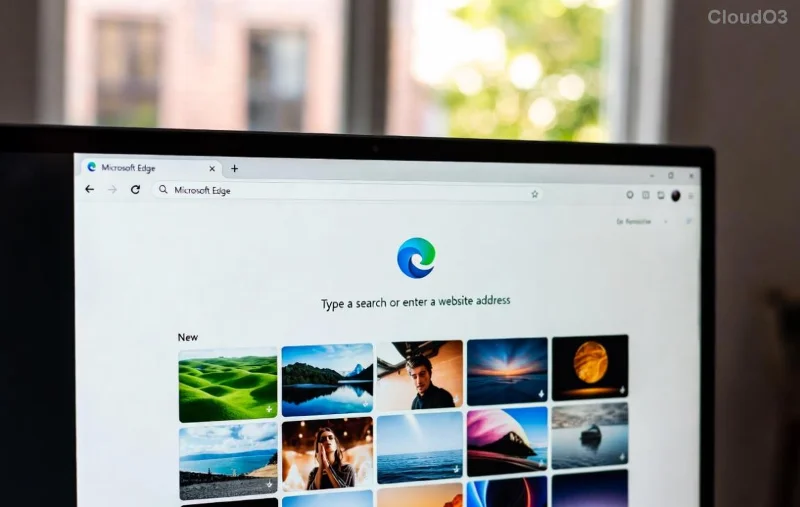
Imagine firing up your browser each day to a stunning, personalized vista that sparks joy and boosts productivity. That's the magic of customizing your Microsoft Edge browser theme and background! Whether you're craving a sleek dark mode, vibrant colors, or your favorite photo as a backdrop, Edge makes it incredibly easy. In this guide, we'll walk you through every step with crystal-clear instructions, pro tips, and visuals to get you set up in minutes. Ready to make Edge yours? Let's dive in! 😊
Step-by-Step: How to Change Microsoft Edge Theme
Edge offers a treasure trove of themes via its built-in store, ranging from minimalist designs to eye-popping art. No downloads needed beyond the official store—safe and seamless!
- 👉 Open Settings: Click the three-dot menu in the top-right corner of Edge, then select Settings.
- 🎲 Navigate to Appearance: In the left sidebar, click Appearance. Scroll to the Themes section.
- ⭐ Browse and Install: Hit Get themes to open the Microsoft Edge Add-ons store. Search for themes like "Dark," "Colorful," or artist collections. Preview, then click Add to Edge.
- 👍 Apply Instantly: The theme updates your toolbar, tabs, and menus right away. Love it? You're done!

Pro Tip: For light mode fans, toggle Theme to "Light" or "Default." Sync across devices via your Microsoft account for consistency everywhere! Feeling adventurous? Explore Edge Add-ons for community themes.
Mastering Microsoft Edge Background Customization
Elevate your new tab page with breathtaking backgrounds—your photos, solid colors, or daily rotating art. It's like a digital wallpaper that evolves with you!
- 👉 Head to New Tab: Open a new tab (Ctrl+T) and click the gear icon in the top-right for Customize.
- 🎲 Choose Background: Select Background from the menu. Options include:
| Option |
Description |
Best For |
| Color |
Pick from gradients or solids like ocean blue or fiery orange. |
Minimalists seeking focus. |
| Daily Images |
Curated landscapes or abstracts that refresh automatically. |
Variety lovers. |
| Your Own Image |
Upload personal photos—pets, travel snaps, or art. |
Personal touch. |
- ⭐ Select and Adjust: Choose your pick, tweak fit (fit, fill, stretch), and enable Show the accent color on the start and new tab pages for toolbar harmony.
- 👍 Save and Enjoy: Hit Save. Refresh your new tab to see the magic!
![Customizing Microsoft Edge new tab background with image upload and color options]()
Bonus: Combine with themes for a cohesive vibe. Dark theme + starry night background? Pure bliss! ⭐
Advanced Tricks to Supercharge Your Edge Customization
Want more? Here's how to level up:
- Sync Settings: In Settings > Profiles > Sync, enable appearance for multi-device magic.
- Performance Mode: Themes won't slow you down—Edge's Chromium core keeps it zippy.
- Troubleshoot Glitches: If changes don't stick, reset via Settings > Reset settings. Or update Edge: three-dot menu > Help and feedback > About Microsoft Edge. ❗
- AI-Powered Touches: Latest updates bring Bing Image Creator integration for generating custom backgrounds on-the-fly.
![Final customized Microsoft Edge with applied theme and background on new tab page]()
Stuck? Check Microsoft's official guide at support.microsoft.com for the newest tweaks.
Why Bother? The Joy of a Personalized Edge
Customizing your Microsoft Edge browser theme and background isn't just cosmetic—it's transformative. It reduces eye strain, matches your mood, and turns mundane browsing into a delight. Users report higher focus and satisfaction after tweaks! Now that you're equipped, experiment boldly. Share your setups in comments below—what's your dream combo? Stay tuned for more Edge hacks to keep your digital world fresh. Happy browsing! 👏