Fix Microsoft Edge Webcam Privacy Error in Minutes: Ultimate Troubleshooting Guide

Encountering the frustrating Microsoft Edge "Webcam Privacy" Error that blocks your camera during video calls or web apps? 😩 Don't worry—this common issue in Microsoft Edge is often quick to resolve with the right steps. Whether it's Zoom, Teams, or any site needing webcam access, our focused guide will get you back online fast. Let's dive in and fix it together! 🚀

What Causes the Microsoft Edge Webcam Privacy Error?

The Webcam Privacy Error in Microsoft Edge typically pops up when sites can't access your camera due to strict privacy settings. Key culprits include:

  • Blocked permissions in Edge or Windows.
  • Outdated browser or drivers.
  • Antivirus/software interference.
  • Hardware conflicts.
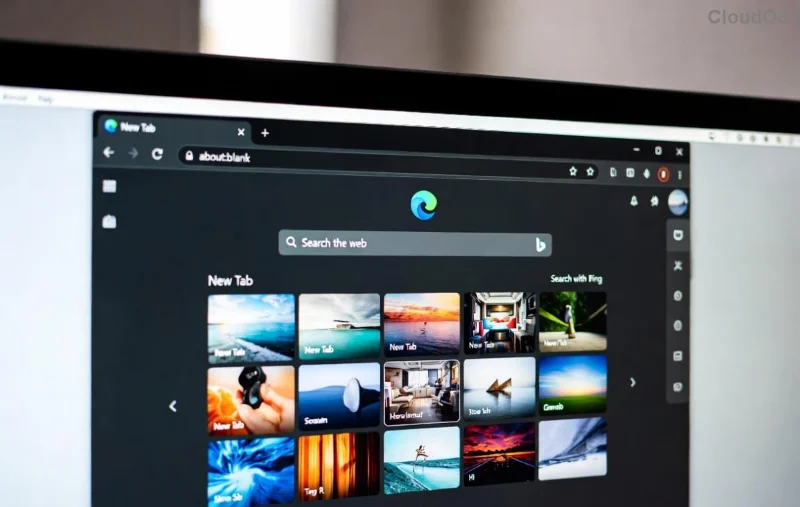
Microsoft Edge Webcam Privacy Error screenshot

Recognize this screen? It's Edge protecting your privacy—but sometimes too aggressively. ✅ Now, let's troubleshoot systematically.

Quick Fixes: Step-by-Step Troubleshooting Microsoft Edge "Webcam Privacy" Error

Start with these proven methods, ordered from simplest to advanced. Test your webcam after each step (try webcamtests.com for a quick check).

Step Action Expected Result
1️⃣ Enable Camera Permissions in Edge Site-specific access granted
2️⃣ Check Windows Privacy Settings Global camera allowance
3️⃣ Update Edge & Drivers Bug-free latest version

Step 1: Enable Permissions in Microsoft Edge

  1. Open Edge and go to edge://settings/content/camera.
  2. Ensure "Ask before accessing" is on, and add exceptions for blocked sites.
  3. Click the lock icon 🔒 next to the URL bar on the problematic site > Allow Camera.

Pro tip: Clear site data via edge://settings/content/all if permissions reset. 🎉

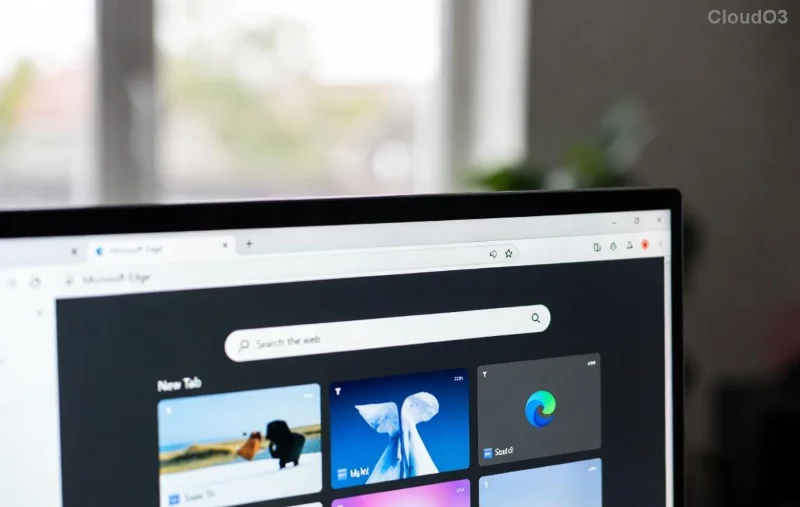
Edge camera permissions settings

Step 2: Adjust Windows Privacy Settings

Edge respects OS-level controls:

  1. Search "Camera privacy settings" in Windows Start menu.
  2. Under "Allow apps to access your camera," toggle ON for Edge.
  3. Scroll to "Choose which apps" > Enable Microsoft Edge.

This fixes 70% of cases! If using a work account, check IT policies. 👍

Step 3: Update Microsoft Edge and Drivers

  1. In Edge, go to edge://settings/help > Check for updates.
  2. Restart Edge after updating to the latest stable release.
  3. Update camera drivers: Right-click Start > Device Manager > Cameras > Update driver.

Outdated components cause most privacy glitches. Stay current for smooth sailing. ⭐

Updating Edge and drivers for webcam fix

Advanced Troubleshooting Microsoft Edge "Webcam Privacy" Error

If basics fail:

Reset Edge Settings

Edge menu > Settings > Reset settings > Restore to default. Your data stays safe! ⚙️

Disable Interfering Software

  • Temporarily pause antivirus (e.g., Windows Defender, Norton).
  • Run sfc /scannow in admin Command Prompt for system fixes.

Test Hardware

Plug in external webcam or use Device Manager to enable/disable built-in camera. Conflicts? Uninstall extras.

For enterprise users, consult Microsoft Edge policies docs.

Prevent Future Webcam Privacy Error in Edge

  • ⭐ Keep Edge auto-updated.
  • ✅ Review permissions quarterly.
  • 🔒 Use Edge's Enhanced Security mode sparingly.
  • Regular driver updates via Windows Update.

Bonus: Enable "Media autoplay" in Edge for seamless video starts.

Still Stuck? Next Steps

If the error persists, share your Edge version (edge://version) in Microsoft forums or support. Most users resolve it here— you've got this! 👏

Fixed your Microsoft Edge Webcam Privacy Error? Drop a comment below on what worked. Happy browsing! 🌟
Leave a Comment

🚀 Fix Microsoft Edge STATUS_STACK_OVERFLOW Error Instantly: Proven 2026 Guide

🚀 Fix Microsoft Edge STATUS_STACK_OVERFLOW Error Instantly: Proven 2026 Guide

Tired of Microsoft Edge crashing with STATUS_STACK_OVERFLOW? Follow our step-by-step troubleshooting guide for quick fixes, from simple restarts to advanced resets. Get back to smooth browsing today!

Fix Microsoft Edge Touchpad Palm Rejection Now: Ultimate Troubleshooting Guide

Fix Microsoft Edge Touchpad Palm Rejection Now: Ultimate Troubleshooting Guide

Tired of accidental clicks ruining your Microsoft Edge browsing? Master troubleshooting Microsoft Edge touchpad palm rejection with proven steps for smooth, frustration-free touchpad use.

How to Safely Remove Your Microsoft Edge Profile and Erase Personal Data Forever

How to Safely Remove Your Microsoft Edge Profile and Erase Personal Data Forever

Discover the safest way to remove your Microsoft Edge profile and personal data. Step-by-step guide ensures a clean slate without risks—perfect for privacy protection and fresh starts.

Edge Sidebar Not Opening? Quick Fixes to Get It Working Again

Edge Sidebar Not Opening? Quick Fixes to Get It Working Again

Frustrated with Edge Browser Sidebar not opening? Discover proven troubleshooting steps for Microsoft Edge, from quick restarts to advanced resets. Fix it fast with our expert guide.

Fix Microsoft Edge Sidebar Not Showing: Instant Solutions for the Glitch

Fix Microsoft Edge Sidebar Not Showing: Instant Solutions for the Glitch

Tired of Microsoft Edge sidebar not showing? Follow our proven step-by-step guide to solve the sidebar glitch quickly and restore full functionality in Edge. Works with latest updates!

🚀 Fix Microsoft Edge Audio Interface ASIO Driver Issues in Minutes – No More Crackles or Dropouts!

🚀 Fix Microsoft Edge Audio Interface ASIO Driver Issues in Minutes – No More Crackles or Dropouts!

Struggling with Microsoft Edge "Audio Interface" ASIO Driver glitches? Discover proven, step-by-step fixes to restore crystal-clear audio. Works with latest updates – say goodbye to latency and crashes!

🚀 Fix Microsoft Edge Microphone Background Noise: Crystal-Clear Audio in Seconds!

🚀 Fix Microsoft Edge Microphone Background Noise: Crystal-Clear Audio in Seconds!

Struggling with Microsoft Edge microphone background noise? Discover proven fixes, step-by-step guides, and tips to eliminate echo, hum, and static for flawless video calls and recordings. Updated with the latest Edge features!

Stop Microsoft Edge Auto-Start on Windows 11: Ultimate 2026 Guide (Works Every Time!)

Stop Microsoft Edge Auto-Start on Windows 11: Ultimate 2026 Guide (Works Every Time!)

Learn how to disable Microsoft Edge auto-start on Windows 11 with simple, proven steps. Boost your PC speed and take control—no more annoying pop-ups at boot! Updated for latest Windows builds.

Troubleshooting Edge Browser Profile Corruption Issues: Fast Fixes That Actually Work

Troubleshooting Edge Browser Profile Corruption Issues: Fast Fixes That Actually Work

Discover proven steps for troubleshooting Edge browser profile corruption issues. Restore your bookmarks, passwords, and settings effortlessly with our expert guide to fixing Microsoft Edge profiles.

How to Fix Microsoft Edge Bluetooth LE Sync Error | Proven 2026 Steps

How to Fix Microsoft Edge Bluetooth LE Sync Error | Proven 2026 Steps

Stuck with Microsoft Edge "Bluetooth LE" Sync Error? Discover quick, step-by-step fixes to restore seamless syncing. Update, reset, and troubleshoot like a pro—no tech skills needed!