🚀 Tired of landing on unwanted pages every time you fire up Microsoft Edge? You're not alone! Customizing your browser's home page and startup settings is a game-changer for productivity and sanity. In this straightforward guide, we'll walk you through the latest methods to tailor Microsoft Edge to your needs. Whether you want a speedy dashboard, your favorite sites, or a blank slate, we've got you covered. Let's dive in and make your browsing seamless and personalized! 👆
Why Customize Your Microsoft Edge Home Page and Startup Settings?
Imagine opening your browser to exactly what you need—no distractions, no ads, just pure efficiency. The home page greets you on new tabs, while startup settings control what loads at launch. With recent Edge updates, these tweaks are simpler than ever, supporting custom URLs, speed dials, or even blank pages. Ready to reclaim your browser? Let's start with the basics.
Step-by-Step: How to Change Microsoft Edge Home Page
Setting a custom home page in Microsoft Edge takes under 2 minutes. Follow these steps for the newest version:
- 🔥 Open Microsoft Edge and click the three-dot menu (⋮) in the top-right corner.
- Select Settings from the dropdown.
- In the left sidebar, click Start, home, and new tabs.
- Under Home button and new tabs page, toggle Home button to On if needed.
- Click the dropdown next to New tab page and choose Custom.
- Enter your desired URL (e.g., google.com or a productivity site) in the Enter custom URL field.
- Hit Save. Boom! Your new home page is live. ⭐
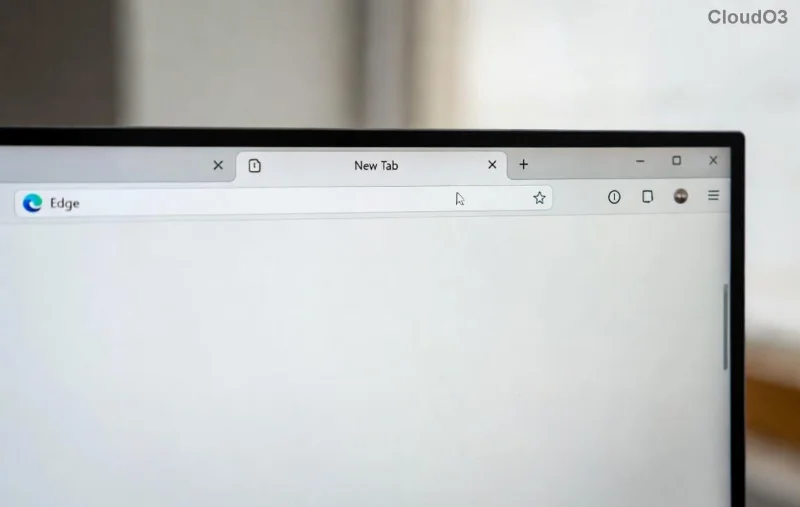
Pro Tip: For a minimalist vibe, select A custom web page that's not shown or use Bing's custom new tab. Test it by opening a new tab—feels good, right? Now, let's level up your launches with startup settings.
Mastering Microsoft Edge Startup Settings: 4 Easy Options
Startup settings decide what happens when Edge boots up. Here's a quick comparison:
| Option |
Description |
Best For |
| Open New tab page |
Loads your customized home page. |
Daily drivers wanting speed. 🚀 |
| Continue where you left off |
Reopens previous tabs/sessions. |
Multitaskers. 💼 |
| Open a specific page or pages |
Add multiple URLs to launch automatically. |
Power users with routines. ⚡ |
| Open the new tab page |
Blank or custom new tab. |
Minimalists. 😌 |
To change:
- 👉 Back in Settings > Start, home, and new tabs.
- Under On startup, pick your option from the dropdown.
- For specific pages: Select it, then Add a new page. Paste URLs and hit Add.
- Manage with Remove or drag to reorder. Save and restart Edge to test! 🎉
![Customizing Microsoft Edge startup options step-by-step]()
Feeling empowered? These changes sync across devices via your Microsoft account—perfect for work and home setups.
Advanced Tweaks for Power Users
Want more? Dive deeper:
- Collections Integration: Pin collections to startup for quick access.
- Vertical Tabs: Enable in Appearance for startup efficiency.
- Performance Boost: In System and performance, turn on Startup boost for faster launches.
- Reset if needed: Settings > Reset settings > Restore settings to default.
![Advanced Microsoft Edge customization panel]()
For official details, check Microsoft Edge Support. Troubleshooting? If changes don't stick, clear cache via Settings > Privacy > Clear browsing data. Common fixes in the table below:
| Issue |
Quick Fix |
| Page won't change |
Disable extensions in edge://extensions/. 🔧 |
| Slow startup |
Limit open pages; enable Efficiency mode. |
| Mobile sync issues |
Sign in with Microsoft account. |
Wrap-Up: Your Browser, Your Rules
Congrats! You've just unlocked the full potential of how to change Microsoft Edge home page and startup settings. These tweaks save time, reduce clutter, and boost your workflow. Experiment, sync across devices, and enjoy a browser that works for you. Got questions? Drop a comment below—we're here to help. Happy browsing! 🌟