Ever juggled work tabs, personal bookmarks, and family browsing in one chaotic browser window? 😩 Say goodbye to that mess! Microsoft Edge multiple profiles let you separate your digital life seamlessly, while Edge sync keeps everything updated across devices. Whether you're a power user or just starting, this guide delivers practical steps to manage Microsoft Edge multiple profiles and sync without the hassle. Let's dive in and transform your browsing experience! 🚀
What Are Microsoft Edge Profiles and Why Use Multiple Ones?
Microsoft Edge profiles are like personalized browser workspaces. Each profile holds its own history, bookmarks, extensions, passwords, and settings—perfect for keeping work 💼 separate from play 🎮 or family 👨👩👧.
- ✅ Privacy boost: No accidental sharing of sensitive tabs.
- ✅ Productivity hack: Custom extensions per profile (e.g., work tools only).
- ✅ Family-friendly: Kid-safe profiles without adult content bleed-over.
With the latest Edge updates, profiles support advanced features like profile icons and quick switching. Ready to create your first one? 👆
How to Create and Manage Microsoft Edge Multiple Profiles Step-by-Step
Creating a new profile takes seconds. Here's your foolproof guide:
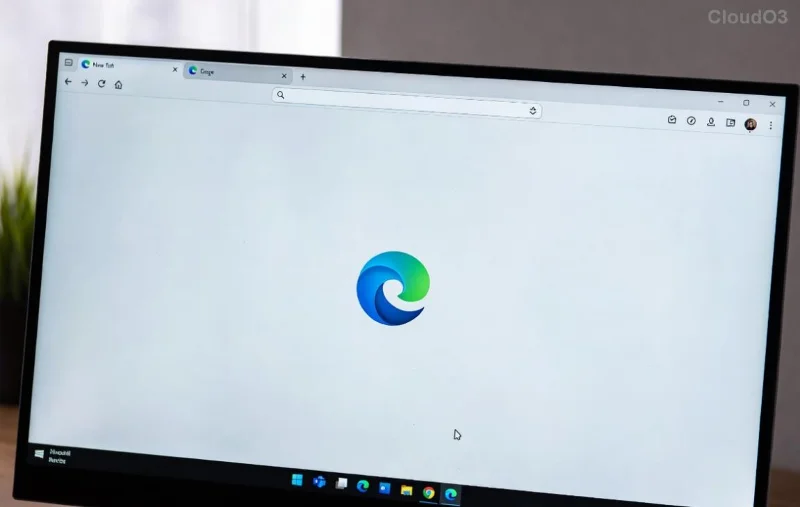
- Open Profile Menu: Click your profile icon (top-right corner, next to the three dots). It's the circle with your initial or photo.
- Add Profile: Select "Add profile" → Choose "Add" under "New profile."
- Customize: Enter a name (e.g., "Work"), add a photo, and decide if it's a work profile for enhanced security.
- Sign In Optionally: Link to a Microsoft account for sync later.
Now, manage your profiles like a boss:
| Action |
How-To |
| Rename/Delete |
Profile menu → Three dots next to profile → Rename or Delete. |
| Set Default |
edge://settings/profiles → Manage profile settings. |
| Switch Quickly |
Ctrl+Shift+M (Windows) or Cmd+Shift+M (Mac) for profile switcher. |
Pro tip: Pin your top profiles to the toolbar for one-click access. Your browsing just got supercharged! ⭐
Setting Up Edge Sync Across Multiple Profiles
Edge sync is the magic that keeps bookmarks, tabs, passwords, and settings in harmony across PC, phone, and tablet. But how does it play with multiple profiles? Perfectly—each syncs independently via its own Microsoft account.
- Enable Sync: In any profile, go to
edge://settings/profiles/sync or Settings → Profiles → Sync.
- Sign In: Use a Microsoft account (create one if needed at account.microsoft.com).
- Choose What Syncs: Toggle favorites, passwords, tabs, history, etc. Personalize per profile!
- Verify on Devices: Install Edge on another device, sign in with the same account, and watch data flow.
![Microsoft Edge sync settings interface with toggle options]()
For multi-profile sync mastery:
- Separate Accounts: Work profile? Use work email. Personal? Personal email. No overlap! 🔒
- Selective Sync: Sync tabs everywhere but keep passwords local for security.
- Cross-Device Tabs: Access open tabs from your phone in your desktop work profile.
Check official guidance for the newest tweaks: Microsoft Edge Sync Support. Seamless everywhere! 🌐
Switching Between Profiles and Power Tips
Switching is buttery smooth:
- Click profile icon → Select desired profile.
- Or use the shortcut: Hover over icon for preview cards.
- New window? Right-click profile → "Open in new window."
Advanced tips to wow you:
- ✅ Guest Mode: Temporary profile for sharing—no sign-in needed.
- ✅ Profile Avatars: Upload custom images for easy ID.
- ✅ Collections per Profile: Organize notes and links uniquely.
- ✅ Extensions Isolation: Install Grammarly only in personal profile.
Want more? Explore edge://settings/profiles for hidden gems like auto-lock on idle. Your setup is now elite! 👏
Troubleshooting Microsoft Edge Profiles and Sync Issues
Glitches happen, but fixes are quick:
| Issue |
Fix |
| Sync Not Working |
Turn sync off/on, check internet, or reset via Settings → Reset sync. |
| Profile Won't Switch |
Restart Edge or clear cache: edge://settings/clearBrowserData. |
| Missing Data |
Ensure same account; visit account.microsoft.com/devices for sync status. |
For stubborn issues, update Edge via edge://settings/help or refer to Microsoft Troubleshooting. You're back online in no time! ⚡
Wrap-Up: Level Up Your Browsing Today
Congrats—you're now a Microsoft Edge multiple profiles and sync expert! Separate chaos from calm, sync smarter, and browse happier. Start with one new profile today and feel the difference. Got questions? Drop them below—we're here to help! What's your first profile name going to be? Share in the comments. 🎉
Stay tuned for more Edge hacks to keep your workflow unstoppable.