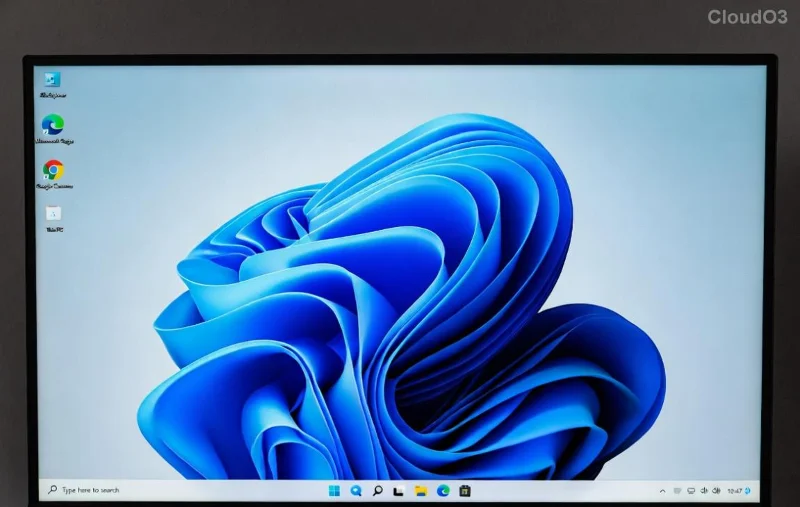
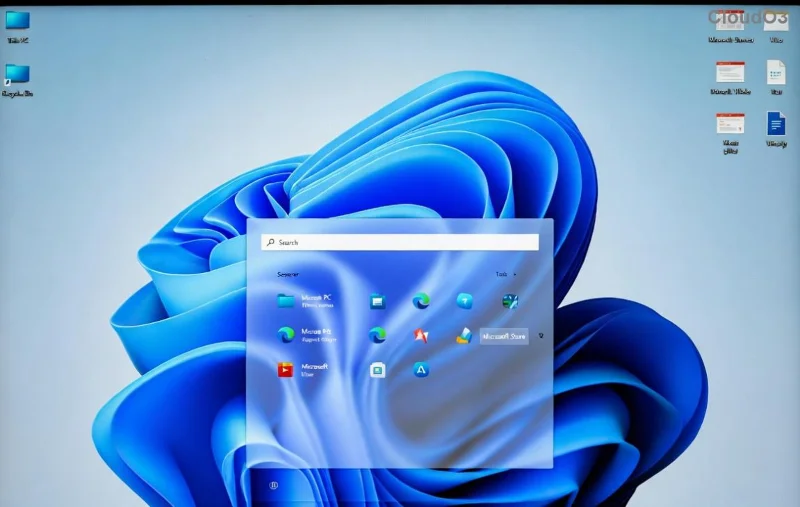
Imagine powering up your PC only to be greeted by a hazy, unfocused login screen that dulls the excitement of your day. If you're facing the frustrating Windows 11 login screen background blur issue, you're not alone. This common glitch can make your sleek setup feel outdated and irritating. But don't worry—restoring that sharp, vibrant background is simpler than you think. In this guide, we'll walk you through reliable, up-to-date solutions to fix Windows 11 login screen background blur and get your system looking pristine again. Let's dive in and bring clarity back to your boot-up routine! 🚀
Why Does the Windows 11 Login Screen Background Get Blurry?
Before we jump into fixes, understanding the root cause empowers you to troubleshoot effectively. The Windows 11 login screen background blur often stems from a few culprits:
- Transparency Effects and Visual Settings: Windows 11's modern design relies on blur effects for aesthetics, but glitches in these settings can over-blur your background image.
- Resolution or Scaling Mismatches: If your display settings don't align perfectly, images may appear pixelated or blurred during login.
- Outdated Graphics Drivers: Incompatible or old drivers from your GPU manufacturer (like NVIDIA, AMD, or Intel) can cause rendering issues at the login stage.
- System Glitches or Corrupted Files: Recent updates or software conflicts might corrupt cache files, leading to persistent blur.
Recognizing these helps you target the problem precisely. Now, let's roll up our sleeves and fix it step by step. Follow along, and you'll have a crisp login screen in no time. 😊
Quick Fix #1: Adjust Transparency and Blur Effects in Settings
The easiest starting point for resolving Windows 11 login screen background blur is tweaking built-in visual options. Windows 11's transparency features can sometimes amplify blur unintentionally. Here's how to dial it back:
- Press Windows + I to open Settings.
- Navigate to Personalization > Colors.
- Scroll down to Transparency effects and toggle it Off. This reduces overall blur in the UI, including the login screen.
- Under the same section, ensure Blur behind windows is disabled if available (this might require a restart to take effect).
- Restart your PC and check the login screen. If the blur persists, proceed to the next steps.
This method often clears up minor issues without deeper dives. Many users report immediate improvement, making their login feel fresh and responsive. If it's not enough, keep reading—we've got more powerful tools ahead!
Quick Fix #2: Update Graphics Drivers for Sharp Rendering
Outdated drivers are a sneaky cause of blurry login screen Windows 11 problems. Graphics drivers handle how images render, so updating them can sharpen everything up. Follow these steps for the latest support:
- Right-click the Start button and select Device Manager.
- Expand Display adapters and right-click your GPU (e.g., NVIDIA GeForce or Intel UHD Graphics).
- Choose Update driver > Search automatically for drivers.
- If no updates are found, visit your manufacturer's site for the newest drivers:
- Install the drivers, restart, and test your login screen.
Pro tip: Clean installations (using tools like Display Driver Uninstaller) can eliminate lingering issues from old drivers. This fix not only resolves blur but boosts overall performance—win-win! ⭐
Advanced Fix: Registry Tweaks to Eliminate Login Screen Blur
For stubborn cases of Windows 11 blur background issue, a targeted Registry edit can override default blur settings specifically for the login screen. ⚠️ Caution: Always back up your Registry first to avoid mishaps.
- Press Windows + R, type
regedit, and hit Enter to open the Registry Editor.
- Navigate to:
HKEY_LOCAL_MACHINE\SOFTWARE\Policies\Microsoft\Windows\System.
- If the
System key doesn't exist, right-click Windows, select New > Key, and name it System.
- Right-click in the right pane, choose New > DWORD (32-bit) Value, and name it
DisableAcrylicBackgroundOnLogon.
- Double-click it, set the Value data to 1, and click OK.
- Close Registry Editor and restart your computer.
This disables acrylic blur effects on the logon screen, restoring a clear background. It's a game-changer for users who customize their wallpapers extensively. If you're uncomfortable with Registry edits, consider using a trusted third-party tool like Winaero Tweaker for a safer interface.
![Clear Windows 11 login screen after fix]()
Fix #4: Optimize Display Settings and Resolution
Sometimes, the resolve Windows 11 login blur comes down to aligning your display properly. Mismatched resolutions can cause backgrounds to stretch and blur.
| Step |
Action |
Expected Outcome |
| 1. Access Display Settings |
Right-click desktop > Display settings |
Open scaling and resolution options |
| 2. Set Native Resolution |
Choose your monitor's recommended resolution (e.g., 1920x1080) |
Prevents image distortion |
| 3. Adjust Scaling |
Set to 100% or recommended; avoid custom scales |
Ensures crisp rendering at login |
| 4. Apply and Restart |
Hit Apply, then reboot |
Tests changes on login screen |
After these adjustments, your Windows 11 login screen customization will shine. If using multiple monitors, ensure the primary display is set correctly to avoid conflicts.
Bonus Tips: Prevent Future Blur and Customize Your Login Screen
Once you've fixed the fix blurry login screen Windows 11 issue, keep it sharp with these habits:
- Regular Updates: Enable automatic Windows updates to patch visual bugs promptly.
- High-Quality Wallpapers: Use images at your screen's native resolution to avoid scaling blur.
- SFC Scan for Corruption: Run
sfc /scannow in an elevated Command Prompt to repair system files if blur returns.
- Third-Party Enhancers: Tools like Windows Central's customization guides offer safe ways to personalize without glitches.
Customizing further? Explore setting dynamic backgrounds or themes via Settings > Personalization > Lock screen for a personalized touch that stays blur-free.
![Customized sharp Windows 11 login background]()
Wrapping Up: Enjoy a Crystal-Clear Windows 11 Login Experience
Congratulations—you've now armed yourself with the knowledge to fix Windows 11 "Login Screen" Background Blur Fix once and for all! From simple toggles to advanced tweaks, these steps ensure your login screen matches the beauty of Windows 11's design. If the issue lingers, it might be worth checking for hardware specifics or reaching out to Microsoft Support. Your feedback matters—try these fixes and share in the comments how it went. Here's to seamless startups and stunning visuals every time! 👏
Remember, a clear login screen sets a positive tone for your computing day. Dive back in if you need more Windows tips!