Windows 11 представила новый минималистичный внешний вид из матового стекла, который, кажется, очень нравится всем. Закругленные углы вместе с разнесенными элементами пользовательского интерфейса придают Windows 11 футуристический вид, который можно дополнительно настроить , установив собственные обои и цвет акцента . Но было бы неплохо, если бы вы могли изменить цвет панели задач ?
Может быть, он будет подходить к вашим обоям или быть таким же, как ваш акцентный цвет? Что ж, есть несколько способов сделать это в Windows 11 Вот все, что вам нужно знать о настройке цвета панели задач в Windows 11.
СОДЕРЖАНИЕ
Можете ли вы изменить цвет панели задач изначально в Windows 11?
Да, вы можете настроить панель задач на использование текущего акцентного цвета с помощью простого переключателя. Таким образом, ваша панель задач будет того же цвета, что и ваш акцентный цвет, используемый на панели быстрых настроек, ползунке громкости и т. Д. В случае, если ваш акцентный цвет автоматически выбирается из обоев, цвет панели задач также будет автоматически выбран из обоев. Если вы хотите изменить цвет панели задач, воспользуйтесь приведенными ниже руководствами, чтобы начать работу.
Как изменить цвет панели задач
Вы можете изменить цвет панели задач с помощью приложения «Настройки», изменения реестра или сторонних инструментов. У каждого из этих методов есть свои преимущества и недостатки. Найдите тот, который лучше всего подходит для начала работы, и измените цвет панели задач в Windows 11.
Метод № 01: Использование настроек
Приложение «Настройки» изначально позволяет вам раскрасить панель задач в Windows 11. При этом используется ваш акцентный цвет, независимо от того, используется ли пользовательский цвет или цвет обоев, который будет установлен в качестве цвета панели задач. Следуйте приведенному ниже руководству, чтобы начать работу.
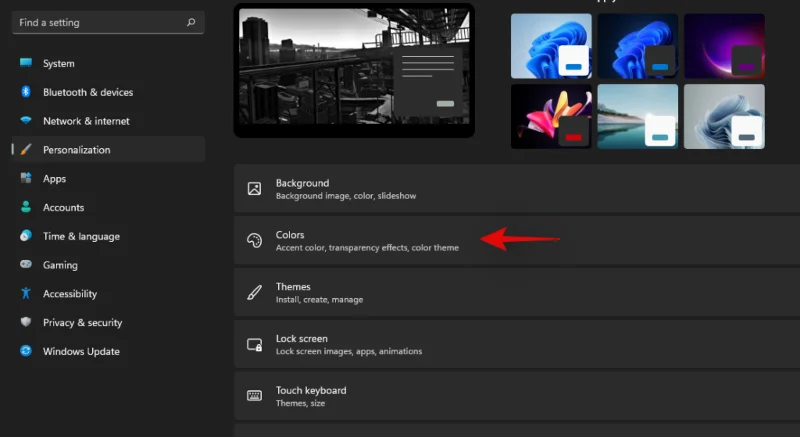
Нажмите Windows + iна клавиатуре, чтобы открыть приложение «Настройки». Нажмите "Персонализация" слева.
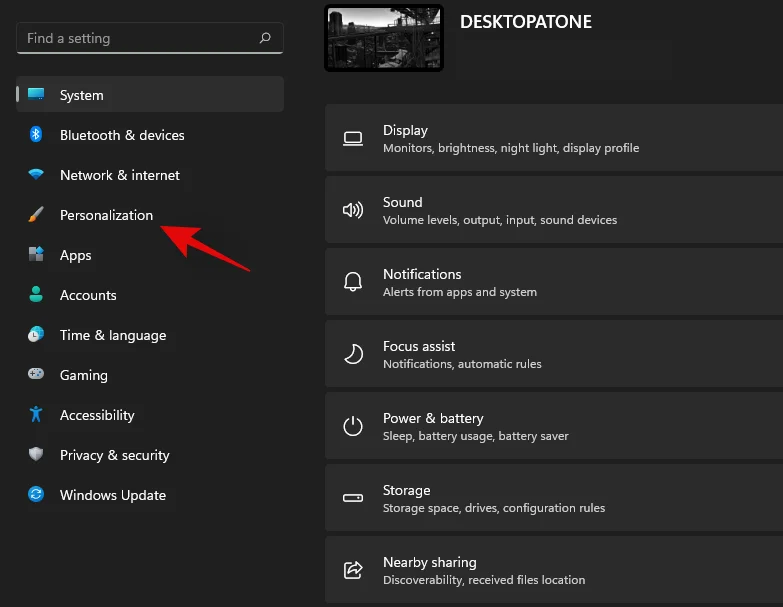
Щелкните «Цвета».

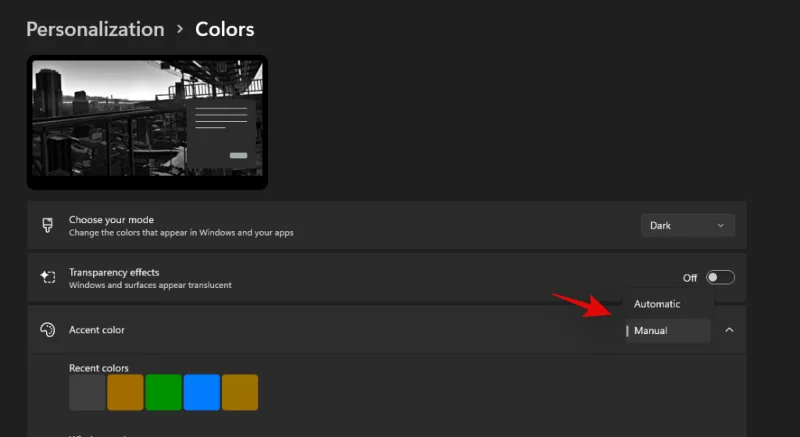
Щелкните раскрывающееся меню рядом с «Цвет акцента» и выберите вариант в зависимости от ваших предпочтений.

- Автоматически: Windows автоматически выберет основной цвет из ваших текущих обоев.
- Вручную: вы можете вручную выбрать цвет акцента для пользовательского интерфейса Windows из одного из предложенных вам вариантов.
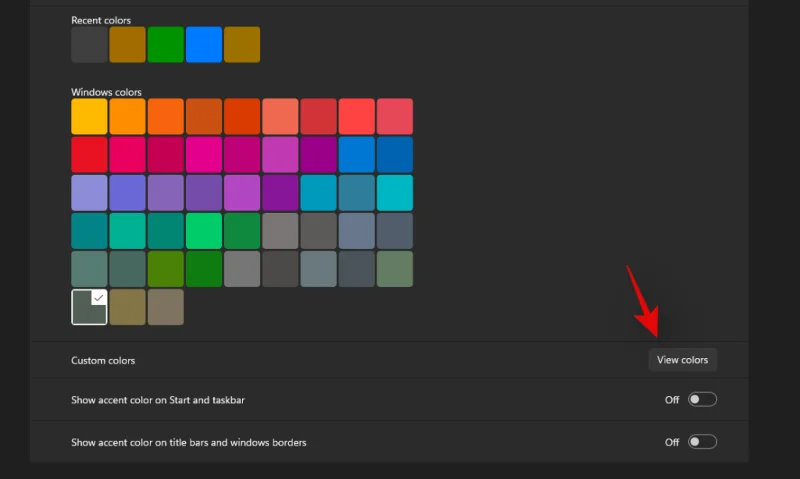
Если вы хотите использовать собственный цвет акцента, нажмите «Просмотреть цвета» рядом с «Пользовательскими цветами».

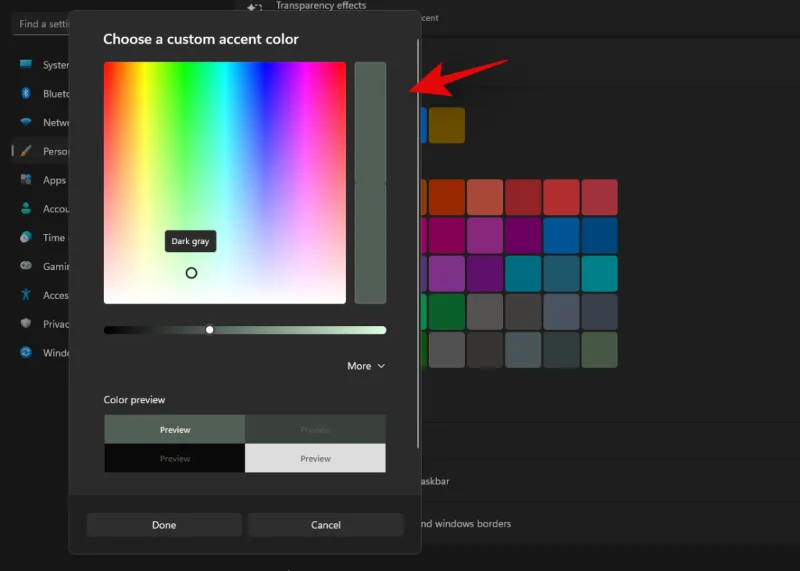
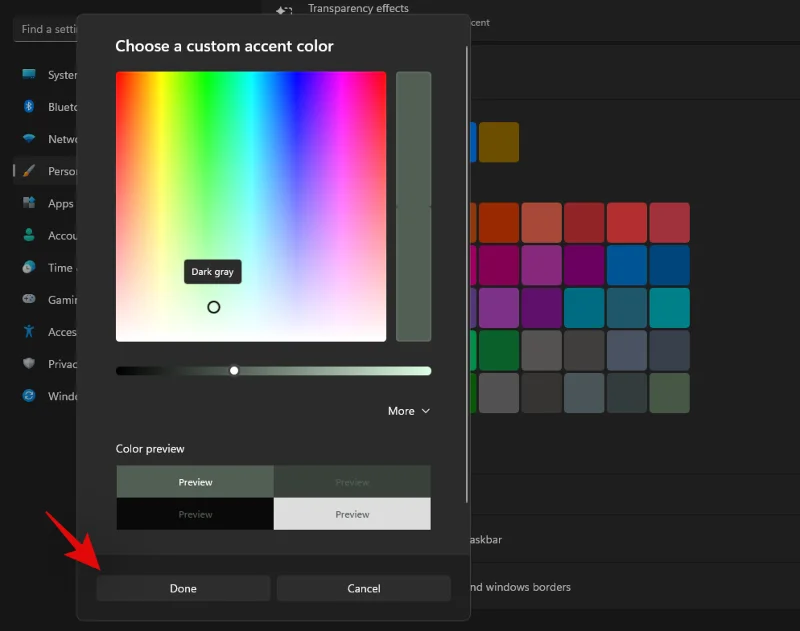
Выберите понравившийся цвет в графическом интерфейсе на экране.

Нажмите «Дополнительно», если вы хотите использовать значения RGB или HEX для определения вашего собственного цвета. Нажмите «Готово», когда выберете желаемый цвет.

Прокрутите вниз и включите переключатель «Показывать акцентный цвет на начальном экране и на панели задач».

Теперь проводник должен обновиться, и новый цвет выделения должен отразиться на панели задач.

В противном случае вы можете использовать приведенное ниже руководство, чтобы перезапустить проводник в вашей системе, что должно помочь изменениям вступить в силу немедленно.
Как перезапустить проводник Windows:
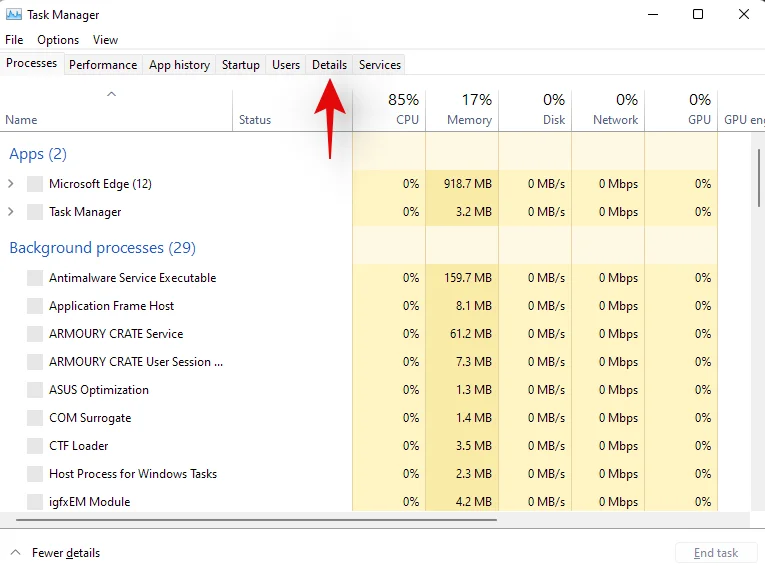
Нажмите Ctrl + Shift + Escна клавиатуре и переключитесь на вкладку «Подробности».

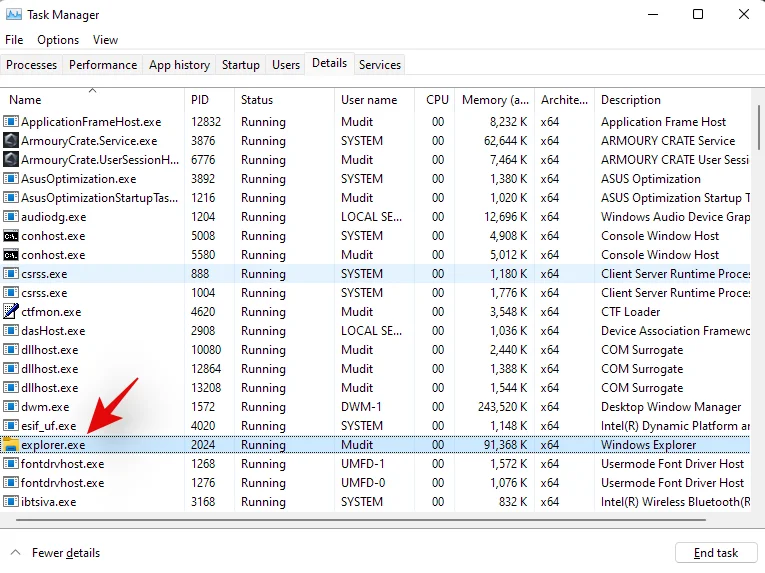
Щелкните «explorer.exe» и нажмите «Удалить» на клавиатуре.

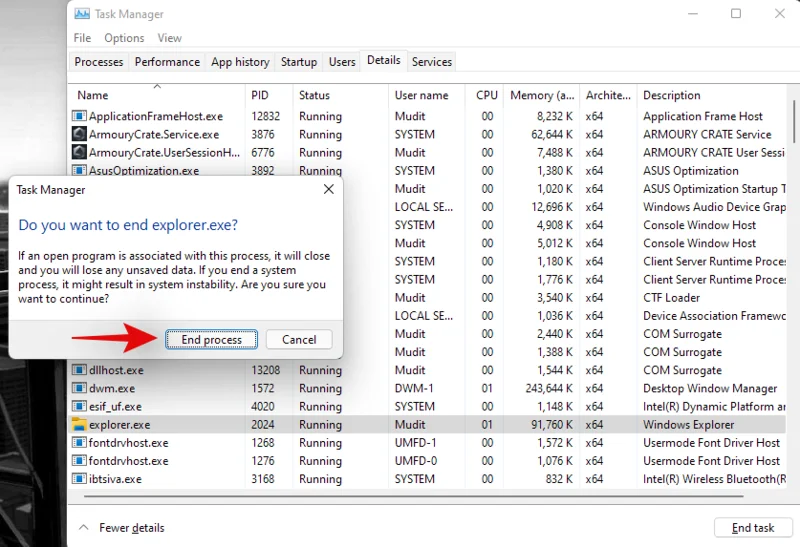
Нажмите «Завершить процесс», чтобы подтвердить свой выбор.

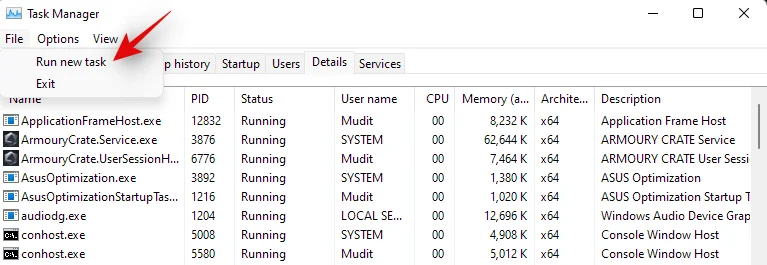
Теперь нажмите «Файл» в верхнем левом углу экрана и выберите «Запустить новую задачу».

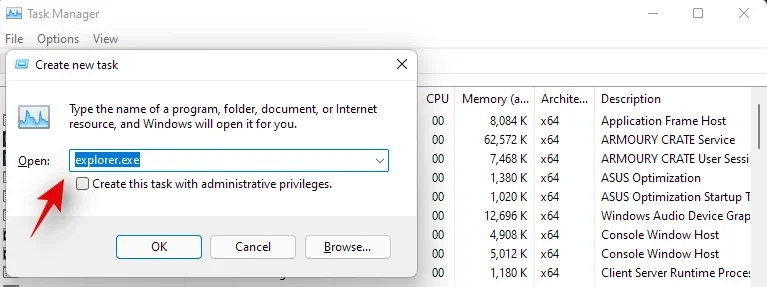
Введите следующее имя и нажмите Enter на клавиатуре.
explorer.exe

Теперь Explorer должен быть перезапущен в вашей системе, и новый цвет выделения теперь должен отображаться на вашей панели задач.
Как изменить цвет панели задач Windows 11 с помощью сторонних инструментов:
Вы также можете использовать сторонние инструменты для настройки панели задач. Эти инструменты поставляются с дополнительными функциями, которые помогают изменить панель задач, но в большинстве из них используется старый код, разработанный для Windows 10. Это может создать проблемы с существующими элементами Windows 11, поэтому мы рекомендуем вам использовать инструменты ниже только для изменения цвета акцента. панели задач.
Метод # 02: Использование OpenShell
OpenShell - это недавно обновленный проект, цель которого - сохранить жизнь ClassicShell для современных пользователей. ClassicShell - это давняя утилита, которую пользователи во всем мире использовали для настройки своего меню «Пуск» и панели задач. Мы можем использовать OpenShell в наших интересах и легко раскрасить нашу панель задач. Следуйте приведенному ниже руководству, чтобы начать работу.
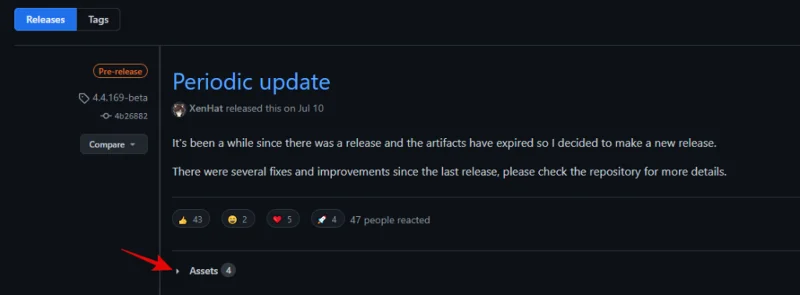
Щелкните ссылку выше, чтобы открыть страницу загрузки. Щелкните и разверните "Активы".

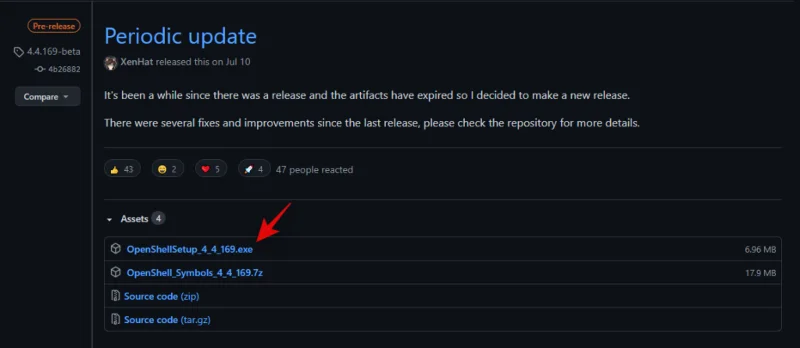
Теперь щелкните файл .exe, чтобы загрузить его на свой компьютер. После загрузки дважды щелкните по нему и установите приложение.

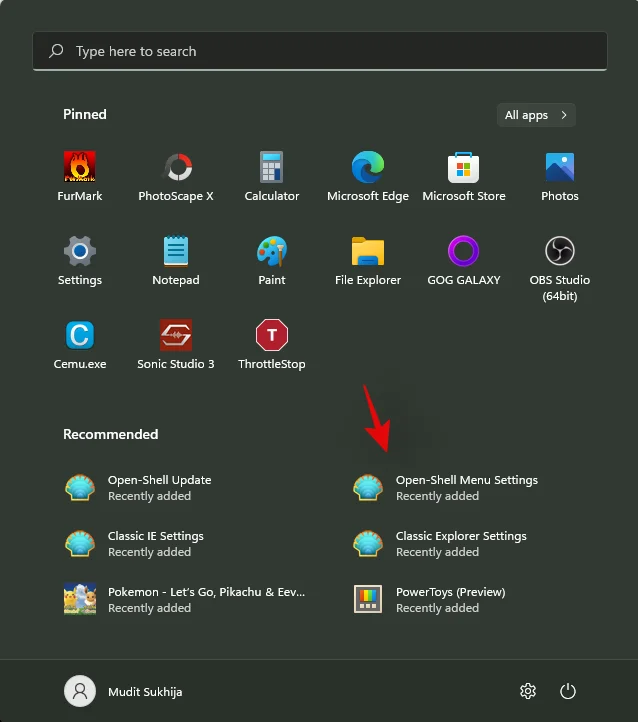
После установки запустите Настройки меню OpenShell. Не пугайтесь, если вы обнаружите, что ваше стартовое меню отличается. Вскоре мы отменим изменения.

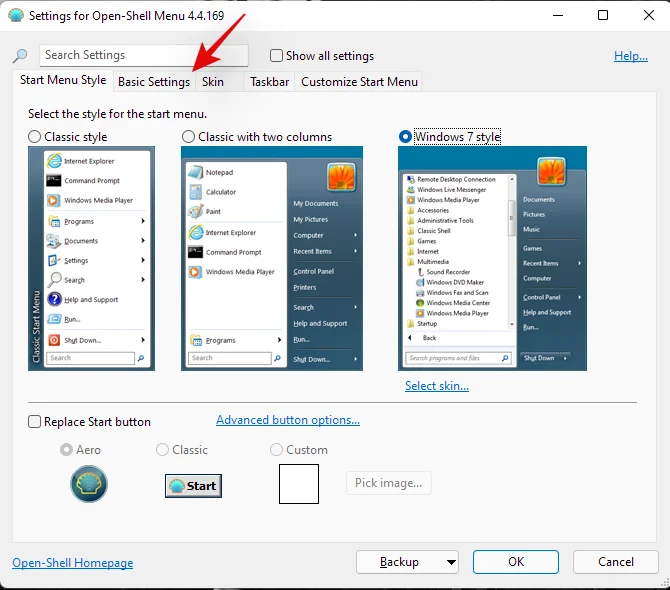
Щелкните и переключитесь на вкладку «Основные настройки».

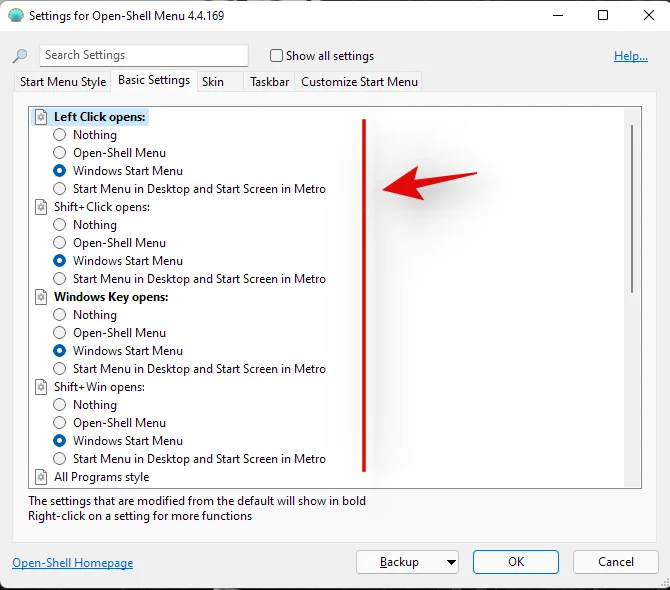
Теперь измените следующие значения, чтобы восстановить меню «Пуск» и продолжить использование нового меню «Пуск» Windows 11.

- Щелчок левой кнопкой мыши открывает: меню «Пуск» Windows.
- Shift + щелчок открывает: меню "Пуск" Windows.
- Открывается клавиша Windows: Меню Пуск Windows
- Shift + Win открывает: меню "Пуск" Windows.
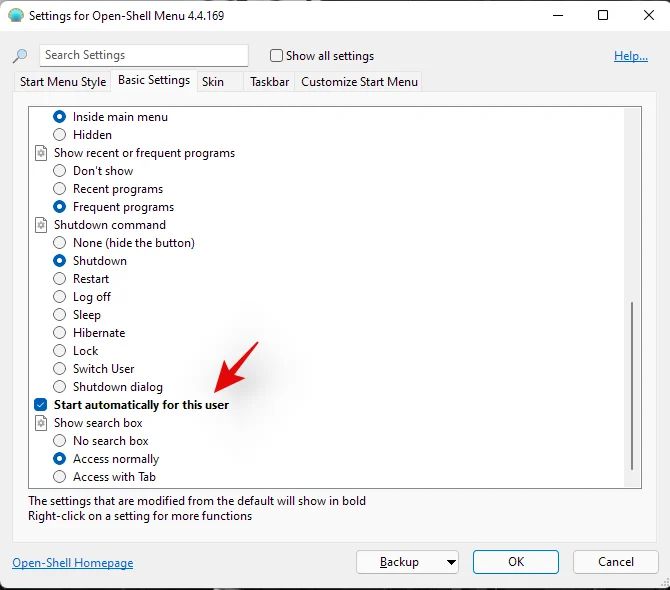
Кроме того, снимите флажок «Запускать автоматически для этого пользователя», если вы хотите отключить автоматический запуск для OpenShell.

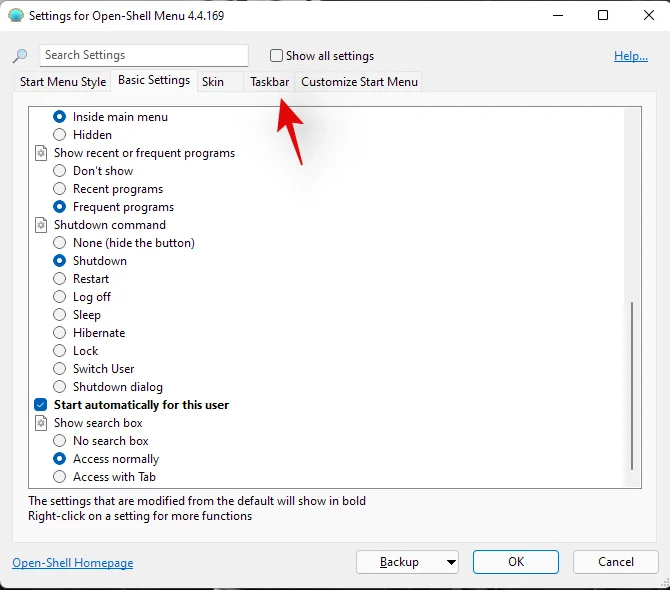
Теперь переключитесь на вкладку «Панель задач», щелкнув по ней.

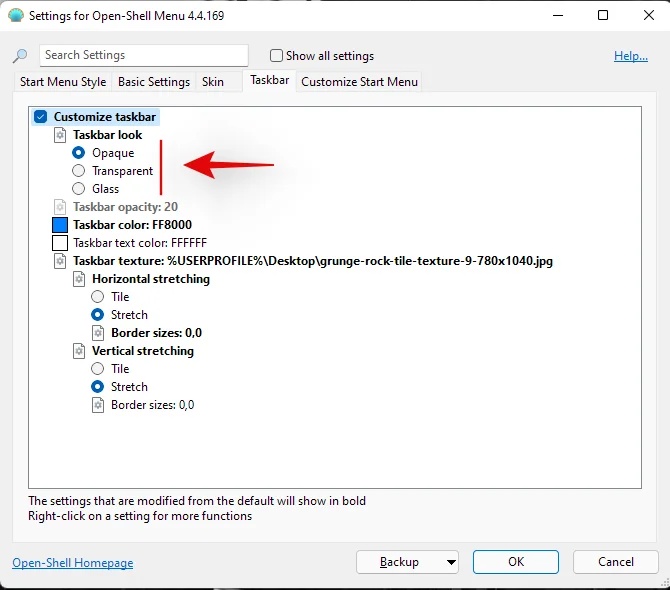
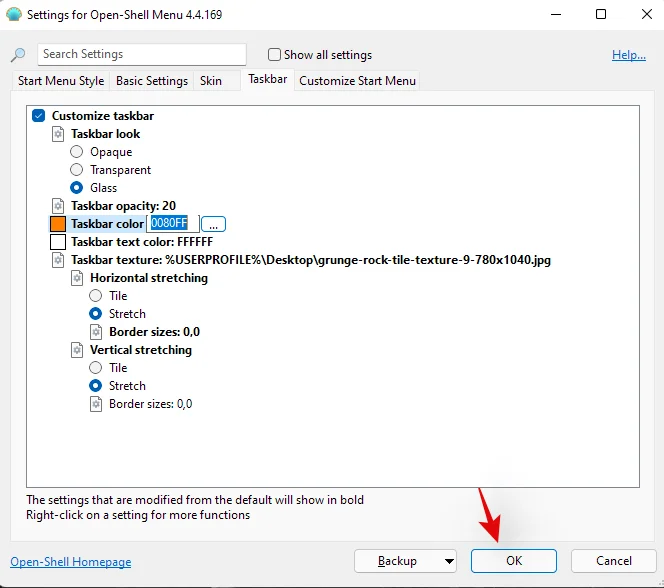
Выберите один из вариантов ниже в зависимости от ваших эстетических предпочтений.

- Непрозрачный: на панели задач нет градиента или прозрачности. Вместо этого вы получаете сплошную непрозрачную панель задач.
- Прозрачный: полностью прозрачная и прозрачная панель задач, обозначенная выбранным цветом акцента. При использовании этой опции обои полностью видны на панели задач.
- Стекло: Стекло похоже на вариант «Прозрачный». Это делает вашу панель задач прозрачной, сохраняя выбранный цвет акцента. Но к панели задач применяется значение размытия, чтобы придать ей вид слегка матового стекла. Ваши обои не будут полностью видны через панель задач.
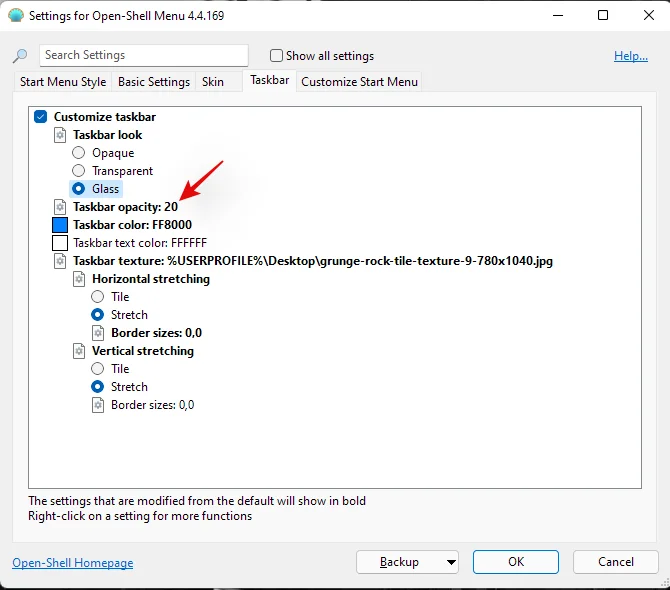
Если вы выбрали прозрачный или стеклянный, используйте «Непрозрачность панели задач», чтобы определить прозрачность панели задач. Вы можете изменить эти значения, чтобы настроить прозрачность панели задач в зависимости от ваших предпочтений и темы.

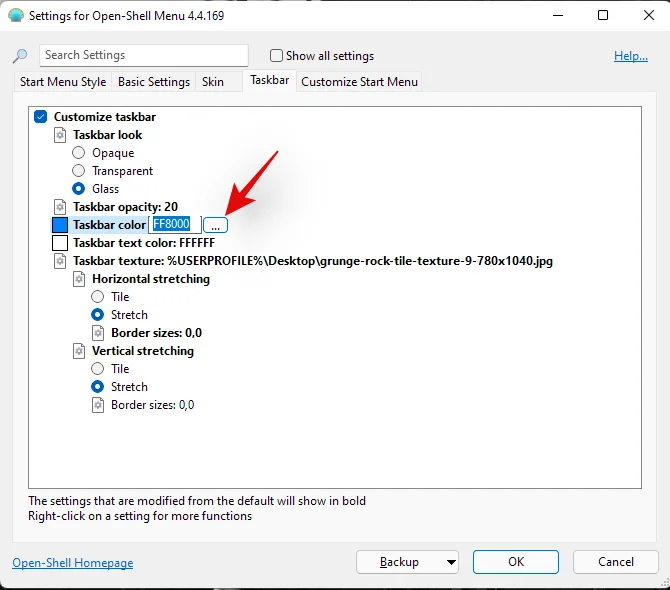
Теперь щелкните «Цвет панели задач» и выберите значок меню «3 точки» рядом с ним.

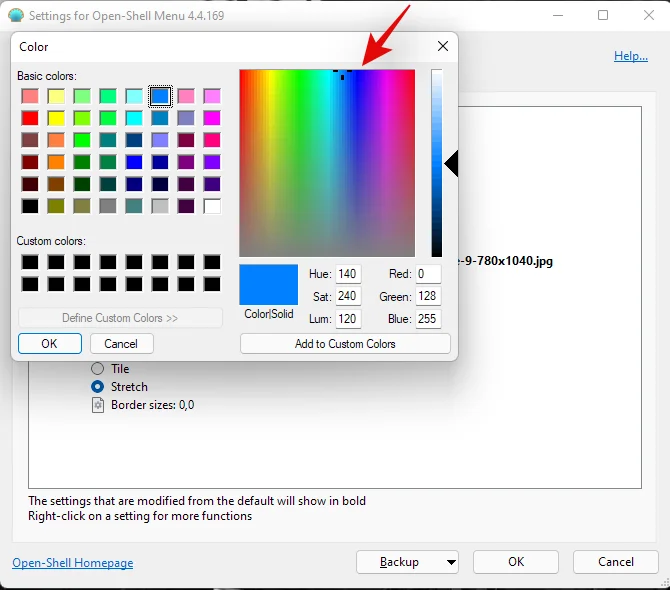
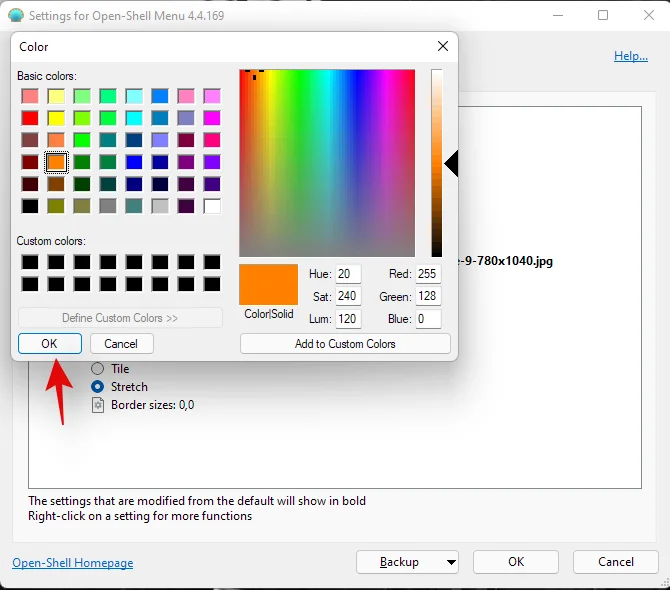
Выберите понравившийся цвет в палитре цветов. Вы также можете использовать собственный цвет, щелкнув нужное место справа.

После того, как вы выбрали желаемый цвет, нажмите «ОК».

Теперь изменение цвета должно автоматически отображаться на панели задач.

Еще раз нажмите «ОК».

And that’s it! You will now have changed the color of your taskbar using OpenShell. Keep in mind that once you have set your color and type via the OpenShell settings, your taskbar will no longer be affected by your accent color changes. This means that although you can use the accent color to customize Windows 11 UI, you will need to change the taskbar color to match your theme individually.
Method #03: Using TaskbarX
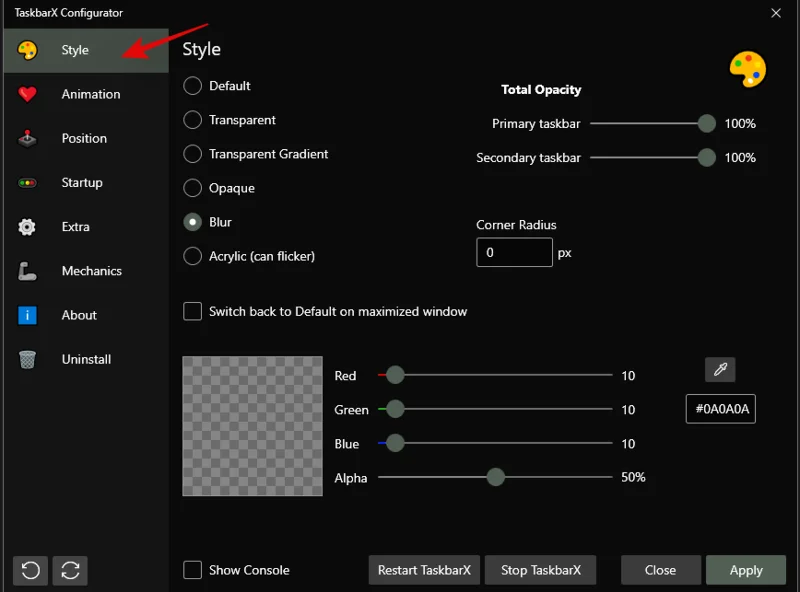
TaskbarX is another long-standing utility that was mainly used by users to center their taskbar, that is until Windows 11 was released with the same as a native feature. Still, there are many cool things that TaskbarX can help you achieve and one of them is changing the color of your taskbar. Just like OpenShell, TaskbarX will change your taskbar color individually and won’t be affected by the overall accent color chosen by you in Windows 11. You can use this to your advantage and create color combinations that wouldn’t otherwise be possible within Windows 11. Here’s how you can use TaskbarX to your advantage and change your taskbar color.
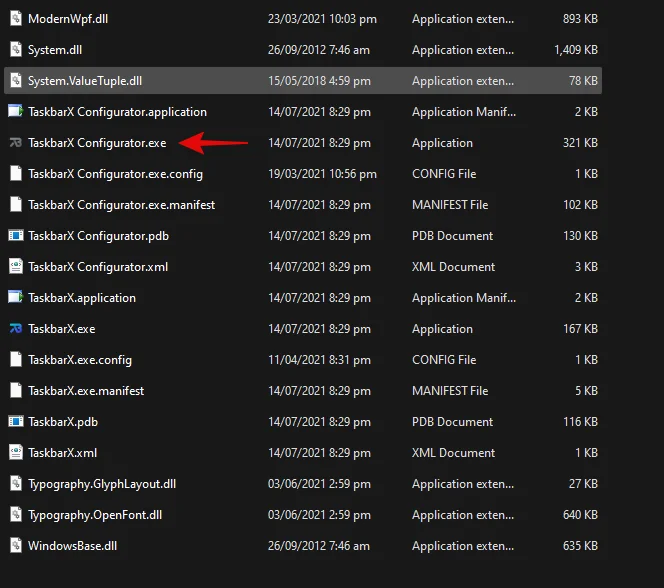
Click on the link above and download TaskbarX to your PC. Extract the archive to a convenient location and double click and launch ‘TaskbarX Configurator’.

Note: Make sure you download the correct version based on your system. If you aren’t aware of your system’s compatibility, then you shoudl download ‘TaskbarX_1.7.2.0_x64.zip‘ for most modern PCs. Keep in mind that the version number could be different if you are downloading TaskbarX in the future.
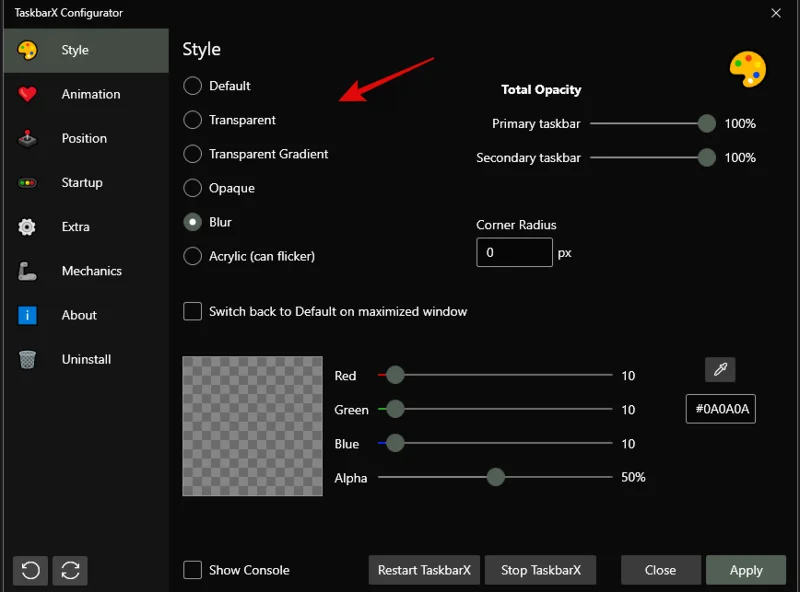
Ensure that ‘Style’ is selected on your left and select one of the taskbar materials below.

These materials will define the texture, transparency, and behavior of your taskbar. You can use different materials and find the one that best fits your current needs and requirements.

- Default: The default Windows 11 taskbar texture and transparency are used.
- Transparent: The taskbar becomes completely see-through.
- Transparent Gradient: The taskbar is completely transparent with a slight gradient on it to help differentiate the taskbar from other elements on your desktop. This gradient can be changed by redefining the ‘Alpha’ value at the bottom.
- Opaque: The taskbar is completely opaque with no transparency effects applied to it.
- Blur: The taskbar gets a see-through blur texture applied to it. This makes the taskbar transparent enough to make out your wallpaper but blurred enough so that the details of your wallpaper do not interfere with taskbar elements.
- Acrylic: This is a new texture that emulates acrylic surfaces. Slightly transparent, slightly blurred, and a slight gradient help produce this texture. This is an experimental feature and can cause your taskbar to flicker especially if used in conjunction with other taskbar customization third-party apps.
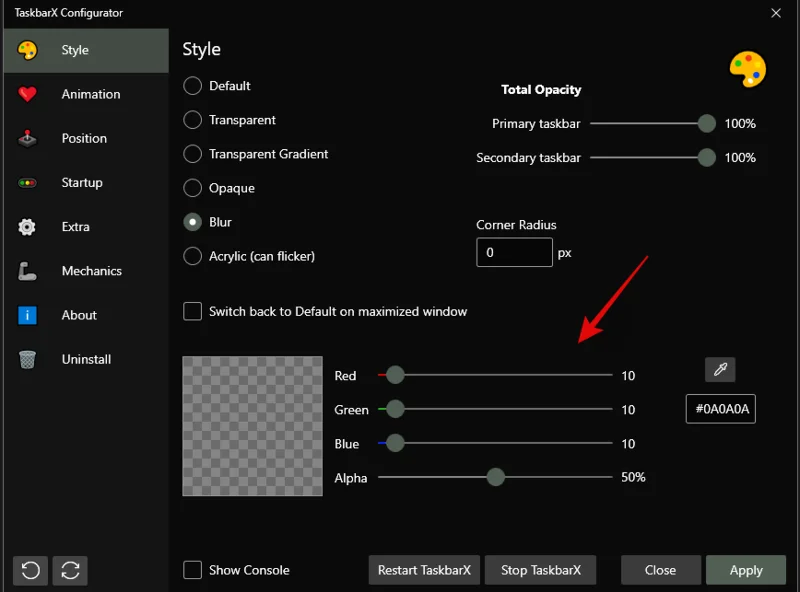
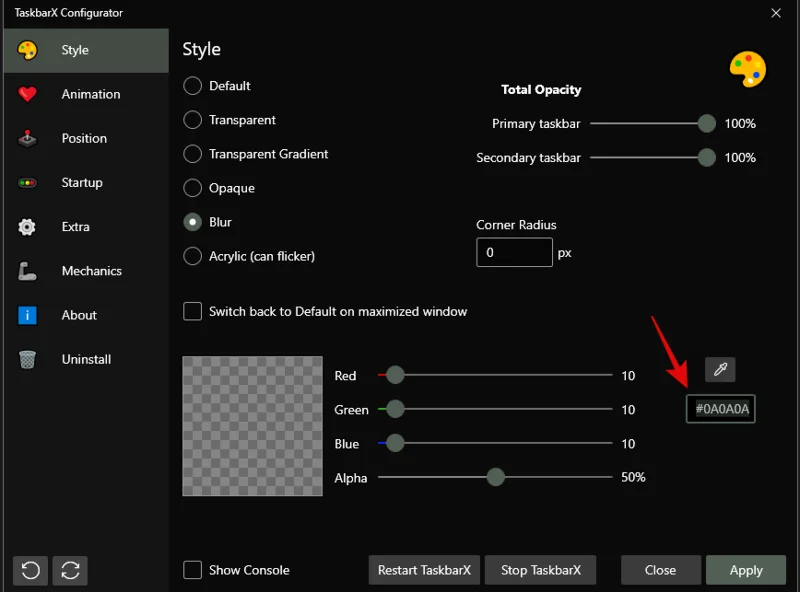
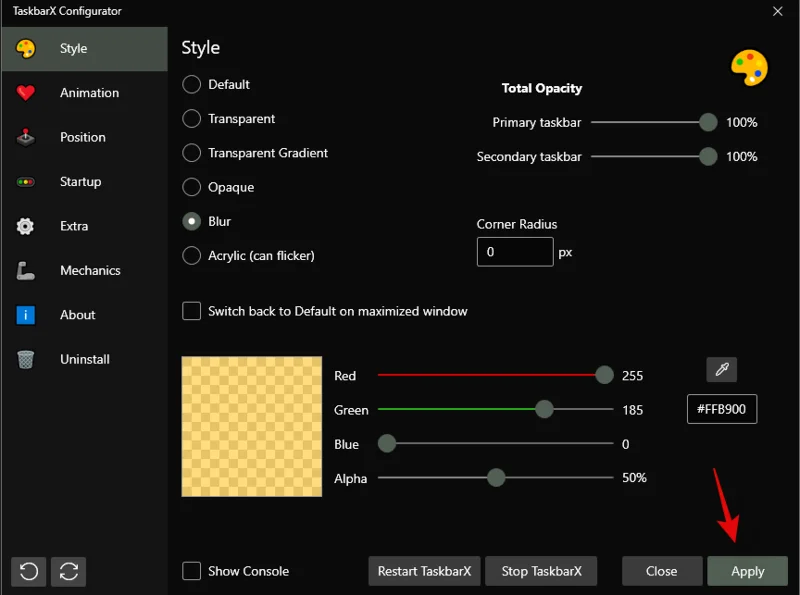
Once you have selected the desired option, change the RGB sliders at the bottom to reflect the desired custom color you wish to use.

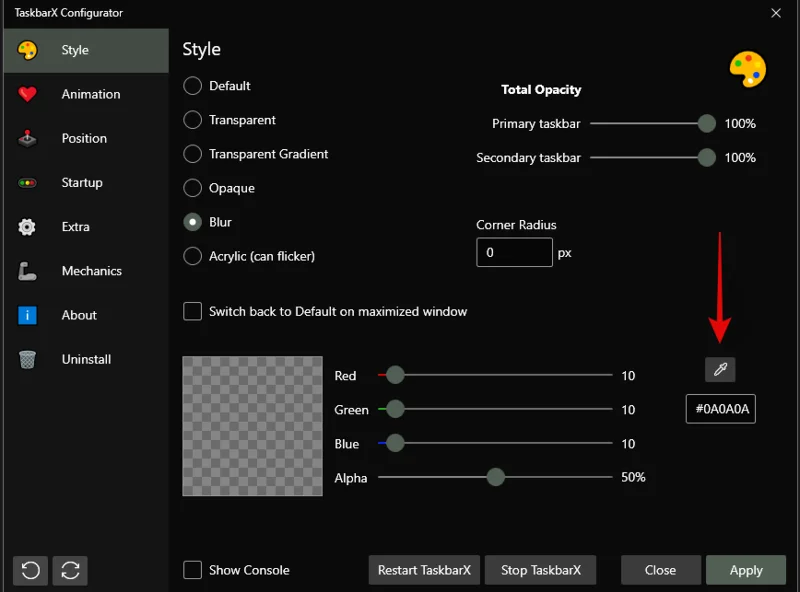
You can also click on the dropper icon to pick a color from your screen.

Additionally, if you have HEX values then you can enter them in the following text box as shown below.

Click on ‘Apply’ once you are done.

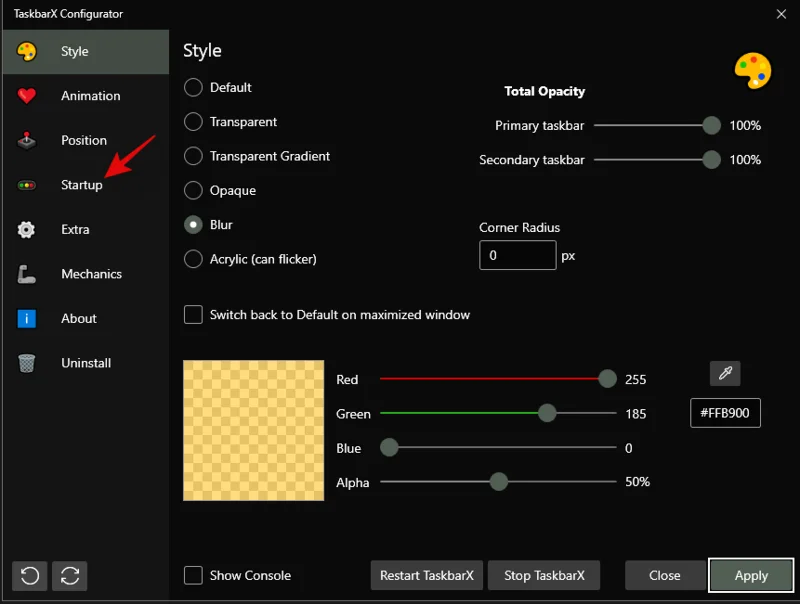
TaskbarX needs to be configured to auto-start on your PC for a seamless experience. Click on ‘Startup’ to get started.

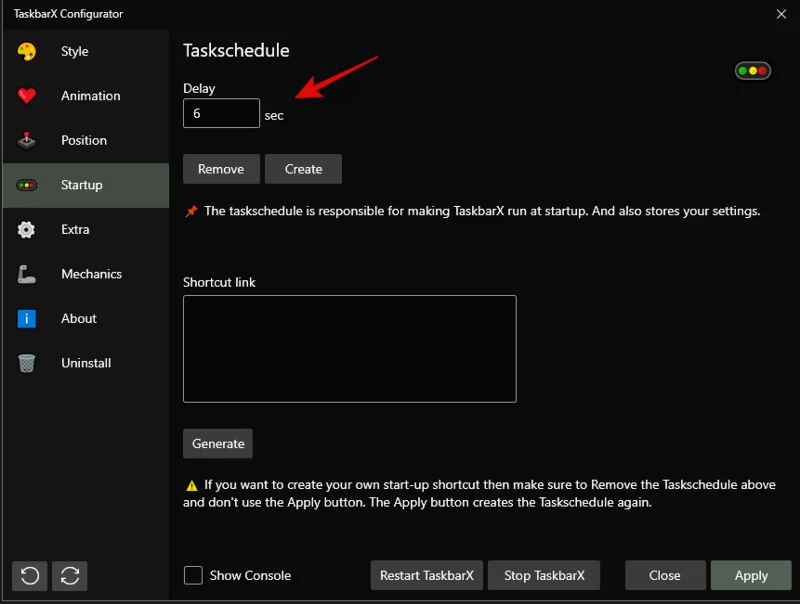
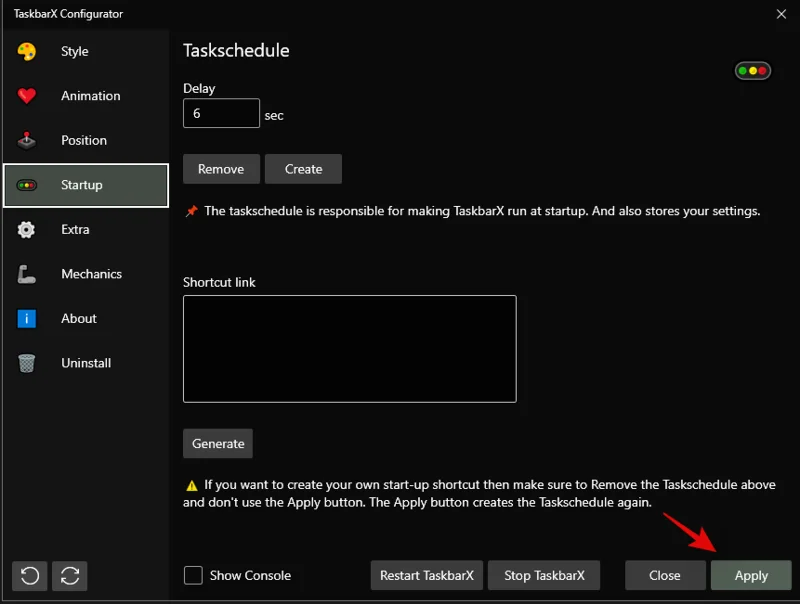
If you have a 4 core or less CPU, then set the ‘Delay’ to 10s or higher. If you have a 6 core CPU or higher, then let the time be 6s. You can reduce the startup interval further if you wish TaskbarX to be launched immediately upon logging in to your user account.

Click on ‘Apply’.

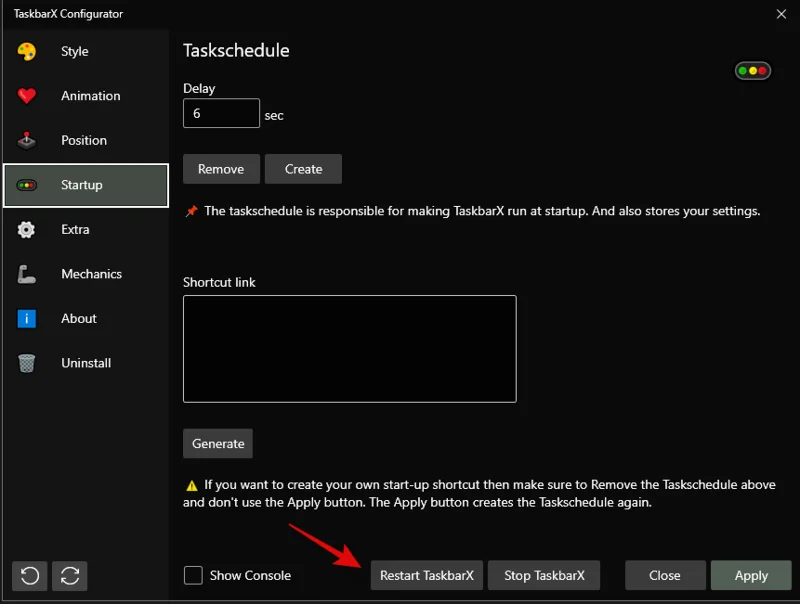
Now click on ‘Restart TaskbarX’ if changes are not reflected in your taskbar.

And that’s it! You will now have changed your taskbar color using TaskbarX in Windows 11.
Method #04: Using Windows 10 Color Control
Color Control is another popular utility that was developed to only change your DWM and accent color in Windows 10. However, the utility seems to work great on Windows 11 as well so you can use it to easily change the accent color of your taskbar in Windows 11. Use the guide below to get you started.
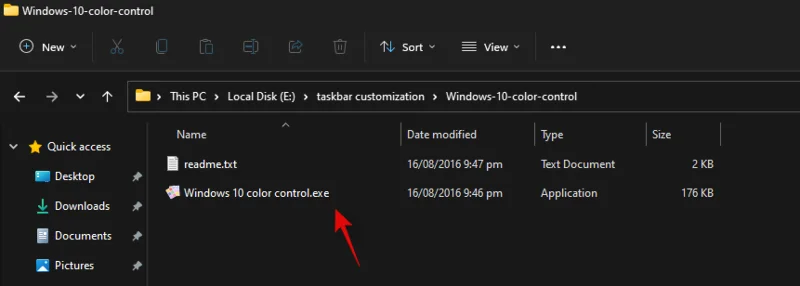
Download the archive using the link above to your local storage. Extract the archive and launch the .exe file by double-clicking on it.

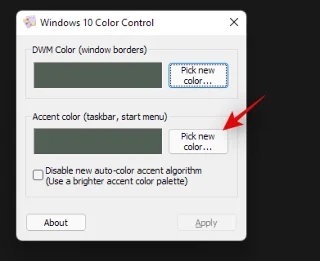
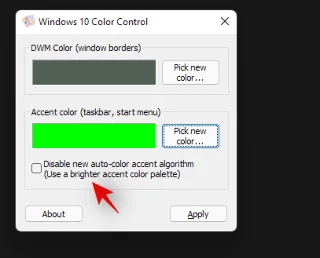
Click on ‘Pick new color’ beside ‘Accent color’.

Choose a new color for your taskbar now. The same color will be used for your Start menu as well.

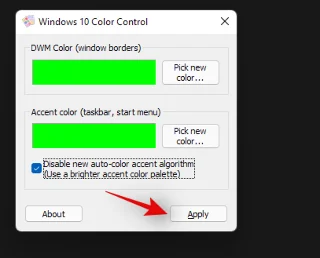
Check the box for ‘Disable new auto-color accent algorithm’.

Click on ‘Apply’.

The newly selected color should now be reflected in your taskbar.

You can use the steps above to set a custom color for desktop windows manager as well. And that’s it! You will now have chosen a custom color for your taskbar using Windows 10 Color Control.
Can you set an accent color only for your taskbar?
Yes, you can set a custom accent color only for your taskbar provided that you are using one of the third-party utilities mentioned above. Either one of them can help you easily set a custom color for your taskbar. However, if you are looking to do the same natively in Windows 11, then sadly it is not possible. You will need to use one of the third-party utilities listed above. We would suggest you use TaskbarX as you won’t have to manage other tweaks in the third-party utility that can’t be disabled.
Unable to change Windows 11 taskbar color? How to fix
Have you been unable to change your Windows 11 taskbar color? Then there could be a couple of reasons for this issue. Use the troubleshooting guide below to fix this issue on your system.
- Ensure that you aren’t using a deactivated version or trial version of Windows 11. These versions do not allow you to customize and personalize Windows 11 which could be the reason why you are unable to change the taskbar color on your PC.
- Restart explorer.exe to refresh DWM which should help reflect the changes in the overall Windows 11 UI. Explorer.exe can sometimes fail to reflect changes recently made in Windows 11. You can manually restart the application from your task manager to have explorer reflect the changes immediately.
- Uninstall any third-party apps that customize your taskbar and try changing your accent color natively in Windows 11.
- Use Windows 10 Color Control to change your taskbar. This GUI uses the same Windows Settings options to change your accent and DWM colors in Windows 11. If the app can change the taskbar color on your PC then it is likely that the Settings app is facing issues on your system. In such cases, you can try restart explroer.exe to fix your issue.
- Install latest Windows Updates: Windows 11 is fairly new and it could be that your system is facing a known bug or conflict in the background. Installing the latest updates will help fix this issue on your system and fix any background service conflicts as well.
- Ensure that Windows is not automatically picking a custom accent color from your wallpaper. If this option is enabled then a custom accent color will be automatically selected by Windows 11 regardless of your choice and changes in the custom color section in the Settings app.
- Lastly, if nothing works for you then we recommend you check Windows for corrupted and missing files. This can be done by using SFC and DISM commands on your machine. You can use this detailed guide by us to run these commands on your PC and fix your Windows 11 installation.
Can you make the taskbar on Windows 11 transparent?
Yes, you can easily make Windows 11 taskbar transparent on your PC using a third-party utility. You can use the following apps to get a transparent taskbar on your PC.
Use the detailed guides above at the top of this post to help you choose a transparent taskbar on your PC. You can even add gradients and blur to your transparent taskbar to further customize it to match the look of your PC.
Can you further customize your taskbar?
Yes, you can use TaskbarX to further customize your taskbar on your PC. You can use the following options to further customize your taskbar in Windows 11.

- Animation: Change your animation, type, and duration using this option. These changes are applied to taskbar animations and taskbar window animations.
- Position: Windows 11 no longer allows you to reposition your taskbar but you can use this option to move your taskbar around on your desktop. You can also use the options in this section to offset taskbar elements and create a completely new look on your PC.
- Extra: You can use options in this section to customize your taskbar behavior depending on your current setup and what you are currently doing on your PC.
- Mechanics: This section will allow you to change the refresh rate of your taskbar elements when using TaskbarX.
You can also use OpenShell to further customize your taskbar in Windows 11. OpenShell was recently updated for Windows 11 and hence comes with a few dedicated tweaks for the new OS. It offers similar options to TaskbarX to customize your taskbar. Simply switch to the ‘Tasksbar’ tab at the top and make the desired changes to customize your taskbar.
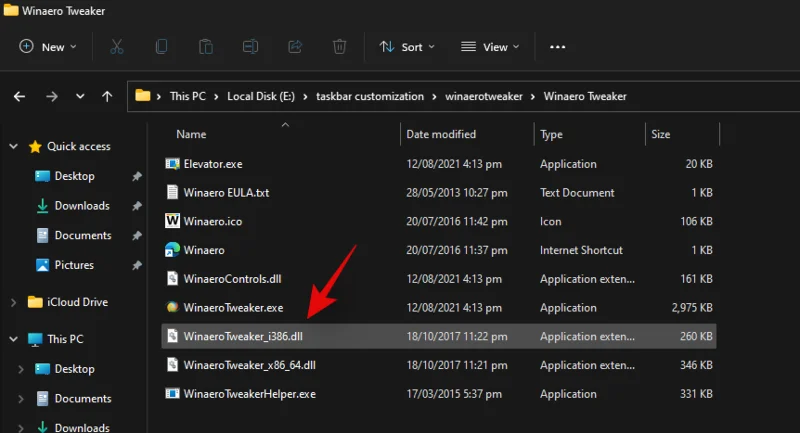
Apart from the above-discussed apps, you can also use Winaero Tweaker on your PC to customize your taskbar in Windows 11. Use the guide below to get familiar with Winaero Tweaker in Windows 11.
How to use Winaero Tweaker to customize the taskbar
Winaero Tweaker is a long-standing utility that has been used to customize Windows UI for a long time. The app was recently updated with some dedicated options to customize Windows 11 and here’s how you can use them to your advantage.
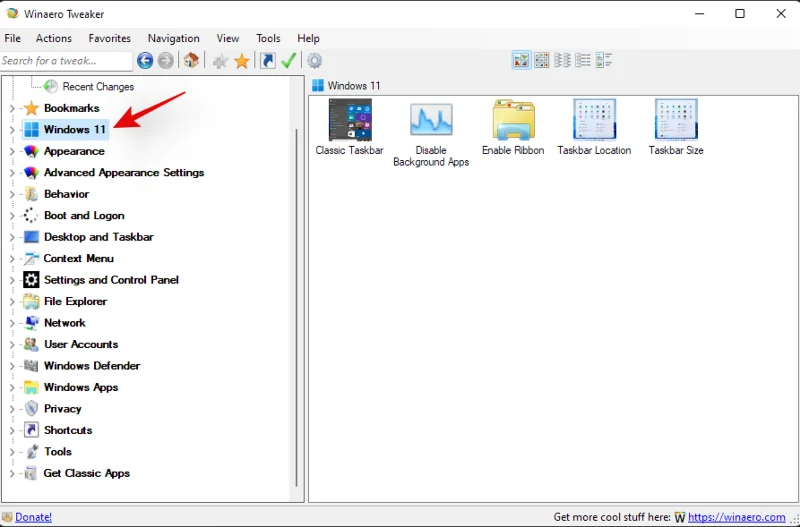
Download and install Winaero Tweaker to your PC using the link above. You can also extract a portable to your local storage if needed. Once installed/extracted, launch the .exe file on your system.

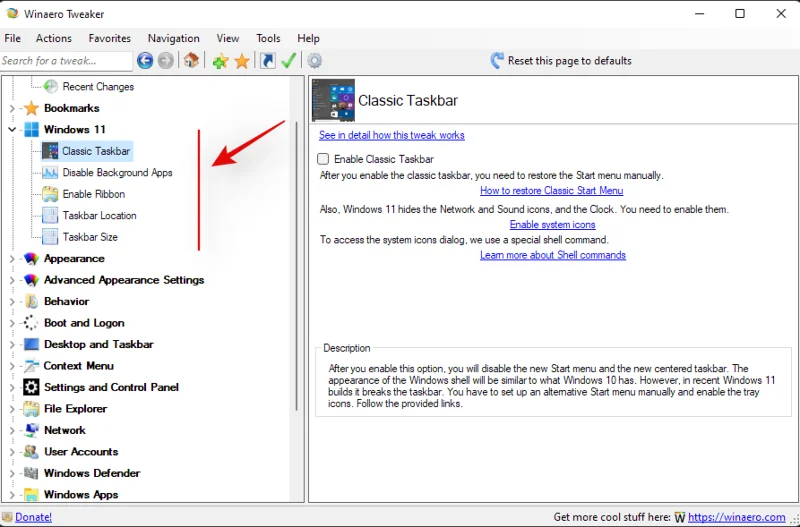
Click and expand Windows 11 on your left.

Now enable the following tweaks depending on your preferences.

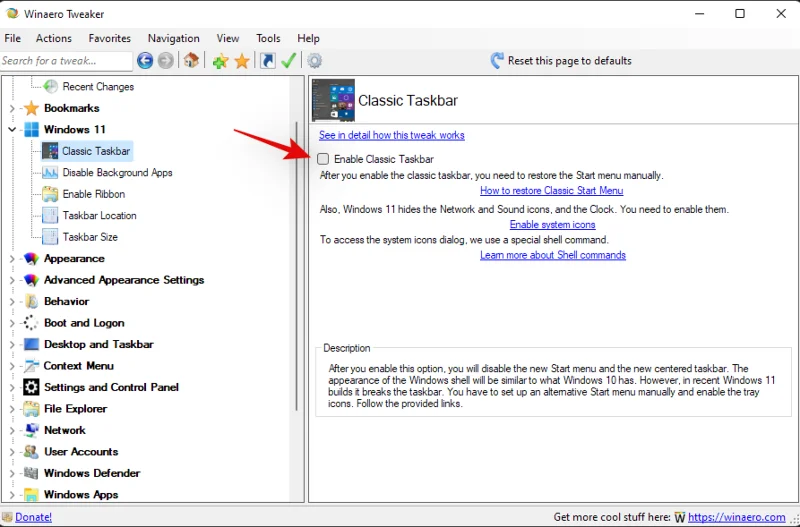
- Classic Taskbar: Use this option to get the old classic taskbar back on your PC. Check the box for ‘Enable Classic Taskbar’ and then follow the subsequent guides to set up the old taskbar on your system.

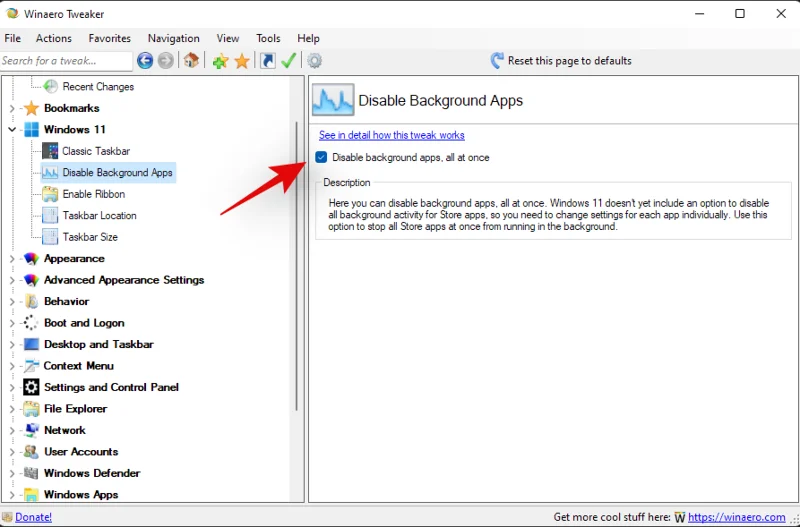
- Disable Background apps: Windows 11 has reduced the capability to disable background applications. You can use this option to disable most background apps in Windows 11.

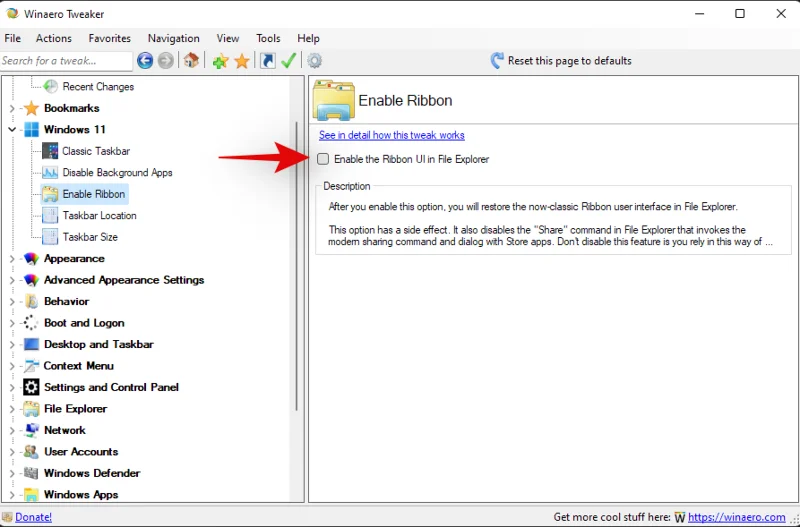
- Enable Ribbon: This will enable the old File Explorer ribbon in the new Windows 11 file explorer. Enabling this option will break the functionality of the ‘Share’ menu in the file explorer.

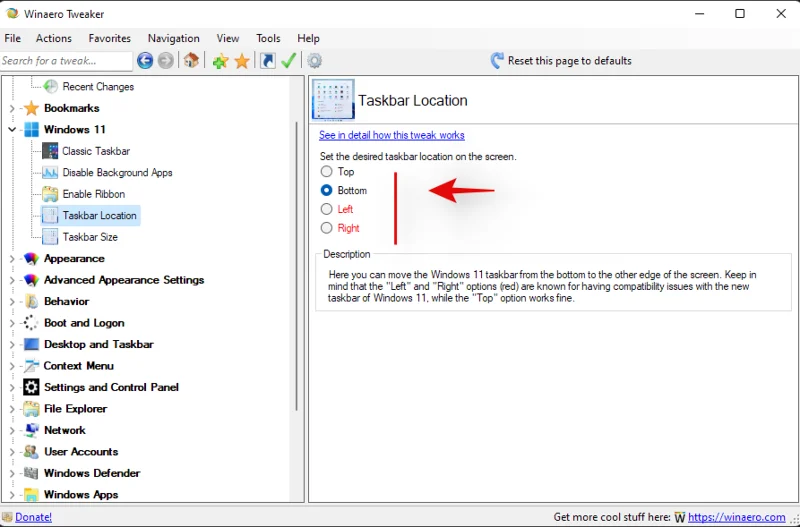
- Taskbar Location: This option can be used to reposition the taskbar on your desktop. Repositioning your taskbar to the left or right is known to cause compatibility issues. A fix is expected for the same in future updates to Winaero Tweaker.

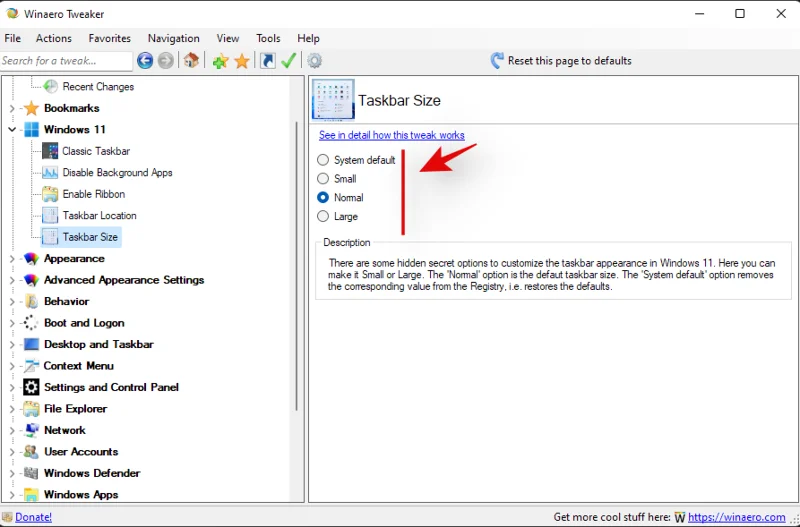
- Taskbar Size: You can change your taskbar’s size using this option. Changing the size of your taskbar will also change the size of your taskbar icons. Additionally, on some systems, you might find that the taskbar overflow is not properly displayed on your screen. This is a known issue and a fix is expected in subsequent updates to the Winaero tweaker.

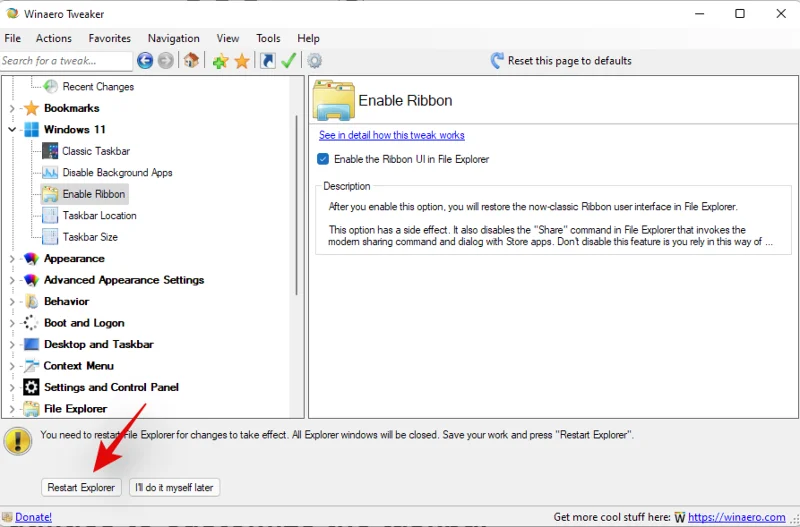
Click on ‘Restart explorer’ at the bottom of your screen, if prompted, after enabling any one of the options above.

Note: You could also be prompted to sign out and sign back in to your account depending on the changes you decide to make on your PC.
And that’s it! You will now have customized your Windows 11 taskbar using Winaero tweaker.
Should you use third-party utilities to customize the taskbar?
As long as the third-party utility is trusted and compatible with Windows 11, you should have no problems using a third-party utility to customize your taskbar. However, if a utility is developed for Windows 10 then we recommend you avoid using it until it has been verified to work on Windows 11. The new OS comes with additional background services and changes to the registry that could get messed up if using incompatible applications. This could break the functionality of DWM in Windows and introduce glitches that might force you to reset your PC. Hence we recommend you verify the functionality of the concerned utility before using it on your system.
We hope this guide helped you easily change the color of your taskbar in Windows 11. If you face any issues or have any questions for us, feel free to reach out using the comments section below.