Home
» News
»
Google Gemini AI: What It Does and How to Use It
Google Gemini AI: What It Does and How to Use It
Google Gemini is Google’s AI assistant for tasks such as writing, planning, learning, coding, research, file analysis, image creation, and working with information from connected services. The exact features you see can vary by country, device, Google Account type, subscription, and rollout status, so this guide focuses on capabilities Google documents as available in Gemini Apps as of September 19, 2026.
To make the guide practical, we’ll follow one clearly hypothetical example: Maya, a fictional freelance marketer, is preparing a launch plan for a small reusable-coffee-mug brand. She wants help organizing the launch, reviewing a market-research PDF, checking current market information, and turning her notes into a usable draft. This scenario is only an illustration of how the tools can fit together; it is not a customer story, testimonial, or test result.
What is Google Gemini AI?
“Gemini” can refer to both Google’s family of generative AI models and the consumer-facing Gemini apps built around those models. In the Gemini web and mobile apps, you can type or speak prompts, attach files, ask follow-up questions, and use specialized tools when they are available to your account.
Google currently describes model choices in Gemini Apps using tiers such as Flash-Lite, Flash, and Pro. Flash-Lite is positioned for fast everyday work, Flash balances speed and reasoning, and Pro is intended for more complex tasks. Model names, versions, thinking levels, and limits can change, so check Google’s Gemini Apps limits and model access page if you need the latest account-specific details.
You can use some parts of the Gemini web app without signing in, but signing in with a Google Account is required for additional features and for saving Gemini Apps activity. Google explains the sign-in requirements in its Gemini Apps sign-in help.
What can Gemini do?
Gemini is designed as a general-purpose assistant rather than a single-purpose search box. Depending on your account and available tools, common uses include drafting and rewriting text, brainstorming, summarizing documents, explaining concepts, analyzing images and files, helping with code, creating images, conducting broader research, and working with connected Google services.
Task
How Gemini can help
What to watch for
Writing and planning
Draft emails, outlines, launch plans, study notes, checklists, and summaries.
Give the audience, goal, tone, constraints, and desired format.
Files and data
Analyze uploaded documents, spreadsheets, photos, videos, code, and other supported files.
Large or complex files can exceed the useful context window or cause details to be missed.
Research
Use Deep Research to create a research plan and synthesize information from selected sources.
Review the plan, inspect sources, and verify claims before relying on them.
Creation
Use Canvas for documents, apps, slides, or code; some accounts also support media generation.
Availability and limits vary by plan and region.
Connected information
With permission, use connected apps such as Gmail or Drive to bring relevant context into a request.
Connections are optional and should be enabled only when you want Gemini to access that service.
How to use Google Gemini: a four-step workflow
1. Start with a specific prompt
Open Gemini on the web or the Gemini mobile app, then describe the result you want. A useful prompt usually includes the task, context, audience, constraints, and output format.
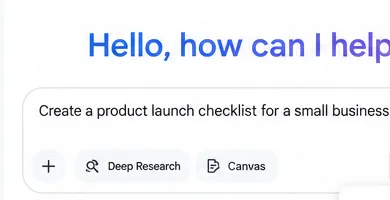
In our hypothetical example, Maya could write: Create a product launch checklist for a small reusable-coffee-mug brand in the U.S. Separate the checklist into product readiness, operations, marketing, and post-launch review. Keep it concise and flag any assumptions. That is more actionable than simply asking, “How do I launch a product?” because it gives Gemini a purpose and structure.
The prompt area can be used for a direct request, while tools such as Deep Research or Canvas may be available alongside the chat box.
2. Add files when the answer depends on your own material
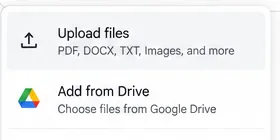
If Maya already has a market-research PDF, she can attach it rather than asking Gemini to guess what the document says. Google’s current help page says Gemini Apps can analyze documents, spreadsheets, notebooks, photos, videos, code, and other supported files. On the web app, the Add files control can upload a local file or add supported files from Google Drive. Google also documents limits on file count, file size, audio/video length, and context windows, which can vary by plan.
A practical prompt could be: Summarize this report in five bullets, then list three findings that should change our launch plan. For every finding, quote or point me to the section you used. This keeps the task grounded in the uploaded material instead of inviting a generic answer. See Google’s file upload and analysis documentation for current limits.
For document-based work, attach the file directly or choose a supported file from Drive so Gemini can work from your source material.
3. Use Deep Research when the task needs broader, current sources
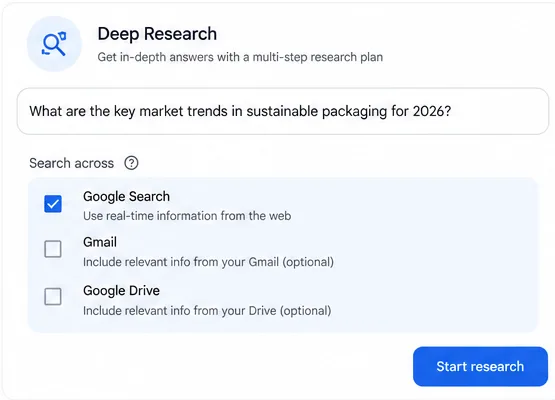
For a question such as “What sustainable packaging trends are affecting reusable drinkware in 2026?”, a single chat answer may be too narrow. Google’s Deep Research tool creates a research plan and can use Google Search by default. Google also says you can change or add sources such as Gmail or Drive when those services are connected, and you can upload files or add NotebookLM notebooks.
In Maya’s case, she could review the proposed research plan before starting, remove sources she does not want used, and then inspect the finished report rather than treating it as automatically correct. Google notes that Deep Research has usage limits and that higher plans may receive higher limits. The current steps are documented in Google’s Deep Research help page.
Deep Research lets you define a question, review the research setup, and choose eligible sources before starting the report.
4. Review, refine, and verify the result
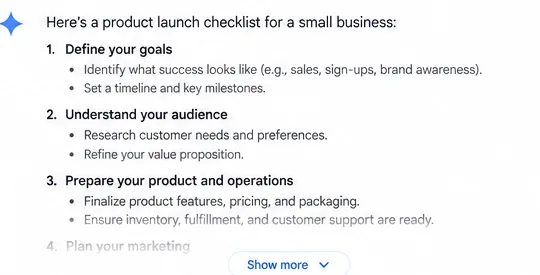
The first response should usually be treated as a draft. Maya could ask Gemini to shorten the checklist, separate assumptions from verified facts, convert it into a table, or rewrite it for a specific team. If the answer contains factual claims, she should inspect any available Sources links and open the underlying material before using the information in a launch decision.
Google explicitly warns that Gemini Apps can produce inaccurate information and can present hallucinated information as factual. Google also advises users not to rely on Gemini responses as medical, legal, financial, or other professional advice. For current guidance, see Google’s page about Gemini responses.
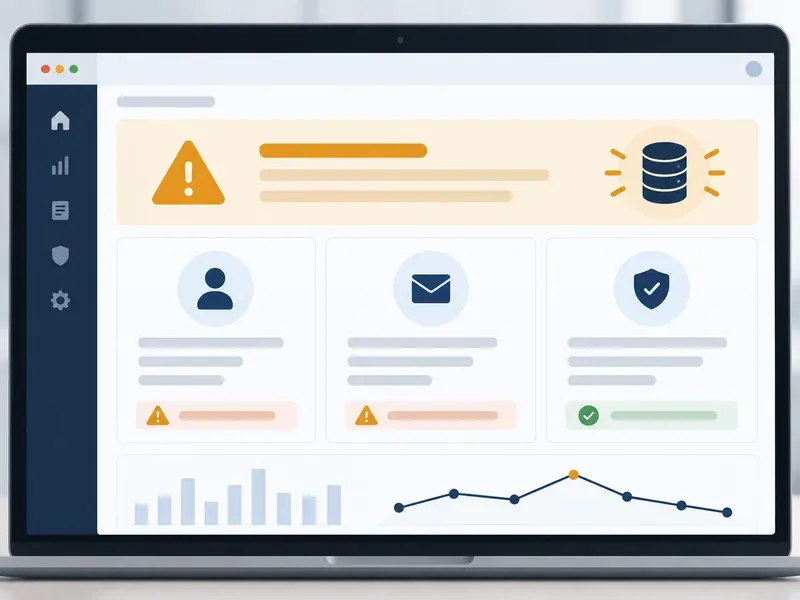
A structured response is a starting point: review the details, ask follow-up questions, and verify important facts before acting on them.
When should you use Canvas, Gems, or Connected Apps?
Canvas is useful when the output needs to become a more developed artifact rather than stay as a chat response. Google says Canvas can be used to create or edit documents, apps, slides, and code, and can transform some creations into formats such as Audio Overviews or quizzes. The exact experience may differ by device. See the Canvas help page.
Gems are reusable, customized versions of Gemini with instructions tailored to a repeated job. For example, Maya could create a “Launch Editor” Gem that always checks copy for audience fit, brand tone, unsupported claims, and missing calls to action. Google also lets users add knowledge files to a Gem, subject to availability and file rules.
Connected Apps can let Gemini use information from services such as Google Workspace when you choose to connect them. Google states that Google Workspace connectivity requires Keep Activity to be on, and it advises users to review the sources Gemini lists because the assistant can still return outdated or incorrect information. The setup is explained in Google’s Workspace connection guide.
What about privacy and saved activity?
Before putting sensitive information into any AI assistant, understand the account settings that control storage and data use. Google’s Gemini Apps Privacy Hub explains what data can be collected when you use Gemini while signed in, including prompts and content you share such as files, images, screens, and connected-app information. It also explains how Gemini Apps Activity works and notes that work or school accounts can follow different rules set by an administrator.
For personal accounts, review the current controls in the Gemini Apps Privacy Hub and the separate activity-management settings before sharing confidential documents. A sensible rule is to upload only material you are authorized to share and only when it is actually needed for the task.
How to get better results from Gemini
State the goal first. “Create a two-page launch brief” is clearer than “Tell me about product launches.”
Give constraints. Include the country, audience, budget range, date, tone, format, or data source that matters.
Separate facts from ideas. Ask Gemini to label verified information, assumptions, and brainstorming suggestions differently.
Use source material. Attach the relevant file or select the correct connected source instead of pasting fragments without context.
Iterate. Follow-up prompts such as “show what changed,” “cite the source for each factual claim,” or “turn this into a checklist” often improve usability.
Verify consequential claims. Open official sources for prices, policies, deadlines, eligibility rules, medical information, legal requirements, financial decisions, or anything else where an error could matter.
Is Google Gemini free?
Gemini Apps can be used without a paid Google AI plan, but free and paid users receive different limits, model access, context windows, and feature allowances. Google currently offers multiple Google AI plan levels, and the limits can change. If a feature is missing or a model is unavailable, check the official limits and upgrades page rather than assuming every account has the same interface.
Bottom line
Google Gemini is most useful when you treat it as a flexible working assistant: give it a clear task, add trusted context when needed, choose a specialized tool such as Deep Research or Canvas for the right job, and then review the result critically. In the hypothetical Maya example, that means using a direct prompt for the launch structure, attaching her own research file, using Deep Research for current external context, and refining the final output rather than accepting the first draft unchanged.
The important limit is the same across all of these workflows: Gemini can help organize, synthesize, and create, but it can still make mistakes. The stronger the consequence of an answer, the more important it is to verify the underlying source before acting on it.