Home
» News
»
How to Find New Movies on Netflix in the UK: A Practical Discovery Guide
How to Find New Movies on Netflix in the UK: A Practical Discovery Guide
The fastest answer is to start on Netflix’s UK home screen, check the rows marked by current popularity or recent additions, and then use search, title details, My List, and release notifications to narrow the choices. Do not rely on one row alone: Netflix personalizes what appears on screen, the catalog changes by country and date, and a movie promoted as “new” may be newly added to the UK service rather than newly released in cinemas.
As of September 20, 2026, the public Netflix UK homepage displays a “Trending now” section and says that new films and programs are added every week. That makes the home screen a useful starting point, but not a complete release calendar. For a more reliable routine, combine the homepage with the Netflix mobile app, whose official Google Play listing currently describes an upcoming clips feed, personalized recommendations, My List access, and notifications for new releases.
This guide is a good fit if you already have Netflix in the UK and want to discover movies added recently, movies scheduled to arrive soon, or films that match a particular genre. It is less useful if you need a complete industry release schedule, cinema release dates, or every film available on every streaming service.
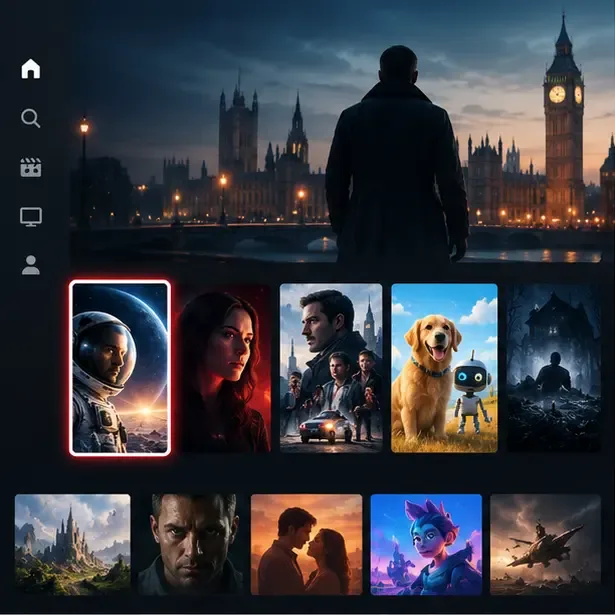
A home screen can reveal current recommendations and popular movies, but its rows are personalized and should not be treated as a complete new-release list.
1. Start with the UK home screen
Open Netflix while signed into the profile you actually use for movies. On the home screen, scan the featured title and the rows that highlight current activity, recent viewing, or newly surfaced content. Netflix does not show exactly the same home page to every profile, so two people in the same UK household may see different suggestions.
Use this first pass for speed, not certainty. If you want something to watch tonight, a trending row is often the quickest route. If you want a film that was added recently, look for a row labeled with terms such as “New,” “Recently Added,” or “New & Popular,” if those labels appear on your device. Names and placement can vary across a smart TV, web browser, phone, tablet, or streaming player.
2. Browse by movie genre instead of scrolling randomly
When the homepage keeps showing series, use the Movies area or Netflix’s movie genre pages. The official Netflix UK movie browse page can be used as a starting point for movie categories. Choose a genre that matches your available time and mood, then look for the newest or most recently surfaced titles within that group.
Genre browsing is especially useful for a narrow request. For example, if you want a new British crime movie, start with movies, then use search terms such as “British crime,” “crime thriller,” or a director’s name. If you want a family movie for Saturday afternoon, search within family or animation-related results and check the maturity information on each title page. This approach reduces the chance that a popular drama row will dominate your results simply because it is currently receiving more attention.
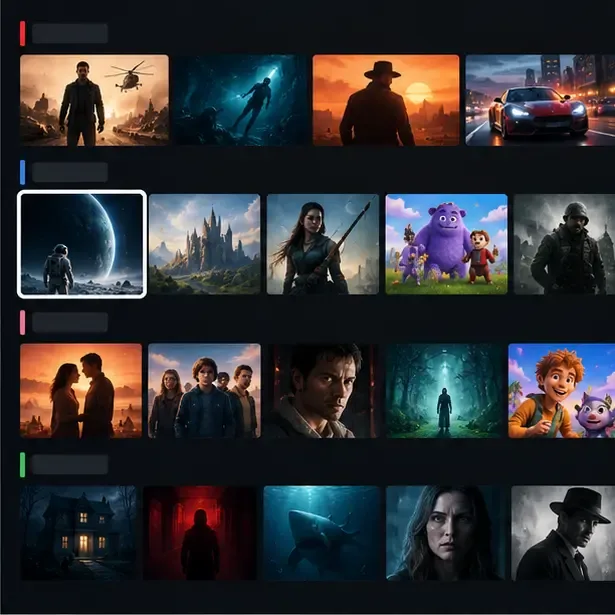
Browsing by genre creates a smaller set of relevant movies than scrolling through every recommendation row on the home screen.
3. Use search with specific words
Search is more effective when you describe what you want rather than typing only “new movies.” Try combinations such as:
new action movies;
recent British movies;
new documentaries;
new movies with [actor’s name];
Netflix original movie;
short comedy movie.
Search can find a title, actor, director, genre, or theme, but it does not guarantee that every result is newly added. Treat the phrase “new” as a discovery prompt, then confirm the title’s details. A result may be an older movie that matches your keywords or a title that has been available for months but is newly recommended to your profile.
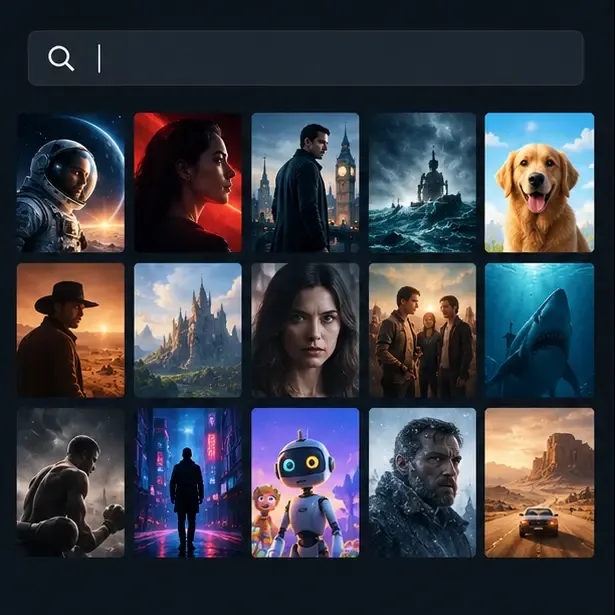
A focused search helps narrow the catalog by genre, actor, director, or theme before you check which results are recent in the UK.
4. Open the title page before deciding
Select a movie and inspect its detail page instead of judging it only from the poster. Check the synopsis, runtime, maturity information, audio and subtitle options, and whether the page offers a reminder or save control. These details matter if your choice depends on a particular language, a child-friendly rating, or a movie length under two hours.
If the movie is not playable yet, Netflix may show an upcoming or reminder option on supported surfaces. If it is already available, the detail page is the best place to confirm that it can play on your current profile and device. A title can be visible in search or in a promotional row while still having a different availability status, so use the play control or the information shown on the page as the final check.
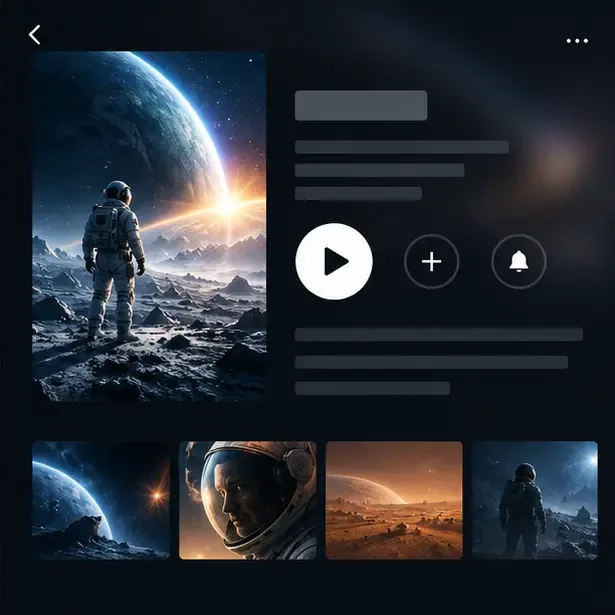
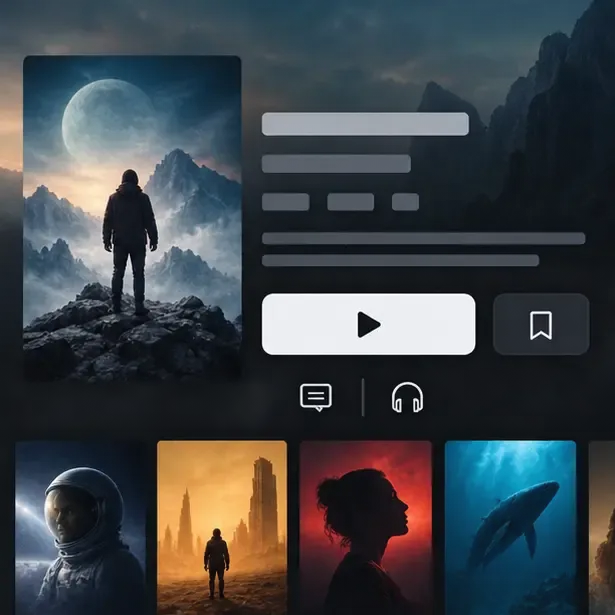
The title page is where you can check basic information and use the available save or reminder controls before committing to a movie.
Subtitle and audio controls help you check whether the movie fits your language and accessibility needs before you start watching.
5. Choose the correct profile first
Recommendations are linked to the profile, so the profile choice changes what Netflix considers relevant. A Kids profile is intentionally limited by its settings, while an adult profile may surface a wider range of movies. If a household profile is shared by several people, the homepage can become a mixture of unrelated preferences.
For better results, use a personal profile and rate or interact with titles you genuinely like. If a friend’s viewing history is affecting your suggestions, switching to your own profile is usually more useful than repeatedly hiding individual recommendations. Profile settings do not change the UK catalog itself; they change the selection and ordering of what you see.
Selecting the profile with your own viewing history gives Netflix better signals for recommending movies you are likely to watch.
6. Save upcoming movies to My List
When you find a movie that is not available yet, or one you want to compare later, use the save or bookmark control on its title page. Netflix calls this collection My List in its current mobile app description. Saving a title prevents you from having to remember its name and gives you one place to review possible choices.
My List is useful for a simple weekend plan: save three or four new movies, then compare runtime, genre, maturity information, and availability when you are ready to watch. It is not a permanent archive. A saved movie can still leave Netflix or become unavailable in the UK, so treat the list as a reminder rather than a guarantee.
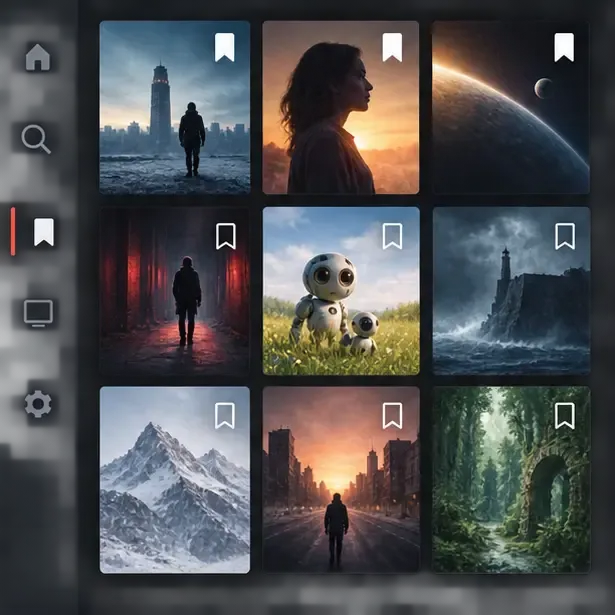
A saved list keeps possible new movies together, but saved titles can still change availability as licensing changes.
7. Turn on release notifications when you want fewer surprises
If you regularly miss new movies, use Netflix’s notification settings on a supported phone or tablet and allow the app to send alerts. The official Netflix app listing describes notifications for new releases, episodes, and live events. The exact settings path can change with the app version, so look for notification or communication settings rather than following an old device-specific menu word for word.
Notifications are best for high-interest titles you have already saved or followed. They are less suitable if you want a calm viewing experience and do not want frequent alerts. You can also use the upcoming section or clips feed in the mobile app to preview what is being promoted next, but remember that promotional visibility is not the same as a confirmed UK availability date.
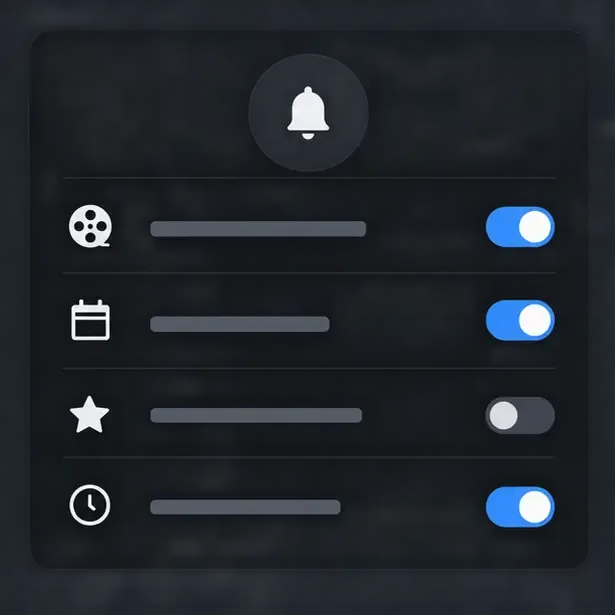
Release alerts can help you notice upcoming movie additions, while the available switches and labels may differ by app version and device.
8. Check the UK catalog and timing
A movie can be “new” in several different ways: it may be a new Netflix original, a newly licensed film, a movie returning after leaving, or a title that is newly promoted by the recommendation system. Search interest and social media posts may also refer to the United States or another country rather than the UK.
Before planning a movie night, confirm that your Netflix account is being used in the UK and that the title page offers playback in your current location. Do not assume that a list of “new movies on Netflix” from another country applies to the UK. Catalogs, release dates, subtitles, and audio options can differ. If you use a VPN or proxy, it can also complicate what Netflix displays and whether playback works normally; for a clean UK check, use the ordinary connection and profile you normally use.
Which method should you use?
Your goal
Best starting point
Why it fits
Limit
Find something tonight
UK home screen and Trending now
Fast and low effort
Personalized, not a complete new-release list
Find a specific type of movie
Movies, genre browse, and search
Reduces irrelevant results
Genre results may include older titles
Track a future release
Title page, upcoming area, and reminder
Useful for a small watch queue
Features and timing can vary by device and title
Stop missing additions
My List plus app notifications
Combines saving with alerts
Requires notification permission and a current app
Verify UK availability
Open the title in your UK account
Checks the catalog that matters to you
Availability can change after you check
A practical example
Suppose you want a new thriller for Friday night but do not want a movie longer than two hours. Start with the UK home screen to see what is currently promoted. Move to movie browsing or search for thriller titles, open three promising detail pages, and compare runtime, maturity rating, and audio options. Save the best two to My List. On Friday, open My List again and confirm that both still play in the UK. If neither is suitable, repeat the same process with a different genre instead of endlessly scrolling the same recommendations.
Final self-check
You have probably found a suitable new movie when you can answer “yes” to these questions:
Am I using the correct personal profile?
Did I check the movie detail page rather than relying on a poster?
Did I confirm that the title is playable or clearly marked as upcoming?
Does the runtime, maturity information, language, and genre fit my plan?
Am I checking the UK catalog rather than copying a list from another country?
The most dependable habit is simple: use the homepage for discovery, search and genre browsing for control, the title page for verification, and My List or notifications for follow-up. Because Netflix changes its catalog, recommendations, and interface over time, labels and rows may look different from the examples here. The method remains useful even when the exact button name or placement changes.