Home
» News
»
How to Protect Your Smartphone During a UK Heatwave: Keep It Cool Without Damaging It
How to Protect Your Smartphone During a UK Heatwave: Keep It Cool Without Damaging It
Hot weather can push a smartphone from merely warm to thermally limited surprisingly quickly, especially when direct sun, charging, navigation, video, gaming, or weak mobile signal all occur at once. The goal is not to make your phone feel cold. It is to keep it within a normal operating state: charging works normally, the display does not dim unexpectedly, performance remains stable, and the device does not show a temperature warning or shut itself down.
There is no need to manufacture a “heatwave emergency” when one is not actually in place. As of September 20, 2026, the Met Office UK forecast described parts of the country as warm or rather warm rather than announcing a nationwide heatwave. A Met Office update published September 16 said another spell of heatwave conditions was possible if the right conditions aligned. The advice below is therefore designed to remain useful for any UK heatwave or unusually hot spell rather than depending on a single forecast.
What a good result looks like
You do not need a thermometer app or an exact surface-temperature target to judge whether your approach is working. In practical terms, a phone is coping well with the heat when it remains comfortable enough to handle, does not show a temperature alert, does not repeatedly dim the display, and does not pause charging or disable features.
Apple says iPhone and iPad are designed for ambient temperatures between 32°F and 95°F (0°C to 35°C), and warns that very hot conditions can permanently shorten battery life. Google and Samsung likewise document automatic thermal protections that may reduce performance, slow or stop charging, disable features, or shut the device down when it gets too hot. See the original guidance from Apple, Google Pixel Help, and Samsung UK.
1. Get the phone out of direct sun first
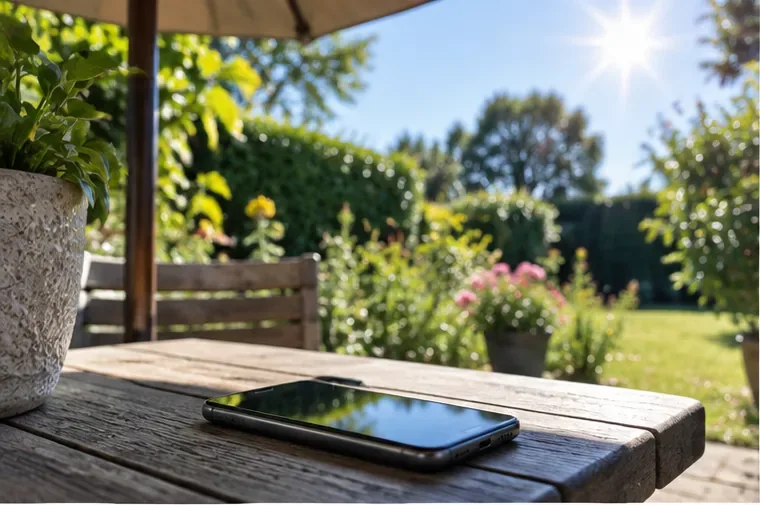
A phone moved into shade outdoors. Removing direct solar heating is the first practical step when a device starts getting hot.
If the phone is in direct sunlight, move it into shade before changing settings or closing apps. Sunlight can heat the case and internal components while the phone is simultaneously generating its own heat. A car dashboard, windowsill, outdoor table in full sun, or exposed bicycle mount can all make cooling much harder.
This step is successful when the device stops getting hotter and begins to return toward normal behavior. If the display has dimmed because of heat, do not immediately raise brightness to compensate; the dimming may be part of the phone's thermal protection. Apple specifically lists direct sunlight and prolonged GPS, gaming, or camera use in hot conditions as situations that can trigger temperature management.
If moving into shade makes little difference after several minutes, reduce the phone's workload as well.
2. Stop adding heat: pause heavy use and charging
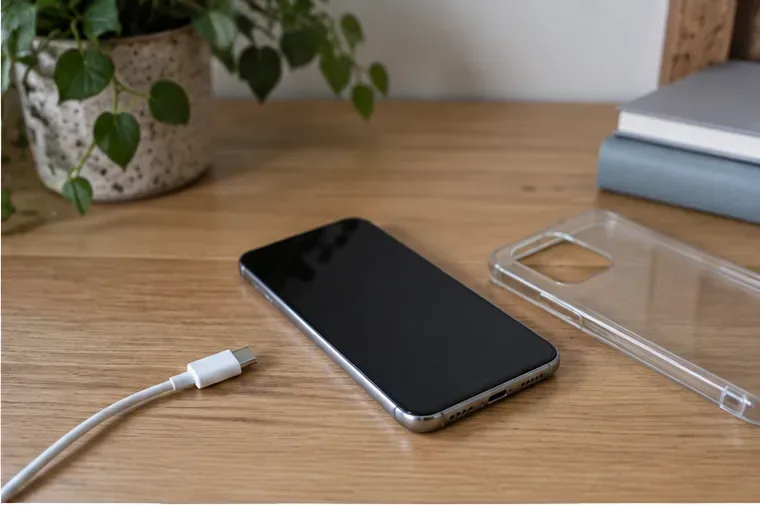
A hot phone resting without its case or charging cable. Pausing charging and heavy use reduces two common sources of extra heat.
Charging produces heat, and wireless charging can add more because energy transfer is less direct than with a cable. Intensive tasks such as gaming, recording high-resolution video, video calls, hotspot use, cloud syncing, and long navigation sessions can also keep the processor, radios, and display busy.
If the phone is noticeably hot, unplug it. Close or pause demanding apps, lock the screen, and give it time to cool. If your case is thick and the phone is struggling to shed heat, temporarily removing the case can help airflow around the device. Apple says charging may slow or stop when an iPhone is too hot; Samsung says supported Galaxy models may limit brightness, performance, charging, and other functions; Google says Pixel phones may reduce CPU performance, charging speed, camera functions, and connectivity.
The sign that this step is working is simple: the phone should become progressively less hot and normal functions should return without forcing them. If charging has paused automatically, let the device decide when to resume rather than trying to override the protection.
Should you put a hot phone in the fridge or freezer?
No. Fast cooling with a freezer, ice pack, or very cold surface is not a recommended fix. Rapid temperature changes can introduce condensation and moisture risks. Apple explicitly advises avoiding dramatic changes in temperature or humidity. A shaded, ventilated room is a safer destination than an extreme-cold shortcut.
3. Reduce heat during navigation, commuting, and outdoor use
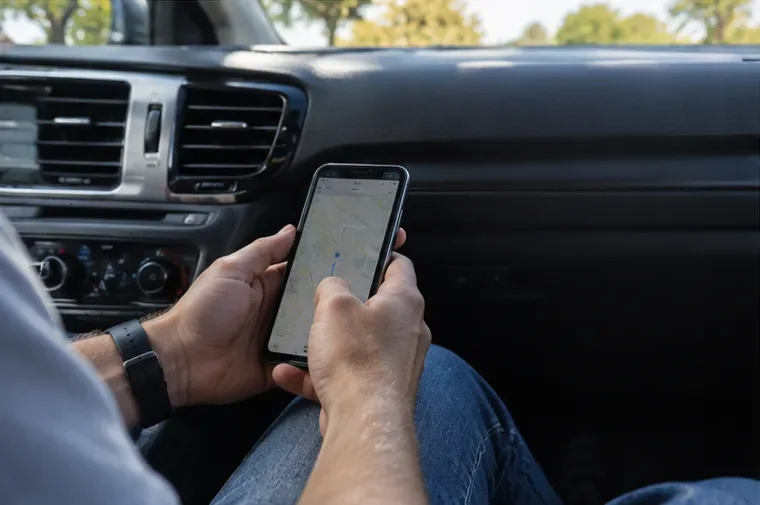
Navigation combines a bright display, GPS, mobile data, and sustained processing, so it can be especially demanding in a hot vehicle.
Navigation is one of the hardest common workloads during hot weather because the display may be bright, GPS remains active, mobile data is in use, and the phone may also be charging. A windshield mount can add direct solar heating on top of all that.
For a long drive, position the phone where it is shaded and where cabin air can circulate around it. Avoid leaving it on the dashboard when parked. If practical, use downloaded maps or Wi-Fi before departure to reduce prolonged mobile-data activity, and consider audio directions so the display does not need to stay at maximum brightness continuously.
Google specifically lists extended navigation, streaming, video calls, high-definition recording, and heavy use while charging among activities that can raise phone temperature. Samsung also identifies weak signal, hotspot use, large downloads, multitasking, and direct sunlight as heat contributors.
Judge the result by behavior rather than by touch alone. A phone may still feel warm and be operating normally. More concerning signs are repeated screen dimming, stopped charging, disabled flash or camera functions, connection restrictions, or a temperature warning.
4. If a temperature warning appears, stop using the phone
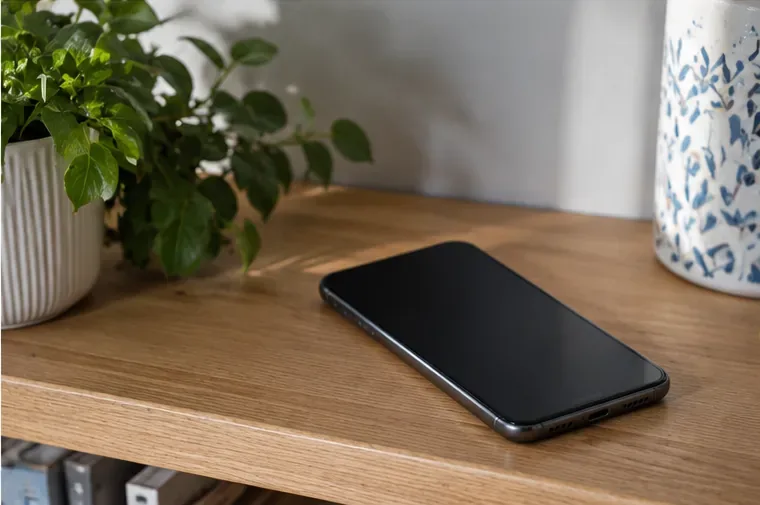
A smartphone left unused in a cooler indoor location. When a temperature warning appears, give the device time to cool before restarting heavy use.
A temperature warning is the point where “keep using it carefully” should become “stop using it and let it cool.” Move the phone to a cooler, dry, ventilated place, disconnect power, and avoid demanding apps. If the manufacturer instructs you to power the device off, follow that guidance.
Apple recommends turning off an iPhone that shows a temperature warning, moving it away from direct sunlight, and allowing it to cool. Google says that if a Pixel becomes too hot, disconnect it from power, move it to a cooler place, and do not use it until it has cooled. Samsung similarly advises stopping use when overheating becomes uncomfortable or prolonged.
Do not treat an automatic shutdown as a failure to be defeated. Thermal throttling, charging pauses, feature restrictions, and temporary shutdowns are protective behaviors. The correct outcome is for the phone to cool and then return to normal operation.
Heatwave settings that can reduce the thermal load
There is no single “heatwave mode” that works across every phone. Instead, reduce unnecessary power use when conditions are hot:
Lower screen brightness when visibility allows.
Use power-saving or low-power mode if you do not need maximum performance.
Pause gaming, long video recording, video calls, hotspot use, or other intensive tasks.
Prefer a stable Wi-Fi connection over weak mobile data when practical.
Avoid charging while running demanding apps.
Keep the phone out of enclosed, poorly ventilated spaces such as a hot bag, glovebox, or parked car.
On supported Pixel phones, Google also provides a temperature diagnostic under Settings > Battery > Battery diagnostics > Phone is very warm. Google notes that the feature is available on Pixel 6a and later and can show temperature states such as Normal, Warm, or Elevated. See the Pixel temperature diagnostic documentation.
When should you change your approach?
What you notice
What it means in practice
What to do next
Phone feels warm but works normally
Often normal during charging or heavier use
Move out of sun, reduce workload, and monitor
Display dims, charging slows, or performance drops
Thermal protection may be active
Pause heavy use and charging; move to a cooler place
Temperature warning appears
The device has crossed a thermal threshold
Stop using it, disconnect power, and let it cool
Phone repeatedly shuts down after cooling
Heat may not be the only problem
Check battery/app behavior and contact the manufacturer or an authorized repair provider
Battery is swollen, case is separating, or there is an unusual smell
Possible battery damage
Stop using and charging the device and seek professional service
What not to expect from these steps
These measures reduce avoidable heat; they cannot make a phone ignore extreme ambient conditions. If the surrounding air is already very hot, the phone has less ability to release its own heat. Likewise, no software setting can make direct summer sun harmless.
Cooling also does not reverse battery wear that may already have occurred. Apple notes that operating an iPhone in very hot conditions can permanently shorten battery life, while Google says a hot battery can drain faster and that repeated overheating can be harmful. The best protection is preventive: shade, sensible charging, lower workload, and enough time for the device to cool naturally.
A quick heatwave check before you head out
Check the local forecast and any current heat-health information rather than assuming conditions from social media. The UKHSA weather-health alert dashboard covers Heat-Health Alerts in England, while the Met Office provides UK forecasts and weather warnings.
Charge indoors before leaving if possible.
Keep a shaded place available for the phone, especially in a car.
Do not leave the phone in a parked vehicle.
If it becomes hot, remove it from the heat source before troubleshooting anything else.
The most useful rule is also the simplest: if the phone is getting hotter despite your changes, stop adding workload and move it to a cooler environment. If it starts recovering, keep conditions gentle until normal behavior returns. If it does not recover, or if overheating keeps recurring in ordinary indoor use, switch from heatwave precautions to device troubleshooting or professional support.