SFC Scannow Not Fixing Corruption: DISM Order
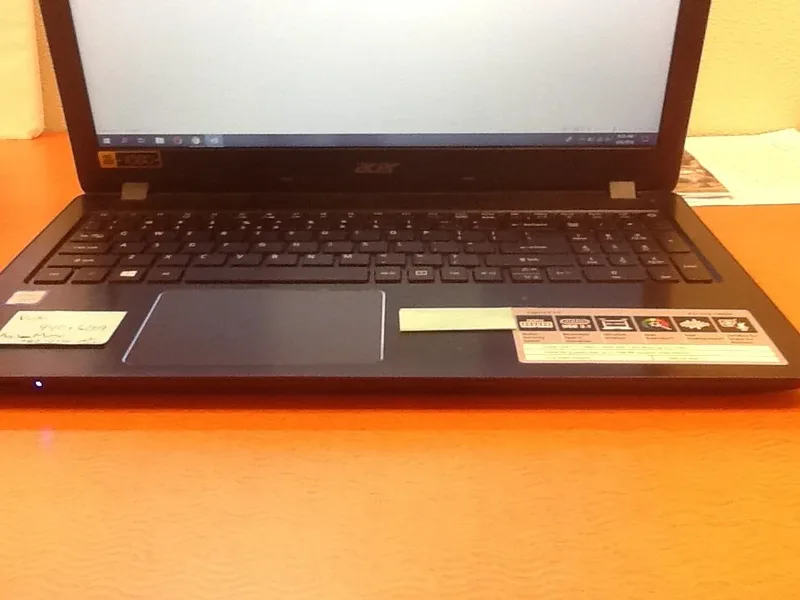
If sfc scannow not fixing corruption, repair the Windows component store with DISM, rerun System File Checker, and check the log for remaining damage.
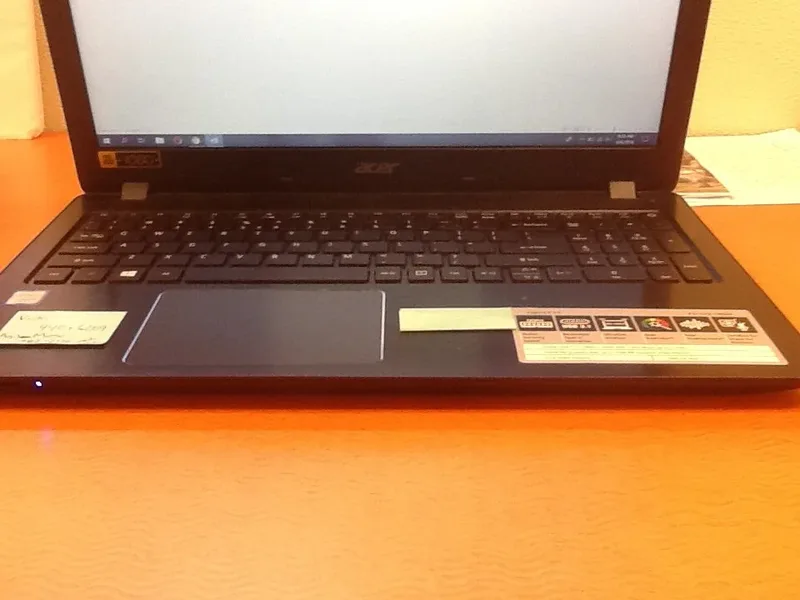
If BitLocker keeps asking for recovery key Dell users usually find that Windows is detecting a change to the laptop’s startup security measurements. A common trigger is a BIOS or firmware update, or a change to TPM or Secure Boot settings, that makes the TPM unable to release the drive key as before.
BitLocker uses the TPM to help unlock the encrypted Windows drive during startup. The TPM checks a record of trusted boot components and settings; if those measurements differ, BitLocker asks for the recovery key to protect your data. The prompt can repeat if the startup configuration keeps changing or the TPM cannot complete its check.
Use this guide when you can access the recovery key or Windows. If the key is not available, retrieve it before changing firmware settings. The quick checks below can help narrow down the cause:
| Possible cause | Typical symptom | Quick test |
|---|---|---|
| Recent BIOS or firmware update | Prompt began after an update or restart | Check Windows Update history or Dell update history |
| TPM disabled or not ready | Prompt persists despite entering the correct key | Check TPM status in Windows Security or TPM Management |
| Boot setting changed | Prompt follows a BIOS settings change | Compare UEFI, Secure Boot, and boot order with the prior setup |
At the recovery screen, note the Key ID shown and match it to the recovery key saved for this device. For a personal Microsoft account, check the account’s BitLocker recovery keys page from another device; work or school devices may have keys held by the organization’s IT administrator. Enter the matching 48-digit key. If Windows starts, back up important files before continuing.
After Windows starts, press Windows + R, enter tpm.msc, and press Enter. Check whether the TPM is ready for use. If it is unavailable or reports a problem, open Windows Security > Device security > Security processor details for more information. Menu labels can vary by Windows version. Do not select an option to clear the TPM as a troubleshooting shortcut; clearing it can affect keys and credentials.
Restart the Dell computer and enter BIOS Setup using the on-screen prompt; on many models this is F2, but check your model’s menu or startup instructions. Find the TPM or security settings and confirm the TPM is enabled. The setting’s exact name and location vary by model. Save only a needed correction, then restart and enter the recovery key if asked. In Windows, tpm.msc should then show the TPM ready for use.
In BIOS Setup, check whether the system is using UEFI and whether Secure Boot matches the configuration used before the recovery prompts began. Restore a setting only if you know it was changed; do not switch between UEFI and Legacy boot modes as a guess. Save and restart. A stable startup with no new recovery prompt after a full shutdown and restart confirms the setting change may have been the trigger.
If Windows is available and you plan to update Dell BIOS or firmware, suspend BitLocker first. In Windows, search for Manage BitLocker, select Suspend protection for the operating system drive, and follow the prompt. Install the update using Dell’s supported instructions, then return to Manage BitLocker and choose Resume protection. This prevents a planned firmware change from being treated as an unexpected boot change; it does not decrypt the drive.
Open Settings > Windows Update > Update history and check whether the issue began after a Windows, driver, or firmware update. Also consider recent BIOS resets, motherboard service, or changes to boot order. If an update appears related, use Dell’s guidance or contact IT before rolling back firmware or changing security settings. A restart without another prompt after restoring the known-good configuration is a useful confirmation.
Check Dell Support for BIOS or firmware updates for your exact computer model and follow the published instructions. Keep the recovery key available and suspend BitLocker before a planned update when Windows can start. If the TPM remains unavailable or the prompt repeats after settings are stable, contact Dell Support or your organization’s IT team. They can check model-specific firmware behavior without risking your encrypted data.
Repeated prompts usually mean BitLocker cannot match the current startup measurements to the trusted configuration, or the TPM cannot release the drive key. Check for recent firmware or BIOS changes, then verify TPM and Secure Boot settings. If the prompt persists, ask Dell Support or IT to review the device.
Turning off BitLocker decrypts the drive and does not address why startup triggers recovery. First confirm the correct recovery key and check the TPM and boot configuration. Only decrypt the drive if you have a specific reason and understand the security tradeoff.
No, do not clear the TPM as an initial fix. It can affect keys and credentials, and it may not resolve the boot measurement mismatch. Check TPM status and the BIOS settings first, and get Dell or IT guidance if the TPM reports a fault.
Most repeated recovery prompts stop once the TPM and startup settings are stable and BitLocker protection is resumed after planned updates. If none of these checks works, keep the recovery key safe and contact Dell Support or your organization’s IT administrator before resetting firmware or clearing the TPM.
Photo: Ó29c / CC BY-SA 4.0 (Wikimedia Commons)
If sfc scannow not fixing corruption, repair the Windows component store with DISM, rerun System File Checker, and check the log for remaining damage.
Fix a Copilot key that does nothing, opens the wrong app, or triggers another shortcut. Check Windows settings, keyboard software, and remapping options.
Fix bitlocker keeps asking for recovery key dell by checking TPM, firmware, Secure Boot, and startup changes safely in Windows 10 or 11.
Fix vscode wsl2 exec format error by checking the command, file type, script header, architecture, and VS Code Server installation with safe steps.
Fix device manager error code 19 in Windows 10 or 11 with safe Registry checks, driver recovery, and step-by-step tests to restore the device.
Fix windows update stuck at 99 downloading with safe checks, a Windows Update troubleshooter, cache cleanup, and a careful retry for Windows 10 or 11.
Fix device manager keeps refreshing windows 10 by finding the device change, driver, or service that keeps making Windows rebuild its hardware list.
Fix windows update not downloading stuck at 0 by checking the connection, repairing Windows components, and safely resetting the update cache on Windows 10 or 11.
After a Windows update, a fan that keeps running may point to high CPU use, changed power settings, or a driver issue. Follow these checks to restore quiet operation.
After update windows 11 keyboard not working? Check whether the issue is a driver, filter setting, USB connection, or update, then follow safe recovery steps.