SFC Scannow Not Fixing Corruption: DISM Order
If sfc scannow not fixing corruption, repair the Windows component store with DISM, rerun System File Checker, and check the log for remaining damage.
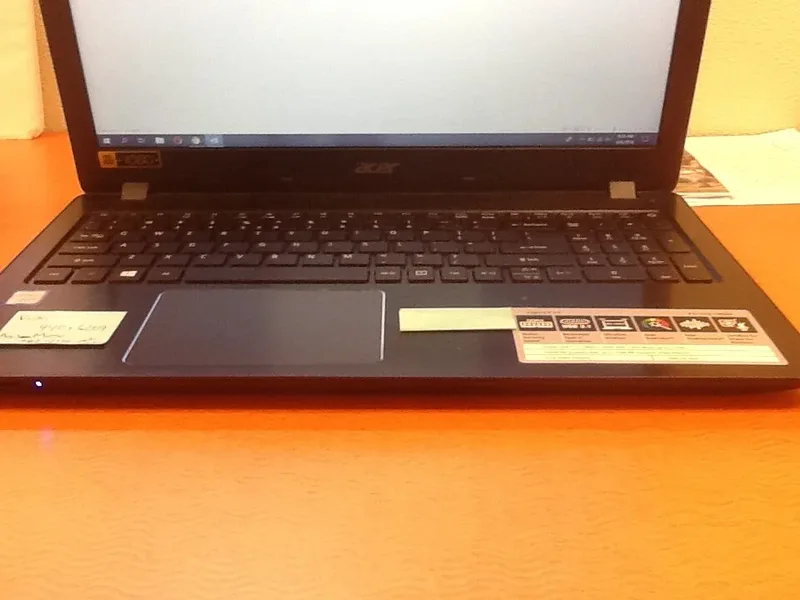
If the copilot key not working on keyboard is your problem, pressing it may do nothing or open an unexpected app. A common cause is that the key’s assigned action differs from what you expect, or its companion keyboard software or remapping tool is overriding it.
The physical key sends an input that Windows or the keyboard’s software interprets according to the device and its configuration. The key’s behavior can vary by keyboard, Windows version, and installed apps, so first identify whether the issue affects this key alone or the keyboard more broadly.
| Possible cause | What you notice | Quick test |
|---|---|---|
| Assigned action or app | The key opens something unexpected | Check the keyboard utility and Windows settings |
| Remapping software | The key behaves differently after sign-in | Temporarily exit remapping tools |
| Keyboard or connection | Other keys also fail or inputs drop | Reconnect it or test another keyboard |
Check the keyboard maker’s documentation or support page for your exact model. Look for whether the key is programmable and what action it is meant to perform; do not assume every Copilot-labeled key behaves identically. If the maker provides a configuration app, open it and check the key assignment. If the assignment is wrong, restore the intended action, apply the change, and test again.
Open Settings and search for “Copilot” and “keyboard.” Available options vary by Windows version and device, so use the settings actually shown on your PC rather than following a path from another model. If Windows offers an action for the Copilot key, select the desired option and test it. If no such setting appears, the key may be managed by the keyboard utility or firmware instead.
Look in the system tray and Task Manager for keyboard utilities, macro tools, or key remappers. Save your work, then exit those apps temporarily and press the key again. If it now works as expected, reopen the apps one at a time and inspect their mappings or profiles. Keep the corrected assignment, or remove the conflicting mapping if you no longer need it.
Try the key in a simple app such as Notepad, then test an external keyboard if you normally use a laptop keyboard. For a USB keyboard, reconnect it directly to another port; for a wireless model, check its power and reconnect it using the maker’s instructions. If the problem follows one keyboard, its assignment, connection, or hardware is the likely cause. If multiple keyboards behave the same way, focus on Windows settings or software.
Save open work and restart the PC, which can clear a temporarily stuck keyboard utility or input service. Then open Settings > Windows Update and select Check for updates. Install applicable updates and restart if prompted. Test the key again; a change after restarting points to a temporary software issue, while no change means you should continue checking the device and its configuration.
Right-click Start, open Device Manager, and expand Keyboards. Right-click the relevant keyboard entry and choose Uninstall device, then restart Windows so it can detect the keyboard again. The exact entry can vary, especially on laptops. If the key starts working afterward, the device’s input configuration was likely stuck; if not, check the keyboard maker’s support guidance before installing any driver.
If the key works but its action is inconvenient, use the keyboard maker’s utility or a reputable remapping tool that supports your device and Windows version. Make one change at a time, apply it, and test the key. To disable it, use a supported option in the manufacturer utility or remapper and confirm that the key no longer triggers an action. Record the original setting so you can undo the change if another shortcut stops working.
The key may be assigned to a different action by Windows, keyboard firmware, or a manufacturer utility. Check the setting or profile for your exact keyboard model and change the assignment if that option is available.
Options depend on your Windows version and keyboard model. Check Settings and the maker’s utility first; if neither offers a mapping, use a reputable remapper that supports your setup.
Look for a disable or unassign option in the keyboard’s configuration app or a compatible remapping tool. Test afterward to confirm the key no longer launches an app or sends another shortcut.
Most cases come down to an unexpected assignment or software conflict, so test the key after each change to find the cause. If nothing worked, compare with another keyboard and contact the keyboard maker with your model and the steps you tried.
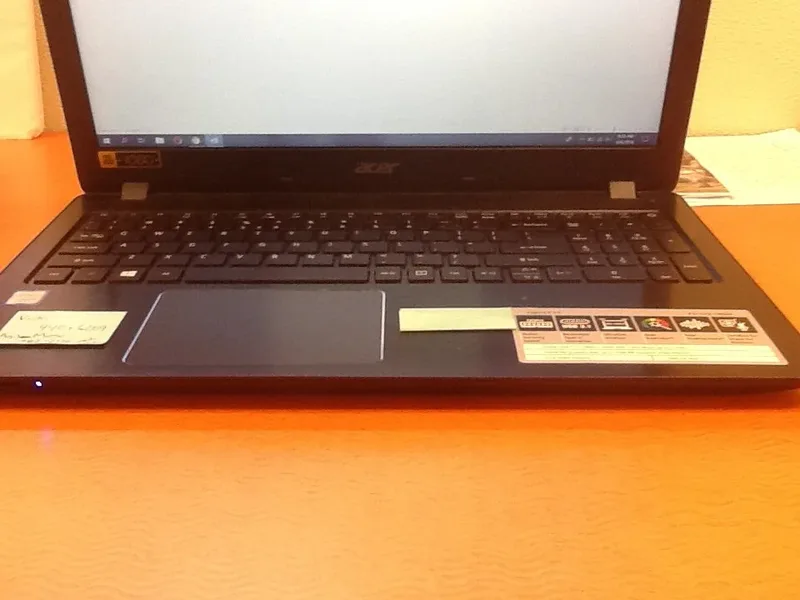
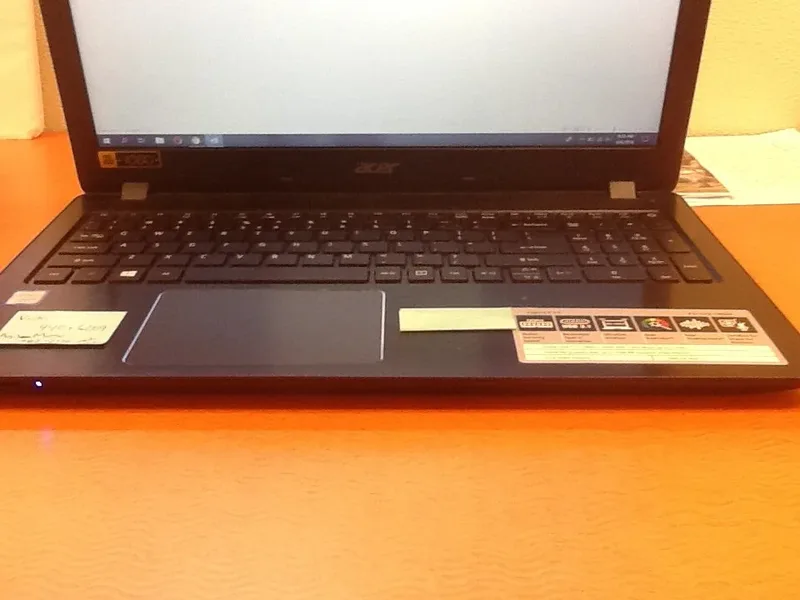
Photo: Ó29c / CC BY-SA 4.0 (Wikimedia Commons)
If sfc scannow not fixing corruption, repair the Windows component store with DISM, rerun System File Checker, and check the log for remaining damage.
Fix a Copilot key that does nothing, opens the wrong app, or triggers another shortcut. Check Windows settings, keyboard software, and remapping options.
Fix bitlocker keeps asking for recovery key dell by checking TPM, firmware, Secure Boot, and startup changes safely in Windows 10 or 11.
Fix vscode wsl2 exec format error by checking the command, file type, script header, architecture, and VS Code Server installation with safe steps.
Fix device manager error code 19 in Windows 10 or 11 with safe Registry checks, driver recovery, and step-by-step tests to restore the device.
Fix windows update stuck at 99 downloading with safe checks, a Windows Update troubleshooter, cache cleanup, and a careful retry for Windows 10 or 11.
Fix device manager keeps refreshing windows 10 by finding the device change, driver, or service that keeps making Windows rebuild its hardware list.
Fix windows update not downloading stuck at 0 by checking the connection, repairing Windows components, and safely resetting the update cache on Windows 10 or 11.
After a Windows update, a fan that keeps running may point to high CPU use, changed power settings, or a driver issue. Follow these checks to restore quiet operation.
After update windows 11 keyboard not working? Check whether the issue is a driver, filter setting, USB connection, or update, then follow safe recovery steps.