SFC Scannow Not Fixing Corruption: DISM Order
If sfc scannow not fixing corruption, repair the Windows component store with DISM, rerun System File Checker, and check the log for remaining damage.
If Device Manager keeps refreshing on Windows 10 or 11, its device list may disappear and reappear every few seconds. A common cause is a device or driver repeatedly disconnecting and reconnecting; a broken or unstable Plug and Play service can also prevent the list from settling.
Device Manager rebuilds its view when Windows detects a hardware change. If the same device keeps reporting a change, the window can flicker even when the computer seems otherwise usable. Look for these mechanisms:
Use the pattern of the refresh to narrow down the cause before changing drivers or services:
| Possible cause | Typical symptom | Quick test |
|---|---|---|
| USB connection | Refresh begins when a peripheral is connected | Disconnect nonessential USB devices one at a time |
| Driver or utility | Refresh continues with peripherals removed | Check Event Viewer and test a clean boot |
| Plug and Play service | Device detection appears stuck or inconsistent | Check the service status in Services |
Save your work, then unplug nonessential USB devices, including docks, hubs, storage, printers, controllers, and webcams. Leave the keyboard and mouse connected, and wait to see whether Device Manager stops refreshing. Reconnect devices one at a time; if the flicker returns after a particular device is attached, try a different cable or port and check for that device's driver update.
Press Win + R, enter services.msc, and press Enter. Find Plug and Play and check its status. If it is stopped, select Start; if it is running, select Restart if that option is available. If Windows does not allow a restart or the service stops again, note the message and continue with the system checks below. Avoid changing its startup type from its default.
Right-click Start, open Event Viewer, and go to Windows Logs > System. Look at events recorded at the time the refresh occurs, especially entries that identify a device, driver, or service. Event details can help identify what is changing, but do not assume every warning is the cause. If one device appears repeatedly, disconnect it or update its driver using the manufacturer's support instructions.
Open Settings > Windows Update and install available updates, including optional driver updates if they match the affected hardware. You can also right-click Start, choose Device Manager, expand the relevant category, right-click the device, and select Update driver. If the issue began immediately after a driver update, open the device's Properties > Driver tab and use Roll Back Driver if available. A stable device list after the update or rollback is a good sign the driver was involved.
Search for Command Prompt, select Run as administrator, and run DISM /Online /Cleanup-Image /RestoreHealth. When it finishes, run sfc /scannow in the same window. These tools check and repair Windows component and system files; they may take several minutes. Restart the PC afterward and check whether Device Manager remains steady.
Press Win + R, enter msconfig, and open the Services tab. Select Hide all Microsoft services, then choose Disable all; in Task Manager's Startup apps tab, disable startup apps for the test and restart. If the refreshing stops, a third-party service or startup app may be responsible. Re-enable items in small groups to identify it, then restore normal startup in System Configuration.
If a specific device is identified, open Device Manager, right-click that device, and select Uninstall device. Restart Windows so it can detect the hardware and reinstall a driver. Do not select an option to remove driver software unless you have a replacement driver ready from the PC or device manufacturer. If the device reappears and the list stays stable, detection has completed; if the refresh resumes, inspect its connection and driver again.
Windows may be repeatedly detecting a hardware change, commonly because a USB device or its connection is unstable. A driver or Plug and Play issue can cause similar behavior. Disconnect peripherals and check Event Viewer around the time the problem occurs.
You can check and restart the Plug and Play service in the Services app if Windows offers that option. This may help if device detection is stuck, but it will not fix a faulty cable or a driver that keeps resetting. Leave the service's startup setting at its default.
Disconnect nonessential external devices and reconnect them one at a time while watching the list. Event Viewer may also show repeated device or driver activity at the same time. If the problem persists with peripherals removed, test a clean boot and investigate the driver or service.
Start with external connections and the Plug and Play service, then use event logs and a clean boot to isolate software causes. If Device Manager still refreshes, contact the PC or device manufacturer with the relevant event details and the troubleshooting steps you tried.
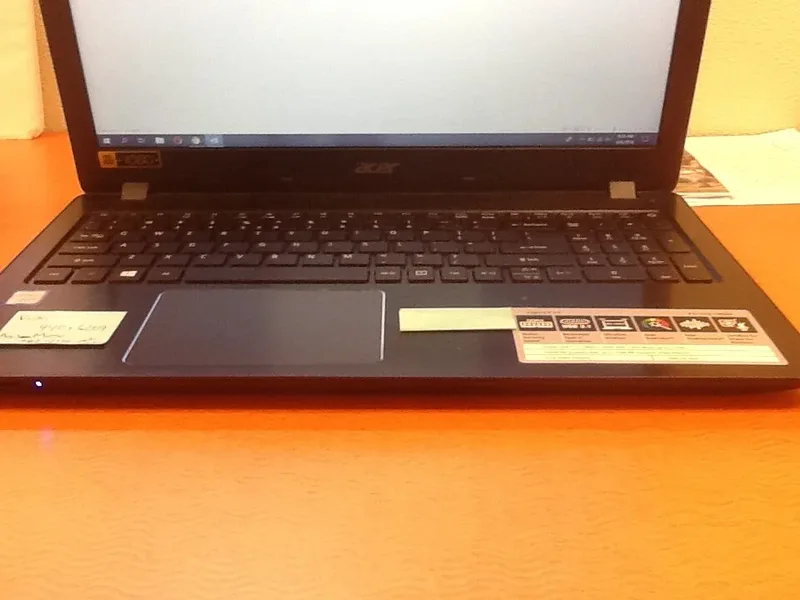
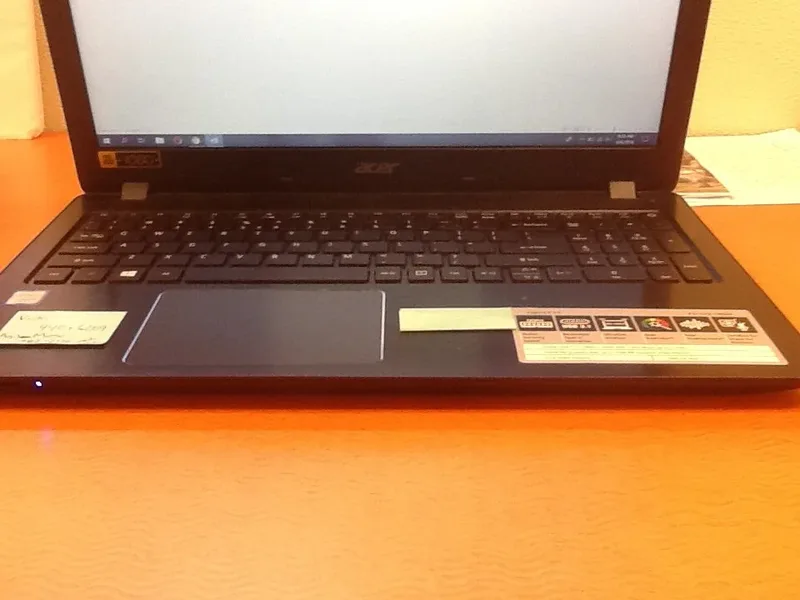
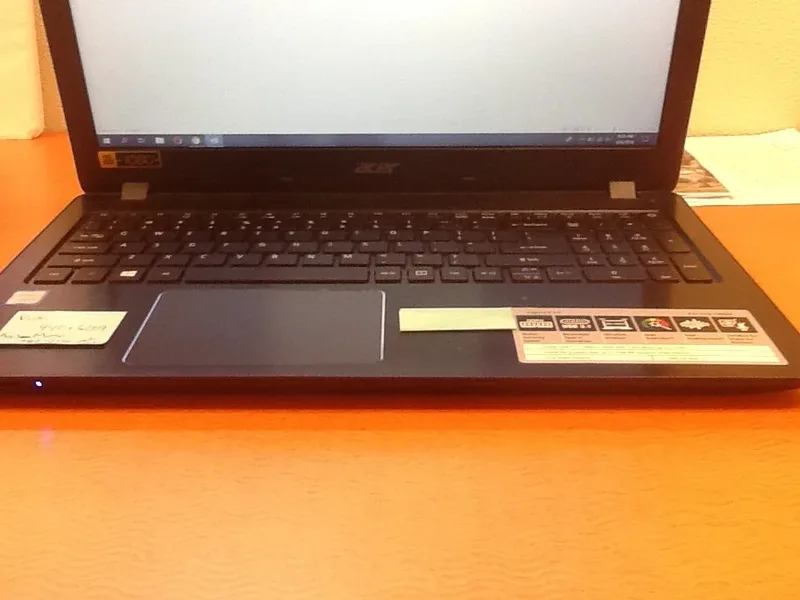
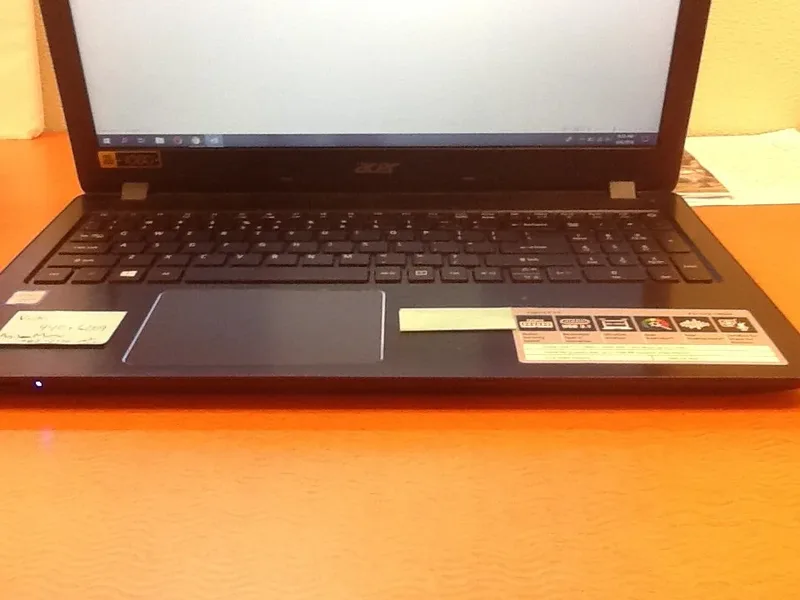
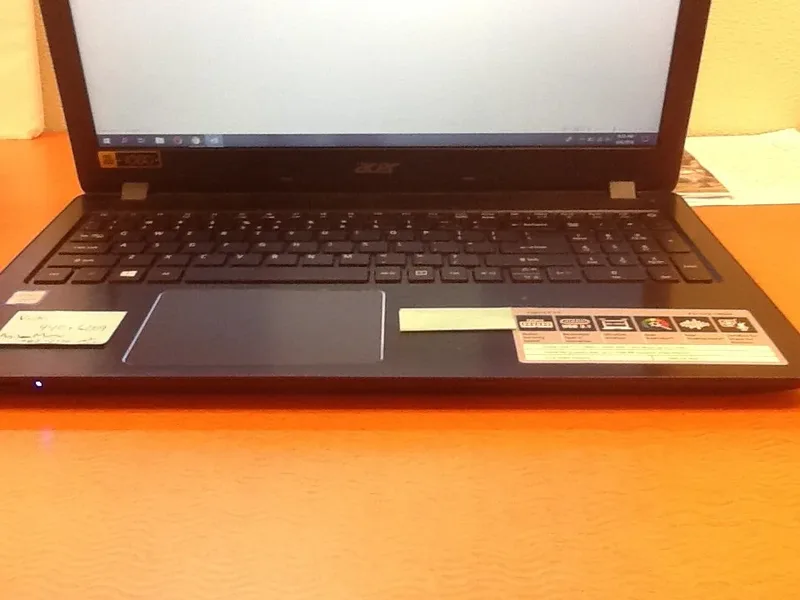
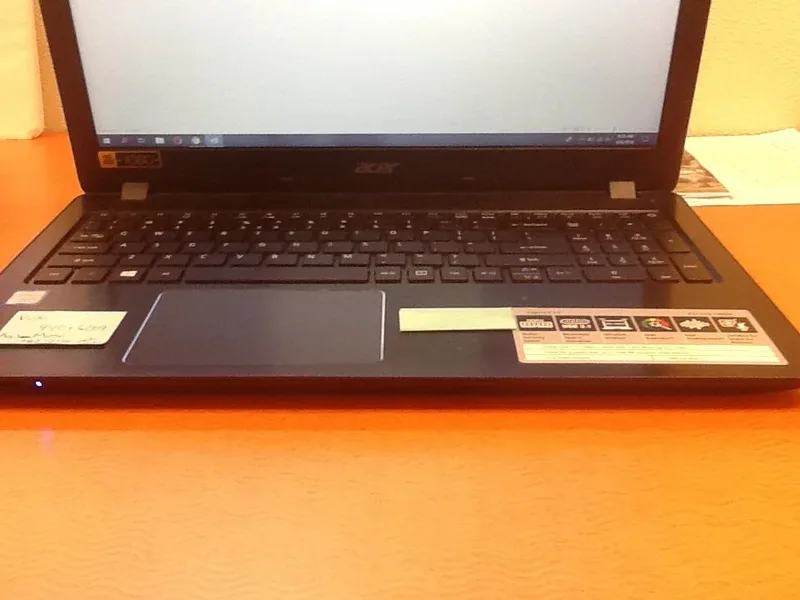
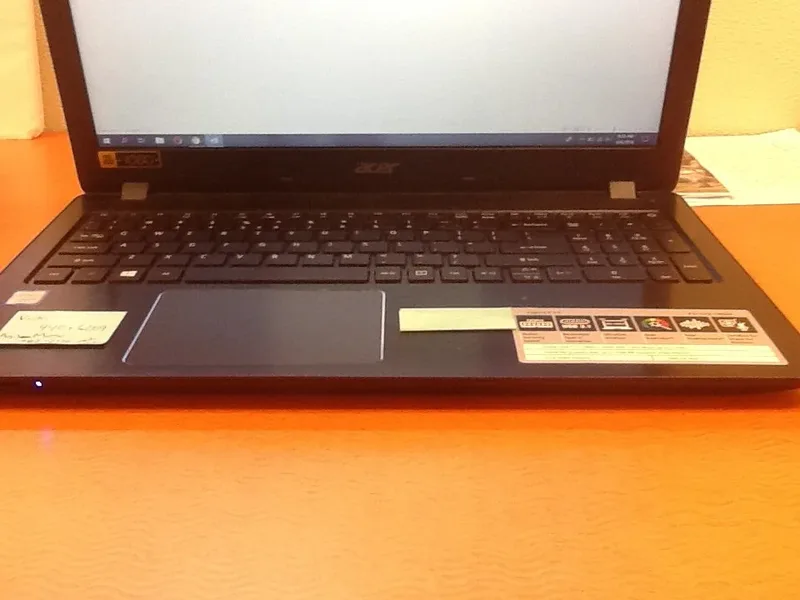
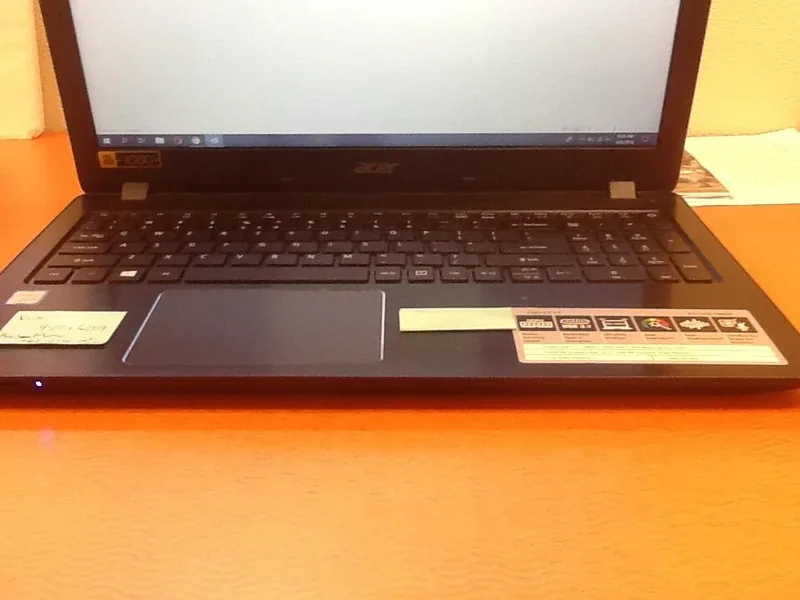
Photo: Ó29c / CC BY-SA 4.0 (Wikimedia Commons)
If sfc scannow not fixing corruption, repair the Windows component store with DISM, rerun System File Checker, and check the log for remaining damage.
Fix a Copilot key that does nothing, opens the wrong app, or triggers another shortcut. Check Windows settings, keyboard software, and remapping options.
Fix bitlocker keeps asking for recovery key dell by checking TPM, firmware, Secure Boot, and startup changes safely in Windows 10 or 11.
Fix vscode wsl2 exec format error by checking the command, file type, script header, architecture, and VS Code Server installation with safe steps.
Fix device manager error code 19 in Windows 10 or 11 with safe Registry checks, driver recovery, and step-by-step tests to restore the device.
Fix windows update stuck at 99 downloading with safe checks, a Windows Update troubleshooter, cache cleanup, and a careful retry for Windows 10 or 11.
Fix device manager keeps refreshing windows 10 by finding the device change, driver, or service that keeps making Windows rebuild its hardware list.
Fix windows update not downloading stuck at 0 by checking the connection, repairing Windows components, and safely resetting the update cache on Windows 10 or 11.
After a Windows update, a fan that keeps running may point to high CPU use, changed power settings, or a driver issue. Follow these checks to restore quiet operation.
After update windows 11 keyboard not working? Check whether the issue is a driver, filter setting, USB connection, or update, then follow safe recovery steps.