SFC Scannow Not Fixing Corruption: DISM Order
If sfc scannow not fixing corruption, repair the Windows component store with DISM, rerun System File Checker, and check the log for remaining damage.
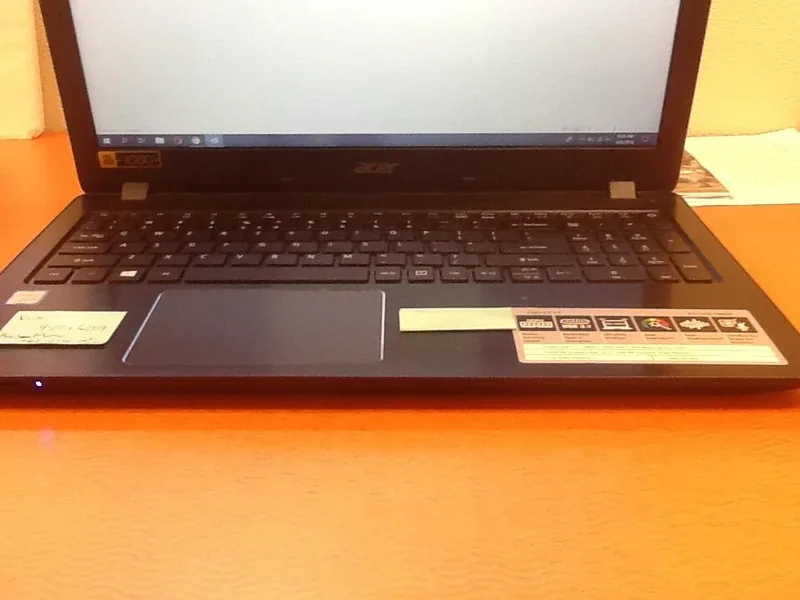
If you find your keyboard stopped responding after an update, the most common cause is a driver or compatibility problem introduced when Windows replaced or reconfigured the keyboard driver. If you searched for “after update windows 11 keyboard not working,” start with the checks below; most do not require typing your Windows password.
Windows updates can change device drivers or accessibility settings, but a timing coincidence is also possible: a loose USB connection, depleted wireless battery, or keyboard hardware fault can surface at the same time.
On the sign-in screen, select the accessibility icon and turn on On-Screen Keyboard. If it works, sign in and open Settings > System > About to confirm the Windows version. Test the physical keyboard in a different USB port, directly on the PC rather than through a hub or dock. For a wireless keyboard, check its power switch and battery, reconnect its receiver, or use the manufacturer’s pairing steps. If it works on another computer but not this one, focus on Windows settings and drivers.
Choose Start > Power > Restart; a restart can reload a driver that failed to initialize after updating. For a USB keyboard, unplug it, wait a few seconds, then reconnect it. For Bluetooth, open Settings > Bluetooth & devices, turn Bluetooth off and on, and reconnect the keyboard if it appears as disconnected. A working keyboard after restart or reconnection points to a temporary device or connection issue.
If keystrokes are delayed or some presses seem ignored, open Settings > Accessibility > Keyboard and switch off Filter Keys. Also check whether Sticky Keys is on if modifier keys behave unusually. Settings labels can vary slightly by Windows version. Test by typing several short words in Notepad; immediate, consistent input confirms that an accessibility setting was involved.
Right-click Start and select Device Manager. Expand Keyboards, right-click the listed keyboard, and choose Uninstall device; then restart the PC so Windows can detect and reinstall it. If more than one keyboard is listed, disconnect external keyboards first or remove only the device you can identify. If the keyboard works after restart, Windows has successfully reloaded its device entry. If Device Manager has no Keyboards category, check Human Interface Devices and Universal Serial Bus controllers for a device with a warning symbol.
In Device Manager, open the keyboard device’s Properties, select the Driver tab, and choose Roll Back Driver if the button is available. This option appears only when Windows has a previous driver to restore. Restart and test the keyboard. If the option is unavailable, do not install a driver from an unfamiliar download site; use Windows Update or the PC maker’s support page for your exact model.
If the keyboard worked immediately before a specific update and failed right after it, open Settings > Windows Update > Update history > Uninstall updates. Select the recent update only if you can identify it as the likely trigger, then follow the prompts and restart. The available update list and labels vary by Windows version. If the keyboard returns, report the issue through Windows Update and check for a later fix before reinstalling that update.
At the sign-in screen, hold Shift while selecting Power > Restart using the on-screen keyboard or mouse. In Windows Recovery Environment, select Troubleshoot > Advanced options, then try Startup Settings > Restart and choose Safe Mode using the on-screen controls if available. If the issue began after an update, Uninstall Updates may also appear under Advanced options. Menu availability varies by device and Windows version; avoid resetting the PC until you have backed up important files.
Use this quick guide to choose the next check:
| Possible cause | Typical symptom | Quick test |
|---|---|---|
| USB connection | External keyboard is completely unresponsive | Try another port directly on the PC |
| Accessibility setting | Brief or repeated presses are ignored | Turn off Filter Keys |
| Driver change | Keyboard fails only on this PC | Reinstall or roll back its Device Manager entry |
| Wireless pairing or power | Wireless keyboard drops out or does not connect | Check battery, receiver, and Bluetooth pairing |
A driver may have been replaced or failed to reload, though a connection issue or changed accessibility setting can look similar. Restart, test another port or keyboard, and check Filter Keys before removing an update.
Select the accessibility icon on the sign-in screen and turn on On-Screen Keyboard. You can use it to enter your password and open Windows settings while troubleshooting.
Use the mouse and on-screen keyboard to navigate to Settings > Windows Update > Update history > Uninstall updates. If you cannot sign in, Windows Recovery Environment may offer an Uninstall Updates option under Advanced options.
Start with the connection and accessibility checks, then move to driver recovery or update removal when the timing and symptoms point there. If none works, test with a known-good keyboard and contact the PC manufacturer or a repair professional with your model and recent update history.
Photo: Ó29c / CC BY-SA 4.0 (Wikimedia Commons)
If sfc scannow not fixing corruption, repair the Windows component store with DISM, rerun System File Checker, and check the log for remaining damage.
Fix a Copilot key that does nothing, opens the wrong app, or triggers another shortcut. Check Windows settings, keyboard software, and remapping options.
Fix bitlocker keeps asking for recovery key dell by checking TPM, firmware, Secure Boot, and startup changes safely in Windows 10 or 11.
Fix vscode wsl2 exec format error by checking the command, file type, script header, architecture, and VS Code Server installation with safe steps.
Fix device manager error code 19 in Windows 10 or 11 with safe Registry checks, driver recovery, and step-by-step tests to restore the device.
Fix windows update stuck at 99 downloading with safe checks, a Windows Update troubleshooter, cache cleanup, and a careful retry for Windows 10 or 11.
Fix device manager keeps refreshing windows 10 by finding the device change, driver, or service that keeps making Windows rebuild its hardware list.
Fix windows update not downloading stuck at 0 by checking the connection, repairing Windows components, and safely resetting the update cache on Windows 10 or 11.
After a Windows update, a fan that keeps running may point to high CPU use, changed power settings, or a driver issue. Follow these checks to restore quiet operation.
After update windows 11 keyboard not working? Check whether the issue is a driver, filter setting, USB connection, or update, then follow safe recovery steps.