SFC Scannow Not Fixing Corruption: DISM Order
If sfc scannow not fixing corruption, repair the Windows component store with DISM, rerun System File Checker, and check the log for remaining damage.
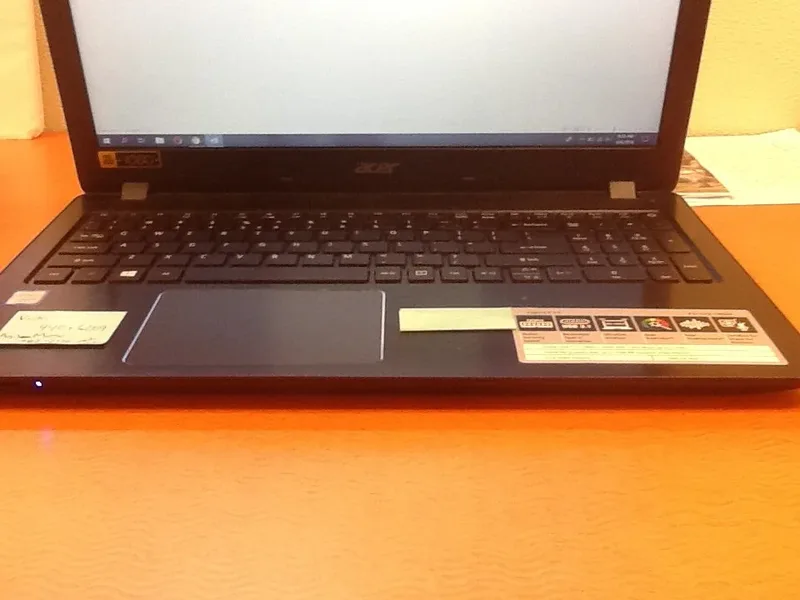
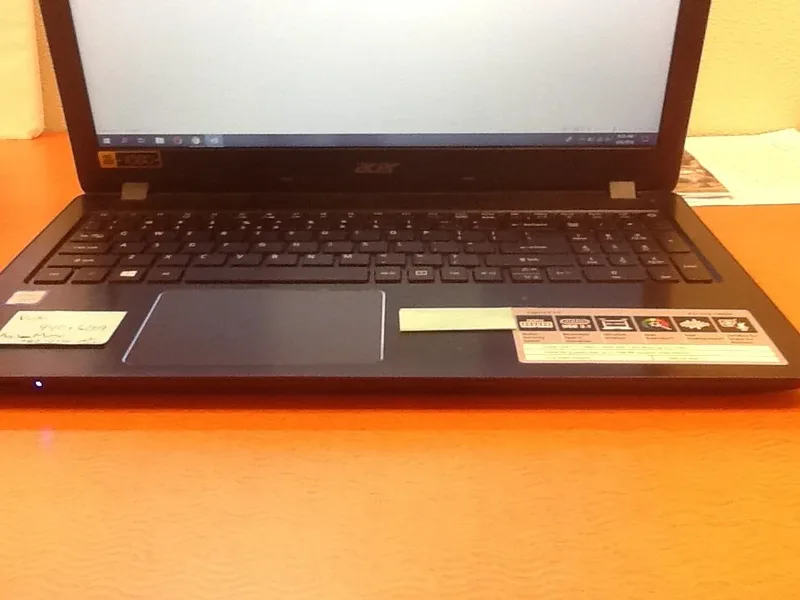
If you searched for “after windows 11 update fan keeps running,” the fan may stay loud or spin after the update appears to finish. The most common cause is temporary background work, such as Windows Update or search indexing, keeping the processor busy; a changed power setting or driver can also contribute.
Windows may continue installing updates, rebuilding search indexes, or running startup tasks after a restart. Those tasks raise CPU temperature, so the cooling system increases fan speed. If the fan stays loud when the system is idle, check for a stuck process, a power plan change, or an outdated device driver.
| Possible cause | Typical symptom | Quick test |
|---|---|---|
| Update or indexing work | Fan activity soon after restart | Check CPU use in Task Manager |
| High-performance power setting | Fan runs during light use | Switch to Balanced or Recommended |
| Driver issue | Problem began after an update | Check Device Manager for warnings |
Connect the PC to power, save your work, and leave it on for 20–30 minutes with the lid open and vents unobstructed. Then restart from Start > Power > Restart. Windows can complete maintenance after the desktop appears; if the fan slows after this idle period and restart, background work was likely the cause.
Press Ctrl + Shift + Esc to open Task Manager, select Processes, and sort by the CPU column. Check whether Windows Update, an installer, search indexing, or another app is using CPU. Let legitimate system tasks finish, and close only apps you recognize; if CPU use drops and the fan quiets, you have identified the immediate heat source.
Open Settings > Windows Update and review the status. Install any pending updates, including a requested restart, then restart the PC. If an update repeatedly fails or remains pending, note the message shown in Settings and use Settings > System > Troubleshoot > Other troubleshooters > Windows Update if that troubleshooter is available on your version.
In Windows 11, open Settings > System > Power & battery and set Power mode to Balanced or Recommended, if shown. In Windows 10, open Settings > System > Power & sleep > Additional power settings and select Balanced. On some PCs, the manufacturer app controls these options; check its thermal or performance profile. A lower fan speed during the same light workload suggests the power mode was contributing.
Open Control Panel > Hardware and Sound > Power Options, choose the active plan, then select Change plan settings > Change advanced power settings. If Processor power management > System cooling policy is available, check whether it is set to Active; options vary by device and Windows version. Avoid changing maximum processor state as a first step. If the fan behavior improves after restoring the original or recommended setting, keep that setting.
Right-click Start, choose Device Manager, and look for warning symbols under system devices, display adapters, and other relevant categories. For a driver update, use Settings > Windows Update > Advanced options > Optional updates when offered, or download the matching driver from the PC manufacturer’s support page. Avoid third-party driver updater tools. If the fan issue began immediately after a specific driver update, Device Manager may offer Properties > Driver > Roll Back Driver; use it only when available and appropriate for that device.
Place the PC on a hard, flat surface and make sure its vents are clear. If the fan remains loud while Task Manager shows low CPU use, use the manufacturer’s diagnostics or thermal utility, if available, to check temperatures and fan behavior. A hot chassis, blocked vent, or fan that rattles can point to a cooling issue rather than Windows settings; stop heavy workloads and arrange service if temperatures remain unusually high or the device shuts down.
Windows may still be finishing update tasks, indexing files, or starting apps in the background. Check Task Manager’s CPU column and allow those tasks to settle before changing drivers or power settings.
A Balanced or Recommended mode can reduce heat during light work, but it does not disable the fan. The fan should continue to cool the PC when its temperature requires it.
Consider rollback only if the problem began after a specific driver update and Device Manager offers the option. If the fan stays loud at idle or the PC overheats, check airflow and manufacturer diagnostics as well.
Start with CPU activity and power mode, then check updates, drivers, and airflow if the fan still runs. If none of these steps helps, record when the fan speeds up and contact your PC manufacturer for model-specific diagnostics or service.
Photo: Ó29c / CC BY-SA 4.0 (Wikimedia Commons)
If sfc scannow not fixing corruption, repair the Windows component store with DISM, rerun System File Checker, and check the log for remaining damage.
Fix a Copilot key that does nothing, opens the wrong app, or triggers another shortcut. Check Windows settings, keyboard software, and remapping options.
Fix bitlocker keeps asking for recovery key dell by checking TPM, firmware, Secure Boot, and startup changes safely in Windows 10 or 11.
Fix vscode wsl2 exec format error by checking the command, file type, script header, architecture, and VS Code Server installation with safe steps.
Fix device manager error code 19 in Windows 10 or 11 with safe Registry checks, driver recovery, and step-by-step tests to restore the device.
Fix windows update stuck at 99 downloading with safe checks, a Windows Update troubleshooter, cache cleanup, and a careful retry for Windows 10 or 11.
Fix device manager keeps refreshing windows 10 by finding the device change, driver, or service that keeps making Windows rebuild its hardware list.
Fix windows update not downloading stuck at 0 by checking the connection, repairing Windows components, and safely resetting the update cache on Windows 10 or 11.
After a Windows update, a fan that keeps running may point to high CPU use, changed power settings, or a driver issue. Follow these checks to restore quiet operation.
After update windows 11 keyboard not working? Check whether the issue is a driver, filter setting, USB connection, or update, then follow safe recovery steps.