SFC Scannow Not Fixing Corruption: DISM Order
If sfc scannow not fixing corruption, repair the Windows component store with DISM, rerun System File Checker, and check the log for remaining damage.
If powercfg /batteryreport says access is denied, cannot save the file, or appears to do nothing, the command may be running without the right permissions. The most common cause is using a protected output folder without opening Command Prompt as an administrator.
The battery report command asks Windows for battery information and writes an HTML file to a chosen location. A failure can come from the shell's permissions, the destination path, or the device not exposing a supported battery to Windows.
| Likely cause | Typical symptom | Quick test |
|---|---|---|
| Insufficient permissions | Access denied or write failure | Run an elevated terminal and save to C:\battery-report.html |
| Wrong output location | Command finishes, but file is missing | Use a simple path and check it in File Explorer |
| No supported battery | Windows reports no battery information | Check Device Manager and whether the PC has a battery |
Open Start, type Terminal or Command Prompt, right-click the result, and select Run as administrator. Approve the User Account Control prompt, then run:
powercfg /batteryreport /output "C:\battery-report.html"
When Windows reports that the report was saved, open File Explorer and enter C:\battery-report.html in the address bar. If it opens, elevated permissions resolved the issue. This is the first fix to try when powercfg battery report not working appears to be a permissions problem.
If you do not want to use an elevated terminal, save the file in your user profile. Run powercfg /batteryreport /output "%USERPROFILE%\battery-report.html" in Command Prompt or Terminal. Then open File Explorer, type %USERPROFILE%\battery-report.html in its address bar, and press Enter.
Make sure the destination folder already exists. The report command does not create a missing folder for you; if you choose a different folder, create it first and use its full path in the command.
Type the command exactly, including the space before /batteryreport. The output option should be /output, followed by a full path. Keep quotation marks around paths that contain spaces, such as "C:\Users\Your Name\Documents\battery report.html".
Use a simple filename ending in .html. If the command says it saved a report, check that exact path rather than relying on a search or an old shortcut. Finding the file there confirms the output path was the problem.
On a laptop or tablet, right-click Start and open Device Manager. Expand Batteries and check whether battery-related devices appear. The names and entries can vary by model; do not uninstall devices as a first troubleshooting step.
If the computer is a desktop without a battery, or Windows does not detect one, a battery report may have little or no data to report. On a portable PC, check whether the battery appears in Windows settings and consult the computer maker's support instructions if it is missing.
Open Start, search for Windows PowerShell or Terminal, and choose Run as administrator. Run the same command with the explicit output path: powercfg /batteryreport /output "C:\battery-report.html".
If this works where your previous shell did not, the issue was likely the original terminal's permissions, working directory, or command entry. The saved-file message and opening the HTML file confirm success.
Open the folder where you saved the report and verify that battery-report.html exists. Double-click it to open it in your default browser, or right-click it and choose a browser. If the file exists but looks blank, refresh the page and allow the browser to finish loading the local file.
A report can be created successfully even if a browser does not open automatically. The existence of the HTML file is the useful confirmation that the command itself completed.
If Windows recognizes the battery but the report still fails or contains no useful battery information, restart the PC and retry from an administrator terminal using the simple C:\battery-report.html destination. A restart can clear a temporary device or power-management state.
If it still fails, note the complete message shown in the terminal and check the computer manufacturer's support guidance for battery or firmware issues. Avoid changing firmware settings or uninstalling battery devices without model-specific instructions.
Administrator rights are useful when saving to a protected location or when the command reports a permission problem. Saving to a folder in your user profile may work without elevation, provided the path is valid and writable.
Without an explicit output path, Windows saves the report in the current working directory and displays the location in the terminal. Use /output with a full path to make the destination clear, then check that exact location.
Windows may not detect a supported battery, or the computer may not have one. Check Device Manager under Batteries and confirm the battery is recognized by Windows; device entries and report details vary by model.
Most failures come down to permissions or an invalid destination, so an administrator terminal and a simple output path are the quickest checks. If the report still will not generate, record the exact terminal message and contact the PC manufacturer's support with your model and battery detection results.
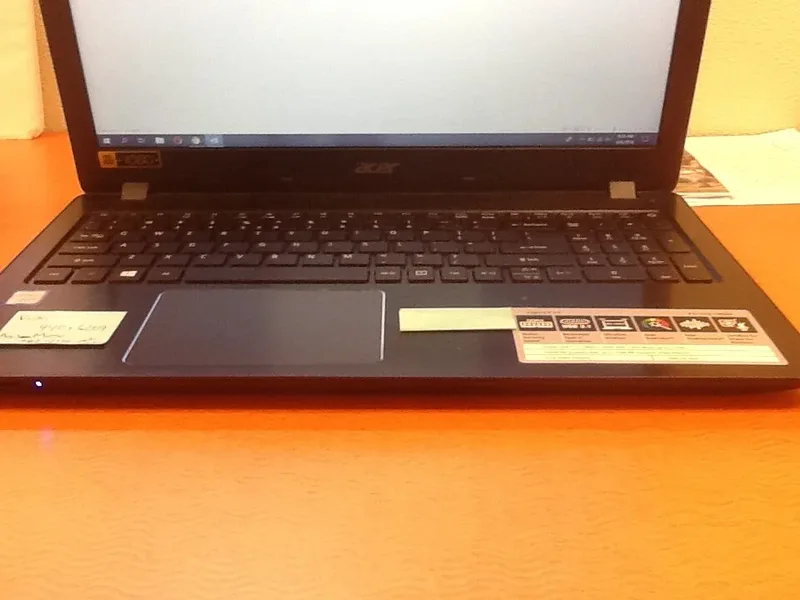
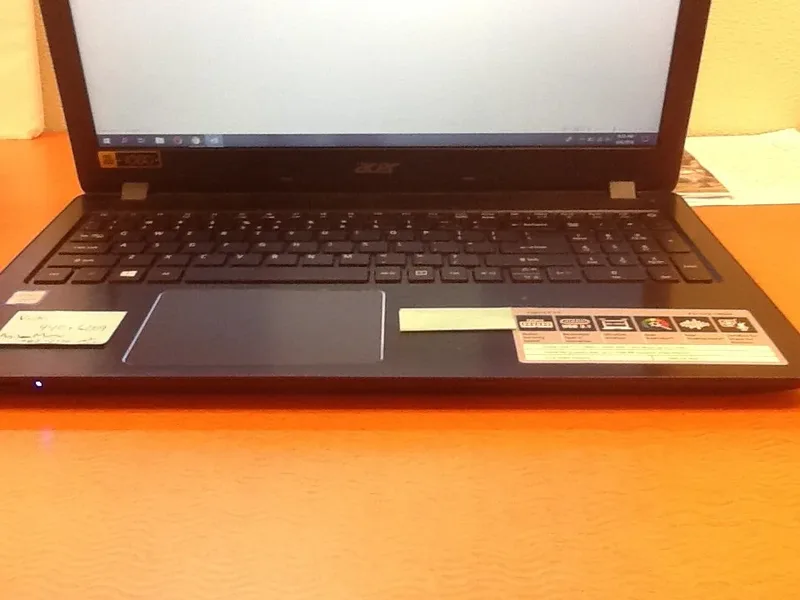
Photo: Ó29c / CC BY-SA 4.0 (Wikimedia Commons)
If sfc scannow not fixing corruption, repair the Windows component store with DISM, rerun System File Checker, and check the log for remaining damage.
Fix a Copilot key that does nothing, opens the wrong app, or triggers another shortcut. Check Windows settings, keyboard software, and remapping options.
Fix bitlocker keeps asking for recovery key dell by checking TPM, firmware, Secure Boot, and startup changes safely in Windows 10 or 11.
Fix vscode wsl2 exec format error by checking the command, file type, script header, architecture, and VS Code Server installation with safe steps.
Fix device manager error code 19 in Windows 10 or 11 with safe Registry checks, driver recovery, and step-by-step tests to restore the device.
Fix windows update stuck at 99 downloading with safe checks, a Windows Update troubleshooter, cache cleanup, and a careful retry for Windows 10 or 11.
Fix device manager keeps refreshing windows 10 by finding the device change, driver, or service that keeps making Windows rebuild its hardware list.
Fix windows update not downloading stuck at 0 by checking the connection, repairing Windows components, and safely resetting the update cache on Windows 10 or 11.
After a Windows update, a fan that keeps running may point to high CPU use, changed power settings, or a driver issue. Follow these checks to restore quiet operation.
After update windows 11 keyboard not working? Check whether the issue is a driver, filter setting, USB connection, or update, then follow safe recovery steps.