Steam Deck Wakes Itself From Sleep: USB-C and BIOS
If your Steam Deck keeps waking up from sleep, check connected USB-C devices, wake settings, and firmware before changing emulation or power options.
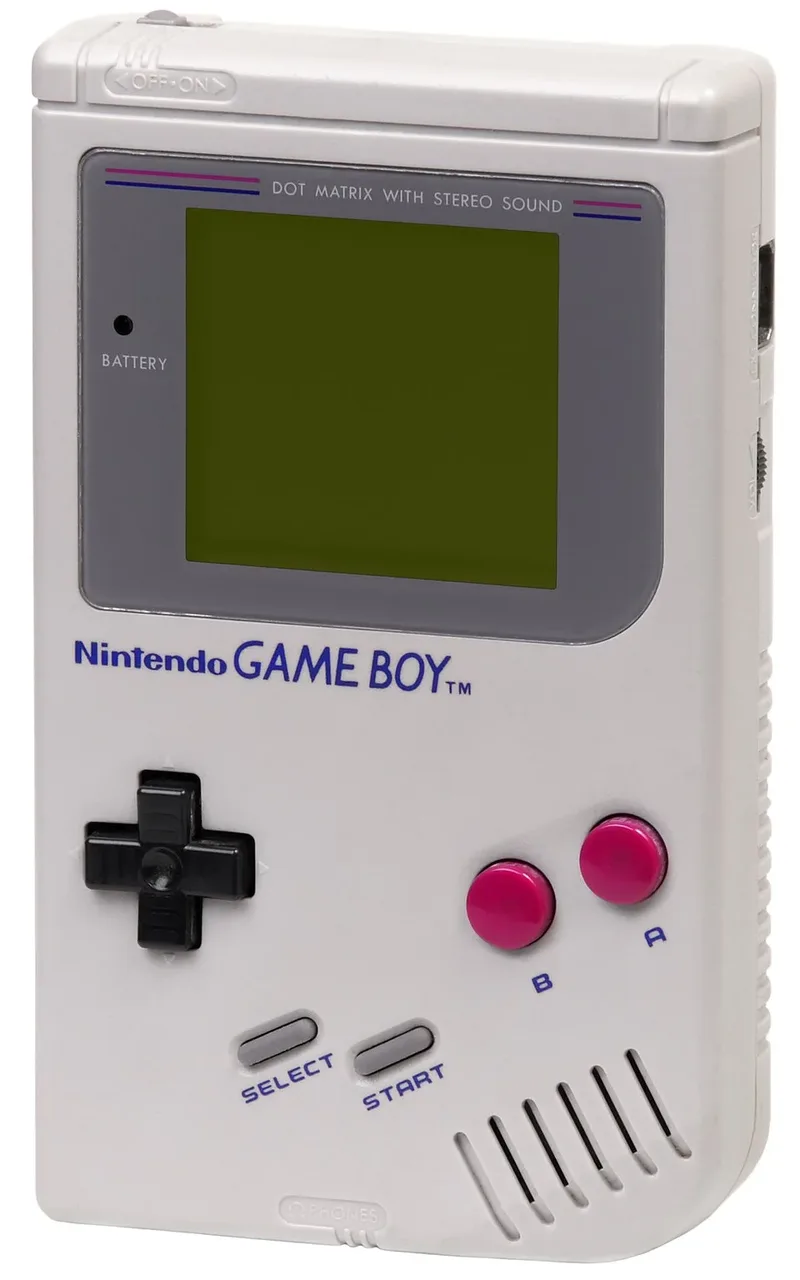
If your Anbernic RG35XX H is stuck on the Anbernic logo, it usually cannot read or start the operating system from the game card. The most common cause is a failing or corrupted microSD card, especially when the system is installed on the card supplied with the device.
The RG35XX H boots from system files on its microSD card. If those files are damaged, the card is poorly seated, or the battery is too low to complete startup, the logo can appear without the handheld reaching its menu.
| Possible cause | Typical symptom | Quick test |
|---|---|---|
| Low charge | Boot stops or restarts | Charge with a known-good cable, then try again |
| Loose or failing system card | Logo appears, menu never loads | Power off and reseat the card |
| Problem with the second card | Boot works without it | Start with only the system card inserted |
| Damaged or mismatched firmware | Issue persists with a sound card | Reflash an image made for the RG35XX H |
Connect the RG35XX H to a reliable USB power source with a known-good cable and let it charge for at least 30 minutes. Hold the power button until the screen turns off; if it does not respond, hold it for several seconds, release, wait briefly, then turn it on again. Avoid repeatedly interrupting startup. A successful boot to the system menu points to a low-charge or temporary hang.
Turn the handheld off before removing cards. Remove any USB accessories, then take out the game card if you use a two-card setup. Leave the system card in place and try booting. If it starts, the second card or its contents may be the cause. If there is no change, power off again and reseat the system card fully in its slot. Do not remove a card while the device is running.
If a computer can read the card, copy accessible saves and other files you want to keep before formatting or writing anything. Some system partitions may not appear normally in Windows; do not initialize or format a disk just because Windows prompts you. If the card is intermittently detected, reports read errors, or disconnects during copying, treat it as unreliable and avoid using it for further recovery attempts.
The clearest way to check whether the original card is at fault is to boot from a replacement card prepared with compatible firmware. Use a reputable, genuine microSD card and follow the firmware image's instructions. If the replacement boots while the old card does not, the old card or its files were the problem. If you do not have a prepared card, proceed to the firmware step rather than guessing at partitions or copying random files onto the card.
Get a firmware image specifically intended for the RG35XX H from its official source or the project’s trusted release page. Confirm the model before writing: firmware for another RG35XX variant may not boot correctly. Use the image writer recommended by that firmware's instructions, select the correct removable card, and verify the write if the tool offers that option. Reinsert the card and power on. Reaching the setup screen or system menu confirms the image was written and the device can boot from it.
Once the system boots with a known-good system card, shut down cleanly and test without the second card. If startup succeeds this way, inspect the game card on a computer and back it up before repairing or replacing it. Add it back only after confirming the firmware's expected card layout and file system. This separates a boot problem from an issue caused by ROM storage.
If a properly written, model-correct card fails after charging and reseating, try one other known-good card if available. Check that the image writer targeted the removable card rather than a computer drive, and review the firmware provider's recovery instructions. If neither card works, or the handheld shows no reliable signs of power, contact the seller or Anbernic support; a damaged slot, battery, or board may need service.
The system card is the first thing to check because the handheld needs it to load its operating system. Low charge, a loose card, or incompatible firmware can cause a similar symptom, so test those before replacing hardware.
Reflashing can erase data on the card, depending on the image and writing method. Back up accessible saves first, and do not format partitions your computer cannot recognize unless the firmware instructions explicitly require it.
Do not assume firmware is interchangeable across RG35XX models. Use an image explicitly listed for the RG35XX H and follow its current installation instructions.
In most cases, charging, reseating the system card, or replacing a failing card with correctly prepared RG35XX H firmware gets the device past the logo. If it still will not boot from a verified card, stop repeated flashing and contact the seller or Anbernic support with your troubleshooting results.
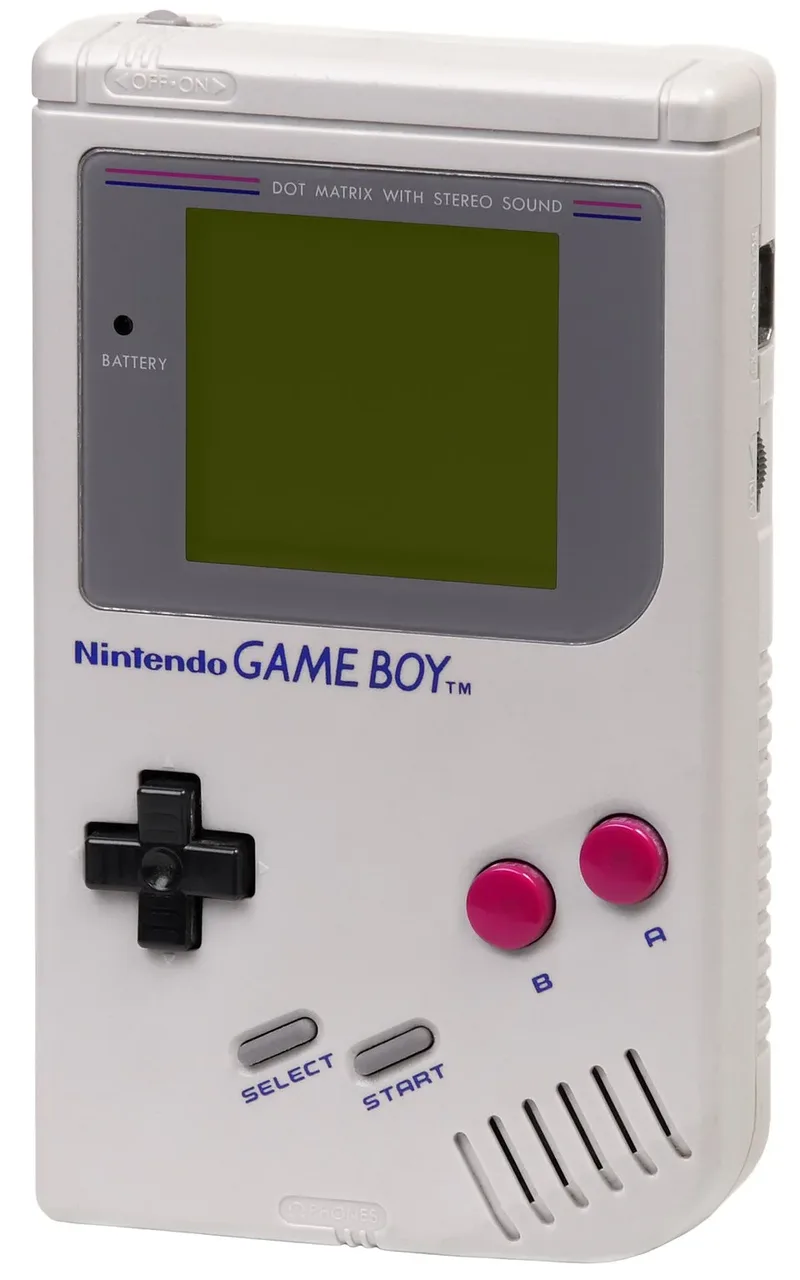
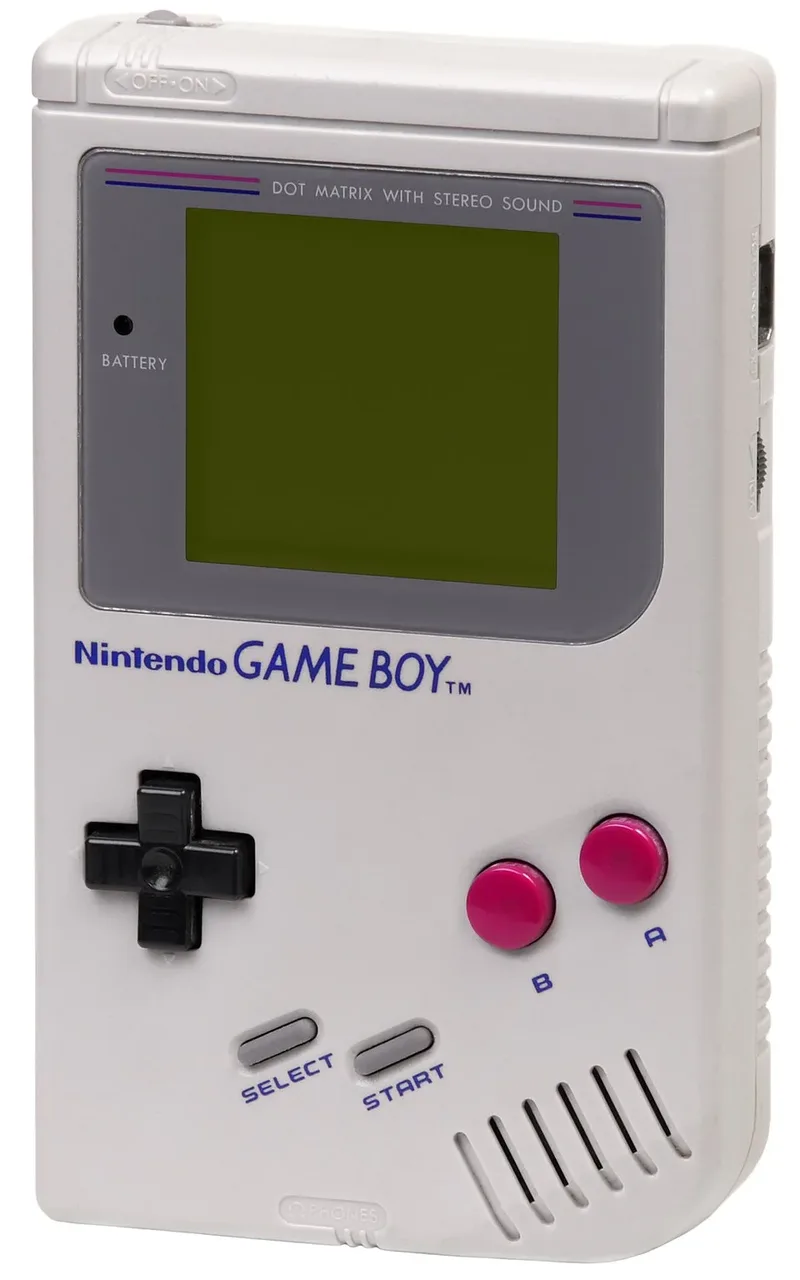
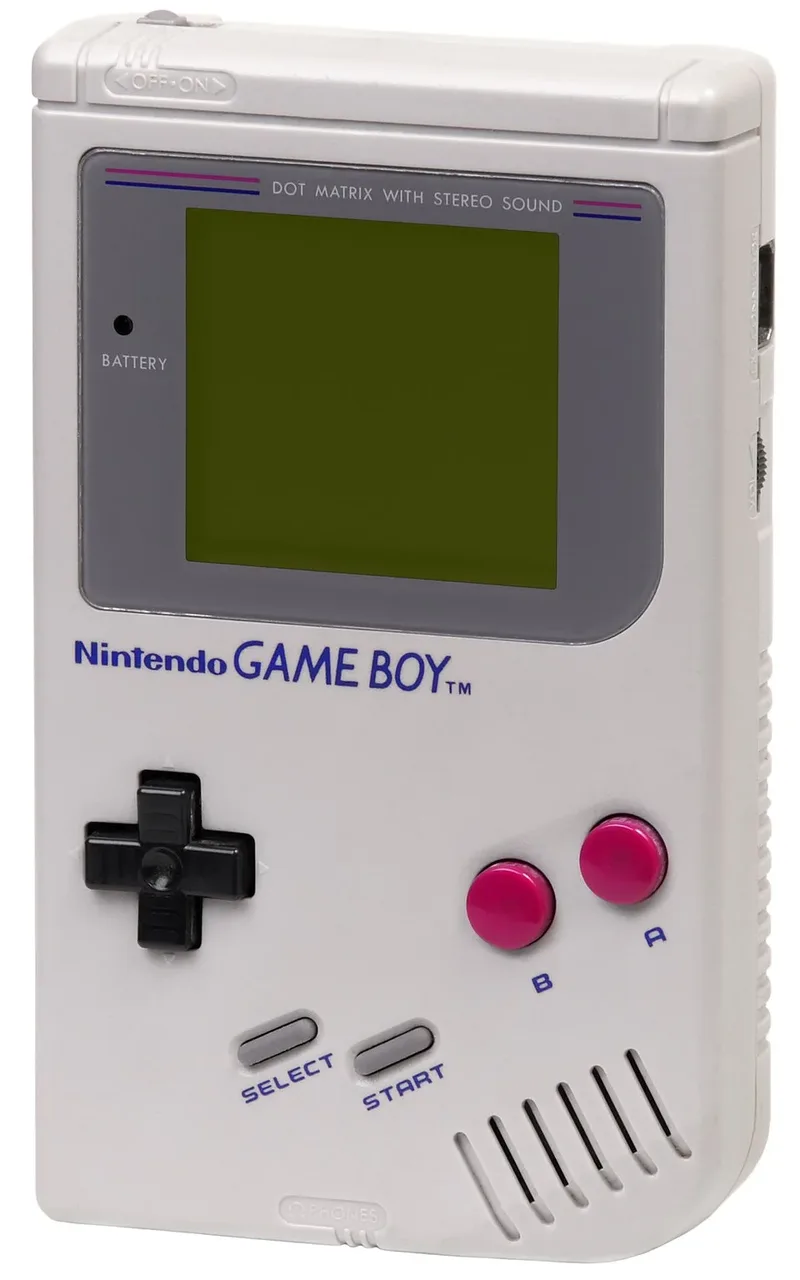
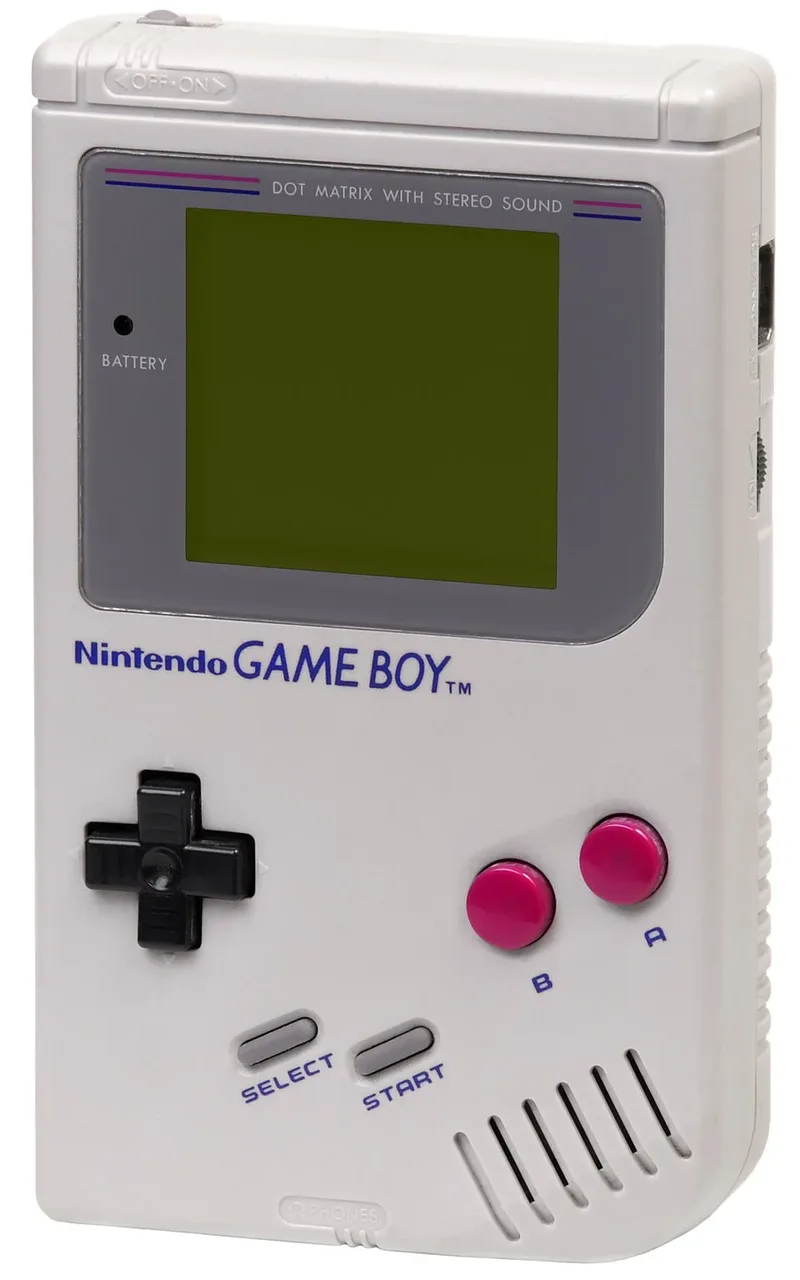
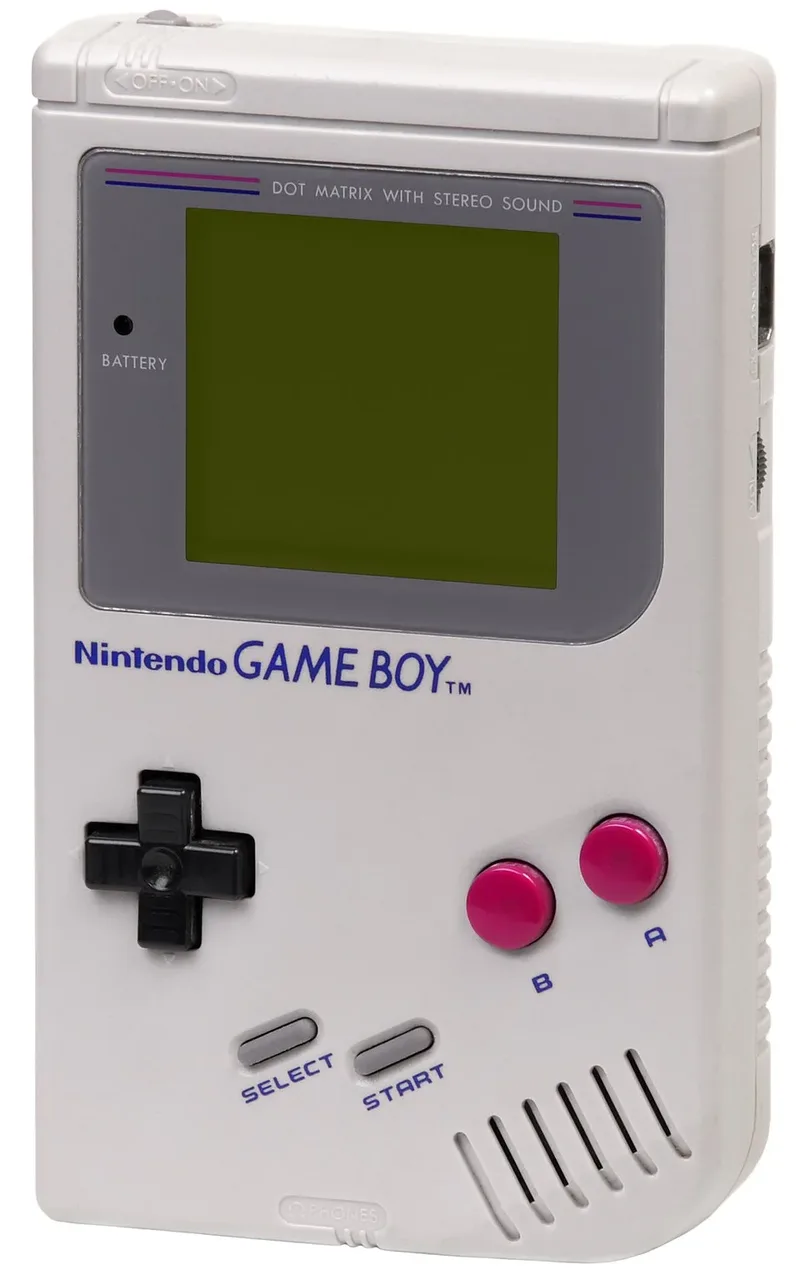
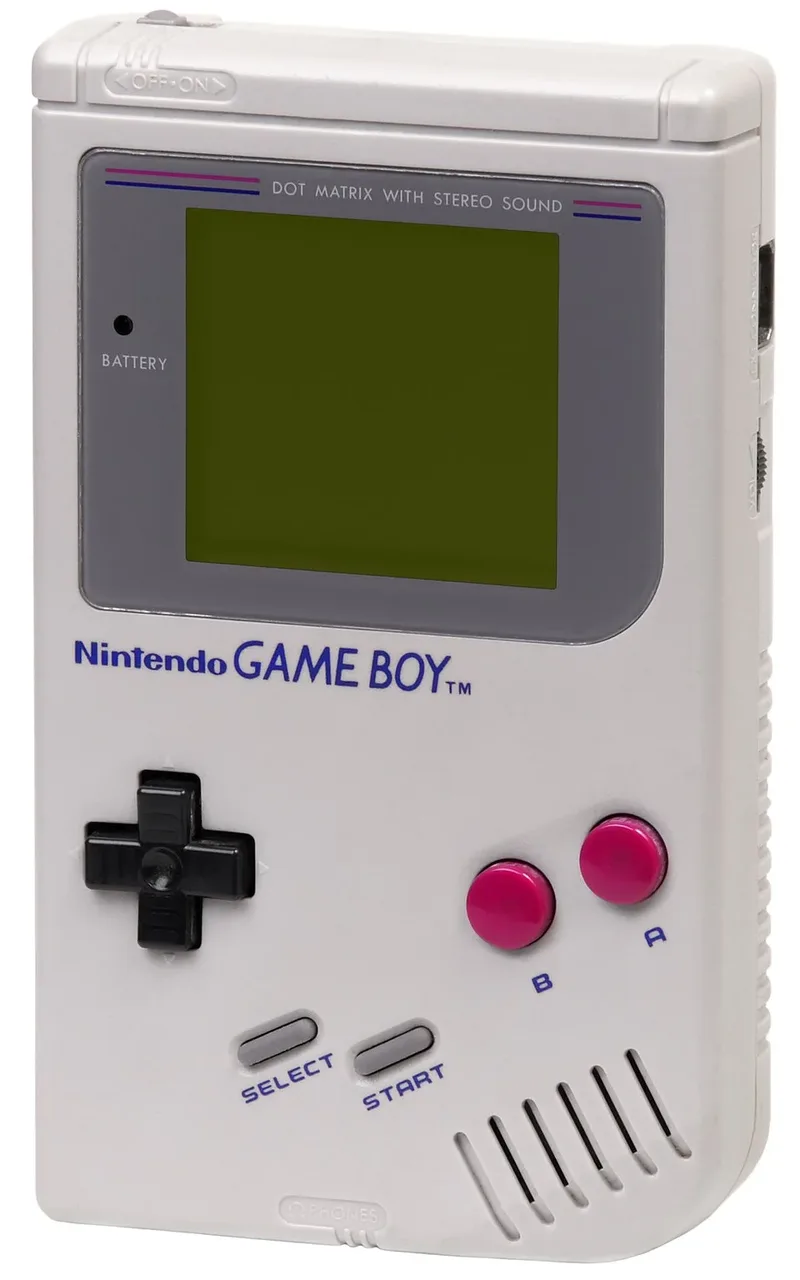
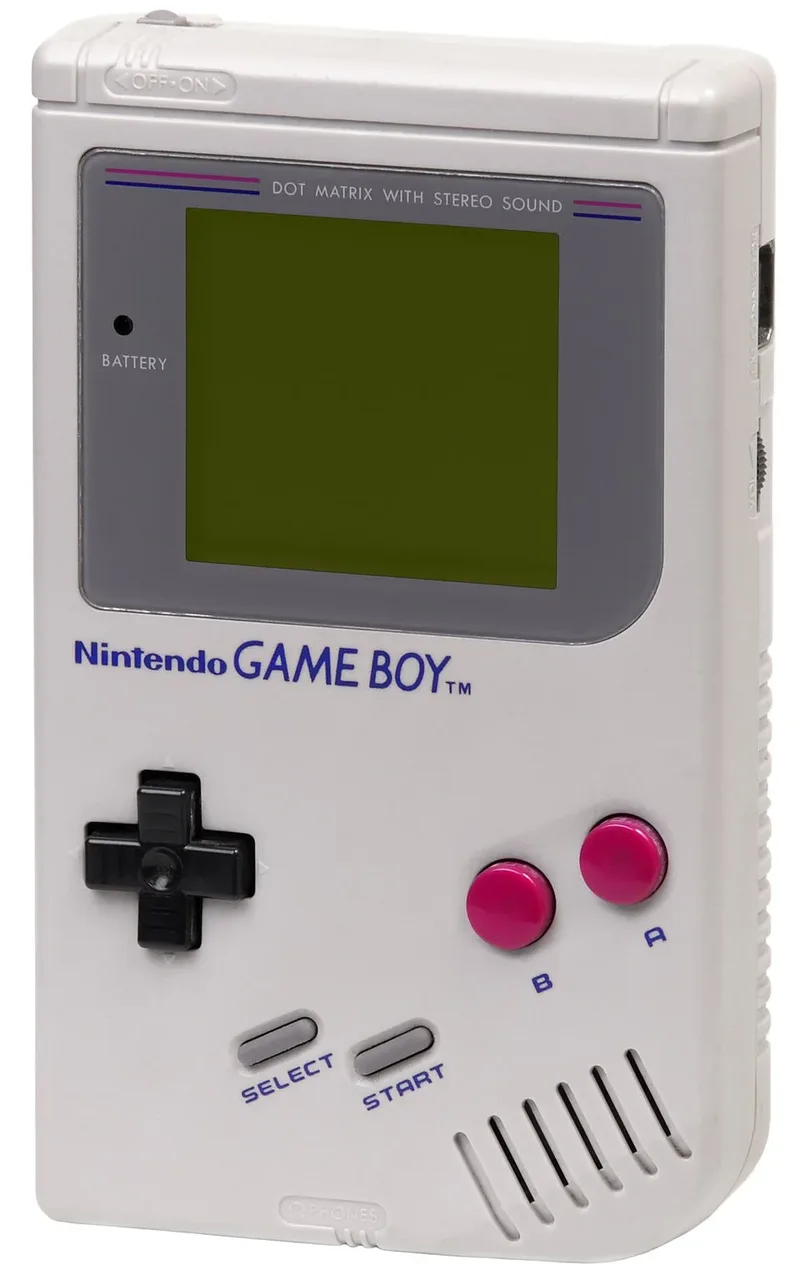
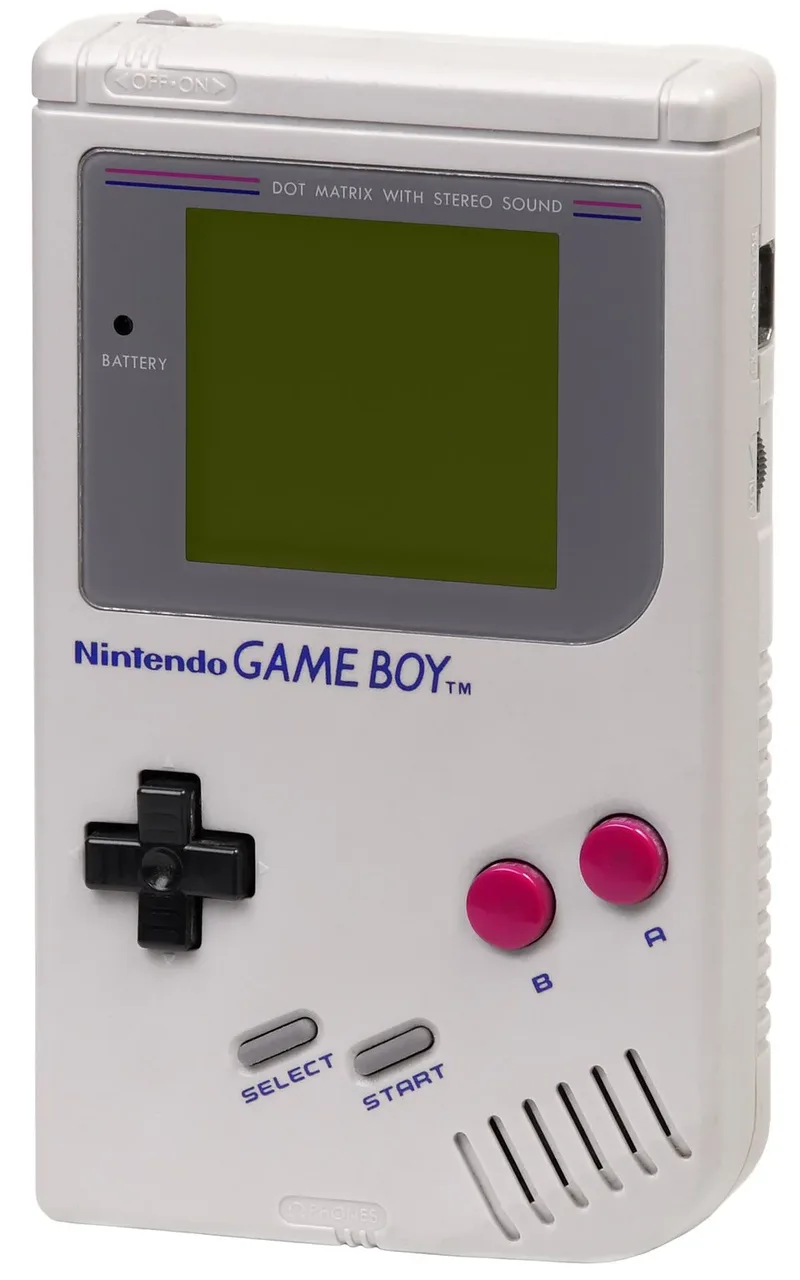
Photo: Evan-Amos / Public domain (Wikimedia Commons)
If your Steam Deck keeps waking up from sleep, check connected USB-C devices, wake settings, and firmware before changing emulation or power options.
Fix retroarch not downloading cores with checks for network access, storage, build compatibility, and a safe manual install for handheld devices.
Fix retroarch cores not loading on Anbernic, Retroid, Steam Deck, or EmuDeck by checking core paths, downloads, permissions, and system compatibility.
Troubleshoot odin 2 won t boot up with safe charging, button checks, recovery options, and fastboot steps before seeking repair for your handheld.
Fix a Miyoo Mini Plus stuck on boot screen by checking the microSD card, restoring OnionOS files, and ruling out power or firmware issues safely.
Fix batocera not enough space on boot by checking storage, expanding the share partition, and resolving full or read-only filesystems on handheld devices.
Fix batocera stuck on splash screen by checking game card files, display settings, updates, and safe boot steps for handhelds, Steam Deck, and emulation PCs.
Fix emudeck not working on rog ally x with practical checks for controller mode, emulator paths, game files, and Armoury Crate settings.
Fix emudeck stuck on downloading retroarch cores by checking network access, proxy settings, storage, and RetroArch's core downloader on handheld devices.
Fix a Steam Deck stuck on shutting down Steam by checking downloads, closing hung apps, restarting the client safely, and knowing when to force power off.