Steam Deck Wakes Itself From Sleep: USB-C and BIOS
If your Steam Deck keeps waking up from sleep, check connected USB-C devices, wake settings, and firmware before changing emulation or power options.
If your Miyoo Mini Plus is stuck on boot screen, it may hang on the Miyoo logo, show a blank display, or restart before reaching the menu. The most common cause is a faulty, corrupted, or poorly prepared microSD card, especially the card included with the device.
The console starts its operating system and game library from the microSD card. If the card is failing, its filesystem is damaged, or the required system files do not match the setup, startup can stop before the menu appears.
Turn the console off, disconnect it from USB, and remove any USB accessories. Charge it with a known working cable and a standard 5V USB power source, then try starting it again. If the display stays dark, check whether the charging indicator behaves normally and whether the device responds to the power button; a boot problem can look like a dead battery.
Power off the Miyoo Mini Plus, remove the microSD card, and turn the console on. It may not load the operating system without a card, so this is only a comparison test. If the logo behavior changes or the console no longer enters the same restart loop, the card or its contents are a stronger suspect. If there is no change, continue checking power and hardware as well.
Put the card in a computer using a card reader. If its files are visible, copy the entire card to a folder before making changes; prioritize saves and configuration files if space is limited. Check that the card is not loose, cracked, or unusually hot. If the computer repeatedly disconnects it, reports read errors, or cannot read its partitions, stop using it for recovery and replace it with a reputable microSD card.
On Windows, open File Explorer, right-click the card's visible drive, choose Properties, then Tools and Error checking. On macOS, open Disk Utility, select the card volume, and choose First Aid. These checks can find some filesystem problems, but they do not prove a card is healthy. If errors return or copying files fails, replace the card rather than relying on a repair.
If you use OnionOS, follow the current official OnionOS installation guide for the Miyoo Mini Plus and a freshly formatted, compatible card. Use the guide's stated filesystem and installation steps; do not copy a random system image or mix files from different releases. For the stock operating system, use the appropriate official Miyoo files and instructions for your device. A successful recovery reaches the system menu consistently after a full shutdown and restart.
After the system boots on the rebuilt card, power off before adding files. Restore your backed-up game and save folders according to the operating system's documented folder layout. Add content in small batches and start the console between batches. If the boot hang returns after one batch, remove that batch and check its filenames, folder placement, and files for corruption.
Try a known-good, correctly prepared card, and confirm it is fully seated before powering on. If the Miyoo Mini Plus still cannot reach its menu with that card, disconnect power and inspect the card slot for visible debris or damage without inserting metal tools. Persistent failure with a verified card can indicate a power, slot, or internal hardware issue that needs qualified repair.
| Possible cause | Typical symptom | Quick test |
|---|---|---|
| Corrupt or failing card | Boot hangs or restarts | Try a known-good prepared card |
| Incomplete system files | Logo appears, menu never loads | Rebuild card using the system's installation guide |
| Low battery or power issue | Blank screen or inconsistent startup | Charge with a known working cable and source |
| Card slot or console fault | Same failure across cards | Test a verified card; inspect slot visually |
A damaged or failing microSD card is a common cause because the system loads from that card. Back up readable files, then test with a reputable card prepared according to the operating system's instructions.
Power the console off before removing the card. Removing it during startup or while files are being written can interrupt access and risk filesystem or save corruption.
Rebuilding or formatting a card can erase its contents, including games, saves, and settings. Back up readable files first, then follow the current OnionOS guide for what to preserve and where to restore it.
A Miyoo Mini Plus stuck on boot screen often recovers after replacing a failing card and installing the system files cleanly. If it still fails with a known-good card and stable power, stop repeated reformatting and contact the seller or a repair technician to check the console.
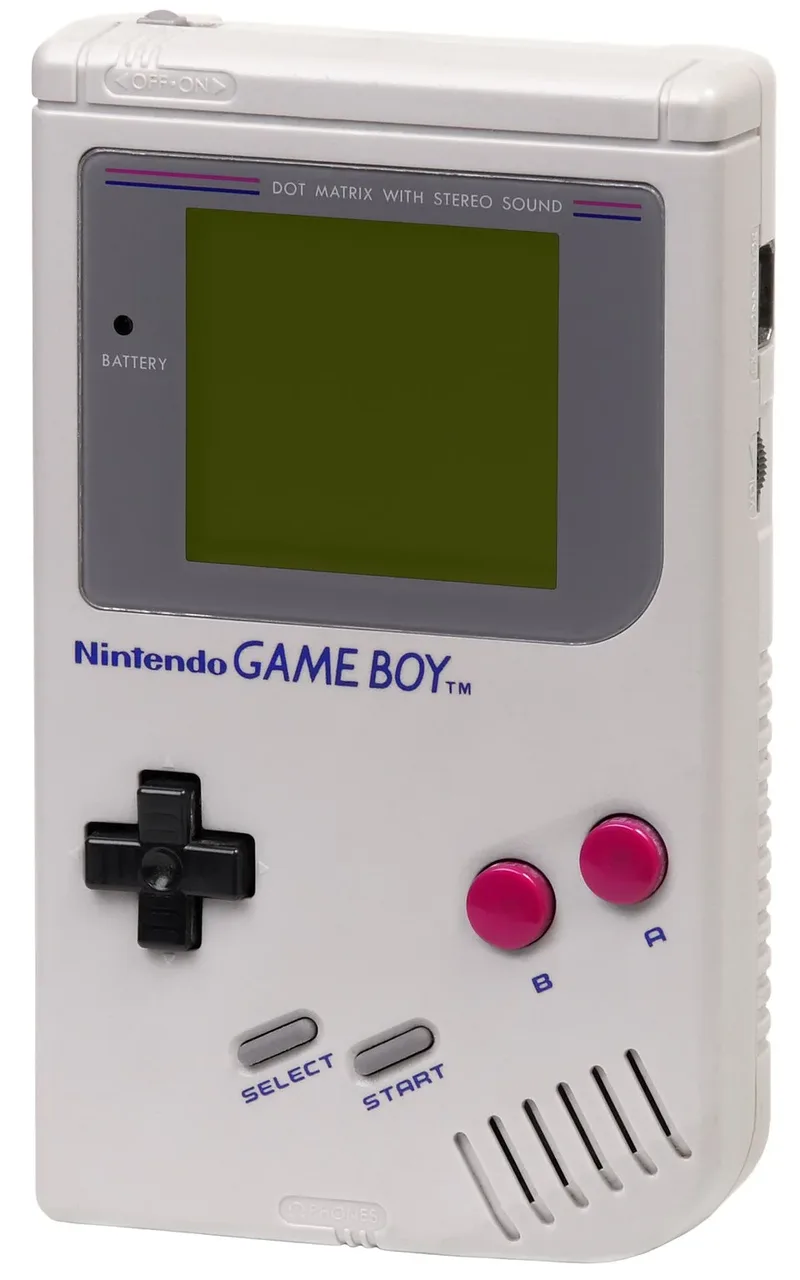
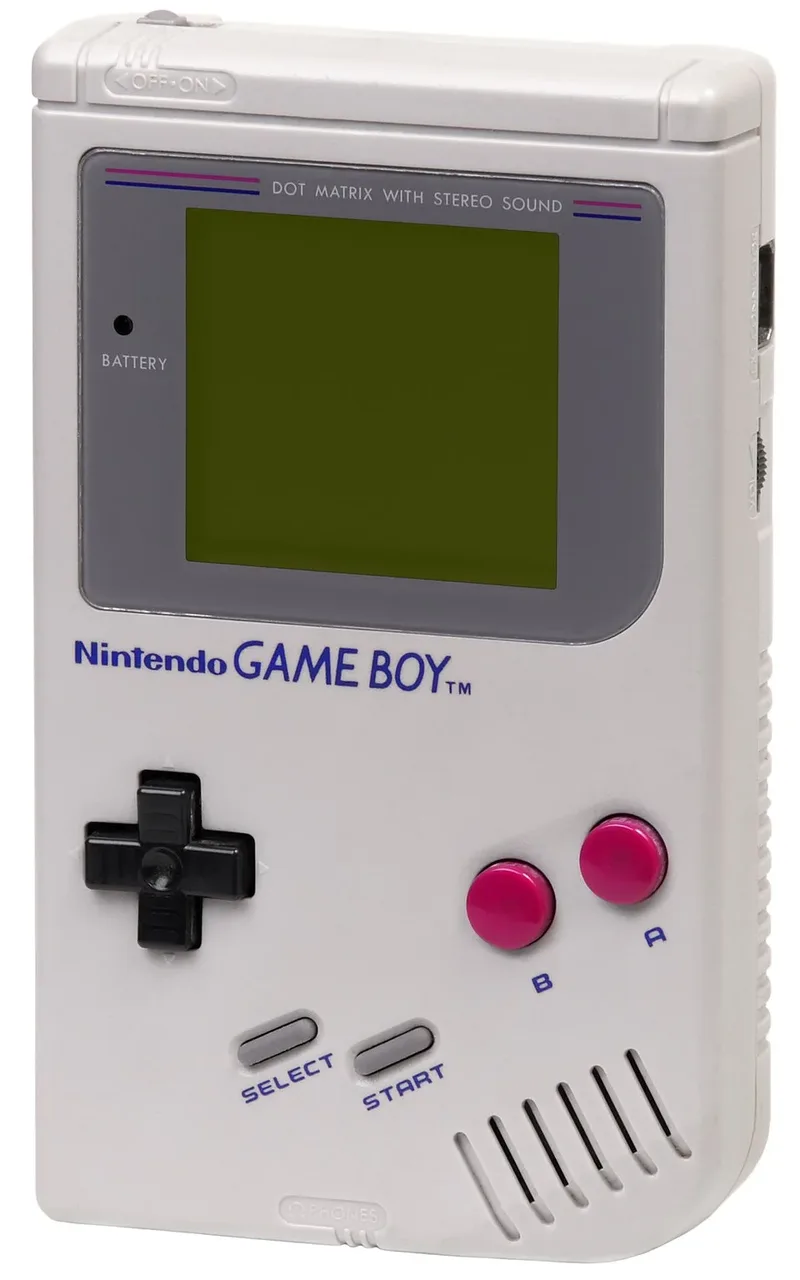
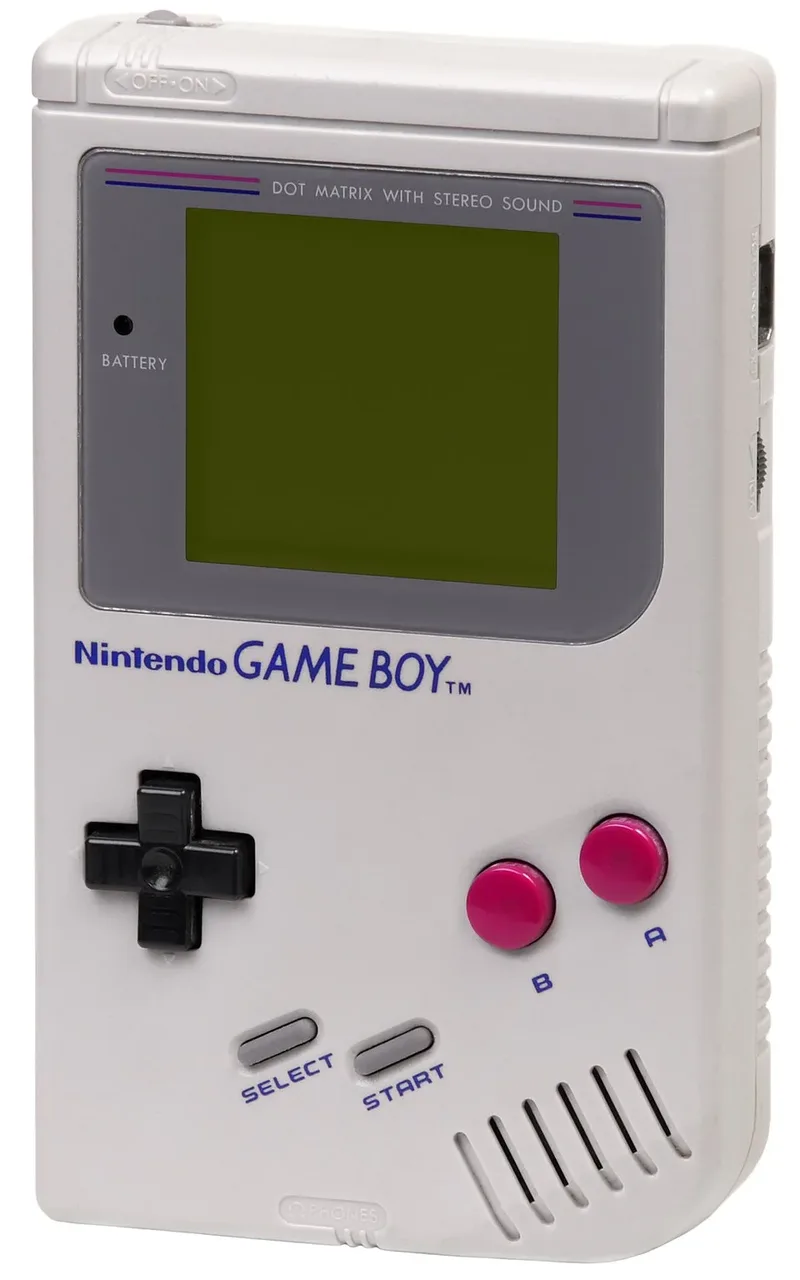
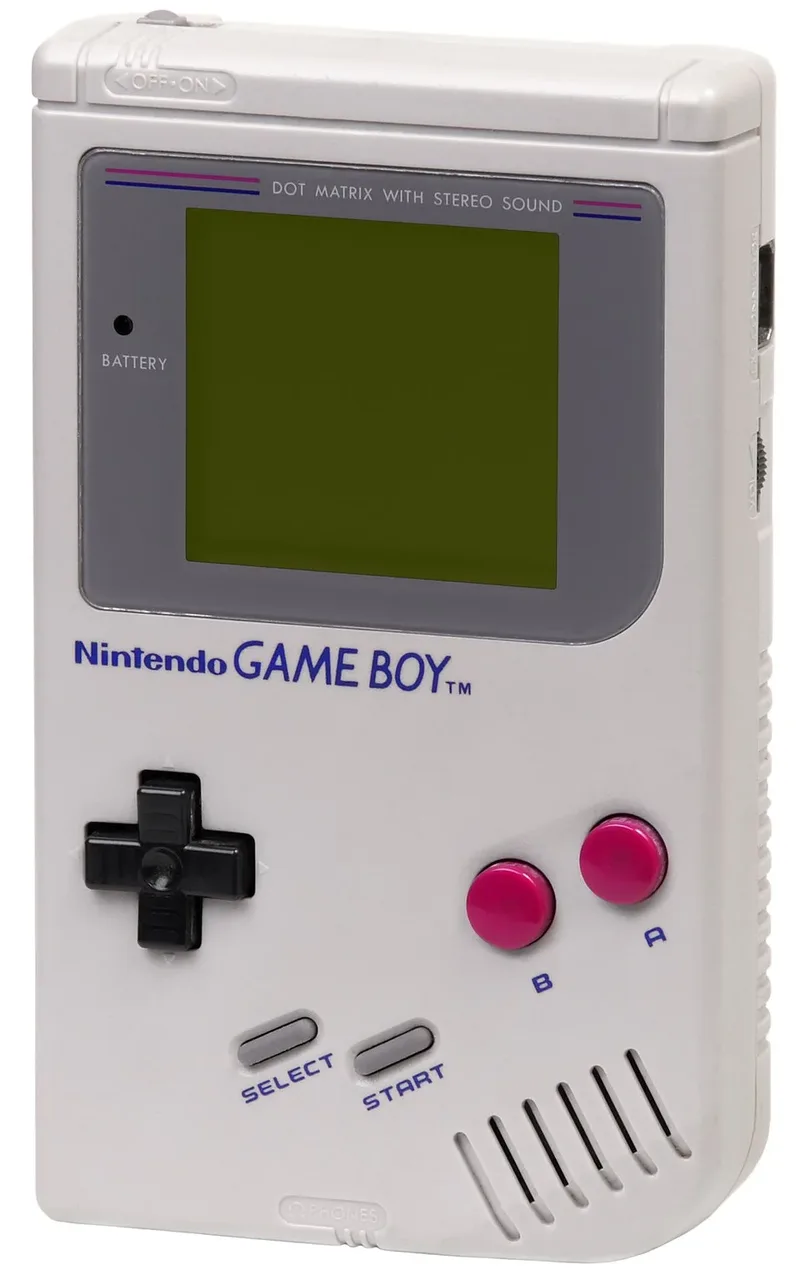
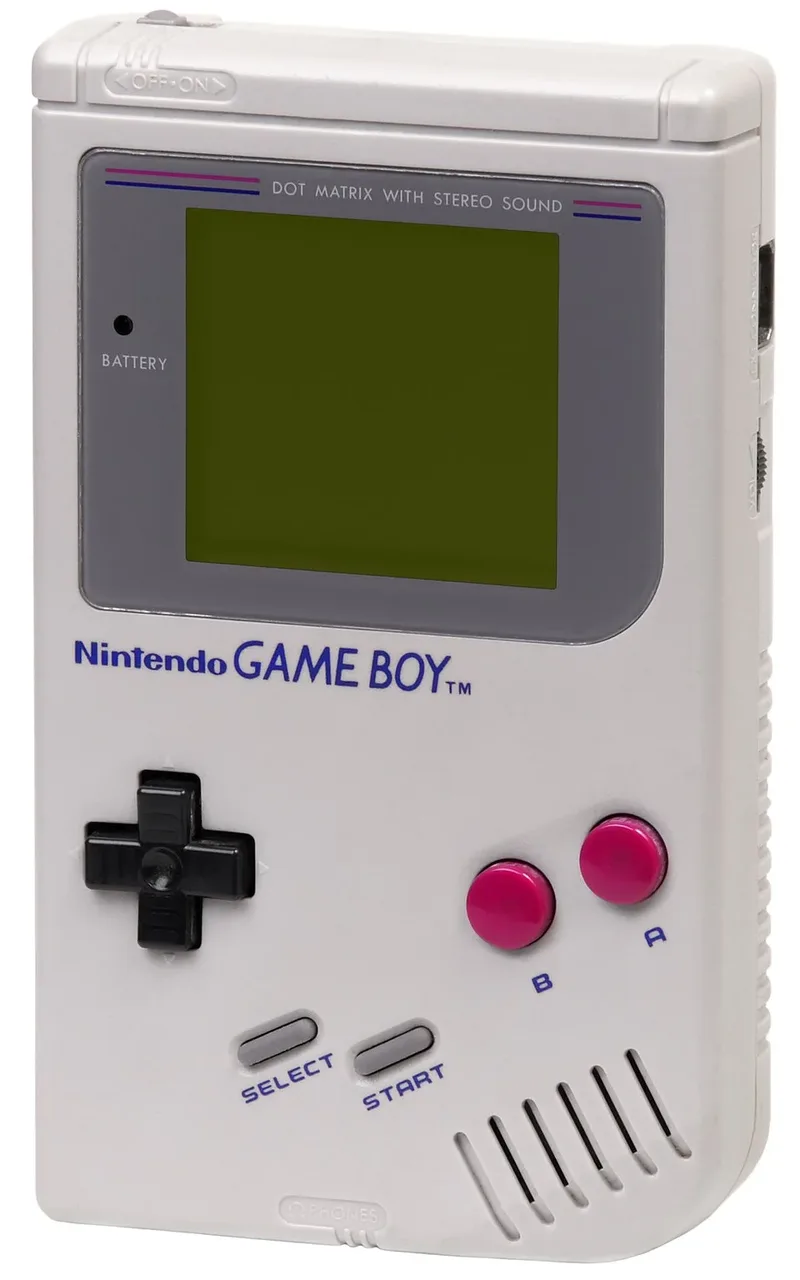
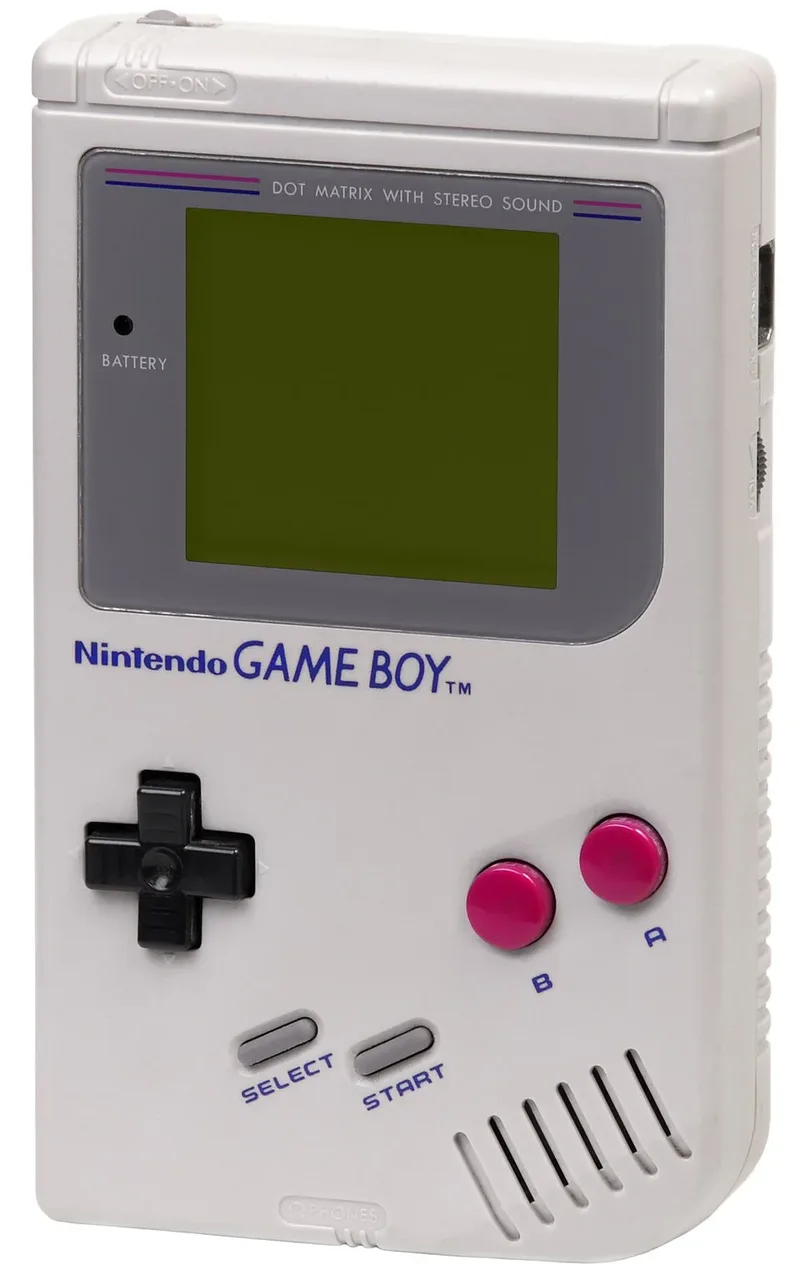
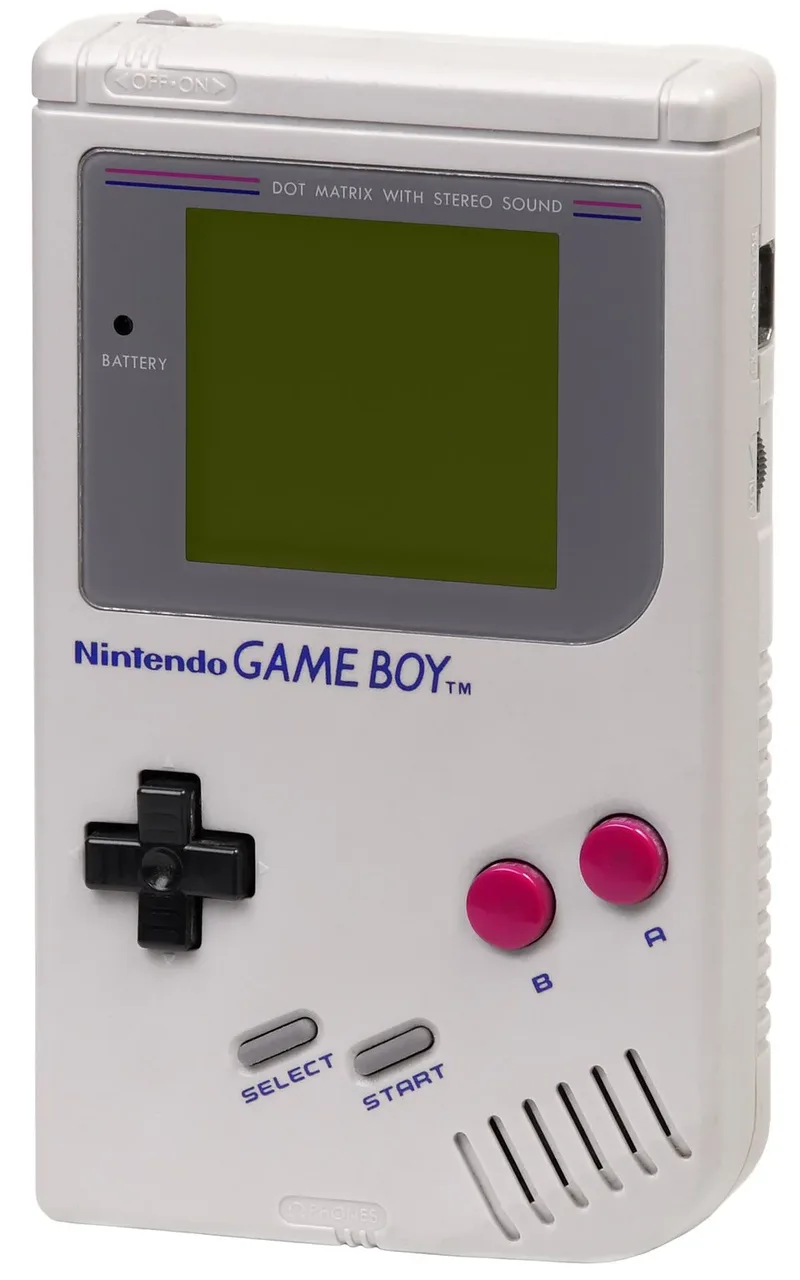
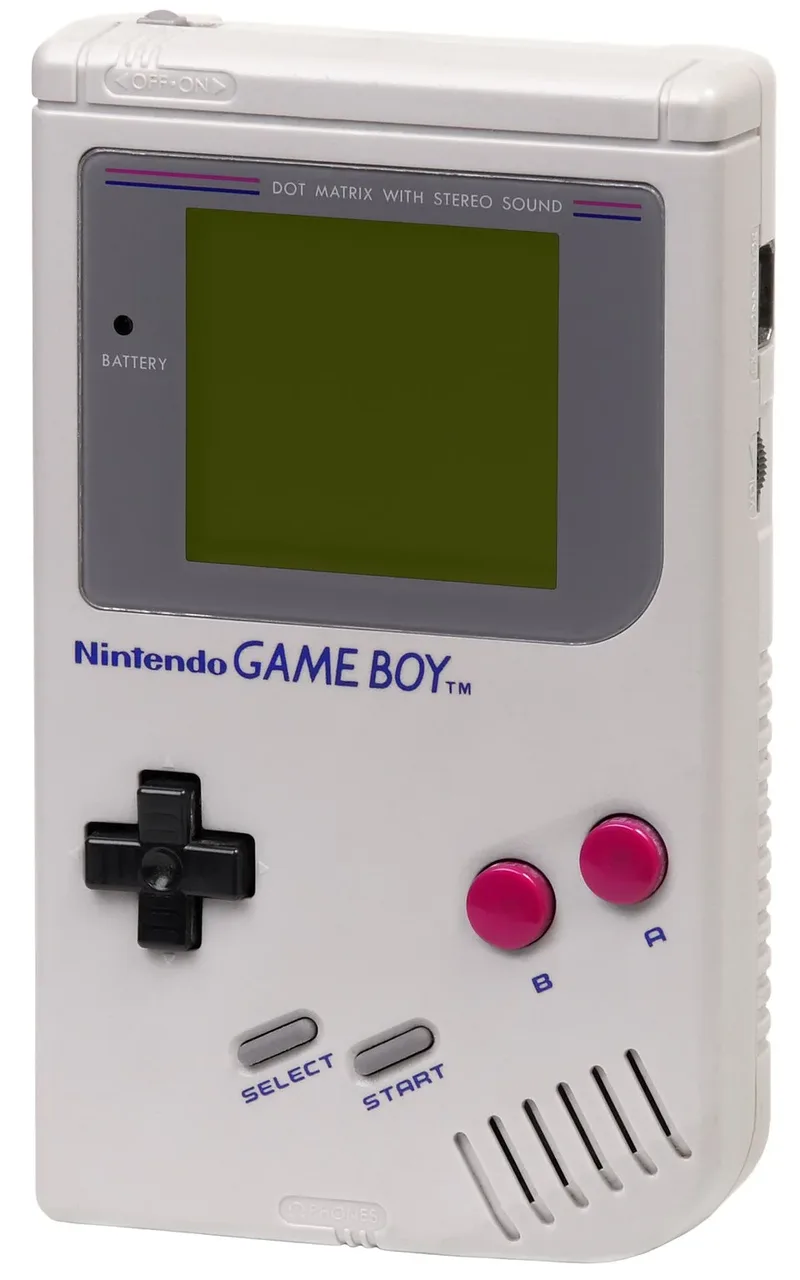
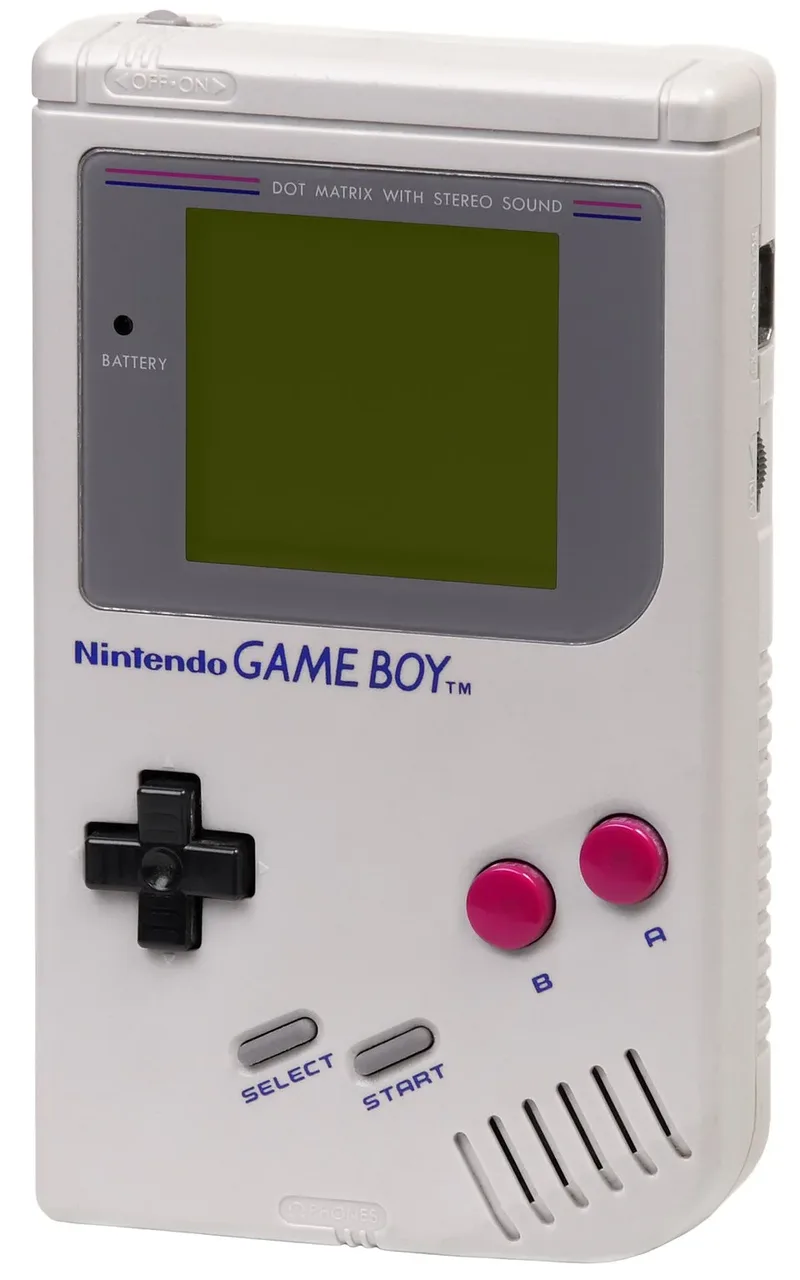
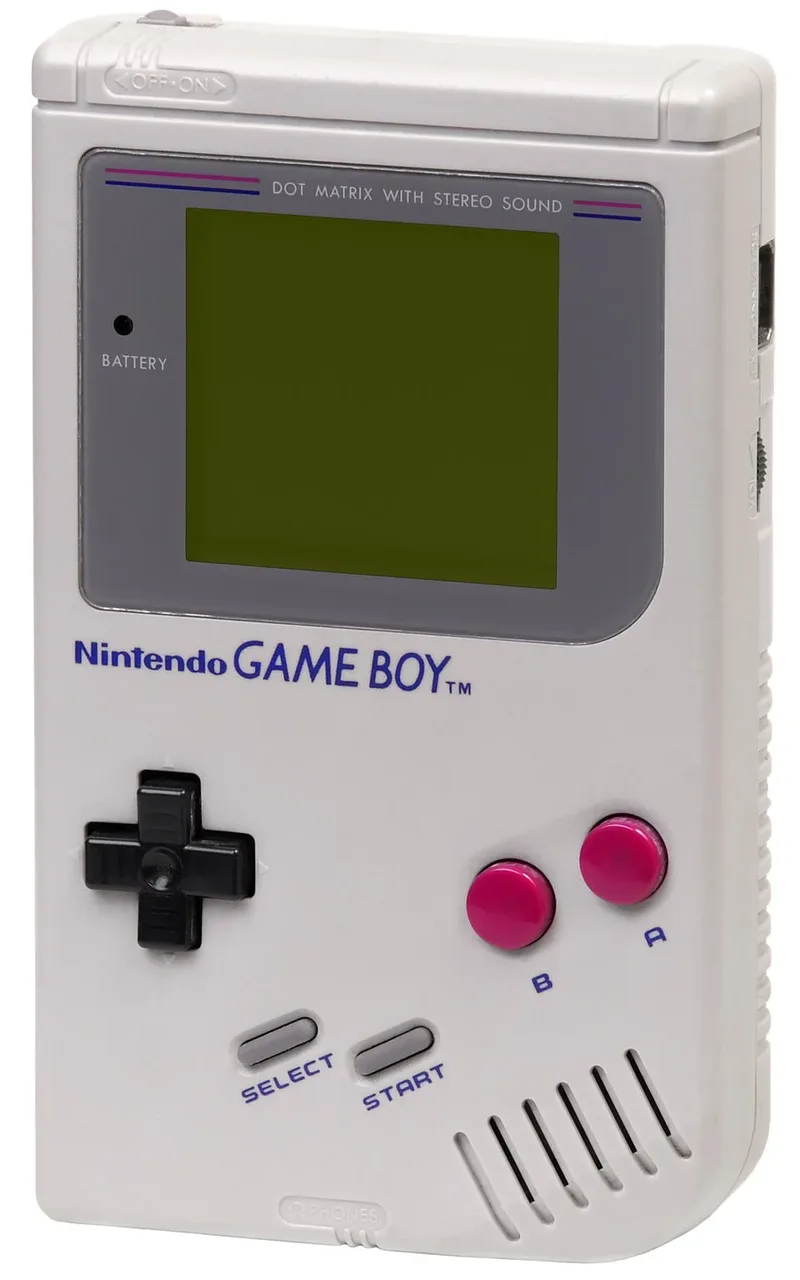
Photo: Evan-Amos / Public domain (Wikimedia Commons)
If your Steam Deck keeps waking up from sleep, check connected USB-C devices, wake settings, and firmware before changing emulation or power options.
Fix retroarch not downloading cores with checks for network access, storage, build compatibility, and a safe manual install for handheld devices.
Fix retroarch cores not loading on Anbernic, Retroid, Steam Deck, or EmuDeck by checking core paths, downloads, permissions, and system compatibility.
Troubleshoot odin 2 won t boot up with safe charging, button checks, recovery options, and fastboot steps before seeking repair for your handheld.
Fix a Miyoo Mini Plus stuck on boot screen by checking the microSD card, restoring OnionOS files, and ruling out power or firmware issues safely.
Fix batocera not enough space on boot by checking storage, expanding the share partition, and resolving full or read-only filesystems on handheld devices.
Fix batocera stuck on splash screen by checking game card files, display settings, updates, and safe boot steps for handhelds, Steam Deck, and emulation PCs.
Fix emudeck not working on rog ally x with practical checks for controller mode, emulator paths, game files, and Armoury Crate settings.
Fix emudeck stuck on downloading retroarch cores by checking network access, proxy settings, storage, and RetroArch's core downloader on handheld devices.
Fix a Steam Deck stuck on shutting down Steam by checking downloads, closing hung apps, restarting the client safely, and knowing when to force power off.