Steam Deck Wakes Itself From Sleep: USB-C and BIOS
If your Steam Deck keeps waking up from sleep, check connected USB-C devices, wake settings, and firmware before changing emulation or power options.
If Batocera is stuck on splash screen, the logo appears but the system never reaches its menus. The most common cause is a bad or incompatible graphics setting, often after changing a GPU option or moving the installation to different hardware.
Batocera must load its system files, mount game storage, and start the graphical interface before the menu appears. A failure in any of these steps can look like a frozen splash screen, so first distinguish a true hang from a slow first boot.
| Possible cause | Typical symptom | Quick test |
|---|---|---|
| Display or GPU mismatch | Logo appears, then screen stays black or frozen | Disconnect external displays and undo recent graphics changes |
| Storage read problem | Boot stalls at different points or takes unusually long | Remove optional USB storage and reseat the game card |
| Interrupted update | Problem began after an update or forced shutdown | Try a known-good backup or reinstall the same device build |
After a fresh install or update, leave the device powered on for several minutes; initial setup can take longer than later boots. If the screen remains unchanged, hold the power button until the device turns off, wait briefly, then start it again. Avoid repeated forced shutdowns during visible disk activity. A normal Batocera menu after the restart confirms a temporary first-boot delay.
Power off and remove USB drives, hubs, docks, controllers with storage, and external displays. Reseat the SD card or other storage that holds games, then boot with only the required Batocera drive connected. If it starts, reconnect accessories one at a time to identify the conflict. On handhelds with separate system and game cards, test the system card first and check the game card for damage if startup changes when it is removed.
If the problem began after changing graphics settings, restore the previous configuration. When you can reach Batocera’s main menu, open Main Menu > System Settings and review graphics or display options; names vary by device and release. On a Steam Deck, also test undocked with the built-in screen, then try the dock again after Batocera boots. If the menu appears with the internal display or after reverting the setting, the external display mode or GPU configuration was the trigger.
Wait for signs of activity such as changing screen output, audio, or a response from a connected controller. Try a different display cable or input, and disconnect adapters that may negotiate an unsupported resolution. If you use a TV or monitor, select its correct input before starting. A working menu on another display points to an output or resolution issue rather than a failed boot.
Power off before removing or reseating cards. Inspect the system SD card or USB drive for loose seating or visible damage, then try a known-good card or drive prepared for your exact device. Use the Batocera image intended for that hardware and follow its current installation instructions; handheld builds and PC builds are not interchangeable. If the replacement boots, the original media or its files are likely at fault. Back up game saves and configuration before reformatting anything.
If the freeze started immediately after an update, avoid installing a different build at random. Restore a backup of the working system if available, or prepare a fresh copy of the compatible image using the device-specific instructions. Preserve the existing game partition or back it up first. A clean, compatible installation that reaches the menu confirms the old system files or update were the cause.
If you can access Batocera’s file share or a local terminal, copy the system logs before changing files; available access methods depend on the build and device. On current versions, check the documentation for the supported way to view boot logs and reset configuration. Do not delete system files based on a guessed path or command. If a clean configuration starts successfully, restore settings gradually and stop when the boot problem returns.
An update may have been interrupted, or the installed build may not match the device. Try a clean restart, then restore a known-good backup or reinstall the compatible image while preserving game data.
Confirm the image is intended for your exact handheld model and check that its system card is seated correctly. Remove optional accessories and test with a known-good card if the problem persists; follow your model’s menu and recovery instructions.
A dock, display adapter, or monitor can trigger an output mode the display does not handle. Boot once with the dock disconnected and use the built-in screen; if Batocera loads, reconnect the dock after startup and check its display settings.
Start with the last change you made, then work through display, accessory, and storage checks before replacing the installation. If nothing works, back up saves and logs and ask the Batocera community for help with your exact device model and installation method.
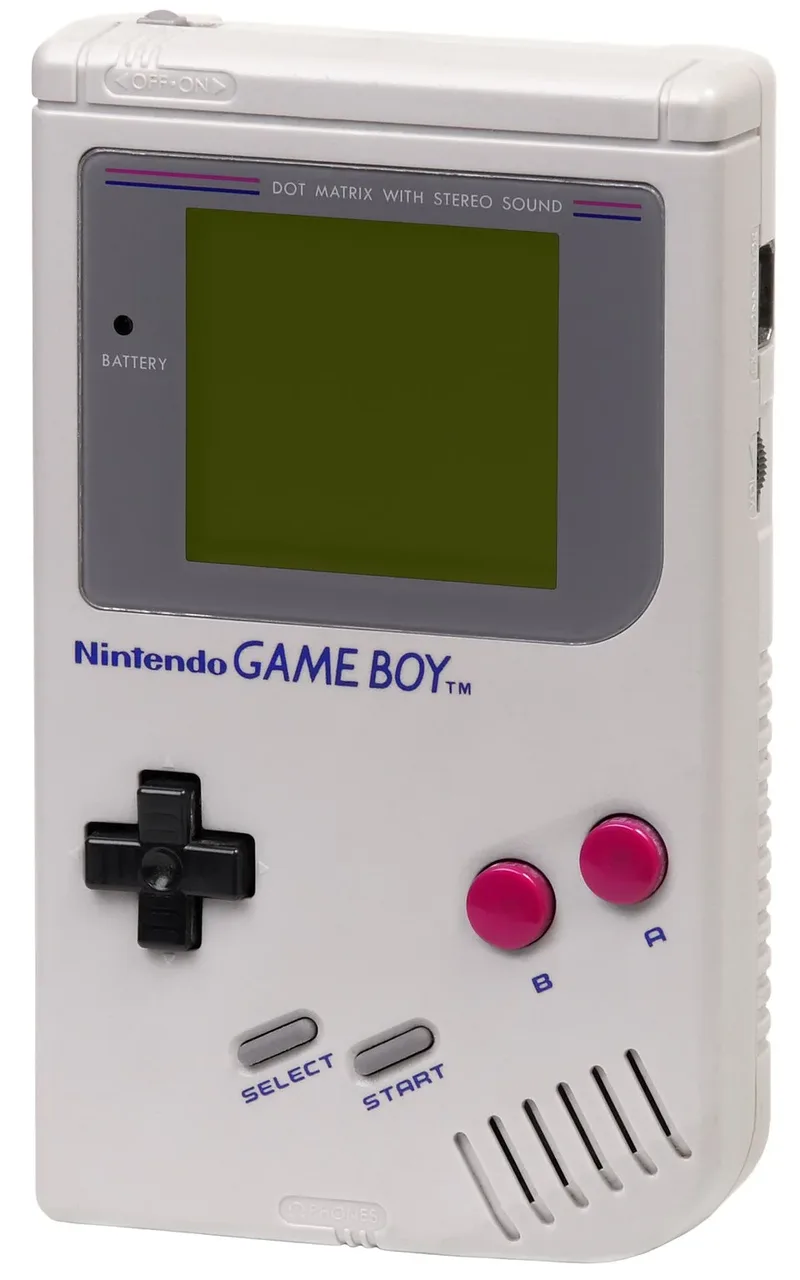
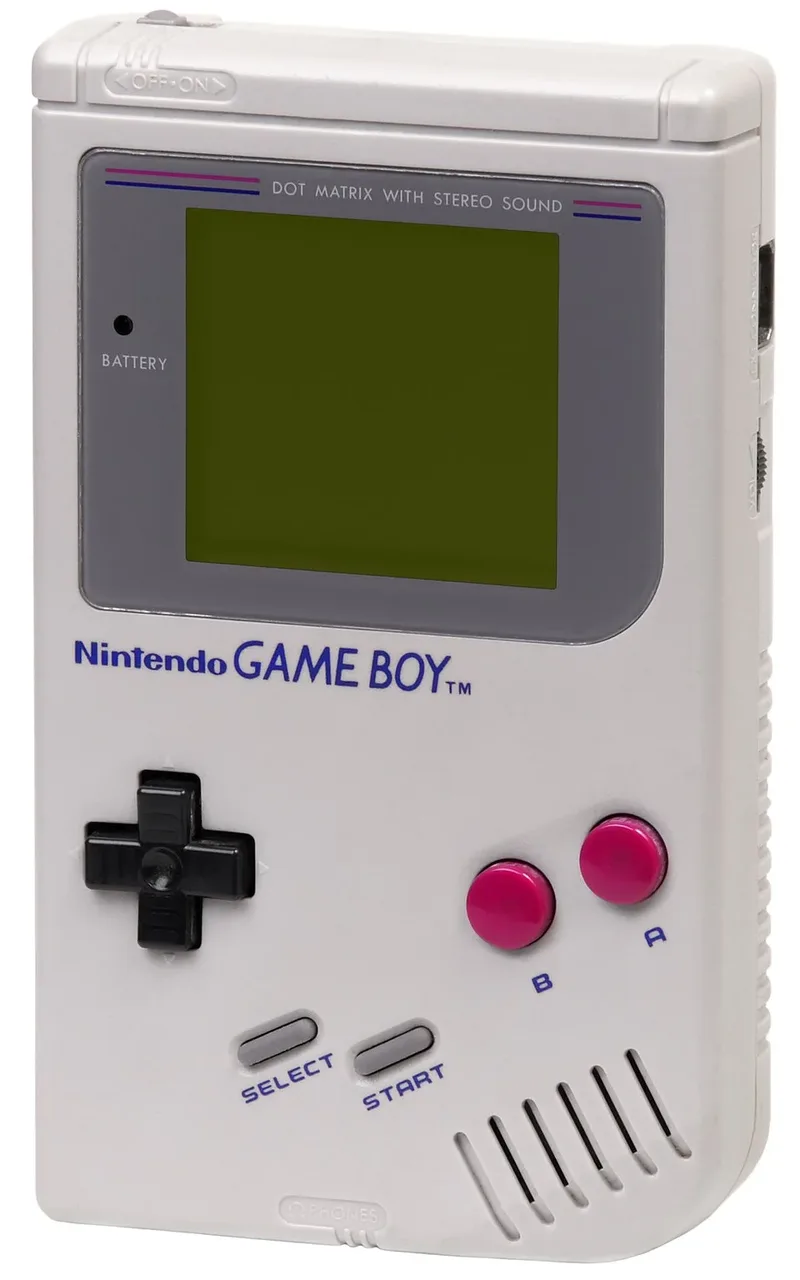
Photo: Evan-Amos / Public domain (Wikimedia Commons)
If your Steam Deck keeps waking up from sleep, check connected USB-C devices, wake settings, and firmware before changing emulation or power options.
Fix retroarch not downloading cores with checks for network access, storage, build compatibility, and a safe manual install for handheld devices.
Fix retroarch cores not loading on Anbernic, Retroid, Steam Deck, or EmuDeck by checking core paths, downloads, permissions, and system compatibility.
Troubleshoot odin 2 won t boot up with safe charging, button checks, recovery options, and fastboot steps before seeking repair for your handheld.
Fix a Miyoo Mini Plus stuck on boot screen by checking the microSD card, restoring OnionOS files, and ruling out power or firmware issues safely.
Fix batocera not enough space on boot by checking storage, expanding the share partition, and resolving full or read-only filesystems on handheld devices.
Fix batocera stuck on splash screen by checking game card files, display settings, updates, and safe boot steps for handhelds, Steam Deck, and emulation PCs.
Fix emudeck not working on rog ally x with practical checks for controller mode, emulator paths, game files, and Armoury Crate settings.
Fix emudeck stuck on downloading retroarch cores by checking network access, proxy settings, storage, and RetroArch's core downloader on handheld devices.
Fix a Steam Deck stuck on shutting down Steam by checking downloads, closing hung apps, restarting the client safely, and knowing when to force power off.