Steam Deck Wakes Itself From Sleep: USB-C and BIOS
If your Steam Deck keeps waking up from sleep, check connected USB-C devices, wake settings, and firmware before changing emulation or power options.
If RetroArch’s Core Downloader will not fetch or install a core, the download may fail, stay at zero, or finish without the core appearing in the menu. The most common cause is that RetroArch cannot reach its online content server from the device, often because of Wi-Fi, DNS, or a network filter.
Core downloads depend on more than a working Wi-Fi connection: RetroArch must reach the right server, write files to its configured system directory, and use a core build that matches the device. On a handheld, a launcher or distribution such as EmuDeck may also manage where cores belong.
| Likely cause | Typical symptom | Quick test |
|---|---|---|
| Network access or filtering | Download stalls or fails on every core | Try a different trusted network or phone hotspot |
| Wrong system directory or storage issue | Download completes but core is absent | Check the core directory and available storage |
| Unsupported build or core | Only some cores are unavailable | Check the device architecture and RetroArch package source |
Open a browser on the same handheld and load a normal website. If you are on hotel, school, or public Wi-Fi, complete its sign-in page first; RetroArch cannot pass a captive portal by itself. Temporarily try another trusted network, such as a phone hotspot, and retry Main Menu > Online Updater > Core Downloader. If the download works on the second network, the original network or its filtering is the likely cause.
Ad blockers, private DNS, VPNs, router security settings, and firewall rules can block download hosts while leaving ordinary browsing available. Temporarily pause one filter at a time, then retry the same core. Restore the setting after the test. A successful download identifies a network policy issue; ask the network administrator to allow RetroArch’s download traffic rather than disabling security protections permanently.
In RetroArch, open Settings > Directory > Cores and note the configured path. Check that it points to storage available to RetroArch and that the device has free space. On Android, review the app’s file access permissions in system settings; on Linux handhelds, check that the selected location is mounted and writable. If you change the directory, use a location the app can access, then retry and confirm the core file appears there.
Close RetroArch completely, reopen it, and try one core download again. This clears a stalled request or a transient updater state without changing your configuration. If only one core fails while others download, the problem may be that core’s availability or compatibility rather than your connection. Avoid repeatedly retrying a failed download while storage is nearly full.
Use the update method for your installation. On Steam Deck with EmuDeck, open EmuDeck and use its tools or updater to manage RetroArch and cores; avoid mixing its managed files with a separate manual installation. For a standalone RetroArch installation, use the same trusted source or package manager that installed it. After updating, open the Core Downloader again and check whether the core is offered for your build.
Get the core only from the official RetroArch buildbot or another source explicitly trusted by your distribution. Select the package matching the device’s operating system and architecture; do not assume a desktop core works on Android or a handheld Linux build. Place the core in the directory shown under Settings > Directory > Cores, using the file format expected by that platform. Restart RetroArch, then check Main Menu > Load Core. The core appearing in that list confirms RetroArch can see it.
Enable logging under Settings > Logging, if available in your build, reproduce the failed download, and review the log for a network, permission, or file-write failure. Menu labels can vary by version. Share the relevant log lines, device model, operating system, RetroArch installation source, and the core name when asking for help; remove personal information first.
Check that the Deck is online and that no VPN, DNS filter, or network policy blocks the request. If you installed RetroArch through EmuDeck, use EmuDeck’s tools to manage its installation and core files. Confirm the configured core directory has space and is writable.
Yes, if you obtain a core build compatible with your device and install it in RetroArch’s configured core directory. Use a trusted source and verify the core appears under Main Menu > Load Core after restarting. A file for the wrong architecture will not work just because it is in the right folder.
RetroArch may be saving to a different core directory, or the selected location may not be accessible to the app. Check Settings > Directory > Cores, confirm the file is present there, and restart RetroArch. If it is present but absent from the list, verify that the core matches your device and build.
Most failures come down to network access, a writable core directory, or a build mismatch; test those in that order. If none resolves retroarch not downloading cores, collect the log and device details and contact the support channel for your RetroArch package or handheld distribution.
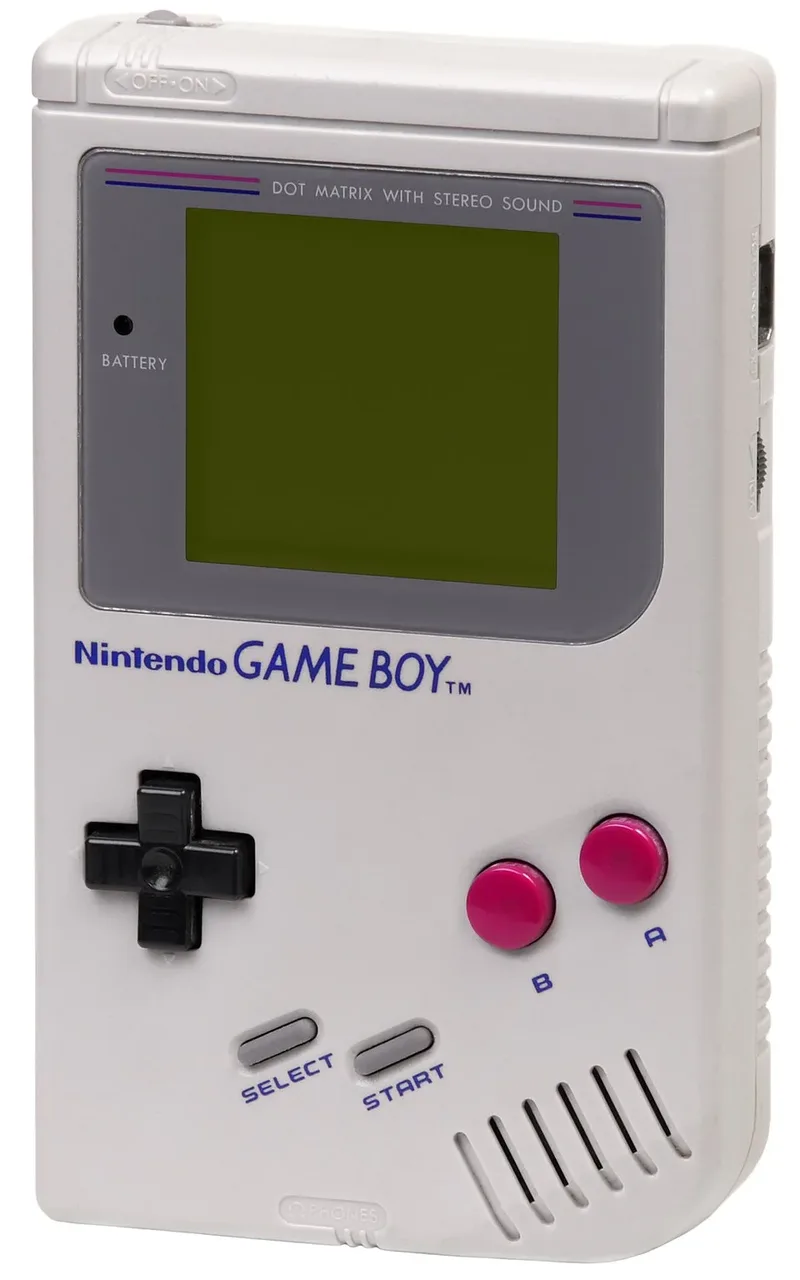
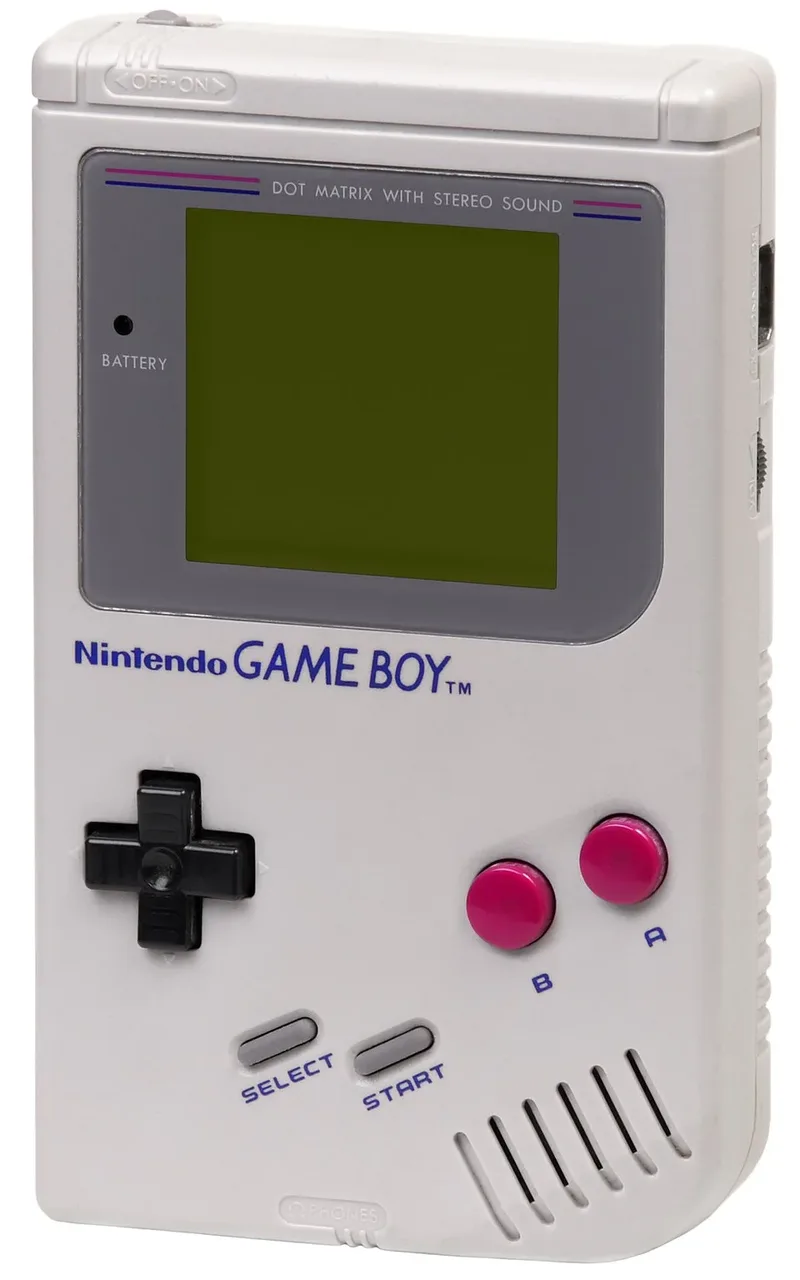
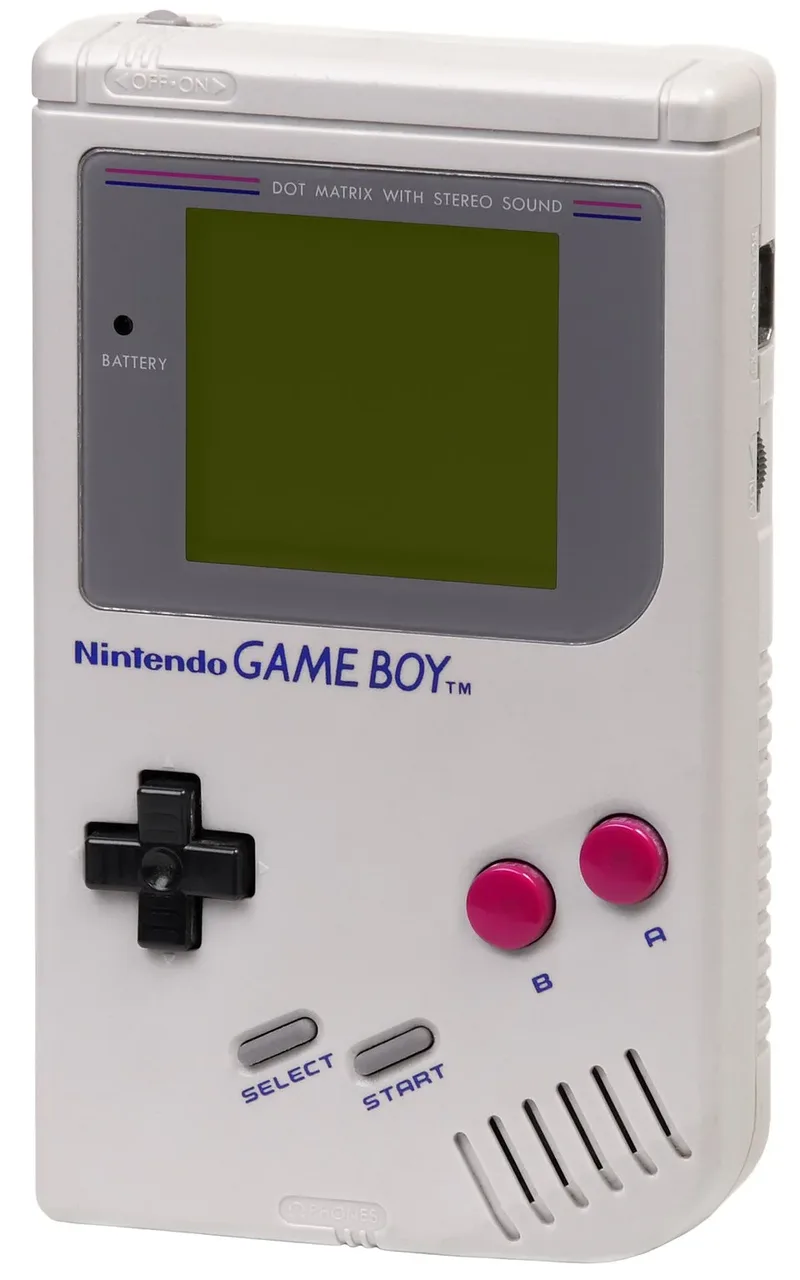
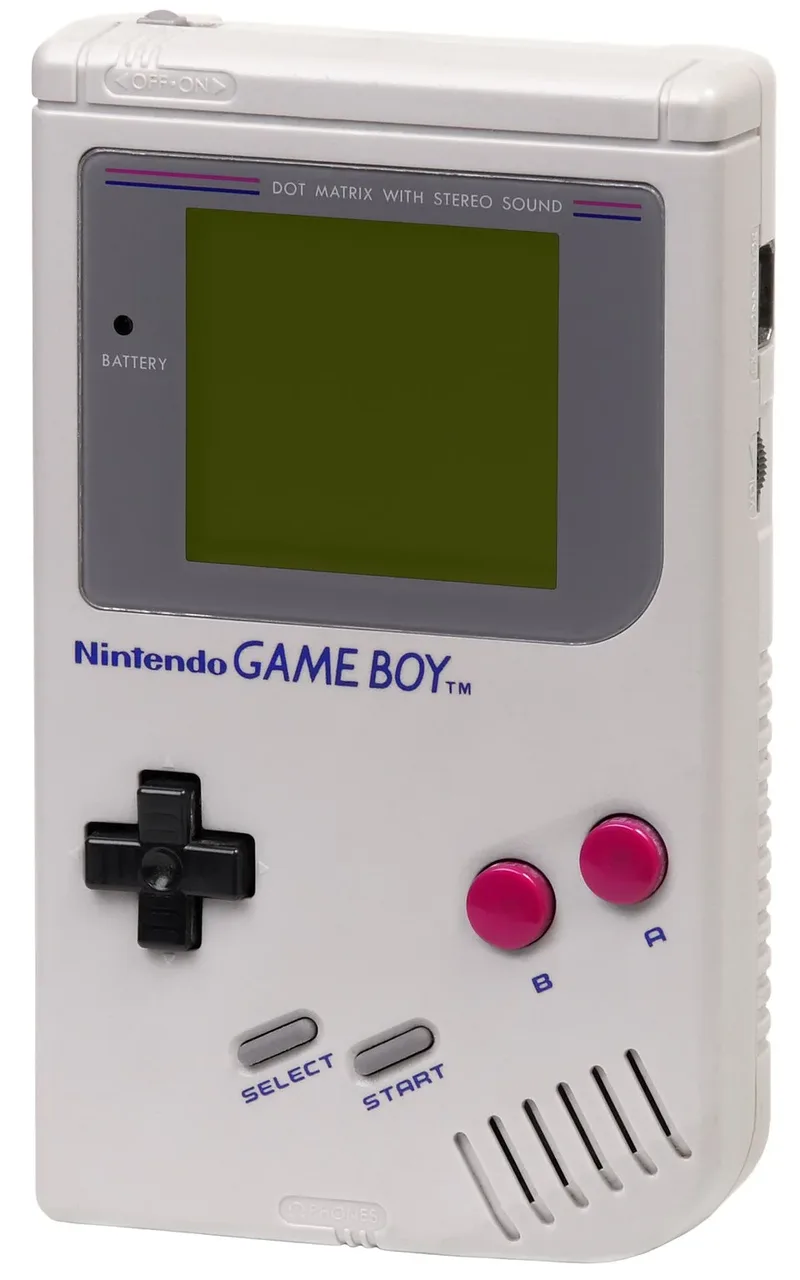
Photo: Evan-Amos / Public domain (Wikimedia Commons)
If your Steam Deck keeps waking up from sleep, check connected USB-C devices, wake settings, and firmware before changing emulation or power options.
Fix retroarch not downloading cores with checks for network access, storage, build compatibility, and a safe manual install for handheld devices.
Fix retroarch cores not loading on Anbernic, Retroid, Steam Deck, or EmuDeck by checking core paths, downloads, permissions, and system compatibility.
Troubleshoot odin 2 won t boot up with safe charging, button checks, recovery options, and fastboot steps before seeking repair for your handheld.
Fix a Miyoo Mini Plus stuck on boot screen by checking the microSD card, restoring OnionOS files, and ruling out power or firmware issues safely.
Fix batocera not enough space on boot by checking storage, expanding the share partition, and resolving full or read-only filesystems on handheld devices.
Fix batocera stuck on splash screen by checking game card files, display settings, updates, and safe boot steps for handhelds, Steam Deck, and emulation PCs.
Fix emudeck not working on rog ally x with practical checks for controller mode, emulator paths, game files, and Armoury Crate settings.
Fix emudeck stuck on downloading retroarch cores by checking network access, proxy settings, storage, and RetroArch's core downloader on handheld devices.
Fix a Steam Deck stuck on shutting down Steam by checking downloads, closing hung apps, restarting the client safely, and knowing when to force power off.