Steam Deck Wakes Itself From Sleep: USB-C and BIOS
If your Steam Deck keeps waking up from sleep, check connected USB-C devices, wake settings, and firmware before changing emulation or power options.
If RetroArch reports that a core is missing, fails to start one, or returns to the menu after you select a game, the core may not be installed or RetroArch may be looking in the wrong folder. For retroarch cores not loading, the most common cause is a mismatch between the configured core directory and the directory where the core files were installed.
RetroArch loads a core as a library from its configured system directory, and the core must match the device and RetroArch build. Handheld setups can add another layer: a frontend such as EmuDeck may use a separate RetroArch installation or configuration from the one opened directly.
Open RetroArch and go to Main Menu > Load Core. Look for the core you expect to use. If it is not listed, select Main Menu > Online Updater > Core Downloader on builds that provide the updater, then install the core for the system you are testing. Reopen Load Core; seeing the core there confirms it is installed in the active RetroArch setup.
In RetroArch, open Settings > Directory > Core and note the path. Compare it with the folder containing the core files. On current versions and packaged handheld setups, folder locations can vary; check your frontend's settings or your model's menu rather than assuming a universal path. If the directory is wrong, select the folder that actually contains the core files, then return to Load Core and try again.
Choose Main Menu > Load Core, select the core, and then choose Main Menu > Load Content to open a game file. This separates a core-launch problem from a frontend launch problem. If it works directly but not from EmulationStation or another launcher, the core itself is likely usable and the frontend may point to a different RetroArch executable, configuration, or core directory.
On Steam Deck, open EmuDeck and use its configuration or manage-emulators options to inspect the RetroArch installation it manages; labels can change between releases. Then launch RetroArch from Gaming Mode or Desktop Mode and check Settings > Directory > Core in that instance. If the frontend launches a different copy, install the core for that copy or configure the frontend to use the intended installation. A game launching from the frontend confirms the paths now agree.
Some cores are available only for particular platforms or builds. Use the core downloader supplied with the RetroArch installation you are actually running, and choose a core intended for that system. On Anbernic or Retroid devices, check the device's bundled launcher and firmware documentation for its supported RetroArch build; Android, Linux, and SteamOS builds are not interchangeable. A compatible core should appear in Load Core and open supported content without immediately returning to the menu.
On Android, review the app's system settings for RetroArch storage or file access permission, then retry loading a core stored in an accessible folder. On Linux-based handhelds, confirm the core file and its parent directory are readable by the account running RetroArch. If the core was copied manually or an update was interrupted, reinstall it through the same RetroArch installation's updater when available. A core that appears and loads after permission or reinstall changes confirms the file is accessible and intact.
If the problem began after moving files or changing storage, restore Settings > Directory > Core to the actual core folder. Save the configuration through Main Menu > Configuration File > Save Current Configuration if that option is available in your build. Restart RetroArch and check Load Core again; the setting should persist and the core should launch. If menu labels differ, use the equivalent directory and configuration options shown by your version.
| Cause | Symptom | Quick test |
|---|---|---|
| Wrong core directory | Core is missing from the list | Compare Settings > Directory > Core with the installed folder |
| Different frontend installation | Works directly, fails from launcher | Launch the core and content inside RetroArch |
| Unsupported or damaged core | Listed, but closes or fails to start | Reinstall a compatible core using that install's updater |
Usually no cores are installed in the active RetroArch installation, or its configured core directory points to an empty folder. Check Load Core and Settings > Directory > Core, then install a core using that installation's updater if available.
EmuDeck or its frontend may launch a different RetroArch installation or configuration. Compare the core directory in the instance launched by the frontend with the one where the core works, then install or point the launcher to the matching setup.
Do not assume a core file is portable between those devices. The core must match the operating system, processor architecture, and RetroArch build; use the updater or package provided for the device's installation.
Most cases come down to installing the core in the RetroArch instance that is actually running and correcting its core directory. If none of these fixes work, note the device model, operating system, RetroArch source, core name, and whether direct loading works, then check the device or frontend documentation for that exact setup.
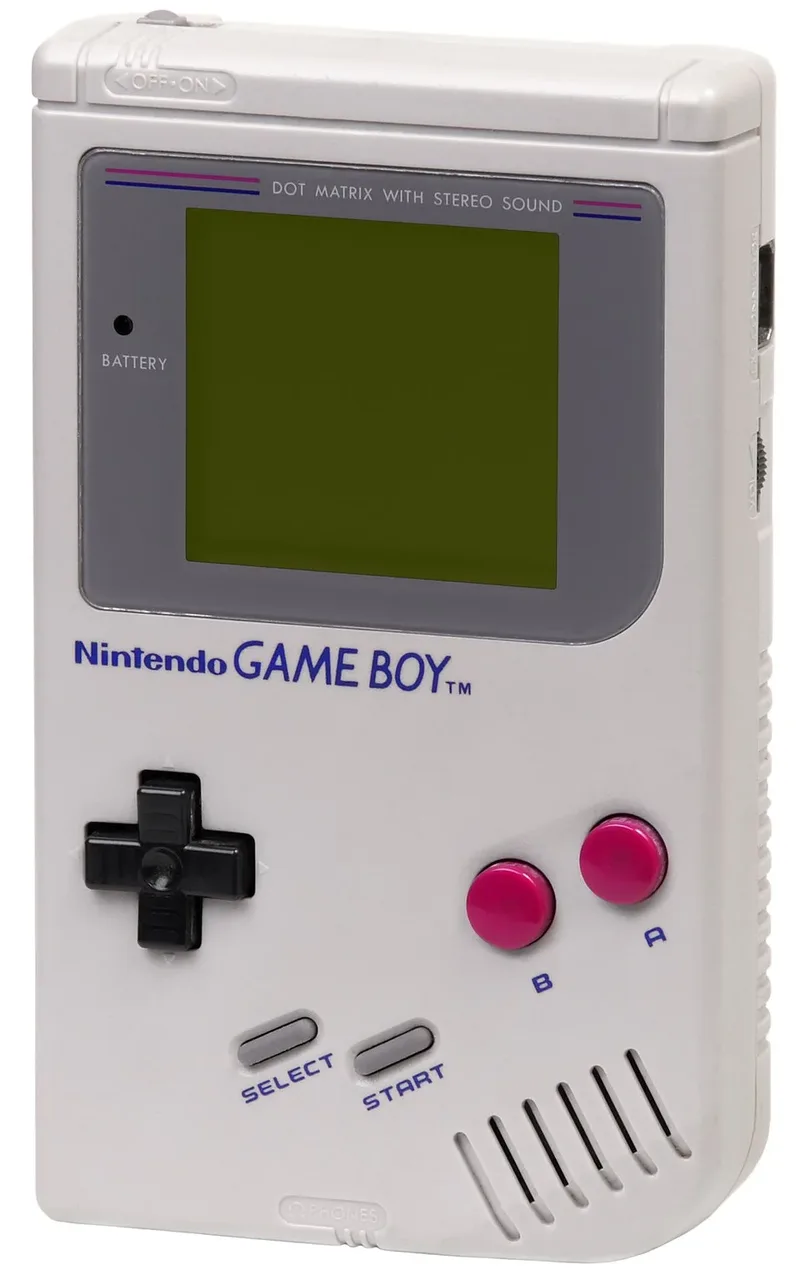
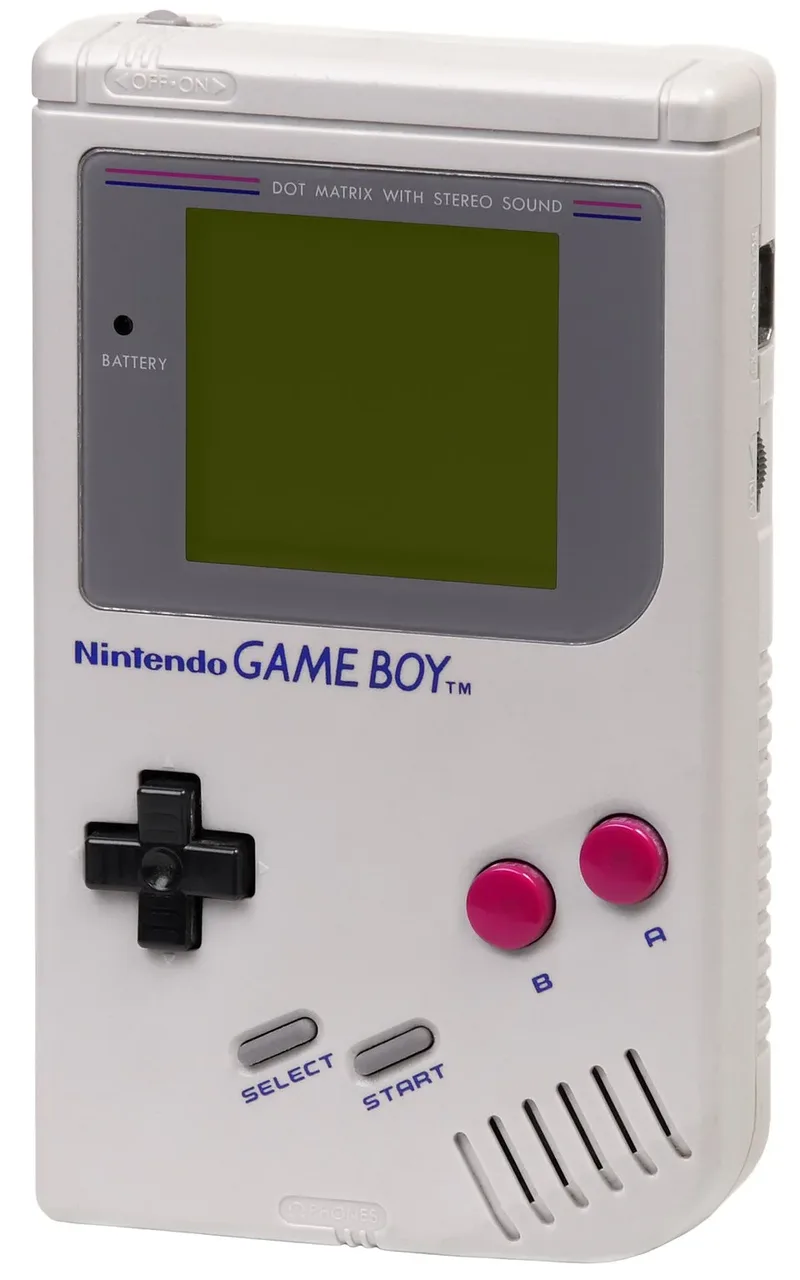
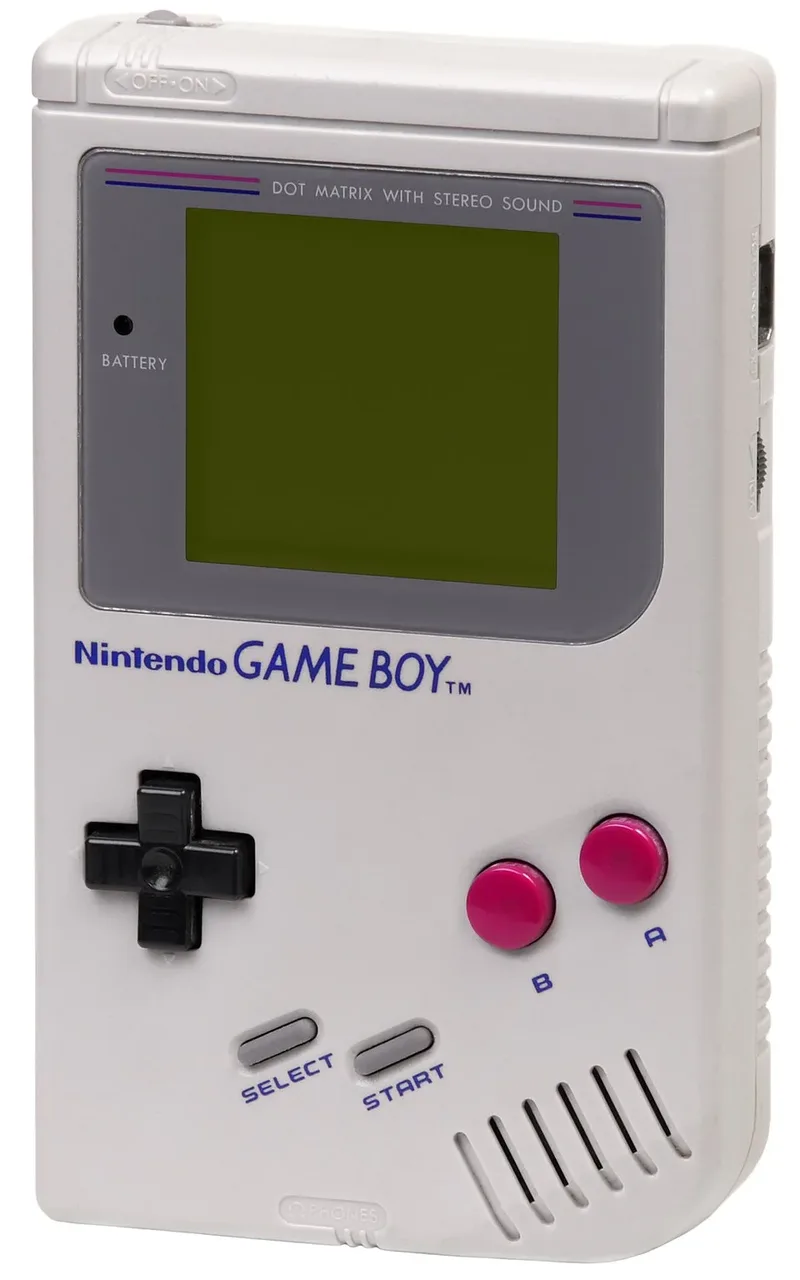
Photo: Evan-Amos / Public domain (Wikimedia Commons)
If your Steam Deck keeps waking up from sleep, check connected USB-C devices, wake settings, and firmware before changing emulation or power options.
Fix retroarch not downloading cores with checks for network access, storage, build compatibility, and a safe manual install for handheld devices.
Fix retroarch cores not loading on Anbernic, Retroid, Steam Deck, or EmuDeck by checking core paths, downloads, permissions, and system compatibility.
Troubleshoot odin 2 won t boot up with safe charging, button checks, recovery options, and fastboot steps before seeking repair for your handheld.
Fix a Miyoo Mini Plus stuck on boot screen by checking the microSD card, restoring OnionOS files, and ruling out power or firmware issues safely.
Fix batocera not enough space on boot by checking storage, expanding the share partition, and resolving full or read-only filesystems on handheld devices.
Fix batocera stuck on splash screen by checking game card files, display settings, updates, and safe boot steps for handhelds, Steam Deck, and emulation PCs.
Fix emudeck not working on rog ally x with practical checks for controller mode, emulator paths, game files, and Armoury Crate settings.
Fix emudeck stuck on downloading retroarch cores by checking network access, proxy settings, storage, and RetroArch's core downloader on handheld devices.
Fix a Steam Deck stuck on shutting down Steam by checking downloads, closing hung apps, restarting the client safely, and knowing when to force power off.