Steam Deck Wakes Itself From Sleep: USB-C and BIOS
If your Steam Deck keeps waking up from sleep, check connected USB-C devices, wake settings, and firmware before changing emulation or power options.
If your Ayn Odin 2 shows a black screen, will not start, or seems stuck before Android loads, the search “odin 2 won t boot up” usually points to a depleted battery or a charger and cable that are not delivering power. A deeply discharged battery is the most common cause; give it time on a reliable charger before trying recovery steps.
The Odin 2 is an Android handheld, so a failed boot can come from power delivery, a frozen system, or Android failing to start. A black screen alone does not prove the device is dead: check for charging indicators, vibration, sound, or a response to button presses.
| Possible cause | Typical symptom | Quick test |
|---|---|---|
| Battery drained | No response after pressing Power | Charge with a known-good USB-C cable and adapter, then retry |
| Frozen system | Black screen despite a recent charge | Hold Power to force a restart |
| Display or boot issue | Vibration or sound, but no visible image | Check for signs of life and try a restart before recovery |
Connect the Odin 2 directly to a wall charger using a USB-C cable you know works. Avoid hubs, docks, and a PC USB port for this first check. Leave it charging for at least 30 minutes; if the battery may be fully depleted, allow longer. Look for a charging symbol or other response, then press Power normally. A charging indicator or successful startup confirms that power delivery was the likely issue.
Try another compatible wall adapter and cable, and test the original cable with another device if possible. Make sure the plug seats fully. Inspect the Odin 2’s USB-C port for lint or damage, but do not insert metal tools or force the connector. If a different cable or adapter makes the charging screen appear, replace or stop using the faulty accessory.
If the device has charge but Android appears frozen, hold the Power button continuously for about 15 seconds, release it, wait a few seconds, and press Power once to start it. Button behavior can vary with device state, so if there is no response, charge first and repeat once. A boot logo or normal startup confirms that the handheld was stuck rather than unable to receive power.
Disconnect USB accessories, headphones, docks, and any connected controller, then try starting the console again. Listen for startup sounds or feel for vibration; shine a flashlight at an angle across the screen to check for a very faint image. If there are signs of life but no visible picture, the problem may involve the display or its connection. Avoid opening the handheld if you are not experienced with device repair.
With the Odin 2 powered off, use its hardware buttons to attempt recovery. Button combinations can vary by model and software version, so consult the current AYN instructions for your exact device rather than guessing or repeatedly trying combinations. If Android Recovery opens, read the screen carefully. Choose a restart option such as Reboot system now only if it is shown; do not select a factory reset unless you accept losing local data. Reaching recovery confirms the device can power on, even if Android cannot boot normally.
Fastboot is a bootloader mode, not a general-purpose repair command. If the Odin 2 displays a fastboot screen, note what it says and use only AYN’s instructions for your model. Do not flash images, unlock the bootloader, or run commands copied from a guide for another handheld: these actions can erase data or make the device harder to recover. If fastboot opens but you do not have official steps for the exact model, stop there and contact AYN support.
If the device shows no charging sign after trying a known-good cable and adapter for an extended period, or if the port, battery, or casing looks damaged, disconnect it and contact AYN support or the seller. Include the model, what happens when you press Power, which charging accessories you tested, and any screen or sound response. This gives support useful details without risking further damage.
The battery may be deeply discharged, or the cable, adapter, or USB-C connection may not be delivering power. Try a known-good wall charger and cable, leave it connected for a while, then retry Power.
Hold Power for about 15 seconds, release it, wait briefly, and press Power once. If it still does not respond, charge it first and check AYN’s current instructions for your model.
Fastboot can show that the bootloader is responding, but entering it does not fix Android by itself. Avoid flashing or unlocking without official instructions for your exact model, since those actions can erase data or cause additional problems.
For an “odin 2 won t boot up” problem, start with charging and a forced restart, then use recovery or fastboot only with model-specific guidance. If the console remains unresponsive or shows signs of damage, stop troubleshooting and contact AYN support or the seller with the checks you performed.
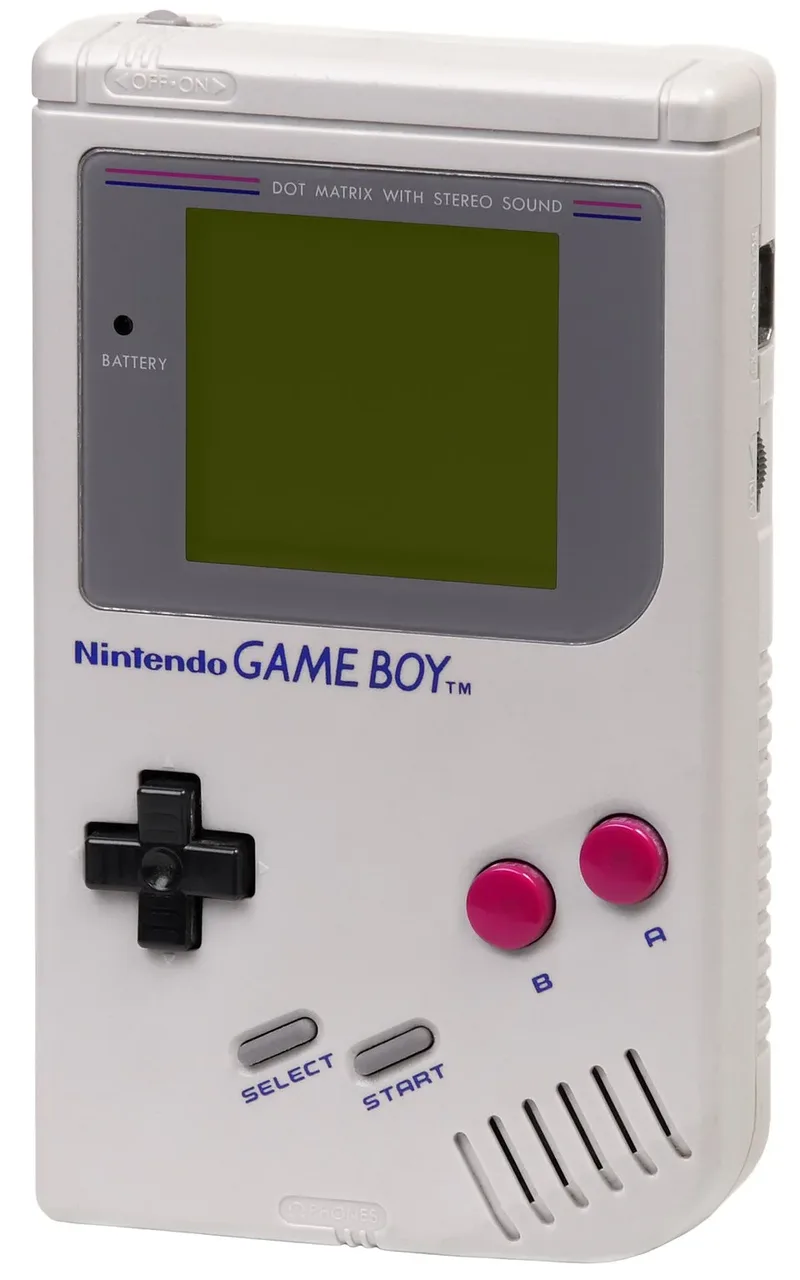
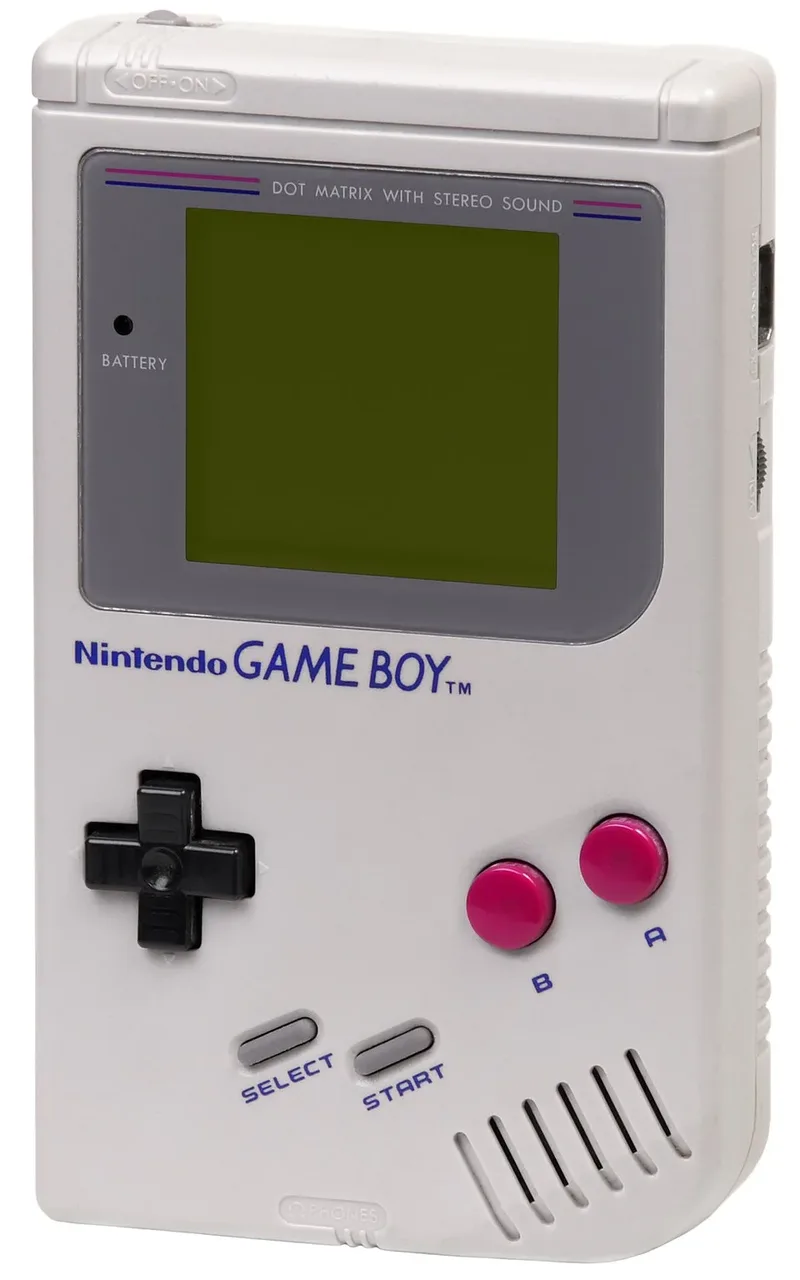
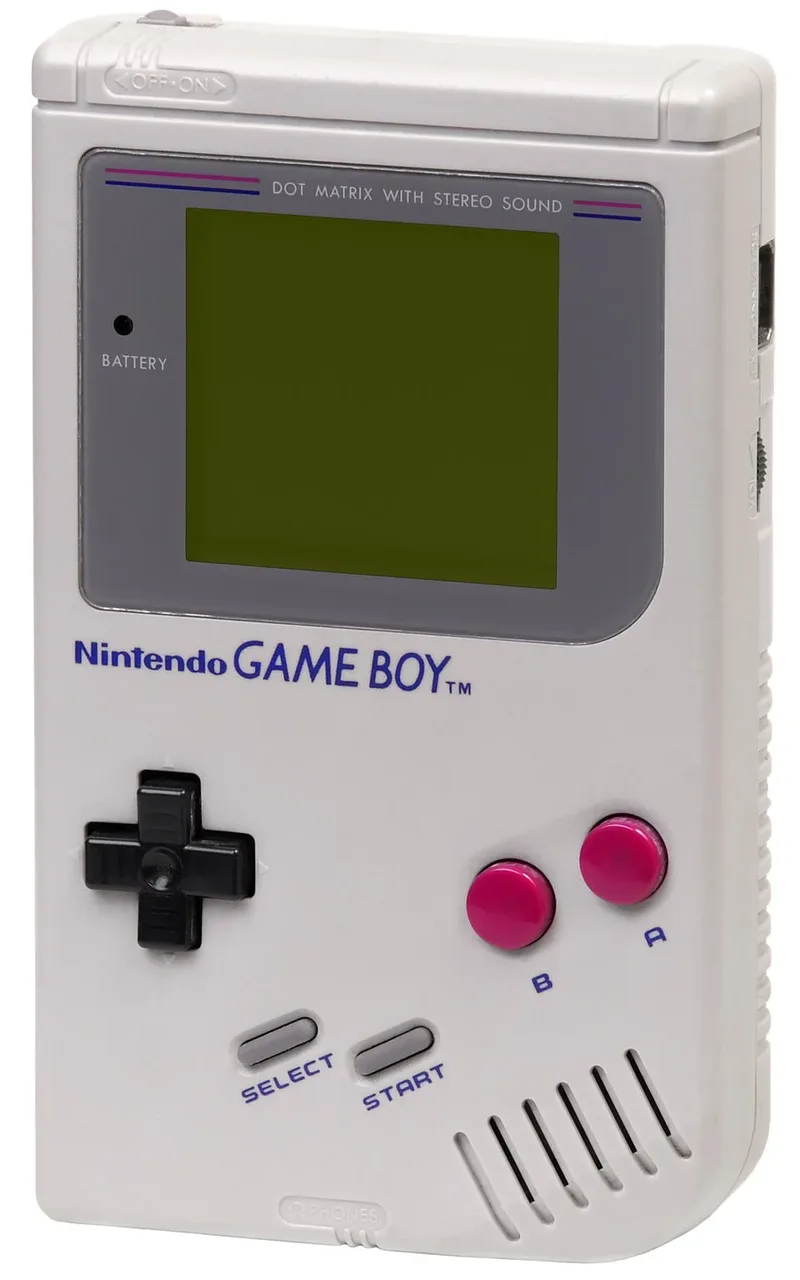
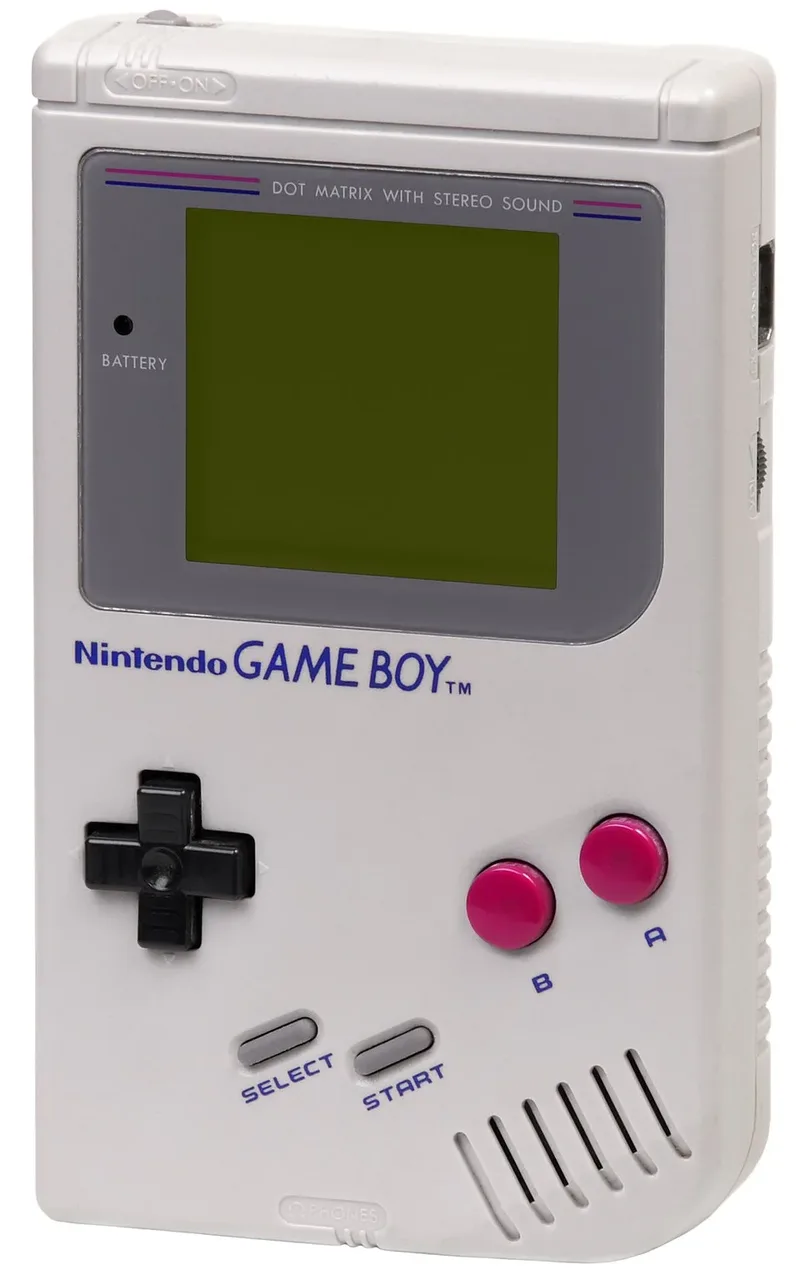
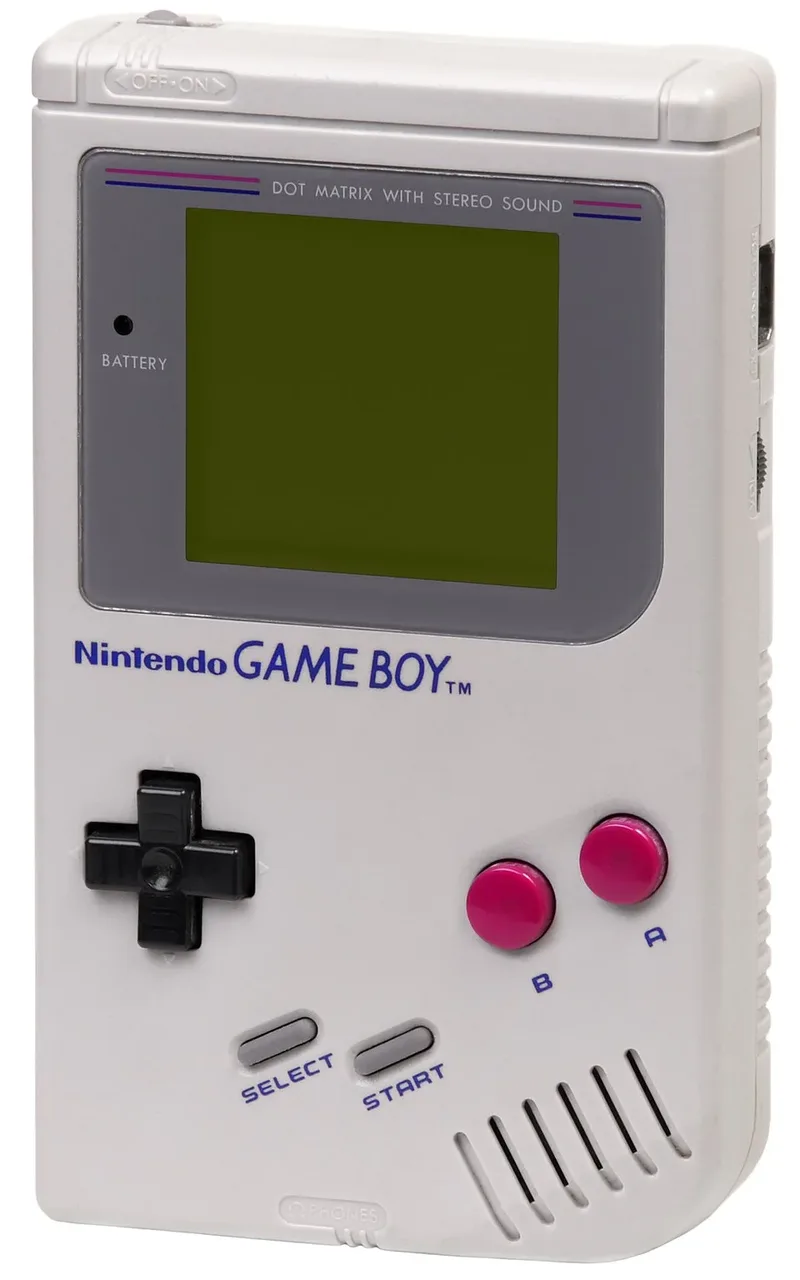
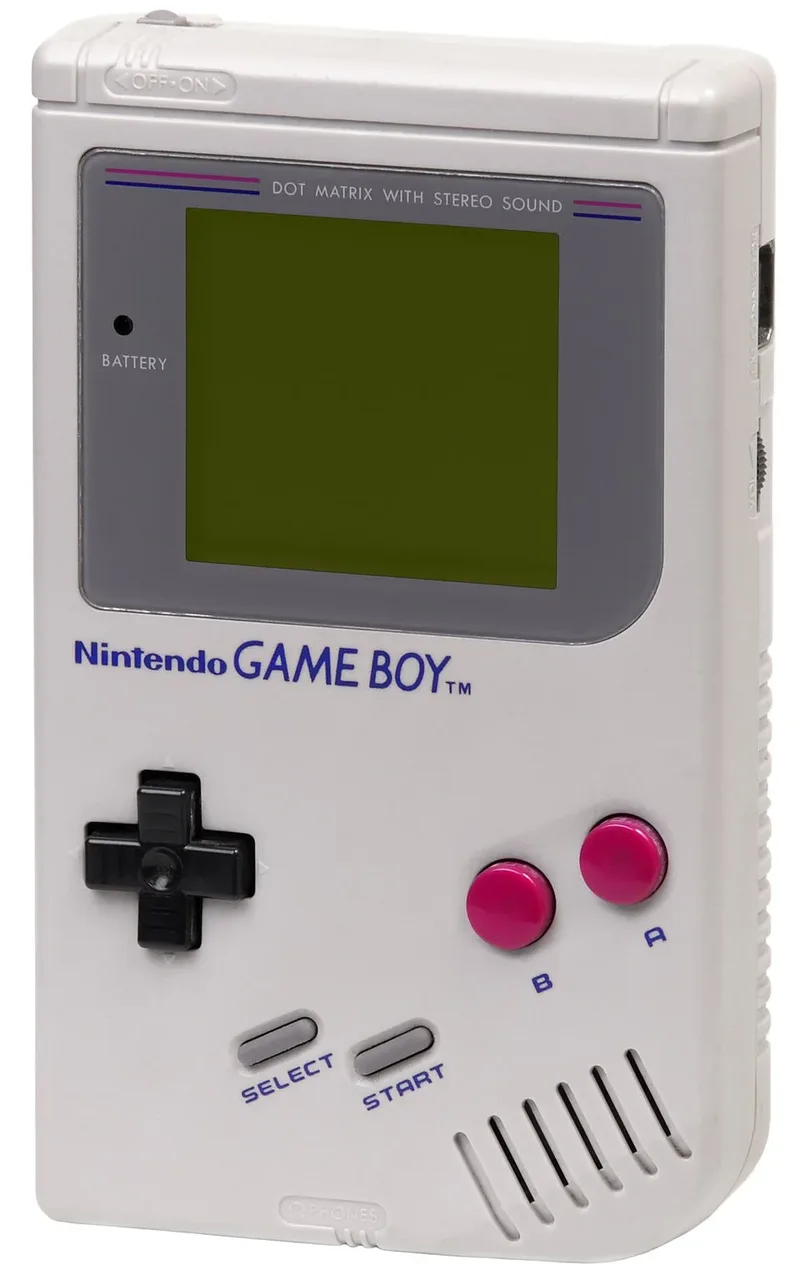
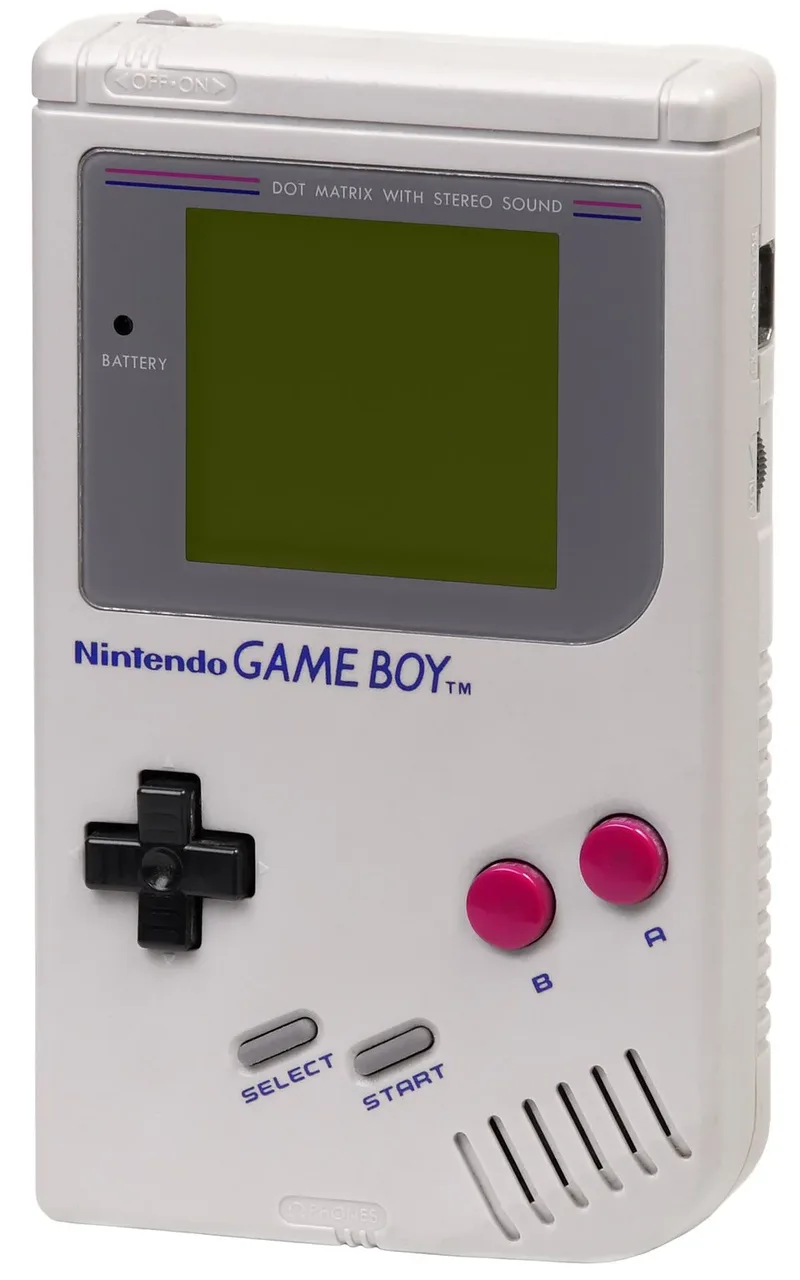
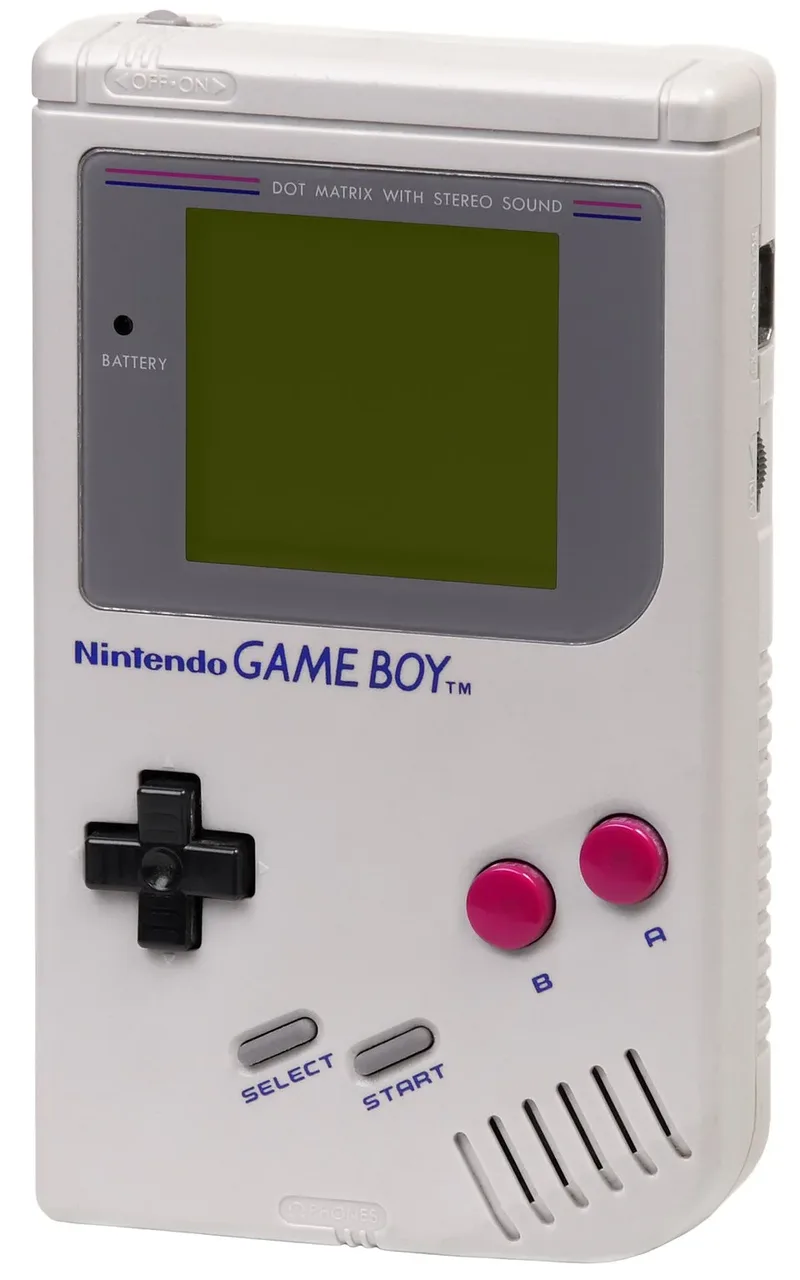
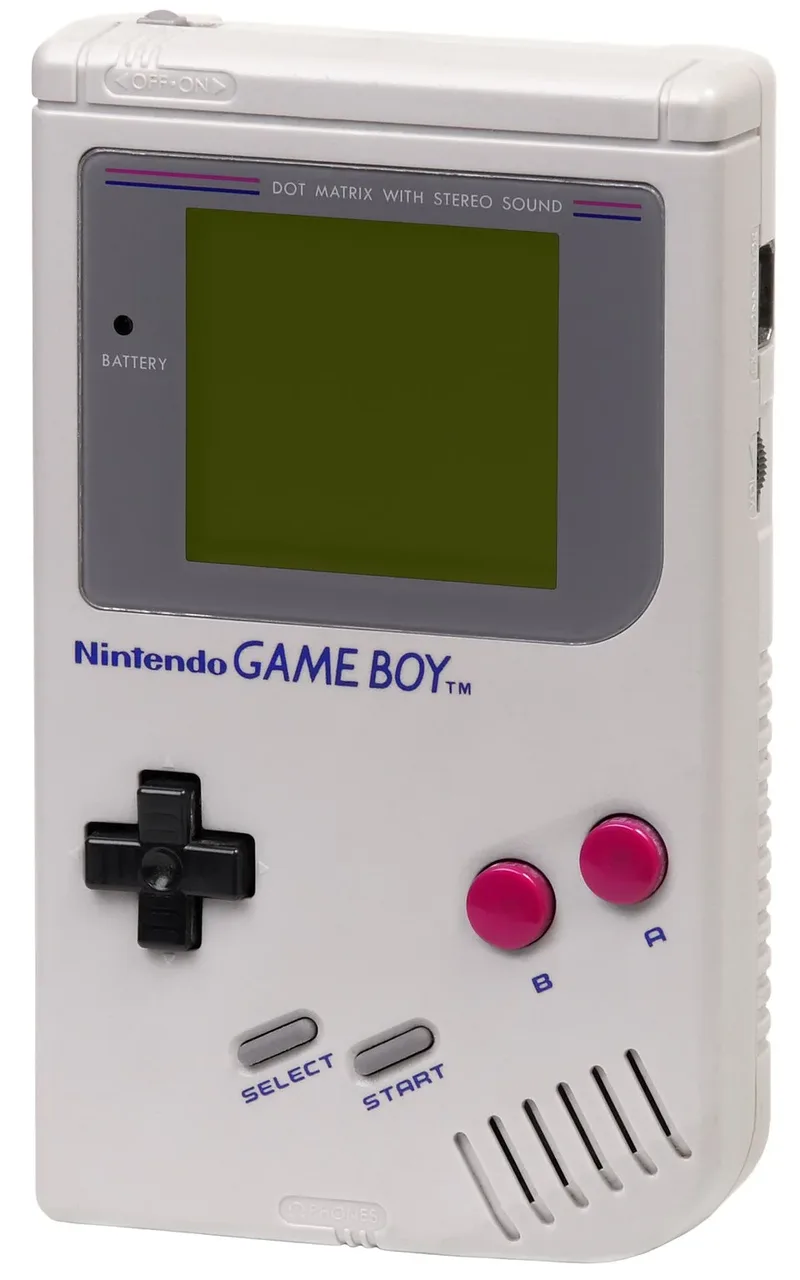
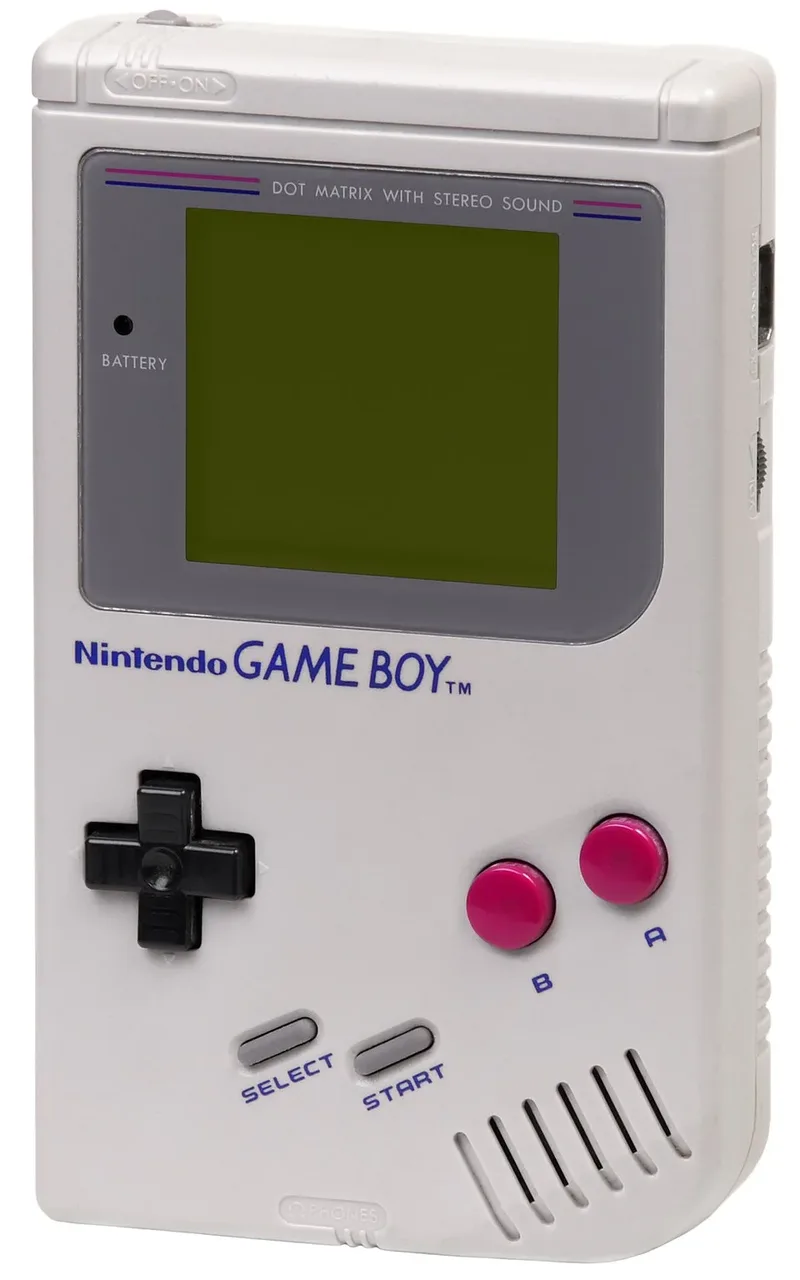
Photo: Evan-Amos / Public domain (Wikimedia Commons)
If your Steam Deck keeps waking up from sleep, check connected USB-C devices, wake settings, and firmware before changing emulation or power options.
Fix retroarch not downloading cores with checks for network access, storage, build compatibility, and a safe manual install for handheld devices.
Fix retroarch cores not loading on Anbernic, Retroid, Steam Deck, or EmuDeck by checking core paths, downloads, permissions, and system compatibility.
Troubleshoot odin 2 won t boot up with safe charging, button checks, recovery options, and fastboot steps before seeking repair for your handheld.
Fix a Miyoo Mini Plus stuck on boot screen by checking the microSD card, restoring OnionOS files, and ruling out power or firmware issues safely.
Fix batocera not enough space on boot by checking storage, expanding the share partition, and resolving full or read-only filesystems on handheld devices.
Fix batocera stuck on splash screen by checking game card files, display settings, updates, and safe boot steps for handhelds, Steam Deck, and emulation PCs.
Fix emudeck not working on rog ally x with practical checks for controller mode, emulator paths, game files, and Armoury Crate settings.
Fix emudeck stuck on downloading retroarch cores by checking network access, proxy settings, storage, and RetroArch's core downloader on handheld devices.
Fix a Steam Deck stuck on shutting down Steam by checking downloads, closing hung apps, restarting the client safely, and knowing when to force power off.