Steam Deck Wakes Itself From Sleep: USB-C and BIOS
If your Steam Deck keeps waking up from sleep, check connected USB-C devices, wake settings, and firmware before changing emulation or power options.
If Batocera shows “not enough space” during boot or when saving changes, the most common cause is that its SHARE partition did not expand to use the full SD card or drive. This can happen after flashing an image, swapping cards, or moving an installation to a larger disk.
Batocera separates its system files from the writable SHARE area used for game files, saves, settings, and other data. The image may create a SHARE partition sized for the original image, leaving the rest of the card unallocated; a nearly full or failing card can cause similar symptoms.
| Possible cause | Typical symptom | Quick test |
|---|---|---|
| Unexpanded SHARE partition | Capacity is much smaller than the card | Check free space in Batocera’s storage settings |
| Full SHARE partition | Downloads or saves fail | Check available space and remove a large file temporarily |
| Read-only or damaged storage | Space appears available, but writes fail | Try creating a small folder, then check whether it persists after reboot |
Connect a keyboard, open the main menu, and look under System Settings for the storage or free-space information available on your Batocera version. Menu labels can vary, so check your model’s menu. If the interface is available, also open the file manager and inspect the free space on the SHARE drive. Confirm that the full location is SHARE rather than a separate USB drive or internal device.
Shut down from the Batocera menu, wait for the device to power off, then start it again. A clean boot can clear a temporary write issue. If the warning returns, power off and inspect the SD card or drive connection. On a handheld, reseat the card only while the device is fully off; if possible, test with another card reader or computer to rule out a loose connection.
With the intended card installed, boot Batocera and check System Settings for a storage device or partition expansion option. The exact label and availability depend on the Batocera version and device. Select the correct installation device, allow the operation to finish, and reboot if prompted. Recheck free space; a successful expansion should make the available capacity closer to the usable size of the card, less system partitions and filesystem overhead.
If Batocera has no expansion option, shut down and connect the card or drive to a computer. Use a partition manager that supports the filesystem shown on the device to inspect the partition layout. If unallocated space follows SHARE, extend SHARE into that space. Do not resize, format, or delete partitions based only on their order; identify them by label and filesystem, and make a backup before changing the layout. Put the device back and boot Batocera to confirm the reported capacity increased.
Remove or move files you can replace, such as duplicate ROMs, old scraper artwork, or large downloads. Use Batocera’s file manager or access the SHARE partition from a computer while the device is powered off. Avoid deleting system folders or save files you want to keep. After removal, check free space again and try the action that originally failed, such as saving a setting or copying one game file.
When free space is available but Batocera still cannot write, try creating a temporary folder in the SHARE file manager, then reboot and see whether it remains. If it cannot be created or disappears, shut down cleanly and check the card on a computer for filesystem errors using that operating system’s disk repair tool. Back up important saves first. A repair that restores normal writes should let Batocera save settings and files again.
If the card disconnects, reports inconsistent capacity, or errors recur after repair, copy recoverable saves and configuration files and replace the card or drive. Flash a compatible Batocera image for your device, boot once so it can initialize storage, then restore only the files you need. Verify that SHARE expands and that a test save persists after reboot before copying everything back.
First check whether the SHARE partition is smaller than the card. Let Batocera expand storage if the option is available, or extend SHARE into adjacent unallocated space with a partition manager after backing up important files.
The image may have created a SHARE partition sized for the image rather than the full card. Check the partition layout and expand SHARE to use available unallocated space; reported usable capacity will be less than the card’s advertised size.
Expanding a partition is intended to preserve its files, but partition changes can fail or be interrupted. Back up games, saves, and configuration files before resizing, and do not format the SHARE partition unless you are prepared to restore its contents.
In most cases, confirming and expanding SHARE resolves the boot space warning; if it remains, check for a full, read-only, or failing storage device. Back up what you can and replace suspect media if errors return after repair.
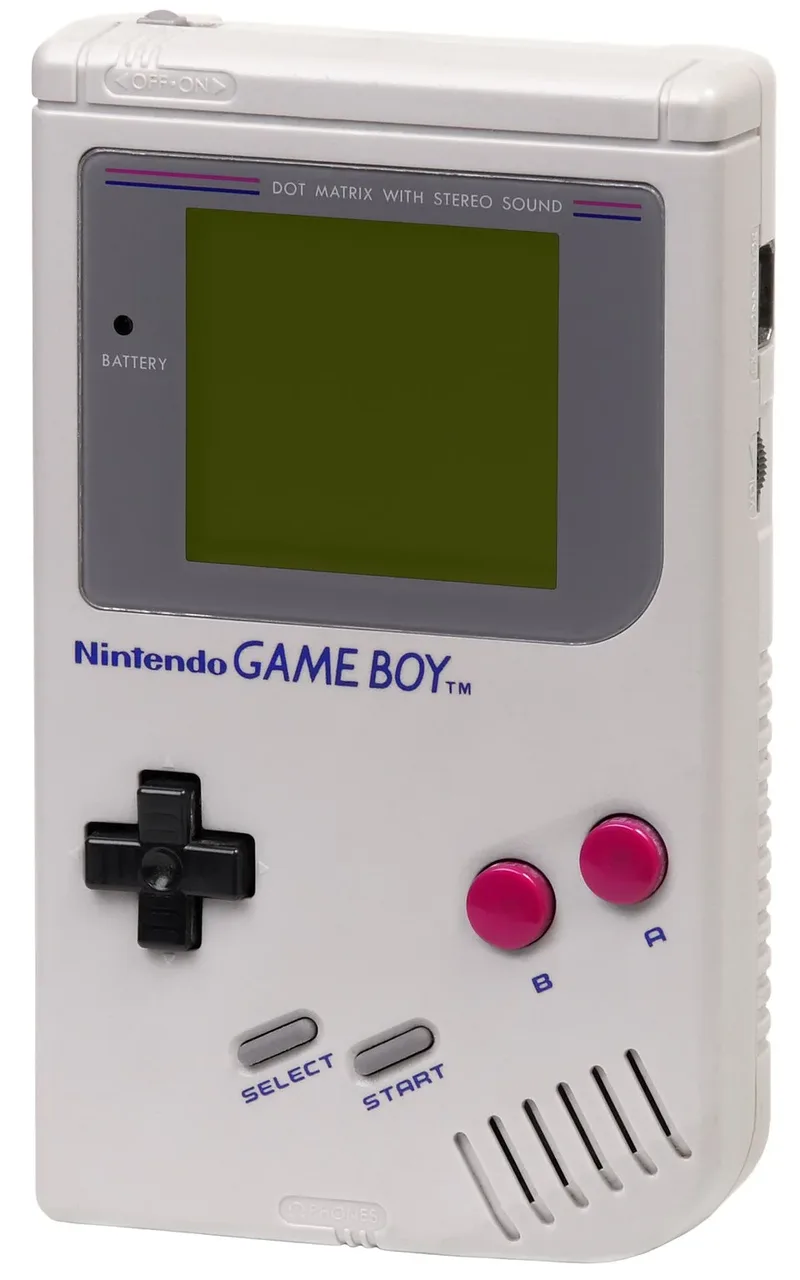
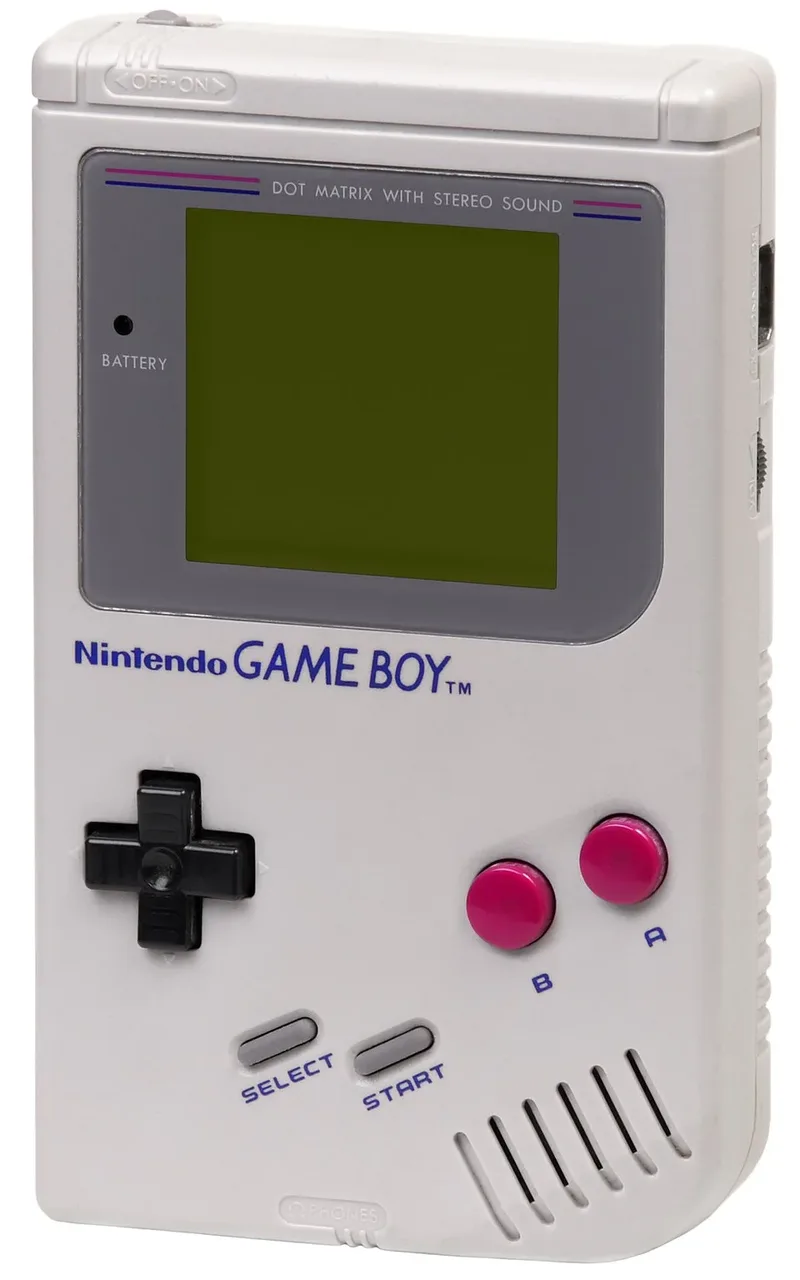
Photo: Evan-Amos / Public domain (Wikimedia Commons)
If your Steam Deck keeps waking up from sleep, check connected USB-C devices, wake settings, and firmware before changing emulation or power options.
Fix retroarch not downloading cores with checks for network access, storage, build compatibility, and a safe manual install for handheld devices.
Fix retroarch cores not loading on Anbernic, Retroid, Steam Deck, or EmuDeck by checking core paths, downloads, permissions, and system compatibility.
Troubleshoot odin 2 won t boot up with safe charging, button checks, recovery options, and fastboot steps before seeking repair for your handheld.
Fix a Miyoo Mini Plus stuck on boot screen by checking the microSD card, restoring OnionOS files, and ruling out power or firmware issues safely.
Fix batocera not enough space on boot by checking storage, expanding the share partition, and resolving full or read-only filesystems on handheld devices.
Fix batocera stuck on splash screen by checking game card files, display settings, updates, and safe boot steps for handhelds, Steam Deck, and emulation PCs.
Fix emudeck not working on rog ally x with practical checks for controller mode, emulator paths, game files, and Armoury Crate settings.
Fix emudeck stuck on downloading retroarch cores by checking network access, proxy settings, storage, and RetroArch's core downloader on handheld devices.
Fix a Steam Deck stuck on shutting down Steam by checking downloads, closing hung apps, restarting the client safely, and knowing when to force power off.