Steam Deck Wakes Itself From Sleep: USB-C and BIOS
If your Steam Deck keeps waking up from sleep, check connected USB-C devices, wake settings, and firmware before changing emulation or power options.
If EmuDeck on your ROG Ally X opens games without controls, or cannot find your games, the usual cause is a mismatch between the controller mode or game paths and the settings EmuDeck expects. The Ally X runs Windows, so Steam Input, Armoury Crate SE, and each emulator can affect input separately.
EmuDeck installs and configures emulators, but it does not make every game launch through the same input layer or automatically correct every custom storage path. The failure often comes from one of these mechanisms:
| Cause | Symptom | Quick test |
|---|---|---|
| Controller mode mismatch | Games launch, but Ally controls act like a mouse or keyboard. | Switch to Gamepad mode and test in a controller-aware game. |
| Steam Input mapping | Controls work in Steam but are wrong in one emulator. | Temporarily disable that game's Steam Input override. |
| Wrong ROM path | EmuDeck or a frontend shows no games. | Check that the selected ROM folder exists and contains supported files. |
| Missing system files | A game appears but fails to boot or has limited features. | Check the emulator's log or documentation for the required BIOS files. |
Open Armoury Crate SE and use its Command Center to check the control mode. Select Gamepad mode for a game that expects a controller; Desktop mode maps the sticks and buttons to mouse and keyboard actions. Reopen the game after changing modes and confirm that its menus respond to the built-in controls.
Press Win + R, enter joy.cpl, and open the controller properties if a game controller is listed. Use the test screen to check that buttons and sticks register. If they do not, restart the Ally and check Armoury Crate SE and Windows for pending updates before changing emulator mappings; an emulator cannot fix controller input that Windows does not receive.
In Steam, open the game's properties and find its controller settings. If Steam offers an override, test the default setting and then the opposite setting—enabled or disabled—one at a time. The exact labels can vary by Steam version. Keep the setting that makes the controls work, and avoid applying a desktop layout to a game that expects gamepad input.
Open EmuDeck and review its ROM directory or storage settings; the exact screen depends on the installed version. In File Explorer, confirm that the chosen folder still exists and that the game files are inside the correct system subfolder. If you moved files to a microSD card, check that Windows assigned the expected drive and update the configured path if it changed. Rescan or refresh the library, then confirm the titles appear.
Check the file extension and the emulator's supported formats for that console. A compressed archive, unsupported format, incomplete download, or file placed in the wrong system folder may be skipped or fail to launch. Test one known-good game file before reorganizing the whole collection; a successful launch points to a file or folder issue with the other titles.
Some systems require BIOS files, while others do not. Consult the documentation for the specific emulator and system, then check that any required files are in the configured BIOS folder and have the expected filenames. Do not rename files based on guesswork. A game that appears in the library but will not boot may indicate a missing or incorrectly placed BIOS, but the emulator's own message or log is the better confirmation.
If the controller works in Windows and other games, open the affected emulator's input or controller settings and select the Ally controller as the device. Restore that emulator's default controller profile, then bind buttons using its on-screen prompts. Test the game before changing global EmuDeck settings; a working response in the emulator's input screen confirms the mapping has been received.
Use EmuDeck's update or configuration tools, where available in your version, and update the affected emulator through its supported method. Restart the game after each change. If a recent update introduced the issue, record the current settings before adjusting them and retest with one game; this helps identify whether the problem is the emulator, Steam Input, or the file setup.
Game detection and controller input use separate settings. Check Armoury Crate SE's control mode first, then test Windows with joy.cpl and review that game's Steam Input setting.
Use the ROM directory selected in your EmuDeck setup and place each game in the appropriate system folder. Check the configured path in EmuDeck rather than assuming a particular drive letter or folder name.
No; requirements depend on the system and emulator. Check the emulator's documentation and configured BIOS directory, and use its logs or messages to confirm whether a required file is missing.
For emudeck not working on rog ally x, start with Gamepad mode, then verify the game's input mapping and the ROM path before changing multiple settings. If it still fails, note the emulator, game, storage location, and any message shown, then check that emulator's documentation or support channel with those details.
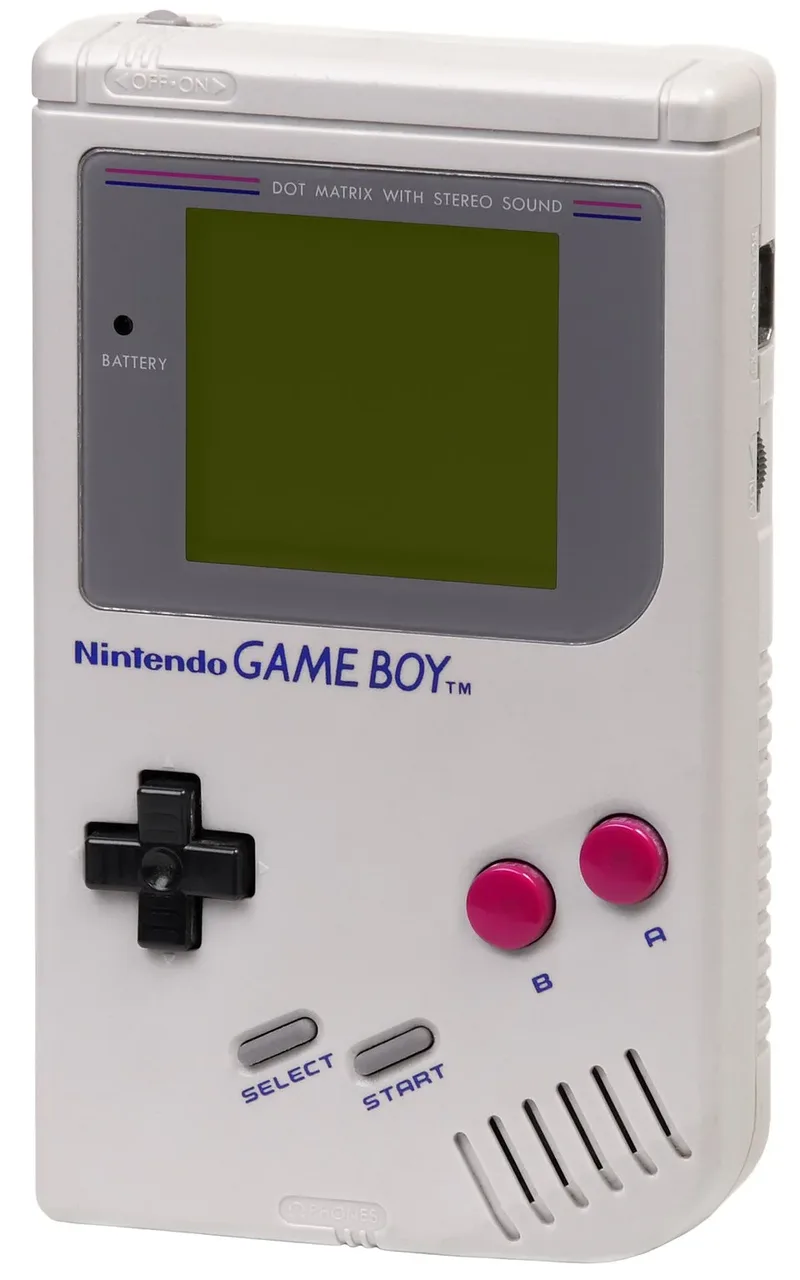
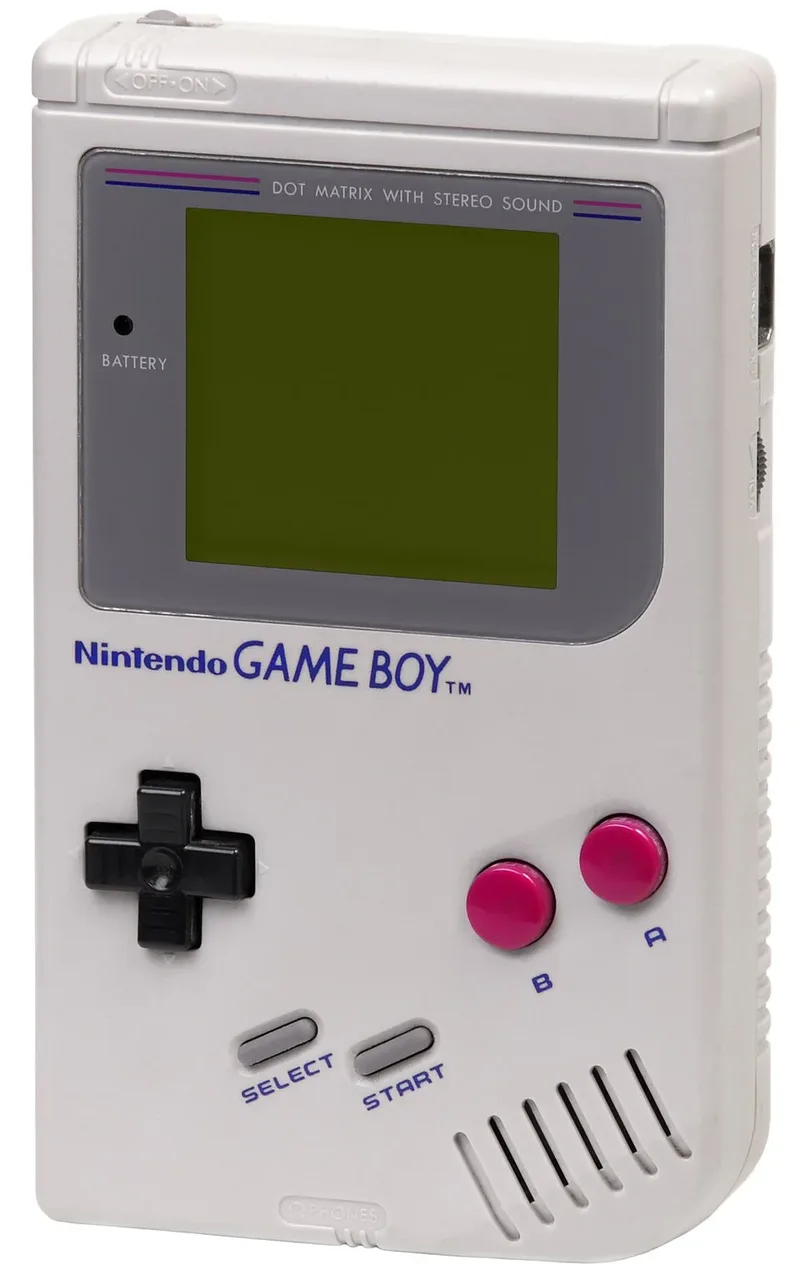
Photo: Evan-Amos / Public domain (Wikimedia Commons)
If your Steam Deck keeps waking up from sleep, check connected USB-C devices, wake settings, and firmware before changing emulation or power options.
Fix retroarch not downloading cores with checks for network access, storage, build compatibility, and a safe manual install for handheld devices.
Fix retroarch cores not loading on Anbernic, Retroid, Steam Deck, or EmuDeck by checking core paths, downloads, permissions, and system compatibility.
Troubleshoot odin 2 won t boot up with safe charging, button checks, recovery options, and fastboot steps before seeking repair for your handheld.
Fix a Miyoo Mini Plus stuck on boot screen by checking the microSD card, restoring OnionOS files, and ruling out power or firmware issues safely.
Fix batocera not enough space on boot by checking storage, expanding the share partition, and resolving full or read-only filesystems on handheld devices.
Fix batocera stuck on splash screen by checking game card files, display settings, updates, and safe boot steps for handhelds, Steam Deck, and emulation PCs.
Fix emudeck not working on rog ally x with practical checks for controller mode, emulator paths, game files, and Armoury Crate settings.
Fix emudeck stuck on downloading retroarch cores by checking network access, proxy settings, storage, and RetroArch's core downloader on handheld devices.
Fix a Steam Deck stuck on shutting down Steam by checking downloads, closing hung apps, restarting the client safely, and knowing when to force power off.