Steam Deck Wakes Itself From Sleep: USB-C and BIOS
If your Steam Deck keeps waking up from sleep, check connected USB-C devices, wake settings, and firmware before changing emulation or power options.
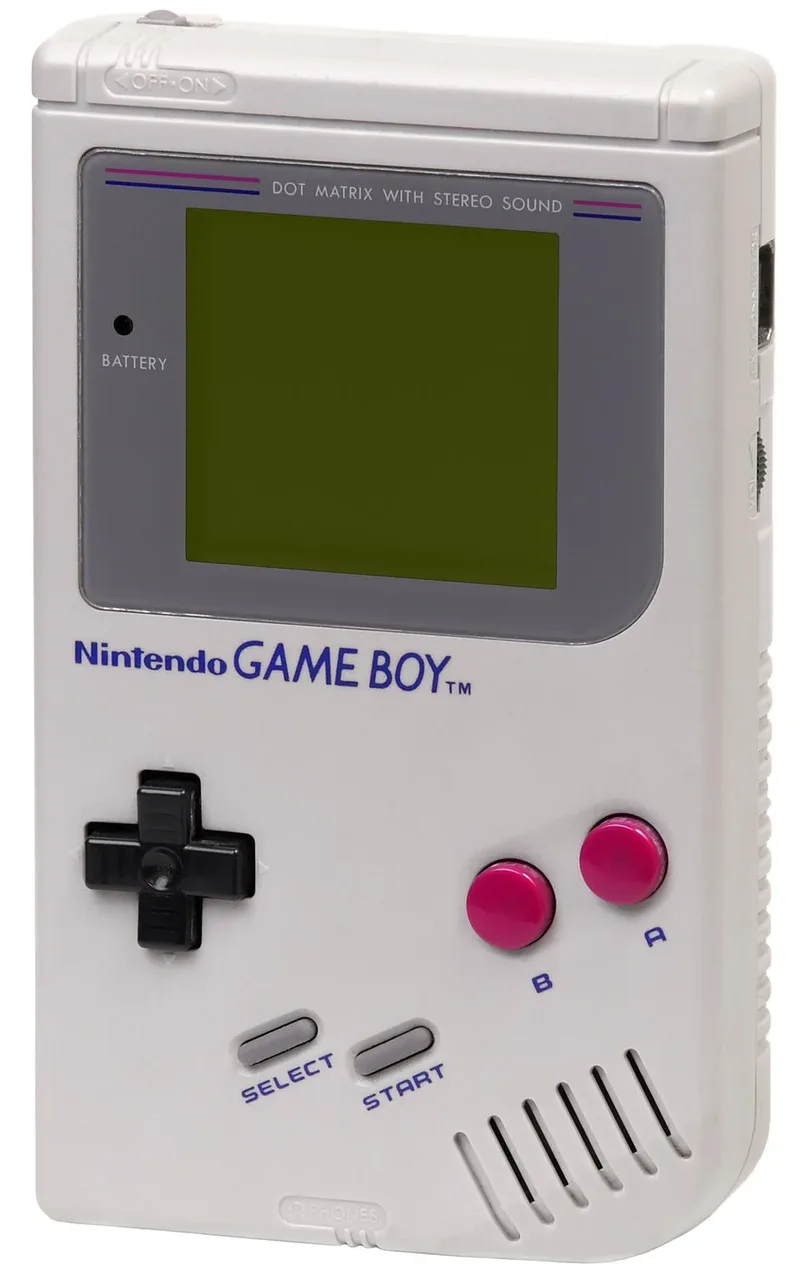
If your Anbernic handheld is dead, showing no charging light, or refusing to boot, the anbernic rg35xx not turning on or charging problem is often a deeply drained battery or a charger and cable that are not supplying power reliably. Start with a basic 5V wall adapter and a known-good USB-C cable; changing firmware or opening the console should come later.
The RG35XX family includes multiple models, and charging behavior can vary. A console that has been stored empty may need time on a suitable charger before it can start. A poor cable, unsuitable power source, loose battery connection, or damaged system card can produce similar symptoms.
Turn the console off and connect it to a wall charger using the supplied cable if available. Anbernic’s support guidance recommends a 5V/2A charger and original cable for affected RG35XX series devices; follow the rating and instructions for your own model. Avoid testing through a computer USB port or power bank first. Try another compatible cable and wall adapter if there is no charging indicator. A charging light or a boot after charging confirms that the original power source or cable was the likely problem.
If the battery was fully drained, leave the console connected to the wall charger for at least 15 minutes before trying to start it. Then press the reset button once, wait briefly, and press and hold Power to boot. On some models, the charging indicator is separate from the screen, so check the indicator and screen independently. A light appearing after the wait suggests the battery was too depleted to start immediately. If the console or battery becomes unusually hot, unplug it.
Unplug the cable and inspect the port under good light. Look for lint, bent parts, looseness, or visible damage; do not insert metal tools or force the plug. Reconnect the cable gently and see whether the charging light responds. If the light flickers when the cable moves, stop moving it and try a different cable. A loose or damaged port needs repair, not repeated wiggling.
With the console powered off and unplugged, remove the microSD card or cards, then connect the charger and try to power on. Do not format a card that contains saves or games you want to keep. If the device starts or shows a different boot screen without the card, the card or its system files may be involved. Back up the card on a computer before repairing or reinstalling firmware, and use firmware intended for your exact RG35XX model.
After charging, press Power and listen for startup sounds or feel for a normal vibration if your model has one. Shine a flashlight at an angle across the screen to check for a very faint image. If the console seems to boot but the screen stays black, the fault may be the display or its connection rather than charging. A working charging light with no boot response points toward a different problem than no light at all.
If the console is out of warranty and you are comfortable with small electronics, power it off, unplug it, and follow a reliable teardown guide for your exact model before opening the case. Check whether the battery connector is seated; do not pull on the wires, puncture or bend the battery, or continue if it is swollen or damaged. Reconnect only a visibly loose plug, then close the case before testing. If the plug is seated and charging still fails, the battery or charging board may need professional service. Contact the seller or Anbernic support before opening a warranty-covered unit.
| Possible cause | Common symptom | Quick test |
|---|---|---|
| Drained battery or weak power source | No boot, charging light may be absent | Try a suitable wall adapter and known-good cable |
| Damaged system card | Charging works, startup does not | Try starting with the card removed |
| Port, battery, or charging fault | No light across known-good chargers | Inspect the port; seek service if still dead |
Let it charge for at least 15 minutes, press Reset once, then hold Power. If it still will not boot, remove the microSD card and try again. A corrupted system card or a battery that cannot hold charge may be responsible.
Use a compatible 5V wall adapter and a known-good cable, following your model’s instructions. Anbernic support recommends a 5V/2A charger and the original cable for its RG35XX series no-power guidance. Avoid assuming that every USB-C charger and cable combination will work.
No; firmware cannot fix a console that receives no power. First confirm the charger, cable, port, and charging indicator. Consider firmware only if the device powers on but fails to boot, and back up the microSD card before changing it.
Work through the power source, charging wait, reset, and card checks before considering hardware repair. If the console still shows no charging response with a suitable charger and known-good cable, contact the seller or Anbernic support with your exact model and the tests you tried.
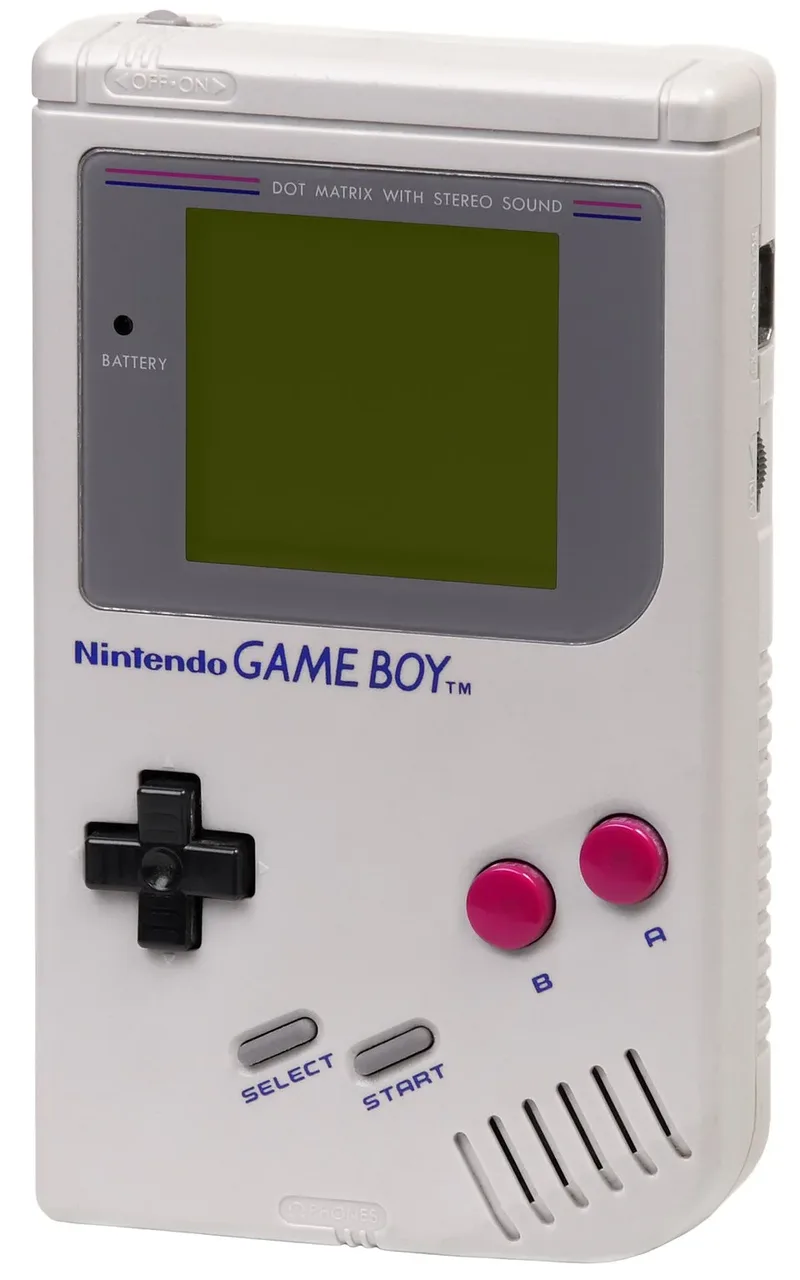
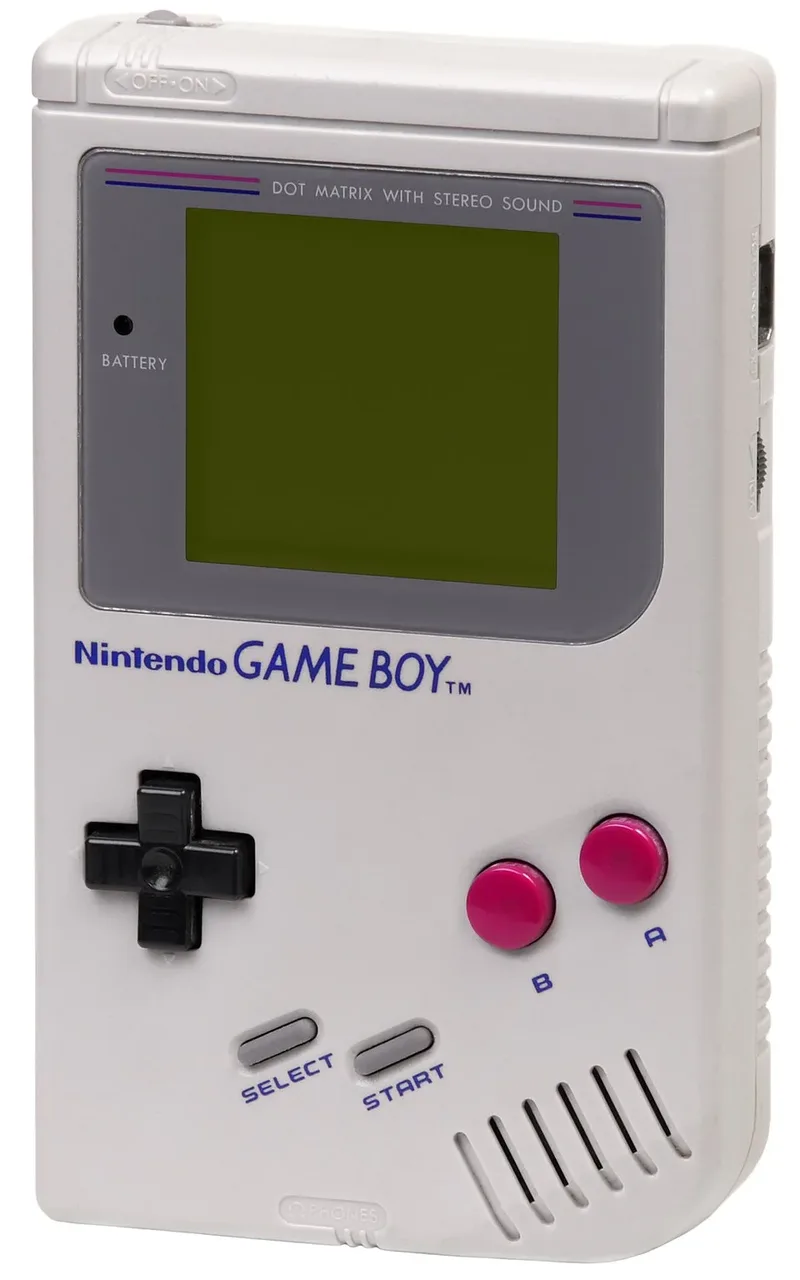
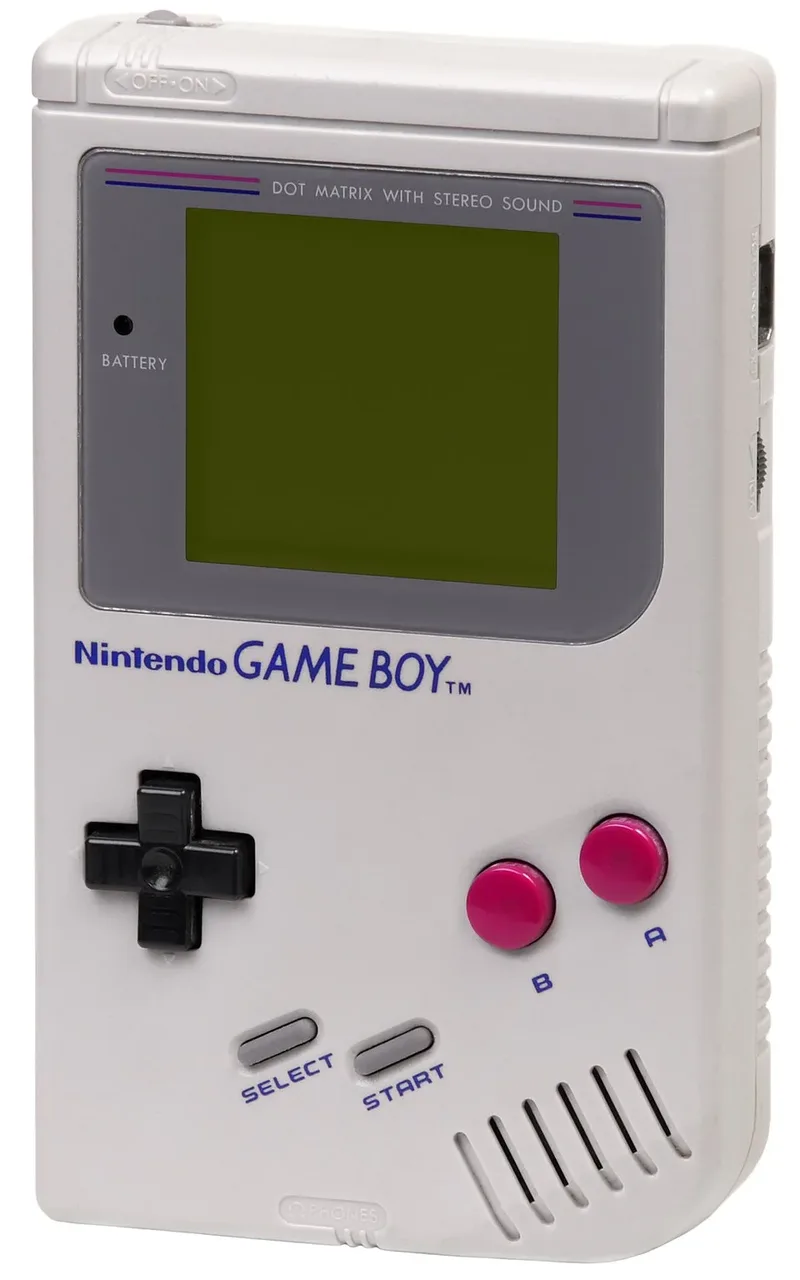
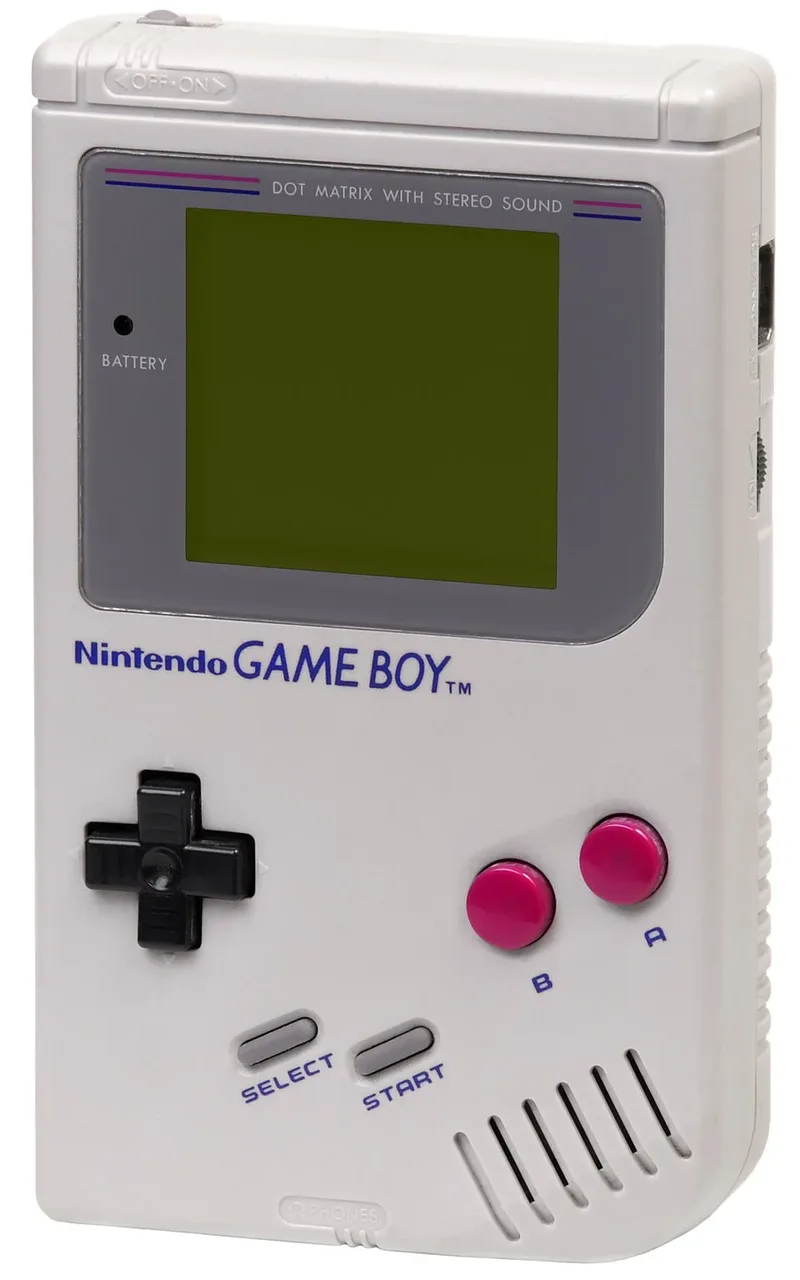
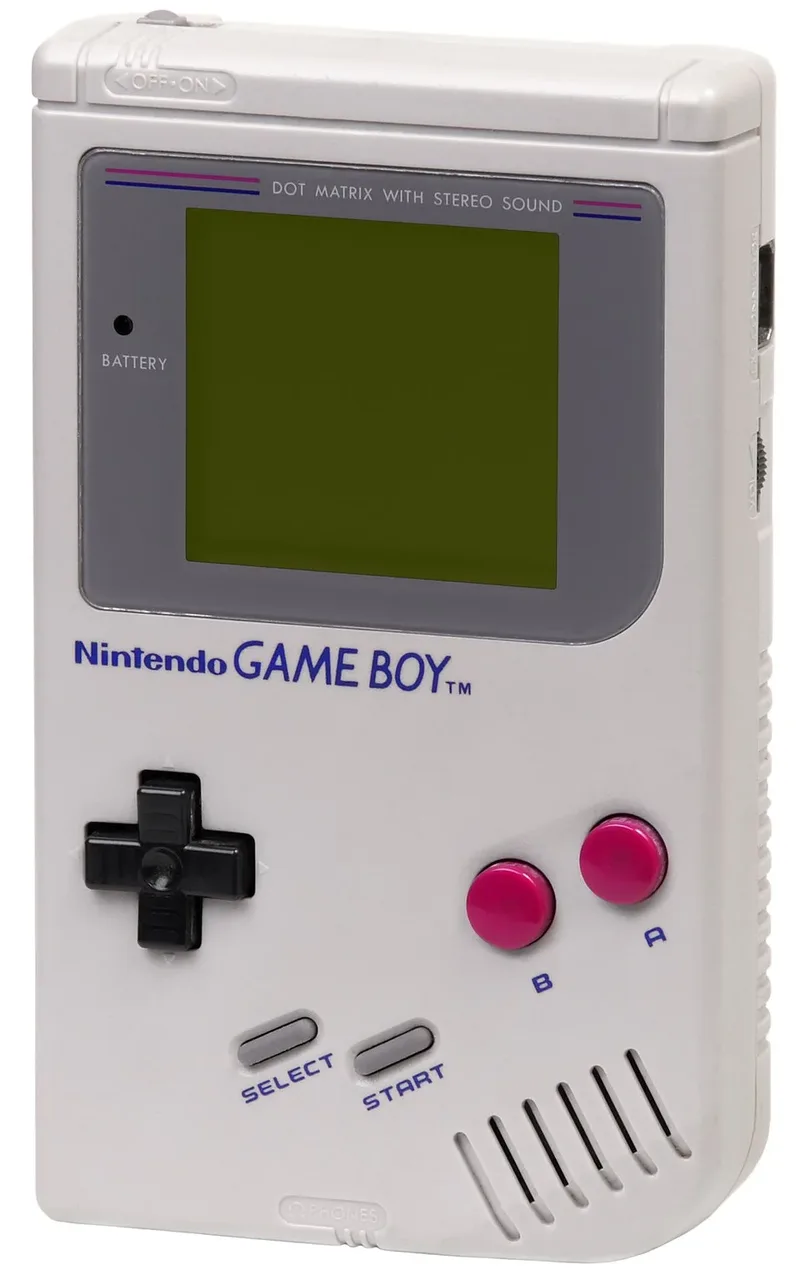
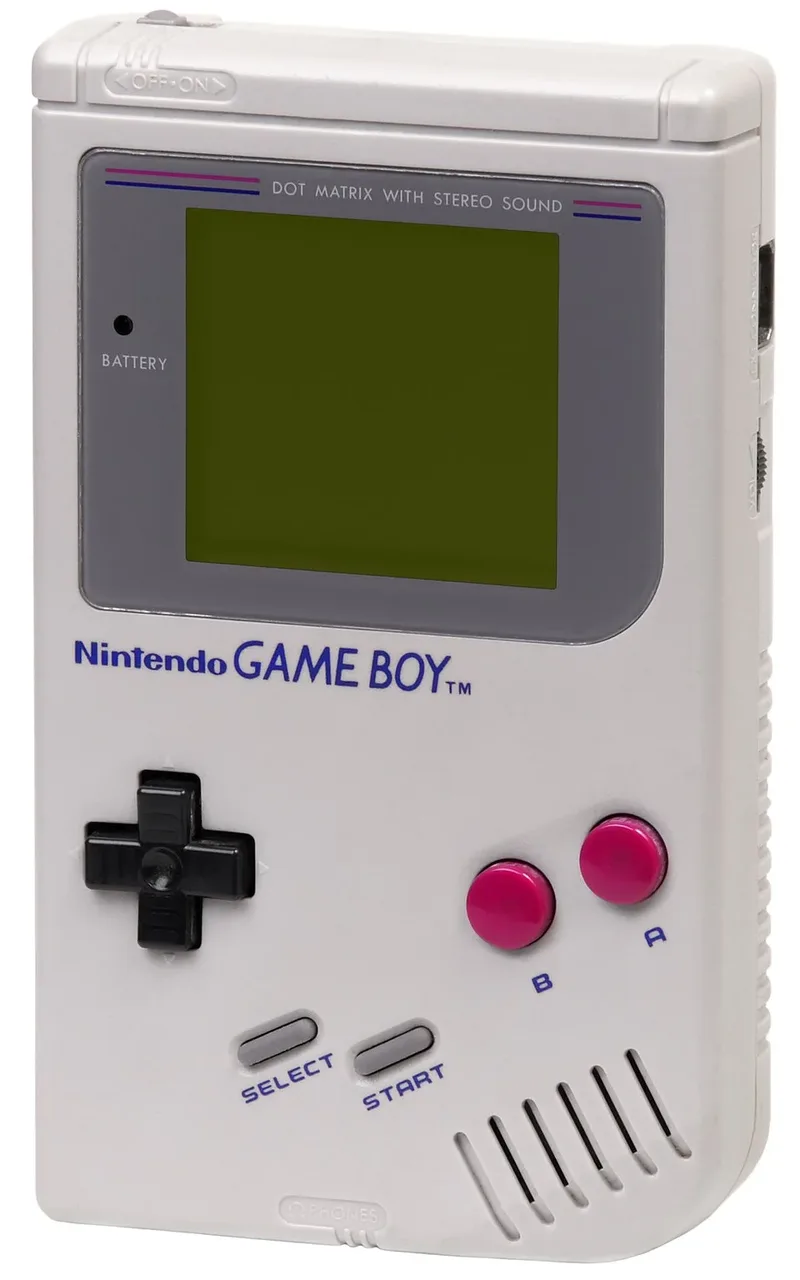
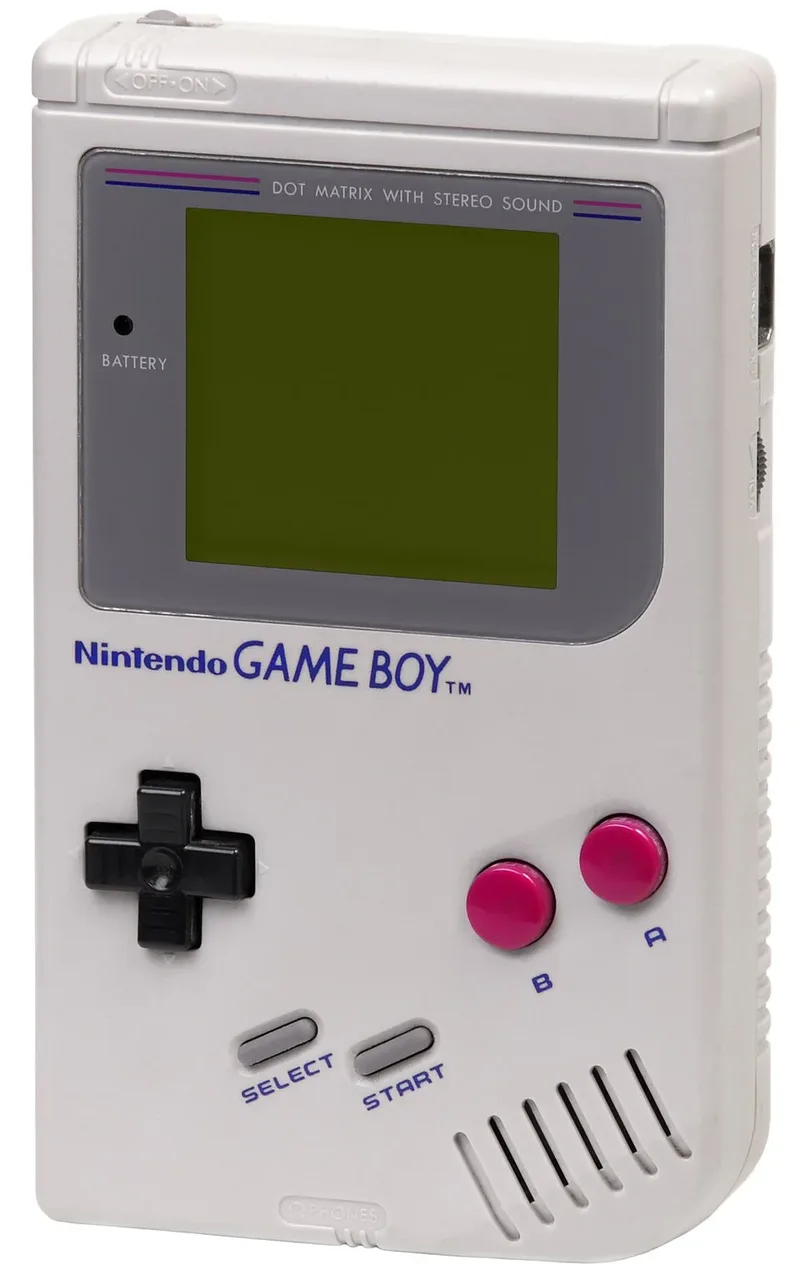
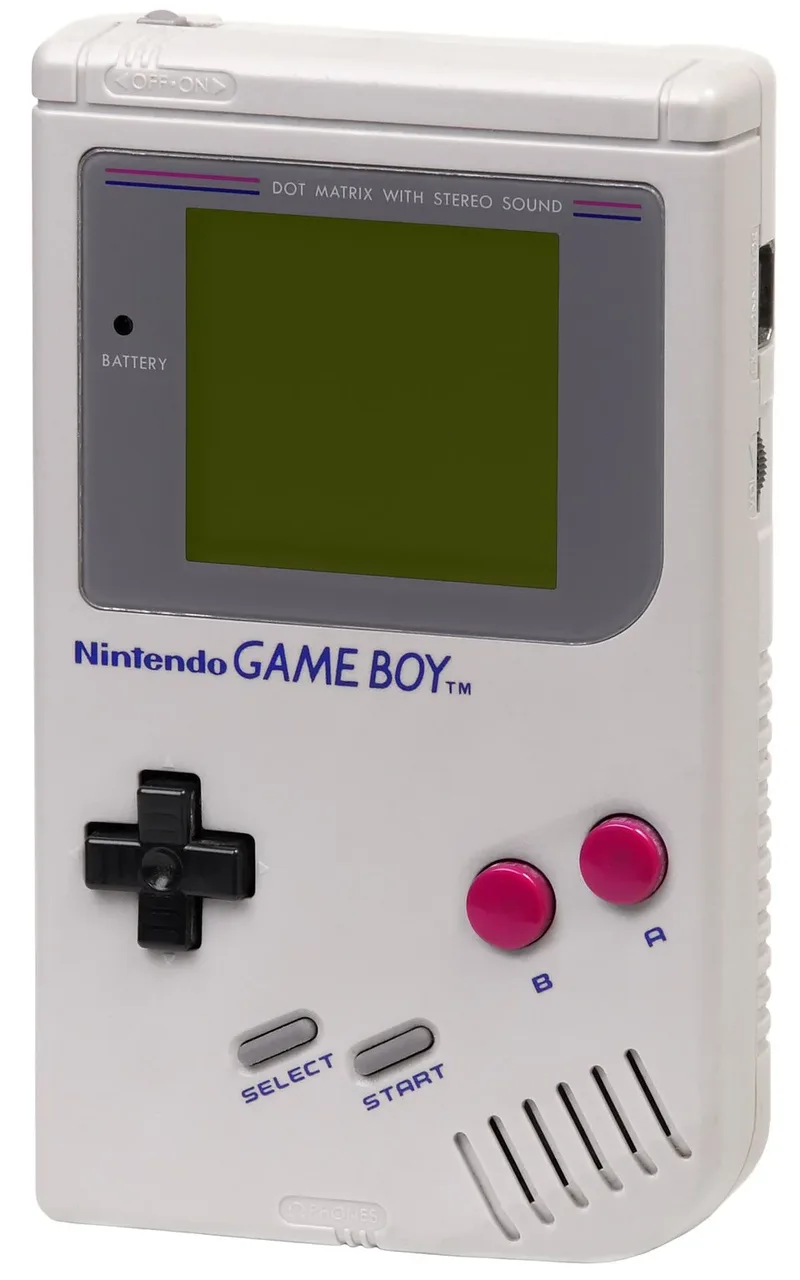
Photo: Evan-Amos / Public domain (Wikimedia Commons)
If your Steam Deck keeps waking up from sleep, check connected USB-C devices, wake settings, and firmware before changing emulation or power options.
Fix retroarch not downloading cores with checks for network access, storage, build compatibility, and a safe manual install for handheld devices.
Fix retroarch cores not loading on Anbernic, Retroid, Steam Deck, or EmuDeck by checking core paths, downloads, permissions, and system compatibility.
Troubleshoot odin 2 won t boot up with safe charging, button checks, recovery options, and fastboot steps before seeking repair for your handheld.
Fix a Miyoo Mini Plus stuck on boot screen by checking the microSD card, restoring OnionOS files, and ruling out power or firmware issues safely.
Fix batocera not enough space on boot by checking storage, expanding the share partition, and resolving full or read-only filesystems on handheld devices.
Fix batocera stuck on splash screen by checking game card files, display settings, updates, and safe boot steps for handhelds, Steam Deck, and emulation PCs.
Fix emudeck not working on rog ally x with practical checks for controller mode, emulator paths, game files, and Armoury Crate settings.
Fix emudeck stuck on downloading retroarch cores by checking network access, proxy settings, storage, and RetroArch's core downloader on handheld devices.
Fix a Steam Deck stuck on shutting down Steam by checking downloads, closing hung apps, restarting the client safely, and knowing when to force power off.