Home
» How To
»
How to Get Water Out of a Charger Port Safely
How to Get Water Out of a Charger Port Safely
If your phone says “Liquid Detected,” “Moisture detected,” or “Liquid or debris in USB port,” the most important thing to do is simple: disconnect the charging cable and stop wired charging until the port and cable are dry. Do not try to speed things up by putting a cotton swab into the port, blasting it with compressed air, heating it with a hair dryer, or burying the phone in rice.
The safest next move is to let gravity and airflow do the work. Hold the device with the charging port facing downward, gently encourage excess liquid to drain out, then leave the phone in a dry place with airflow. The exact waiting time varies by manufacturer and by how much moisture is present, so use the phone’s own moisture warning—and the manufacturer’s guidance—as the deciding factor rather than a fixed timer.
This guide focuses on phones with USB-C or Lightning ports. It draws from current instructions published by Apple, Samsung, and Google. Their details differ, but all three prioritize disconnecting the charger, avoiding objects in the port, and allowing moisture to evaporate before wired charging resumes.
The quick answer: what to do right now
Disconnect the charging cable immediately. If the charger is plugged into the wall, disconnect it safely as well.
Keep the charging port facing downward and gently remove excess liquid without inserting anything into the opening.
Leave the phone in a dry, ventilated place at room temperature. Cool airflow can help on devices where the manufacturer allows it.
Do not reconnect a cable until the port and cable are dry and any moisture alert has cleared.
If the warning persists, the port looks corroded or damaged, or the phone still will not charge after drying, contact the manufacturer or an authorized repair provider.
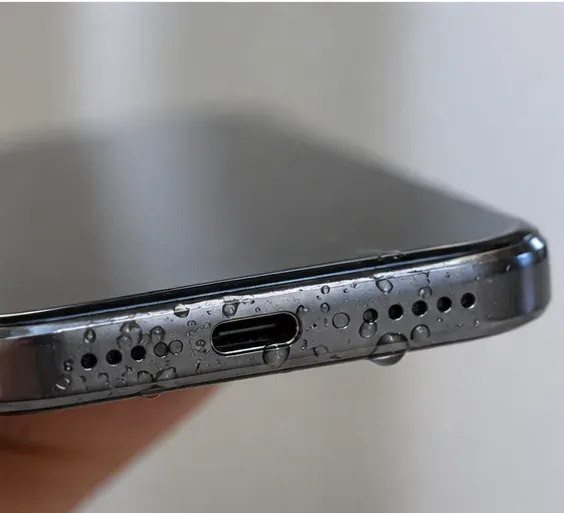
Visible water around a charging port is a reason to stop wired charging immediately. Disconnect the cable before trying to dry the device.
Why charging a wet port can cause damage
A charging connector contains closely spaced electrical contacts. When moisture remains on those contacts, applying power can accelerate corrosion or create an electrical path where one should not exist. Apple specifically warns that charging through a wet Lightning or USB-C connector can corrode the pins and cause permanent damage or connectivity problems. Samsung likewise blocks charging when moisture is detected as a preventive measure against corrosion.
The practical takeaway is that getting the last few percent of battery charge is usually not worth the risk of forcing a wired connection while the port is wet. If your phone supports wireless charging, that can sometimes be a temporary alternative—but only after the outside and back of the phone are dry and only if your manufacturer permits it.
Step 1: Disconnect the charger and inspect the cable
Unplug the cable from the phone first. If the other end is connected to a power adapter, disconnect that safely too. Do not repeatedly plug the cable back in to “see if it works” while a liquid warning is active.
Check both ends of the cable. Moisture on the cable connector can trigger the same alert as moisture inside the phone. Apple’s guidance explicitly says the connector, cable ends, and accessory all need to be dry before reconnection. Google also tells Pixel users to check both the USB-C port and charging cable.
Example: If an iPhone shows a liquid-detection alert after you were caught in rain, unplug the cable and set both the phone and cable aside to dry. If the phone is dry but one cable repeatedly triggers the warning, the cable itself may be damaged or contaminated.
Step 2: Let excess water drain out
Orient the phone so the charging port faces downward. Apple advises gently tapping an iPhone against your hand with the connector facing down to remove excess liquid. Samsung says to gently shake the device to help moisture leave the port. Google’s Pixel guidance similarly uses the port-down position when removing debris and recommends room-temperature drying when moisture is present.
Keep the motion gentle. The goal is to encourage water already near the opening to move outward, not to force liquid deeper into the phone.
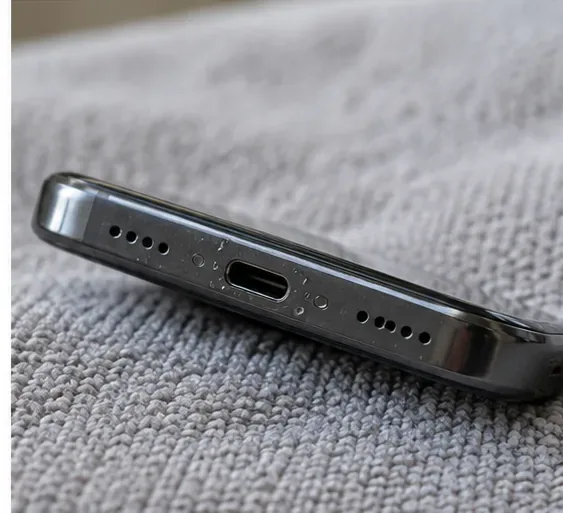
Positioning the charging port downward lets gravity assist drainage while the phone rests in a dry area.
Step 3: Air-dry the port—do not put anything inside it
Leave the phone in a dry area at room temperature with some airflow. Do not insert a cotton swab, paper towel, toothpick, SIM-eject tool, or other object into the port. Apple explicitly warns against inserting cotton swabs or paper towels into a wet connector, and Samsung says not to insert any object into the charging port.
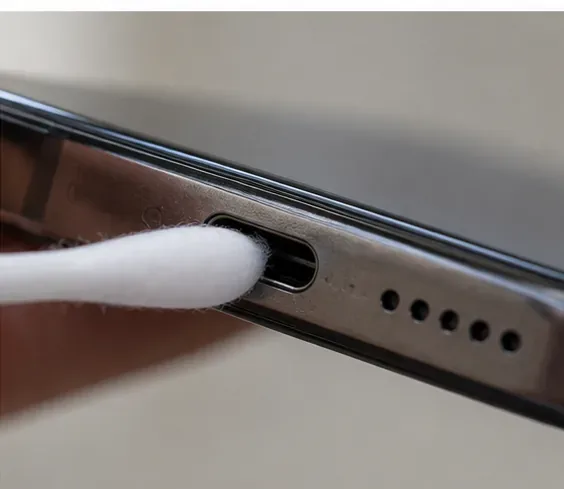
What not to do: do not insert a cotton swab or other object into a wet charging port. Fibers and pressure can interfere with the connector, and major phone makers advise against it.
Also avoid external heat. A hair dryer, heat gun, oven, radiator, or direct high heat can damage seals, plastics, adhesives, and internal components. Apple additionally says not to use compressed air on a wet iPhone connector.
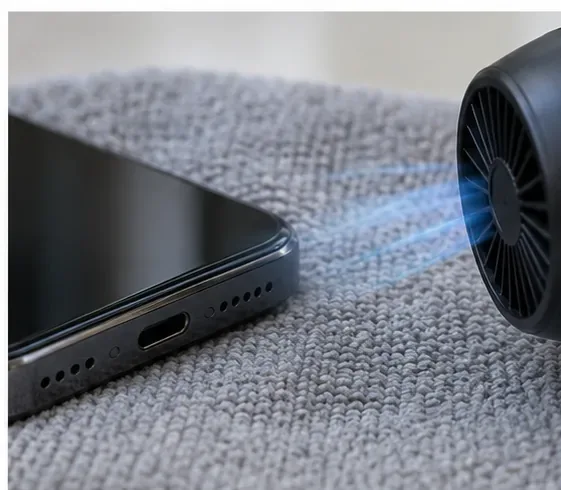
For iPhone specifically, Apple says a fan blowing cool air directly toward the Lightning or USB-C connector may help the drying process. That is different from hot air or compressed air. If you use a fan, keep it on a cool setting and do not introduce heat.
Cool airflow can help moisture evaporate. Apple says cool fan air may assist drying, while heat and compressed air should be avoided.
Step 4: Wait long enough before trying wired charging again
There is no single waiting time that is correct for every phone. The right timing depends on the device, the amount of moisture, airflow, humidity, and whether liquid is trapped beneath the connector pins.
Device guidance
When to try again
If the alert returns
Apple iPhone
Apple says you can try again after at least 30 minutes.
If the alert returns, keep drying the phone. Apple says complete drying can take up to 24 hours.
Samsung Galaxy devices
Samsung says water naturally evaporates from the charging port in approximately 1 to 2 hours.
If moisture warnings continue after following the drying steps, Samsung recommends contacting support or a service center.
Google Pixel
Wait until the phone reports “Okay to use USB port.”
Google says to contact support if the “Liquid or debris” message remains for two hours or more.
These are manufacturer-specific reference points, not a promise that your phone will be dry at exactly that time. If the port still looks wet or the device still reports moisture, keep waiting.
Can you use wireless charging while the port dries?
Often, yes—if your phone supports it and the rest of the phone is dry. Apple says wireless charging can be used while the connector dries, provided the back of the iPhone is dry before placing it on a Qi-certified charger. Samsung also states that wireless charging is not affected by moisture in the charging port on supported devices, but the device itself should be dried before placing it on the charger.
Wireless charging is not a reason to ignore broader water exposure. If the phone was submerged, damaged, unusually hot, or behaving abnormally, stop using it and follow the manufacturer’s water-exposure or repair guidance.
Step 5: Retry carefully, then escalate if the warning persists
When the port and cable appear dry and the moisture alert has cleared, reconnect a known-good charging cable. If charging starts normally and no alert returns, the drying process was likely sufficient.
If the phone still refuses to charge, inspect the port visually without inserting tools. Signs that call for professional service include visible corrosion, scorching, melting, bent contacts, persistent moisture warnings, or a port that feels unusually hot. Google specifically advises repair or warranty support if the USB-C port appears burned, melted, or corroded.
On iPhone, an emergency override can appear after a liquid-detection alert. Apple includes this for urgent situations, but it does not remove the corrosion risk of charging through a wet connector. Treat it as an emergency-only option, not a normal drying shortcut.
What not to do
Do not use rice. Apple warns that rice particles can damage an iPhone.
Do not use a hair dryer or other heat source. Heat can damage the device and is specifically discouraged by Apple.
Do not use compressed air on a wet connector. Apple explicitly says not to do this.
Do not insert cotton swabs, paper towels, pins, or tools into the port. Apple and Samsung both warn against putting objects into the charging connector.
Do not keep reconnecting the charger while the warning is active. Wait until the connector and cable are dry.
What if the liquid was not plain water?
This is one area where the details depend on the manufacturer. Apple’s water-resistance guidance says that if a liquid other than water splashes on an iPhone, the affected area should be rinsed with tap water and then wiped with a soft, lint-free cloth. Samsung similarly says that if liquid other than fresh water enters the charging port of a water-resistant Samsung device, it should be rinsed in fresh water and dried thoroughly.
Do not generalize that instruction to every phone. If your device is not rated for water resistance, or you are unsure whether rinsing is permitted, check the specific manufacturer’s support page before adding more water.
How to check that the port is really dry
Use this final self-check before returning to normal wired charging:
The port opening looks dry under good light.
The cable connector is dry on both sides.
No “liquid,” “moisture,” or “debris” warning appears when the phone is ready for USB use.
The connector does not look burned, green, white, crusty, or corroded.
The phone and cable stay at a normal temperature when charging resumes.
Charging remains stable instead of repeatedly connecting and disconnecting.
If all of those checks pass, wired charging can usually resume. If the alert comes back, stop and give the device more drying time rather than forcing the connection.