Home
» iOS
»
Action Button 2.0 on iPhone 18 Pro: The Best Customizations That Are Actually Worth Using
Action Button 2.0 on iPhone 18 Pro: The Best Customizations That Are Actually Worth Using
If you just preordered an iPhone 18 Pro or iPhone 18 Pro Max, the Action button can either become one of the most useful controls on the phone or a button you stop thinking about after the first week. The difference is not how many clever automations you can attach to it. It is whether the assignment reliably removes friction from something you already do often.
One important clarification first: Apple does not use the name “Action Button 2.0” in its current documentation. Apple still calls it the Action button. The iPhone 18 Pro technical specifications list Silent Mode, Focus, Camera, Visual Intelligence, Flashlight, Voice Memo, Recognize Music, Translate, Magnifier, Controls, Shortcut, and Accessibility as supported Action button functions. See Apple’s iPhone 18 Pro technical specifications and Action button user guide.
There is also a timing limit to keep in mind. As of September 14, 2026, iPhone 18 Pro and iPhone 18 Pro Max have been announced and are available for preorder, but broad availability begins September 18. That means this article is based on Apple’s published specifications and support documentation, not long-term hands-on testing of retail units. Apple’s launch timing is documented in its iPhone 18 Pro announcement.
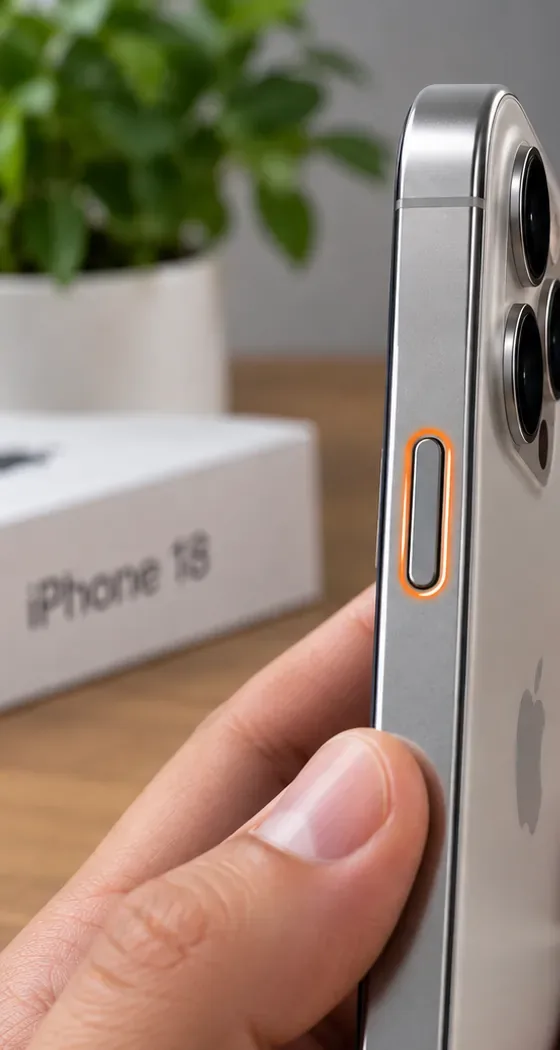
A close-up view of the Action button location on the left edge of an iPhone 18 Pro-style device. The orange outline is a visual highlight so the button is easy to identify.
The quick answer: which Action button setup is best?
For most people, the best assignment is either Shortcut or Focus. Shortcut has the highest ceiling because it can run a workflow you build in Apple’s Shortcuts app. Focus is the safer choice if you want something immediate, predictable, and easy to verify.
Your main goal
Best starting assignment
How to judge whether it is working
Save time on a repeated routine
Shortcut
You use it several times a week and it replaces a sequence you previously performed manually.
Switch quickly between work, personal, sleep, or other modes
Focus
The correct Focus state is active when you need it, without extra cleanup afterward.
Travel or communicate across languages
Translate
You reach translation faster than opening the app or searching for it.
Identify text, objects, places, or information around you
Visual Intelligence
You actually use the visual lookup workflow often enough to justify a dedicated hardware button.
Capture ideas immediately
Voice Memo
You lose fewer ideas because recording starts with less friction.
Recognize songs
Recognize Music
You can identify a song before it ends without hunting for an app.
Need fast access to an assistive feature
Accessibility
The feature is available quickly and consistently in the situations where you rely on it.
Want a simple utility
Flashlight or Silent Mode
You reach the utility more quickly than with Control Center or other controls.
1. Shortcut is the best choice when one repeated task clearly matters
The Shortcut option is the most flexible assignment because the Action button can launch a shortcut you choose in the Shortcuts app. Apple documents the setup path as Settings > Action Button > Shortcut, then choosing a shortcut. See Apple’s Shortcuts guide for the Action button.
The mistake is treating flexibility as a reason to build the most complicated automation possible. A better result usually comes from a shortcut with one clear purpose: start the routine you perform repeatedly, open the tool you always need at a specific moment, or present a small menu of genuinely common choices if your shortcut supports that design.
Good result: you press and hold the button and immediately know what will happen. Warning sign: the shortcut frequently asks for permissions, depends on an app that is not ready, or branches into so many choices that opening the app would have been faster. If the shortcut becomes fragile, simplify it or switch the button to a built-in function.
2. Focus is the best low-maintenance customization
Focus is less flashy than a complex shortcut, but it is one of the easiest assignments to keep useful. If you already use Work, Personal, Sleep, Driving, or another Focus configuration, the Action button gives you a physical way to enter or leave the state without navigating through Control Center.
This setup is especially suitable if your problem is interruption rather than speed. The outcome to look for is not simply “the button works.” The better question is whether your notifications, Home Screen behavior, and app access actually match the context you intended after you trigger the Focus. If you repeatedly have to correct the Focus afterward, the Focus configuration itself needs attention more than the button assignment does.
3. Translate can be more valuable than a clever automation when traveling
Apple lists Translate as a direct Action button function on iPhone 18 Pro. If you travel, work with multilingual teams, or regularly need quick translation, a dedicated hardware trigger can be more useful than a broad shortcut because there is less ambiguity about what the button does.
The practical test is simple: keep it assigned for a trip or a workweek and count whether you actually reach for it. If the button goes unused, switch it back rather than keeping a travel-specific setup year-round. Translation and other intelligent features can also vary by language, region, and software availability, so verify the feature on your own device before depending on it in a time-sensitive situation.
4. Visual Intelligence is worth trying if your camera is often a research tool
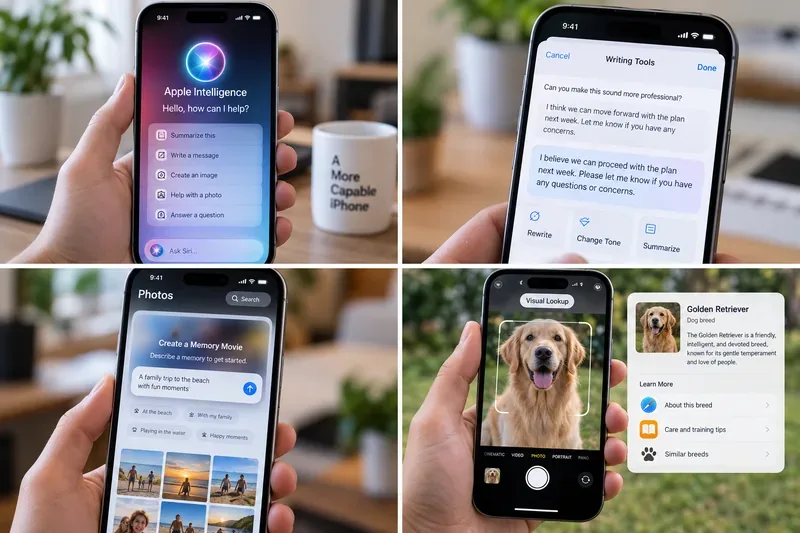
Apple lists Visual Intelligence as an Action button option on iPhone 18 Pro, and Apple’s iPhone guide describes visual intelligence as a way to learn more about what is in front of you, ask questions, translate visible text, and take actions based on what the camera sees. See Apple’s visual intelligence documentation.
This is a strong choice for people who routinely photograph signs, menus, posters, objects, or unfamiliar places to understand them. It is a weaker choice if you only use visual lookup occasionally. The quality test is frequency: if you cannot remember the last time you needed it after a week or two, the Action button is probably better assigned elsewhere.
5. Voice Memo is excellent for people who capture ideas under time pressure
Voice Memo is one of the most practical assignments because it solves a specific problem: the gap between having an idea and getting it recorded. Writers, students, field workers, caregivers, creators, and anyone who thinks while walking can benefit if voice capture is already part of their routine.
The limit is social context. A button that starts recording is less useful if you are usually in meetings, shared spaces, or situations where voice recording is inappropriate or restricted. The setup is successful when it makes your existing note-capture habit faster, not when it creates a new habit you never adopt.
6. Recognize Music is a great single-purpose choice
Recognize Music is a narrow function, and that is exactly why it can work well. If you regularly want to identify songs in stores, cafés, gyms, events, or radio playback, it removes the need to unlock the phone, find an app, and start recognition manually.
Keep it if you use it naturally. Replace it if you realize that music identification only happens once every few months. The Action button is valuable real estate because it can be reassigned at any time; there is no benefit in being loyal to a setup that sounded clever but does not match your behavior.
7. Accessibility can be the highest-value assignment for the right user
Accessibility should not be treated as a niche afterthought. Apple explicitly includes Accessibility among the Action button options. If you depend on a supported accessibility feature, fast hardware access can be more important than shaving a few seconds off a camera or flashlight action.
The quality standard here is reliability. Test the assigned feature in the real situations where you need it, including when the phone is locked or when another app is open, and confirm that the behavior is consistent with Apple’s current software. If the feature requires a different accessibility shortcut or another activation method for your needs, use the method that proves more dependable.
8. Controls can be better than a full Shortcut when you only need one system control
Apple’s iPhone 18 Pro specifications include Controls as an Action button category. This is useful when you want direct access to a supported control but do not need a larger automation.
A good rule is to choose the simplest mechanism that produces the result. If one Control does the job, use it. If the task requires multiple steps or decision logic, then Shortcut becomes the better fit. Simpler assignments are usually easier to troubleshoot when an app or iOS update changes behavior.
9. Camera is useful, but iPhone 18 Pro gives it more competition
Camera used to be an obvious Action button favorite. On iPhone 18 Pro and iPhone 18 Pro Max, however, Apple also provides a separate Camera Control. The technical specifications list both controls independently. That makes Camera a less automatic recommendation for the Action button than it was on earlier models.
Camera still makes sense if you strongly prefer the position or press-and-hold behavior of the Action button, or if your chosen camera workflow feels faster there. But if Camera Control already gets you into the camera reliably, using the Action button for Focus, Translate, Accessibility, a Shortcut, or another function gives you two distinct hardware shortcuts instead of duplicating the same job.
What about Silent Mode and Flashlight?
They are simple, reliable choices. Silent Mode is the default behavior on supported models according to Apple’s Action button guide, and Flashlight is immediately understandable. Neither is “too basic” if it matches what you do every day.
The only reason to change them is opportunity cost. If you already toggle the flashlight comfortably from the Lock Screen or Control Center, dedicating the Action button to it may not save much. Likewise, if your phone stays in Silent Mode almost all the time, repeatedly toggling it may not deserve a dedicated button.
How to configure the Action button
Open Settings.
Tap Action Button.
Swipe to the function you want to assign.
If that function has additional choices, select the specific option Apple provides. For Controls, Shortcut, and Accessibility, Apple notes that you need to choose the specific control, shortcut, or accessibility feature or the button will not perform that selected function.
Apple says you perform the assigned action by pressing and holding the Action button. Because the assignment is easy to change, there is little reason to force one configuration to fit every season of your life.
A simple quality test: keep each setup for 48 hours
Instead of deciding which customization is “best” from a list, run a short test. Use one assignment for two normal days, then evaluate it against four questions:
Frequency: Did you actually use it without reminding yourself?
Friction: Did it remove meaningful taps, searching, or context switching?
Predictability: Did the same press reliably produce the expected result?
Replacement value: Is this function genuinely faster here than through Camera Control, Control Center, the Lock Screen, Siri, or an app icon?
If the answer is “no” to two or more of those questions, change the assignment. The goal is not to maximize technical complexity. The goal is to make the button disappear into your routine because it consistently does something useful.
When you should change your setup
Change it when your routine changes. Travel may justify Translate for two weeks. A work project may justify Focus or Voice Memo. A temporary accessibility need may make an accessibility function the obvious choice. A shortcut can be excellent until an app update breaks one of its actions.
Also revisit the assignment after major iOS updates. Shortcuts can gain or lose available actions, app integrations can change, and intelligent features can have regional or language requirements. If a workflow becomes unreliable after an update, verify the current options before assuming the hardware button itself is malfunctioning.
Bottom line
There is no official “Action Button 2.0” feature name on iPhone 18 Pro. What Apple has documented is a mature Action button with a broad set of built-in assignments plus access to Shortcuts. For most users, Shortcut offers the most customization, Focus offers the best balance of usefulness and reliability, and functions such as Translate, Visual Intelligence, Voice Memo, Recognize Music, and Accessibility become the best choice when they match a recurring real-world need.
The best configuration is the one you can verify in daily use: it should be faster than the alternative, predictable enough to trust, and easy to replace when your priorities change.