Home
» iOS
»
iPhone 18 Connectivity Issues: How to Fix Wi-Fi and 5G Drops Without Guesswork
iPhone 18 Connectivity Issues: How to Fix Wi-Fi and 5G Drops Without Guesswork
Your new iPhone shows full Wi-Fi bars, but a page will not load. A few minutes later, Wi-Fi works again and 5G disappears—or the phone falls back to LTE. The natural reaction is to assume the phone has a defective modem. Before you do that, separate a normal network handoff from a repeatable connectivity failure.
There is also an important timing point. As of September 14, 2026, Apple has announced the iPhone 18 Pro and iPhone 18 Pro Max, but retail availability begins September 18. That means there is not yet a large, verified population of ordinary owners from which to conclude that the iPhone 18 generation has a widespread Wi-Fi or 5G defect. Apple confirms the September 18 availability date in its official iPhone 18 Pro announcement.
For this guide, “iPhone 18” refers to the current iPhone 18 Pro family. The troubleshooting below is based on Apple’s current Wi-Fi, cellular, 5G, carrier-settings, and network-reset guidance. Menu wording can vary slightly by carrier and region.
Quick Diagnosis: What Kind of Drop Are You Actually Seeing?
Symptom
Most useful first check
What it may mean
Wi-Fi icon stays visible but internet stops
Test the same Wi-Fi on another device
The router, ISP, VPN, or network configuration may be the problem
Wi-Fi disappears and cellular data takes over
Check Wi-Fi signal strength and Wi-Fi Assist
The phone may be leaving a weak Wi-Fi connection
5G changes to LTE
Check whether 5G Auto is enabled
This can be normal Smart Data behavior rather than a failure
SOS, No Service, or Searching appears
Refresh Airplane Mode, then check carrier status
The phone is not connected to your carrier network
Only one Wi-Fi network fails
Test another Wi-Fi network
The issue is more likely network-specific than phone-wide
Every Wi-Fi network and cellular connection fails
Update software, then consider network reset or support
A device-level software, provisioning, or hardware issue is more plausible
Stage 1: Isolate Wi-Fi From Cellular Before Changing Settings
The fastest way to waste time is to troubleshoot both radios at once. First determine whether the failure follows Wi-Fi, cellular service, or the device itself.
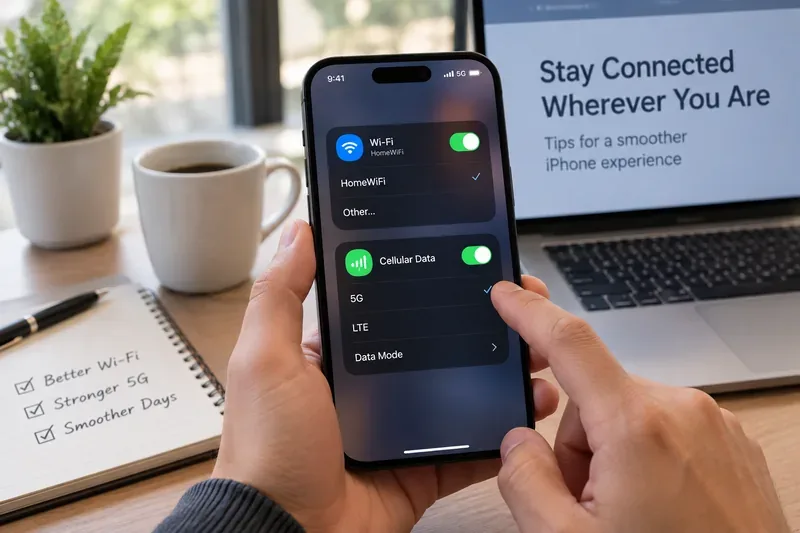
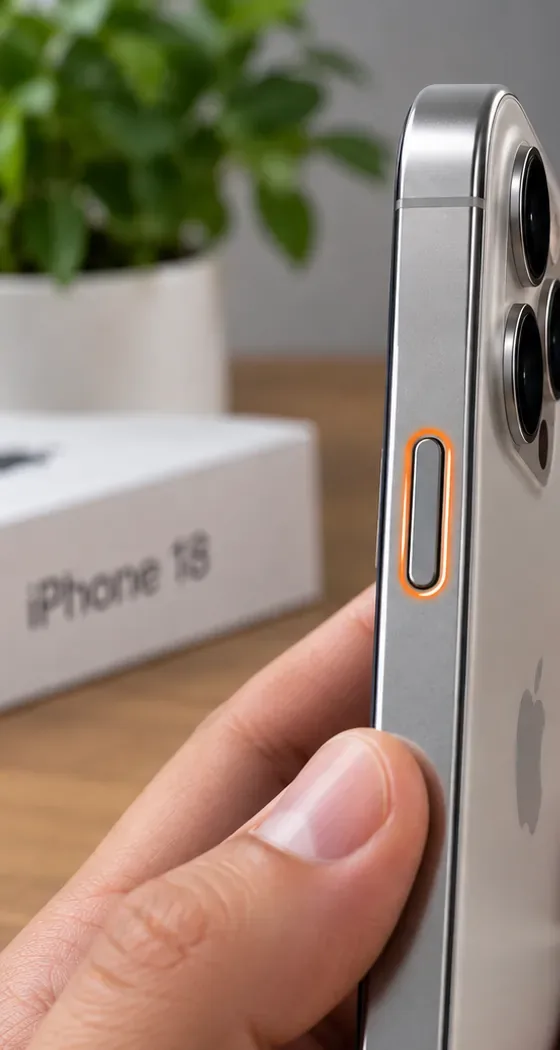
Start by separating the two connection paths: confirm whether Wi-Fi, cellular data, or both are failing before you change advanced settings.
For Wi-Fi, open Settings > Wi-Fi, make sure Wi-Fi is on, and confirm that a blue checkmark appears next to the network you intend to use. Apple’s current Wi-Fi troubleshooting guidance recommends checking whether other devices can use the same network. If every device is offline, the iPhone is probably not the root cause.
Then test another Wi-Fi network if one is available. If your iPhone works everywhere except one home or office network, focus on that router, ISP, or managed network configuration. Apple recommends updating router firmware, staying within range, trying another frequency when the router exposes separate bands, and restarting the router and modem.
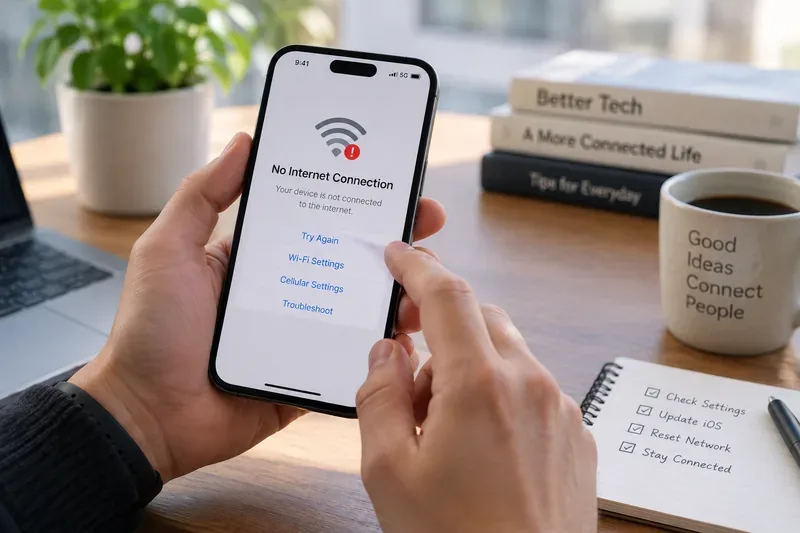
For cellular, temporarily turn Wi-Fi off and load a few ordinary websites or services over mobile data. If you see SOS, No Service, or Searching, Apple treats that as a mobile-network connection problem and recommends checking your carrier account, coverage, outages, and SIM/eSIM configuration.
Stage 2: Refresh the Connection With the Least Disruptive Fixes
If the problem affects cellular service or appears to be a temporary handoff failure, start with a radio refresh before resetting anything.
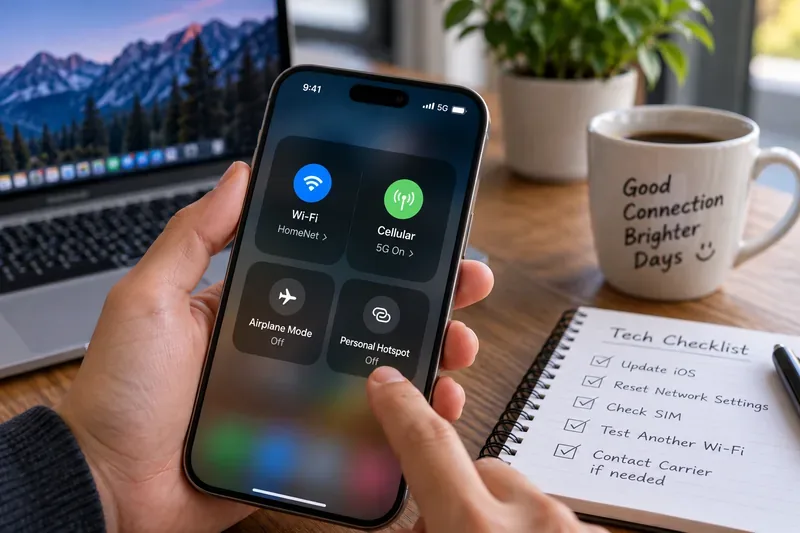
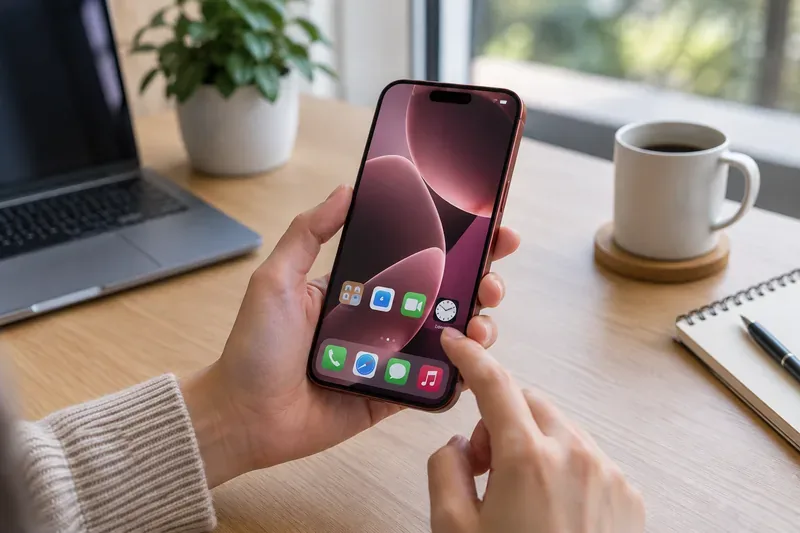
Use the quick connectivity controls to refresh a temporary radio state before moving to more disruptive troubleshooting.
Apple’s No Service and SOS support page specifically recommends turning Airplane Mode on for at least 15 seconds and then turning it off. If cellular service still does not return, restart the iPhone.
For a Wi-Fi problem, do not assume tapping the Wi-Fi button in Control Center fully disables the radio. Apple explains that the Control Center button disconnects from the current network while Wi-Fi remains available for features such as AirDrop and Continuity. If you need to fully turn Wi-Fi off for testing, use Settings > Wi-Fi. Apple documents that distinction in its Wi-Fi and Bluetooth Control Center guide.
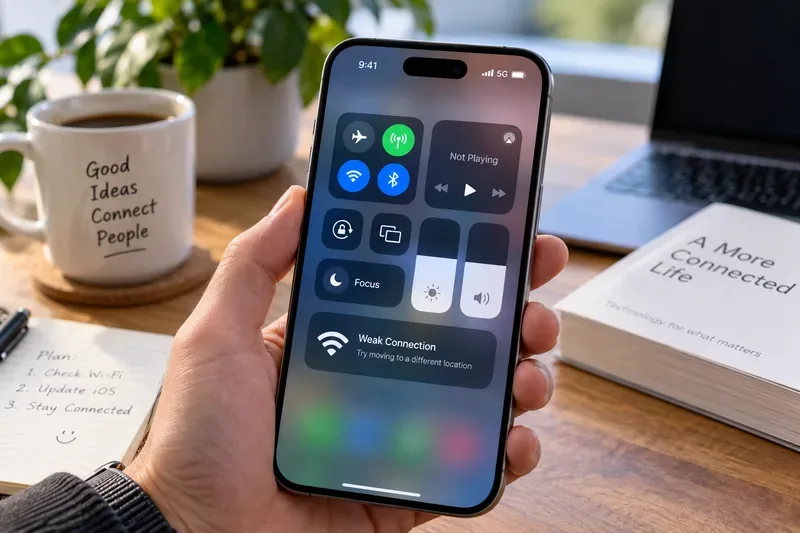
If Wi-Fi keeps appearing unstable, also check Wi-Fi Assist. Apple says Wi-Fi Assist is enabled by default and can automatically use cellular data when Wi-Fi connectivity is poor. For troubleshooting, temporarily turning it off can make it easier to see whether Wi-Fi itself is dropping instead of silently handing traffic to cellular. Apple’s current Wi-Fi Assist documentation explains its behavior and limits.
Do not overinterpret a switch from 5G to LTE
A move from 5G to LTE is not automatically a “5G drop.” Apple’s 5G support documentation says 5G Auto uses Smart Data mode and can switch to LTE when 5G does not provide a noticeably better experience. That behavior saves battery life.
If you are diagnosing a repeatable 5G problem, you can compare behavior under 5G Auto, 5G On, and LTE in the Voice & Data settings, where those options are available. Do not leave 5G On enabled merely as a “fix” unless it actually changes the failure; Apple notes that forcing 5G whenever available can reduce battery life.
Stage 3: Check Wi-Fi, VPN, 5G Provisioning, and Carrier Updates
Once the quick refresh is done, verify carrier provisioning and network-specific factors before assuming the phone itself is faulty.
If Wi-Fi is the problem
Apple’s current Wi-Fi article recommends uninstalling VPN or security software as a diagnostic step if those tools may be interfering with connectivity, then restarting and testing again. If removing the VPN or security tool fixes the problem and you still need it, contact the VPN administrator or software provider rather than leaving a required work or security configuration permanently removed.
You can also forget and rejoin a known Wi-Fi network when you know the password. Apple documents this under Forget This Network. Be aware that if you use iCloud Keychain, forgetting a network on one device can cause other devices using the same Apple Account to forget it too.
If 5G is the problem
Confirm three basics before changing anything else: your carrier supports 5G, your plan includes 5G, and you are inside an area where your carrier actually provides 5G coverage. Apple also notes that the 5G icon can depend on carrier configuration and, in rare cases, can appear even when usable 5G coverage is not available.
If you moved an older physical SIM or activated a new eSIM, provisioning can matter. Apple says some users need to contact the carrier to configure a transferred SIM for 5G. For Dual SIM or Dual eSIM, open Settings > Cellular, select the line, and confirm that the intended line is turned on.
Next, check for a carrier settings update. Apple says carrier updates can improve cellular connectivity and performance and can add support for features such as 5G or Wi-Fi Calling. Connect to Wi-Fi or cellular data, open Settings > General > About, and wait briefly. If an update is available, follow the prompt. The process is documented in Apple’s carrier settings update guide.
Also install the latest public version of iOS available for your phone. Apple announced that iPhone 18 Pro models ship with iOS 27, and Apple’s cellular troubleshooting guidance recommends updating to the latest available iOS release before escalating a persistent service problem.
Stage 4: Use Network Reset Only After the Easier Checks Fail
Network reset belongs near the end of the process because it removes saved network configuration and requires you to set connections up again.
Resetting network settings is useful, but it is intentionally late in this guide because it has consequences. Apple says a network reset removes Wi-Fi networks and passwords, cellular settings, and VPN and APN settings. If your school or employer manages the device or network, talk to IT before doing this.
Apple’s current path is Settings > General > Transfer or Reset iPhone > Reset > Reset Network Settings. After the restart, reconnect to Wi-Fi and retest cellular service. Do not choose options that erase the entire device when you only intend to reset network configuration.
If the phone can connect to Wi-Fi but still cannot reach the internet after a network reset, Apple recommends contacting the ISP. If the iPhone cannot connect to any Wi-Fi network, Apple recommends contacting Apple. For cellular service, if the carrier confirms that the account, coverage, and network are normal and a hardware problem is suspected, service may be required.
What Not to Do
Do not reset the whole iPhone first. Network reset is much narrower and should still come after simpler checks.
Do not assume LTE means 5G is broken. With 5G Auto, an LTE handoff can be expected behavior.
Do not diagnose the phone from one router. A problem limited to one Wi-Fi network is often a router, ISP, or configuration issue.
Do not ignore carrier provisioning. A new eSIM, transferred SIM, new plan, or carrier settings update can directly affect 5G service.
Do not use a speed test alone as proof of a modem defect. Congestion, server choice, signal conditions, spectrum, and carrier policy all affect throughput.
Final Self-Check: Is the Problem Actually Fixed?
After troubleshooting, test under repeatable conditions instead of relying on one good minute of service.
Reconnect to your main Wi-Fi network and use it for at least 10 to 15 minutes.
Walk to the area where drops usually happen and see whether the failure repeats.
Turn Wi-Fi off and test cellular data separately.
If 5G is available, note whether the phone stays connected, switches to LTE normally, or loses service entirely.
Make a call and use data if your carrier supports the relevant voice-and-data configuration.
Test a second Wi-Fi network if possible.
Record the iOS version, carrier settings version, network name, approximate location, and time if the problem returns.
If the iPhone works on multiple Wi-Fi networks and cellular service stays usable—even when 5G Auto occasionally moves to LTE—the connection is behaving much more like a normal adaptive network than a failing radio. If the same phone repeatedly loses both Wi-Fi and cellular service across different networks after updates and a network reset, that is a much stronger reason to contact Apple Support and your carrier with the test details you recorded.
Because iPhone 18 Pro retail availability begins September 18, 2026, it is too early on September 14 to claim a verified, widespread iPhone 18 connectivity defect. The useful approach is to diagnose the connection layer, apply Apple-supported fixes from least disruptive to most disruptive, and judge the result with repeatable tests rather than launch-week anecdotes.