Home
» iOS
»
iOS 20 Battery Drain on iPhone 18? What’s Current and How to Fix Fast Battery Drain
iOS 20 Battery Drain on iPhone 18? What’s Current and How to Fix Fast Battery Drain
If you searched for an “iOS 20 battery drain” fix for an iPhone 18, the first thing to correct is the version number. As of September 14, 2026, Apple is preparing to release iOS 27 on September 15, not iOS 20. Apple has also announced iPhone 18 Pro and iPhone 18 Pro Max, with general availability beginning September 18. That means there is not yet a credible basis for claiming that a widespread “iPhone 18 battery issue” has been confirmed in normal retail use. See Apple’s iOS 27 overview and Apple’s iPhone 18 Pro announcement for the current product and software timeline.
The useful part of the question is still real: if your iPhone starts draining unusually fast after setup, an iOS update, a restore, or a change in daily use, there is a practical way to diagnose it. Start with evidence in Settings > Battery, use power-saving features only where they fit, then separate temporary post-update activity from a real app, charging, thermal, or battery-health problem.
Quick reference: what to believe and what to check
Situation
What it usually means
Best first action
Battery life drops right after an iOS update
Background update, indexing, setup, or syncing can temporarily raise power use
Check Settings > Battery for an “Ongoing iOS Update” or setup insight, then give it a few days
One app dominates battery use
The app may be spending too much time on screen, in the background, sending notifications, using location, or working in weak signal conditions
Tap the app in Battery usage and inspect the activity type before changing permissions
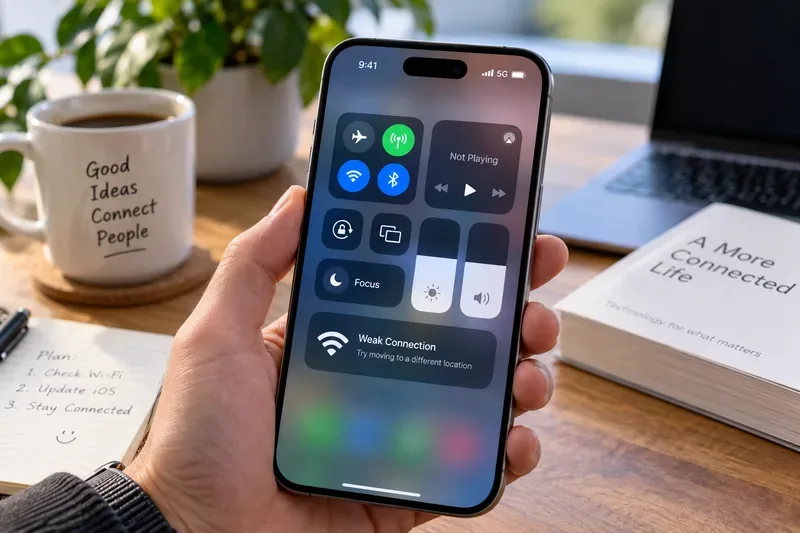
The phone drains quickly in weak cellular coverage
Searching for or maintaining a weak connection costs more power
Use reliable Wi-Fi when practical, or Airplane Mode if you know you will have no coverage for a while
The battery percentage falls quickly but Battery Health shows “Service”
The issue may be battery condition rather than an iOS setting
Follow Apple’s service guidance instead of endlessly changing software settings
1. Check what is actually using the battery
Do this before disabling features. Open Settings > Battery. On recent iOS versions, the Daily Usage view compares today with recent days and highlights apps or system activity that may explain higher use. Apple also provides View All Battery Usage so you can inspect several days rather than judging the phone from one short session. The current Apple support workflow is described in Apple’s battery-usage guide and Apple’s battery-drain troubleshooting guidance.
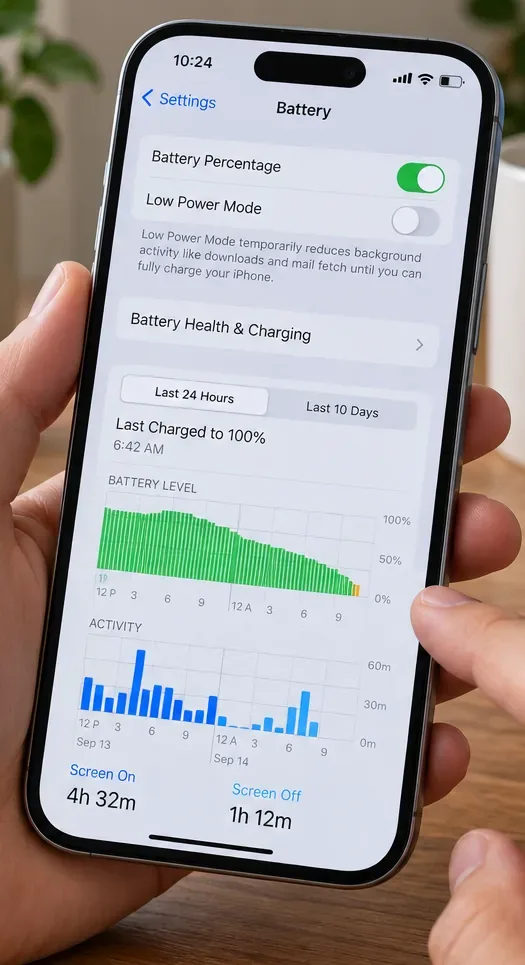
The Battery screen is the best starting point: check battery health, recent charge history, and the usage graphs before changing multiple settings at once.
Read the labels, not just the percentage
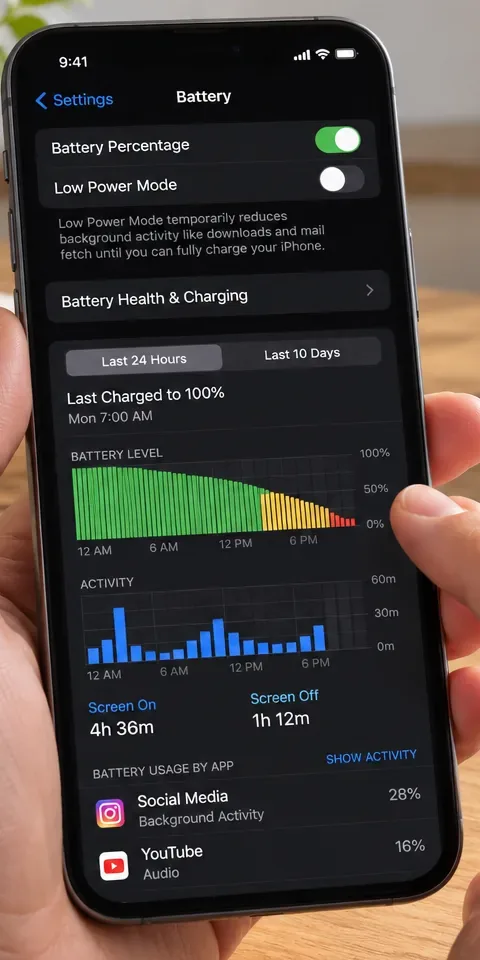
A high percentage beside an app does not automatically mean the app is defective. Tap it and look for context. Apple identifies categories such as on-screen use, background activity, notifications, and low cellular coverage. For example, a navigation app may legitimately use more power while the display, GPS, and cellular radios are active. A social app showing long background activity when you barely opened it is a different signal.
If Battery shows an insight such as Ongoing iOS Update or Ongoing Device Setup, that matters. Apple says software-update tasks can continue in the background after the phone is usable and may affect both battery life and thermal performance for a while. If the drain started immediately after updating, wait a few days and compare again instead of assuming the battery is damaged.
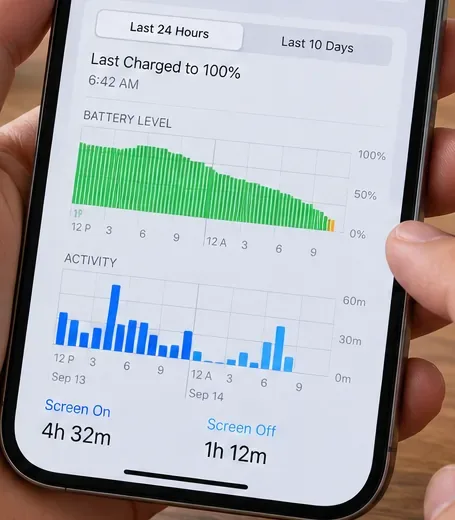
Use the trend over time, including screen-on and screen-off activity, to judge whether the drain follows your actual use or continues while the phone is mostly idle.
2. Use Low Power Mode and Adaptive Power for the right problem
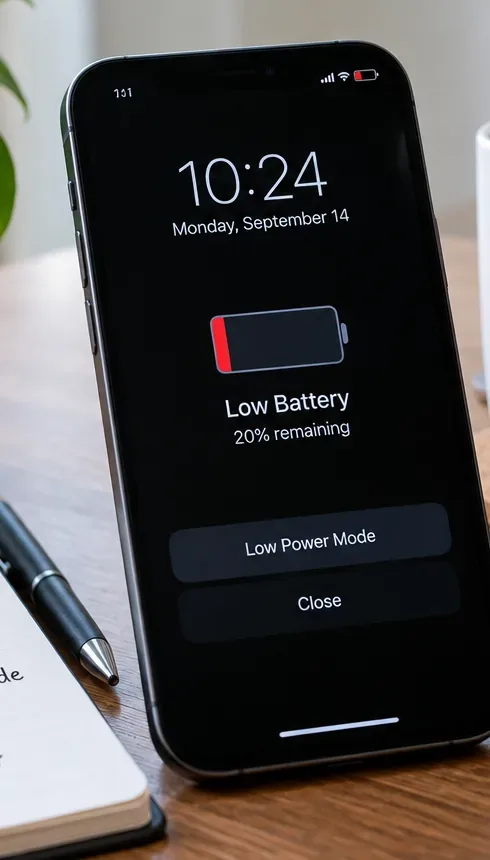
If you need the phone to last through the day while you investigate, turn on Low Power Mode. On newer iPhones, Apple places it under Settings > Battery > Power Mode. Low Power Mode reduces power use by limiting or changing background activity and some visual or network-related behavior. Apple says it turns off automatically after the device charges above 80 percent.
Low Power Mode is useful as a temporary battery extender while you diagnose the cause of unusually fast drain.
Adaptive Power is another option on supported models. Apple says it can make performance adjustments, slightly lower brightness, limit some background activity, and automatically enable Low Power Mode at 20 percent when needed. Because Apple’s support documentation can lag a just-announced hardware release, check whether Settings > Battery > Power Mode > Adaptive Power appears on your specific device rather than assuming every model has identical options. See Apple’s Adaptive Power guidance.
Make targeted efficiency changes, not a blanket shutdown
Brightness: dimming the display reduces power use. Apple also notes that turning off Auto-Brightness may increase power consumption. See Apple’s display brightness guidance.
Wi-Fi and signal strength: Apple recommends Wi-Fi when practical because weak cellular coverage can increase battery use.
Location: go to Settings > Privacy & Security > Location Services and review apps individually. Do not disable Location Services globally unless you understand what will stop working. Apple explains the permission choices in Apple’s Location Services guidance.
Background App Refresh: reduce it for apps that show persistent background activity and do not need fresh content before you open them.
3. Update, then restart if the problem persists
On September 14, 2026, iOS 27 is scheduled to arrive the next day. If you are reading this later, check the version that is actually offered on your phone rather than following a social post or article that says “iOS 20.” Go to Settings > General > Software Update. Apple recommends backing up first and installing the latest compatible release; the official process is in Apple’s iPhone update instructions.
After an update, do not judge battery performance from the first hour. Let the phone finish setup and background work. Keep it on a reliable Wi-Fi connection and charger when convenient. Then compare the Battery screen over the next few days.
If the device continues behaving abnormally, restart it normally. On modern Face ID iPhones, hold either volume button and the side button until the power-off slider appears, turn the phone off, wait about 30 seconds, then hold the side button to turn it back on. Apple documents the sequence in Apple’s restart instructions. A force restart is for an unresponsive device, not a routine battery optimization.
When an app appears near the top of Battery Usage, tap it and check whether the drain came from on-screen time, background activity, notifications, or another identifiable cause.
4. Decide whether the problem is software, charging, heat, or battery health
For iPhone 15 and later, Apple places battery condition information under Settings > Battery > Battery Health. If the phone reports that service is recommended, treat that as a hardware-maintenance signal. Battery capacity naturally declines with chemical age and charge cycles, so changing iOS settings cannot restore worn battery chemistry. Apple explains battery aging and service considerations in Apple’s iPhone battery and performance guidance.
Temperature also matters. Apple advises avoiding prolonged charging or storage in hot environments, and the phone may temporarily limit charging when it is too warm. If your device becomes unusually hot while sitting idle, note what Battery identifies as active, remove it from direct sun or other heat sources, and let it cool before continuing heavy use.
Also distinguish battery drain from charging behavior. A newer iPhone may intentionally stop around a configured charge limit or delay charging above 80 percent under Optimized Battery Charging. That is different from a battery that loses charge rapidly while disconnected.
A practical self-check after two or three days
Once the phone has finished any update or setup activity, use the same general routine for two or three days and compare the Battery screen again. You are looking for a pattern, not a single number.
The drain is probably explained if higher battery use closely follows more screen time, navigation, gaming, video, camera use, weak signal, or a clearly identified background app.
The problem deserves more attention if the phone loses large amounts of charge while mostly idle and Battery does not show a reasonable app or system explanation.
If one app repeatedly shows heavy background activity, update the app, review its permissions and notifications, and test again before deleting unrelated apps or resetting the whole phone.
If Battery Health shows a service message, charging is unreliable with known-good accessories, the phone overheats abnormally, or drain remains severe after the latest software has settled for a few days, contact Apple Support or an Apple Authorized Service Provider.
Bottom line
There is no current Apple release called “iOS 20” for the iPhone 18 generation. As of September 14, 2026, Apple says iOS 27 arrives September 15, while iPhone 18 Pro and iPhone 18 Pro Max become available September 18. Because the hardware is not yet in general retail use at the time of writing, claims of a confirmed widespread iPhone 18 battery defect are premature.
The most reliable fix path is straightforward: inspect Battery usage first, use Low Power Mode or Adaptive Power when appropriate, install the latest official iOS version, give post-update work time to finish, and check Battery Health before assuming the operating system is the cause. That approach gives you evidence you can act on instead of guessing from a fast-moving battery percentage.