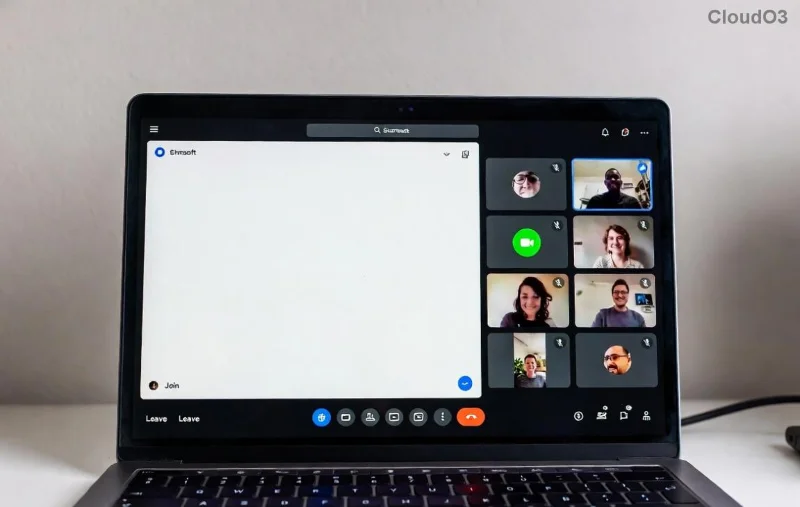
Frustrated by choppy audio, no sound, or one-way conversations in Microsoft Teams? You're not alone—VOIP errors disrupt millions of calls daily. But don't worry! This guide delivers straightforward troubleshooting Microsoft Teams voice and VOIP errors steps to get you back to seamless communication. Follow these proven fixes, and you'll be chatting clearly in minutes. Let's dive in! 🚀
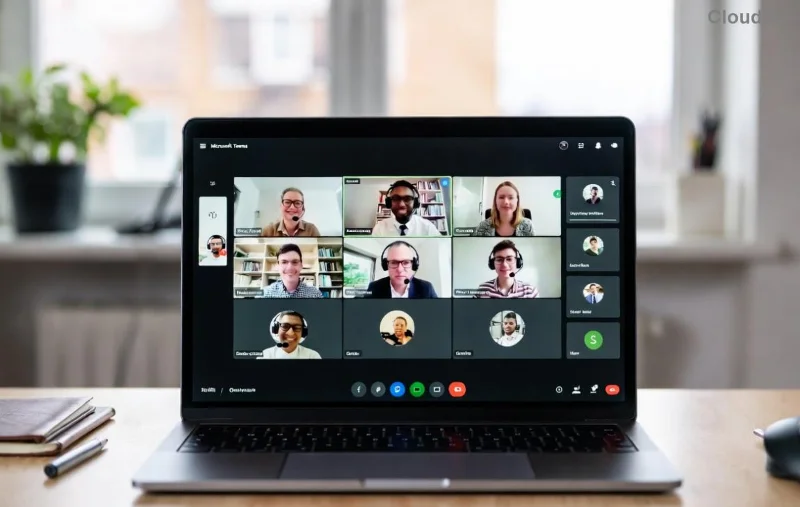
🚨 Most Common Microsoft Teams Voice and VOIP Errors
Identifying the culprit is step one. Here's a quick-reference table of top VOIP errors in Teams:
| Error Type |
Symptoms |
Quick Indicator |
| No Audio (Both Ways) |
Silence on calls; mic/speaker icons grayed out |
✅ Hardware or permissions issue |
| Echo or Feedback |
Your voice loops back loudly |
🔊 Multiple devices or poor acoustics |
| One-Way Audio |
Others hear you, but not vice versa |
🌐 Network asymmetry |
| Choppy/Delayed Voice |
Robotic sound, lag spikes |
📡 Bandwidth or jitter problems |
| Call Drops |
Connection fails mid-call |
⚠️ Firewall or QoS blocks |
Spot your issue? Jump to the matching fix below. Pro tip: Always start simple—80% of problems resolve in the first few steps! 😊
1️⃣ Basic Troubleshooting Microsoft Teams Voice Steps (Start Here!)
These no-brainer checks fix most Teams voice issues fast:
- Verify Hardware: Plug in headphones/mic. Test in Windows Sound Settings (right-click speaker icon > Open Sound settings > Test mic/speakers). Works there? Move on.
- Teams Audio Settings: In a meeting, click More actions (⋯) > Device settings. Select correct mic/speaker. Hit Make a test call—Teams calls itself!
- Permissions Check: Go to Windows Privacy > Microphone. Ensure Teams has access. On Mac: System Preferences > Security & Privacy > Microphone.
- Restart & Update: Close Teams fully (Task Manager), relaunch. Check for updates via profile icon > Check for updates. Latest builds squash VOIP errors.
- Clear Cache: Teams > Settings > General > Clear cache. Relaunch for a fresh start.
Still muted? Time for network tweaks. Keep reading—you're halfway there! ➡️
🌐 Network Fixes for VOIP Errors in Teams
Microsoft Teams voice problems often stem from connectivity. Here's how to bulletproof your calls:
- Run Network Assessment: In Teams, go to Settings > Devices > Make a test call—it reports network health. Aim for <150ms latency, <4% packet loss.
- Switch Networks: Wi-Fi to Ethernet? VPN off? Corporate firewalls love blocking UDP ports 3478-3481.
- QoS Priority: Router settings > Enable QoS, prioritize Teams traffic (ports 50000-50019 UDP).
- Bandwidth Boost: Close bandwidth hogs (downloads, streaming). Minimum: 1.2 Mbps up/down per user.
![Network diagnostics tool in Microsoft Teams for VOIP troubleshooting]()
For deeper diagnostics, use Microsoft's free Teams Network Assessment Tool. Game-changer! ⭐
🔧 Advanced Troubleshooting Microsoft Teams VOIP Errors
If basics fail, level up:
- Registry Tweaks (Windows Pro)**: Run as admin: regedit > HKEY_CURRENT_USER\Software\Microsoft\Office\Teams > Add DWORD DisableGpu=1. Restart.
- Reinstall Teams: Download fresh from official site. Uninstall old via Apps & features.
- Proxy/Firewall Rules: Allow Teams.exe through Windows Defender Firewall. For enterprise, check IT policies.
- Driver Updates: Update audio drivers via Device Manager or manufacturer site (Realtek, etc.). Avoid generic Windows updates—they can glitch.
- Teams Web Version: teams.microsoft.com in Edge/Chrome. Bypasses desktop bugs.
Pro users: Monitor with Wireshark for packet loss on SIP ports. But hey, most skip this and succeed earlier! 😉
🛡️ Prevent Future Teams Voice and VOIP Errors
Stay ahead:
- Schedule regular updates.
- Use wired connections for critical calls.
- Enable Teams Noise Suppression in settings.
- Test setup before big meetings: Meet now > Test call.
- Backup device: Always have phone dial-in ready.
![Successful Microsoft Teams call after troubleshooting VOIP errors]()
Bonus: Check Microsoft's official audio troubleshooting hub for edge cases. 👏
Ready to Talk Clearly? Your Next Steps
Congrats—you now hold the keys to banishing troubleshooting Microsoft Teams voice and VOIP errors forever! Start with basics, test one change at a time, and share your wins in comments below. Crystal-clear calls await. What's your biggest Teams headache? Drop it—we've got more tips! 🎉