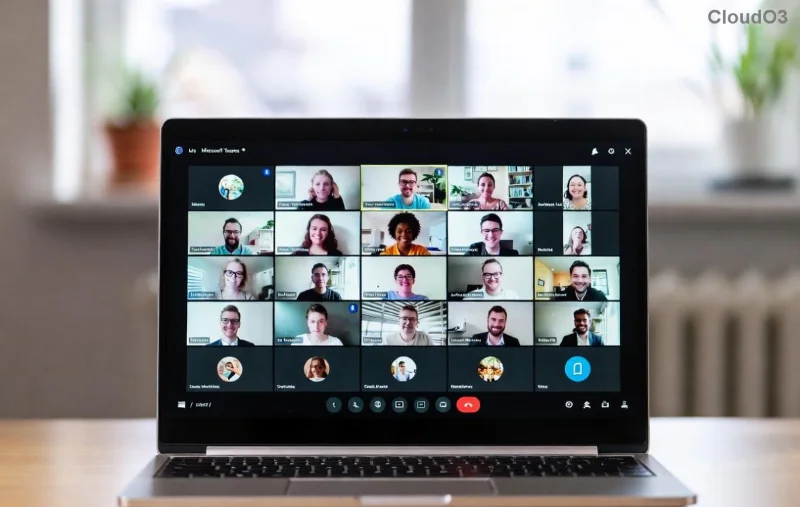
Encountering the dreaded Microsoft Teams browser error: "Browser Not Supported"? You're not alone! 😤 This common issue blocks access to Teams in your browser, disrupting meetings and chats. But don't worry – we've got your back with a straightforward, troubleshooting Microsoft Teams browser error guide that works like magic. Follow these steps, and you'll be collaborating smoothly in minutes. Let's dive in!
Why Does the Browser Not Supported Error Happen in Microsoft Teams?
The error pops up when Teams detects your browser as outdated, incompatible, or missing key features like WebRTC for video/audio. Common culprits include:
- 🕷️ Legacy browsers like Internet Explorer or very old Chrome/Firefox versions.
- ❌ Disabled JavaScript, cookies, or WebGL.
- 🔒 Enterprise restrictions or VPN/proxy interference.
- 📱 Mobile browsers without full desktop support.
Good news: Microsoft Teams supported browsers are modern and widely available. Fixing this is faster than rebooting your PC! ✅
Quick Checklist: Before Troubleshooting
Start here to rule out basics:
- 1️⃣ Refresh the page (Ctrl + F5).
- 2️⃣ Clear browser cache and cookies for teams.microsoft.com.
- 3️⃣ Try incognito/private mode to bypass extensions.
Still stuck? Proceed to full troubleshooting Microsoft Teams browser error steps below.
Step-by-Step: How to Fix Microsoft Teams Browser Error "Browser Not Supported"
Step 1: Switch to a Microsoft Teams Supported Browser
Teams officially supports the latest versions of these browsers. Use this table for quick reference:
| Browser |
Minimum Version |
Desktop |
Mobile |
Notes |
| Google Chrome |
Latest stable |
✅ |
✅ (Android/iOS) |
Best for performance |
| Microsoft Edge |
Latest Chromium-based |
✅ |
✅ |
Microsoft's top pick |
| Mozilla Firefox |
Latest stable |
✅ |
Limited |
Great privacy |
| Safari |
Latest (macOS/iOS) |
✅ (macOS) |
✅ (iOS) |
Apple devices only |
Pro Tip: Download the latest Microsoft Edge – it's optimized for Teams and free! 🚀
Step 2: Update Your Browser Immediately
- Chrome: Menu → Help → About Google Chrome (auto-updates).
- Edge: Settings → About Microsoft Edge.
- Firefox: Menu → Help → About Firefox.
Restart after updating. 80% of users fix the browser not supported Teams error here! 🎉
Step 3: Enable Essential Permissions & Features
Teams needs these enabled:
- JavaScript: Always on.
- Cookies: Allow third-party.
- WebGL & Hardware Acceleration: Settings → Advanced.
- Microphone/Camera: teams.microsoft.com permissions.
In Chrome/Edge: chrome://settings/content → Check all for Teams sites.
![Browser settings menu showing how to enable permissions for Microsoft Teams]()
Step 4: Bypass Network Blocks & Extensions
- ❌ Disable VPN/proxy temporarily.
- 🛡️ Turn off ad-blockers or antivirus web shields.
- 🔄 Test on another network (mobile hotspot).
If on corporate network, ask IT to whitelist teams.microsoft.com and *.skype.com.
Step 5: Advanced Fixes for Stubborn Errors
Still seeing Microsoft Teams browser error?
- Reset browser settings to default.
- Run browser in compatibility mode (Edge only).
- Check for OS updates (Windows/macOS).
- As last resort: Download the Teams desktop app from Microsoft's official site – it sidesteps browser issues entirely! 💯
Bonus: Prevent Future Browser Not Supported Errors
- ⭐ Set browsers to auto-update.
- 📱 Use Teams progressive web app (PWA) via Chrome/Edge.
- 🔔 Enable notifications for Teams updates via official docs: Microsoft Teams Browser Support.
You're All Set! 🎊
Congrats – your troubleshooting Microsoft Teams browser error journey ends here. Most fixes take under 5 minutes, getting you back to productive calls. If issues persist, drop a comment below or check Microsoft's status page. Happy teaming! 👏
Stay tuned for more tech fixes – bookmark us for seamless workflows.