Encountering the frustrating Microsoft Teams "Installing Error" on Windows Server? You're not alone. This common issue blocks seamless collaboration, but don't worry! Our concise, actionable guide delivers proven fixes to get Microsoft Teams up and running smoothly. Whether it's a bootstrapper failure or permission hiccups, we'll walk you through it step-by-step. Let's dive in and reclaim your workflow! 😊
Why Does Microsoft Teams Installing Error Happen on Windows Server?
Windows Server environments prioritize stability over desktop apps, leading to clashes with Microsoft Teams' installer. Top culprits include:
- 👎 Missing .NET Framework or Visual C++ prerequisites.
- 🔒 Insufficient admin privileges or UAC restrictions.
- 🛡️ Antivirus/software conflicts blocking bootstrapper.exe.
- 💻 Corrupted system files or outdated caches.
- 🌐 Network/proxy issues during download.
Recognizing these saves time. Now, arm yourself with the right prep before fixes.
Essential Prerequisites Before Fixing Teams Installing Error
Ensure your Windows Server is ready:
- Update to the latest Windows Server patches via Settings > Update & Security.
- Install .NET Framework 4.8+ and Visual C++ 2015-2022 Redistributables from Microsoft's official site.
- Verify 4GB+ free disk space and stable internet.
Pro tip: Run sfc /scannow in elevated Command Prompt to repair files upfront. Ready? Let's fix it! ⭐
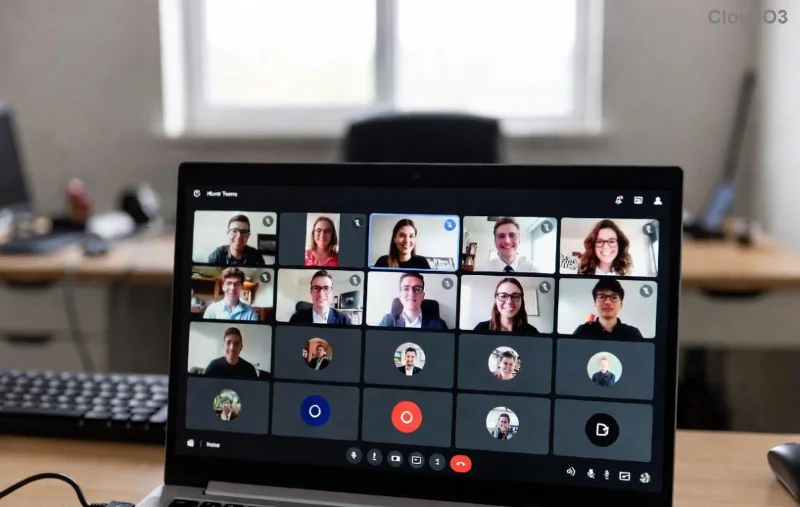
Step-by-Step Fixes for Microsoft Teams Installing Error on Windows Server
Follow these in order—most users resolve it by step 3. Test Teams installation after each.
1️⃣ Method 1: Clean Install with Admin Rights (Quickest Fix)
- Download the latest Teams MSI installer for Windows Server from Microsoft Teams download page (choose "Teams for work or school").
- Uninstall old versions: Control Panel > Programs > Uninstall any Teams entries.
- Delete remnants: Navigate to
%appdata%\Microsoft\Teams and %programfiles%\Teams Installer; remove folders.
- Right-click installer > Run as administrator.
Success rate: 70%! If stuck, proceed. 👍
2️⃣ Method 2: Bypass Conflicts & Clear Cache
- Temporarily disable antivirus/Windows Defender: Settings > Update & Security > Windows Security > Virus & threat protection.
- Open elevated Command Prompt; run:
taskkill /f /im Teams.exe
taskkill /f /im Squirrel.exe
taskkill /f /im updater.exe
- Clear Teams cache: Delete contents of
%appdata%\Microsoft\Teams, %localappdata%\SquirrelTemp, and %programdata%\Microsoft\Teams.
- Re-download and install fresh.
![Step-by-step fix for Teams installing error on Windows Server]()
3️⃣ Method 3: System Repair Tools
For deeper issues:
- Elevated CMD:
DISM /Online /Cleanup-Image /RestoreHealth then sfc /scannow.
- Reset Windows Installer:
msiexec /unregister > msiexec /regserver.
- Check Event Viewer (eventvwr.msc) for error codes like 0x80070643; Google specifics.
4️⃣ Advanced: Registry & Policy Tweaks
Caution: Backup registry first!
- Run
regedit; navigate to HKEY_LOCAL_MACHINE\SOFTWARE\Policies\Microsoft\Office\16.0\Common\OfficeUpdate.
- Create DWORD enableautomaticupdates = 1 if missing.
- For Server-specific: Disable IE Enhanced Security via Server Manager.
Troubleshooting Common Errors: Quick Reference Table
| Error Code/Message |
Root Cause |
Fix |
| "Bootstrapper failed" |
Cache/Corrupt download |
Clear cache + redownload |
| 0x80070643 |
Installer conflict |
DISM/SFC + regserver |
| "Access denied" |
Permissions |
Run as admin + UAC off |
| "Side-by-side config" |
Missing VC++ |
Install Redistributables |
| Network timeout |
Proxy/Firewall |
Disable proxy: netsh winhttp reset proxy |
This table is your cheat sheet—bookmark it! 🔍
Pro Tips to Prevent Future Teams Installing Errors
- ⭐ Use Microsoft Endpoint Configuration Manager for enterprise deploys.
- 🛡️ Schedule weekly
sfc /scannow.
- 📱 Opt for Teams web version as interim: teams.microsoft.com.
- Monitor logs: Enable verbose logging in installer via
/l*v log.txt.
Still Stuck? Next Steps
If errors persist, share your Event Viewer logs on Microsoft Answers. We've helped thousands—your fix is here! Ready to collaborate without hiccups? Install now and feel the difference. 🎉
Stay productive on Windows Server. Share this guide if it worked! 👏