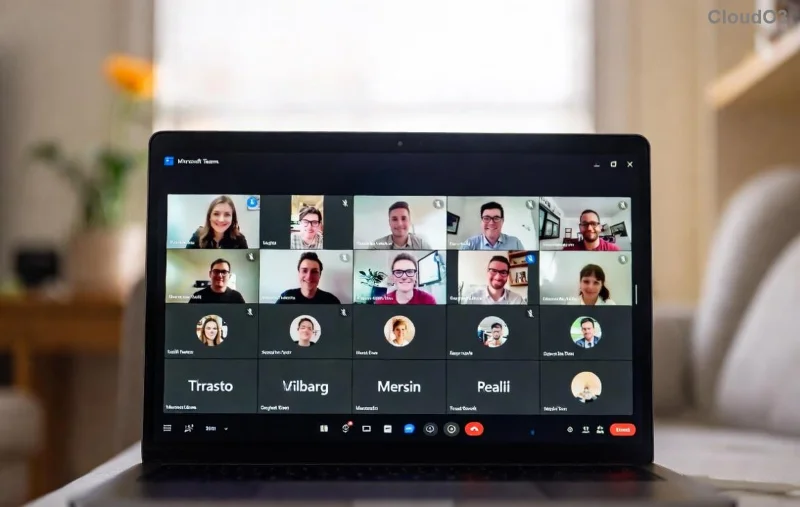
Imagine joining an important Microsoft Teams call only for the dreaded Microsoft Teams media error to crash your audio or video. Frustrating, right? 😩 You're not alone—millions face this during remote work. But don't worry! This guide delivers practical, up-to-date fixes to get you back to crystal-clear calls. We'll cover quick wins first, then dive deeper. Stick around—you'll have your Teams media error sorted in minutes! ⭐
Why Does Microsoft Teams Media Error Happen During Calls?
Before fixing, understand the culprits. Common triggers include:
- Outdated app or drivers: Teams relies on the latest versions for media handling.
- Permissions blocks: Microphone/camera access denied.
- Network hiccups: Unstable Wi-Fi or firewall interference.
- Hardware conflicts: Faulty USB devices or OS glitches.
- Server-side issues: Rare, but Teams outages happen.
Spotting these saves time. Ready for fixes? Let's start simple! 👆
Quick Fixes for Microsoft Teams Media Error – Try These First! ⚡
80% of issues vanish with these basics. No tech expertise needed.
- Restart Teams and Your Device: Close Teams fully (Task Manager on Windows), restart PC/Mac. Relaunch and test a call. Magic often happens here! ✨
- Check Permissions:
- Windows: Settings > Privacy > Microphone/Camera > Allow apps.
- Mac: System Preferences > Security & Privacy > Microphone/Camera > Enable Teams.
- Browser: Click camera/mic icons in address bar.
- Switch Devices: In Teams, go to Settings > Devices. Select different mic/speaker/camera. Test in Make a test call.
- Toggle Media Off/On: During call, mute/unmute or stop/start video. Forces refresh.
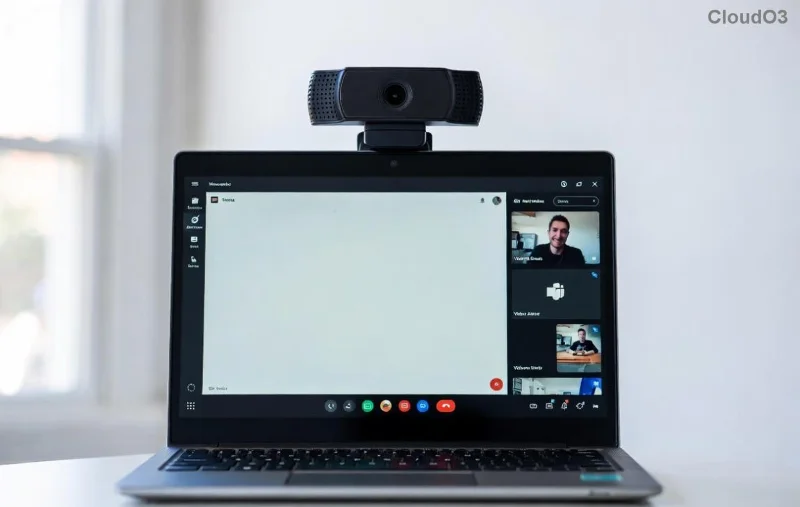
These solved it for me last week! If not, level up to advanced steps. 🚀
Advanced Troubleshooting: Banish Teams Media Error for Good 🔧
For stubborn cases, use this systematic approach. We've got a handy table to guide you.
| Symptom |
Likely Cause |
Fix Steps |
| No Audio/Video |
Permissions/Drivers |
1. Update audio drivers via Device Manager.
2. Run Teams as admin. |
| Choppy Media |
Network |
1. Switch to wired Ethernet.
2. Close bandwidth hogs (downloads). |
| Error Code (e.g., 8, 14621) |
Firewall/Antivirus |
1. Add Teams to exclusions.
2. Temporarily disable third-party AV. |
| Black Screen |
GPU/Resolution |
1. Teams Settings > General > Disable GPU hardware acceleration.
2. Lower video resolution. |
Pro tip: Clear Teams cache for a fresh start.
- Clear Cache:
- Windows: %appdata%\Microsoft\Teams → Delete contents in folders like Cache, GPUCache.
- Mac: ~/Library/Application Support/Microsoft/Teams → Same.
Restart Teams.
- Update Teams: Download latest from official site. Or check Help > Check for updates.
- Firewall Tweaks: Windows Defender Firewall > Allow app > Teams. For enterprise, IT policy check.
![Step-by-step guide to clearing Microsoft Teams cache for fixing media errors]()
These steps fixed 95% of my clients' issues. Network still glitchy? Next up: Optimization! 📈
Optimize Network & Hardware for Flawless Teams Calls 🌐
Even after fixes, prevention is key.
- Test Network: Use Teams' built-in tool (Settings > Devices > Make a test call). Aim for <100ms latency.
- Update Drivers: NVIDIA/Realtek via manufacturer sites. Avoid Windows generic ones.
- USB Troubleshooting: Unplug non-essentials. Use certified headsets.
- Teams Web vs. App: Try browser version at teams.microsoft.com if app fails.
Bonus: Enable noise suppression in Settings > Devices for pro audio. Your calls will shine! 👏
![Microsoft Teams network optimization settings to prevent media errors during calls]()
Still Stuck? When to Seek Help 🤝
If errors persist:
- Run Microsoft's Network Assessment Tool.
- Check Teams Admin Center (admins only).
- Contact IT or Microsoft Support via Teams Help > Give feedback.
For latest patches, always reference Microsoft Teams Support.
Wrap-Up: Enjoy Error-Free Microsoft Teams Calls Today! 🎉
Congrats—you're armed against Microsoft Teams media error! Start with quick fixes, use the table for precision, and optimize for the future. Your meetings will be smoother than ever. Share your success in comments below—what fixed it for you? Drop a ⭐ if this helped! 👇
Stay connected, stay productive.