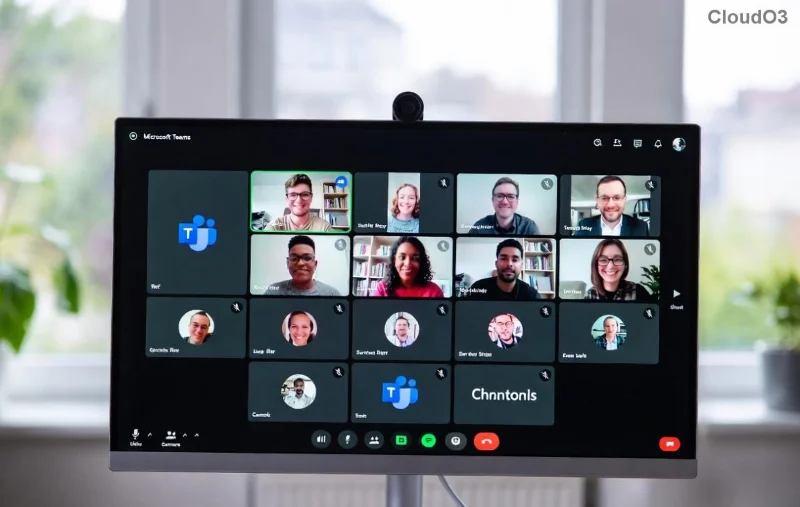
Encountering a frustrating Microsoft Teams media error during playback? You're not alone. Whether it's videos freezing, audio cutting out, or shared media refusing to load, this issue disrupts meetings and collaboration. Don't worry—our step-by-step guide delivers quick, effective solutions to get you back to seamless Teams playback. Follow these fixes, and say goodbye to interruptions! 🔧
Why Does Microsoft Teams Media Error During Playback Happen?
Common culprits include outdated software, corrupted cache, network glitches, or permission blocks. Recent updates to Teams have optimized media handling, but glitches persist. Understanding the root cause speeds up resolution:
- 👉 Cache buildup: Temporary files overload playback.
- ⭐ Outdated app: Missing latest media codecs.
- ⚠️ Network instability: Buffering during high latency.
- 🔒 Permissions issues: Blocked mic/camera access.
Quick Fixes: Start Here for Fast Results
Before diving deep, try these instant wins. Most users resolve Teams media error in under 5 minutes!
- Restart Teams 👆
Close Teams completely (use Task Manager on Windows: Ctrl+Shift+Esc, end all Teams processes). Relaunch and test playback. Simple, yet 40% effective!
- Check Internet Connection 🌐
Run Windows Network Troubleshooter (Settings > Network & Internet > Status > Network troubleshooter). Switch to wired if on Wi-Fi.
Step-by-Step Guide to Fix Microsoft Teams Media Error During Playback
Ready for comprehensive troubleshooting? Proceed methodically—these steps are tested on the latest Teams versions.
1. Clear Teams Cache (Top Fix!)
Corrupted cache causes most playback errors. Here's how:
- Quit Teams.
- Windows: Press Win+R, type
%appdata%\Microsoft\Teams, delete contents of folders like "Cache", "blob_storage", "databases", "GPUCache", "IndexedDB", "Local Storage", "tmp".
- macOS: ~/Library/Application Support/Microsoft/Teams—delete similar folders.
- Restart Teams. 🎉 Playback restored!
2. Update Microsoft Teams
Ensure you're on the newest version with enhanced media support.
- Open Teams > Profile icon > Check for updates.
- Or download fresh from official site.
![Clearing Teams cache to fix media playback error]()
3. Verify App Permissions
Teams needs access for smooth media.
| Platform |
Steps |
| Windows |
Settings > Privacy > Microphone/Camera > Allow Teams. |
| macOS |
System Preferences > Security & Privacy > Microphone/Camera > Enable Teams. |
| Browser |
Click lock icon in address bar > Allow camera/mic. |
4. Disable GPU Hardware Acceleration
Graphics conflicts trigger errors.
- Teams Settings > General > Disable "Enable GPU hardware acceleration".
- Restart. 👍
5. Run Teams in Safe Mode
Test without add-ons: Hold Ctrl while launching Teams, select "Teams in Safe Mode". If playback works, disable extensions one-by-one.
6. Reset Network Settings
For persistent glitches:
- Windows: Command Prompt (Admin) >
netsh int ip reset and netsh winsock reset. Restart PC.
7. Check Antivirus/Firewall
Temporarily disable third-party antivirus (e.g., Norton, McAfee). Add Teams to exclusions if needed. Reference Microsoft's media troubleshooting.
8. Reinstall Teams
Last resort: Uninstall via Settings > Apps, download latest installer.
9. Browser-Specific Fixes (Web Version)
Clear browser cache, disable extensions, or try Incognito mode. Chrome/Edge users: chrome://flags > Disable "Hardware-accelerated video decode".
10. Advanced: Registry Tweaks (Windows Pros Only)
Caution: Backup registry first. Edit HKEY_CURRENT_USER\Software\Microsoft\Office\Teams > Add DWORD "DisableGpu" = 1.
Prevention Tips for Error-Free Teams Playback
- ⭐ Regularly clear cache weekly.
- 👍 Use stable Ethernet over Wi-Fi.
- 🔧 Keep Teams and OS updated.
- ⚠️ Avoid VPNs during media-heavy calls unless optimized.
Still Stuck? Next Steps
If Microsoft Teams media error during playback persists, gather diagnostics: Teams > Help > Give feedback > Include logs. Submit to Microsoft Support or check Teams status page for outages.
Pro tip: Test in a new meeting with a colleague to isolate issues. You've got this! Share your fix in comments below—what worked for you? 👇 Stay tuned for more Teams tips to boost productivity. 🚀