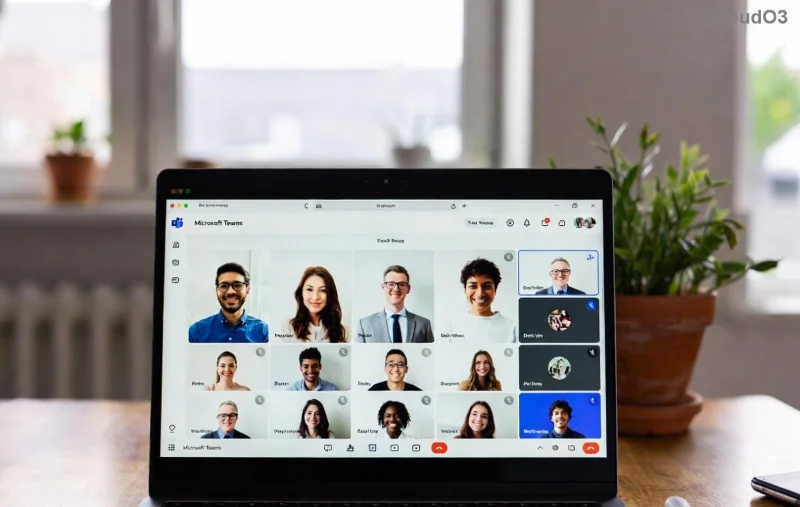
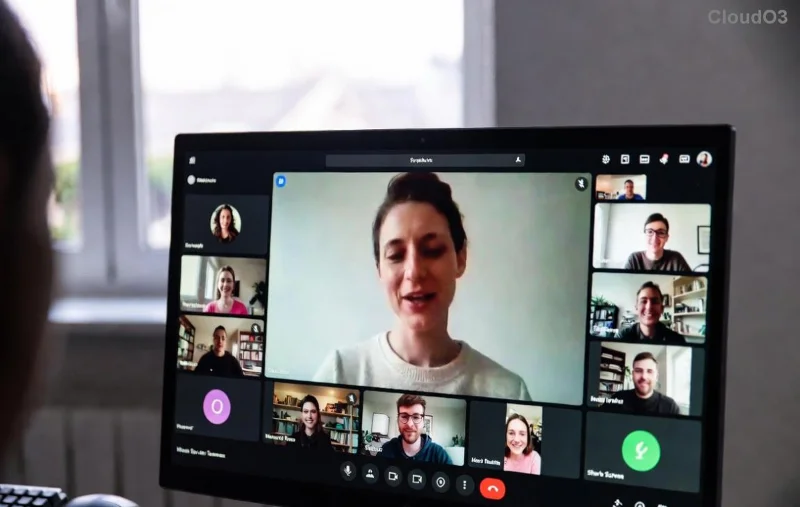
Frustrated by Microsoft Teams microphone muffled audio or complete silence during calls? You're not alone—millions face Microsoft Teams no sound issues that disrupt meetings. The good news? Most problems are quick fixes! This guide delivers how to fix Microsoft Teams microphone muffled or no sound issues with step-by-step solutions, tested on the latest versions. Let's restore your voice and keep your team connected. 🔧
Quick Diagnosis: Why Is Your Teams Mic Muffled or Silent?
Before diving in, pinpoint the cause:
- 🔇 Hardware glitch: Mute button on, loose cable, or faulty headset.
- ⚙️ App permissions: Teams lacks mic access.
- 📱 Device conflicts: Wrong input selected or driver outdated.
- 🌐 Network hiccups: Poor bandwidth muffles sound.
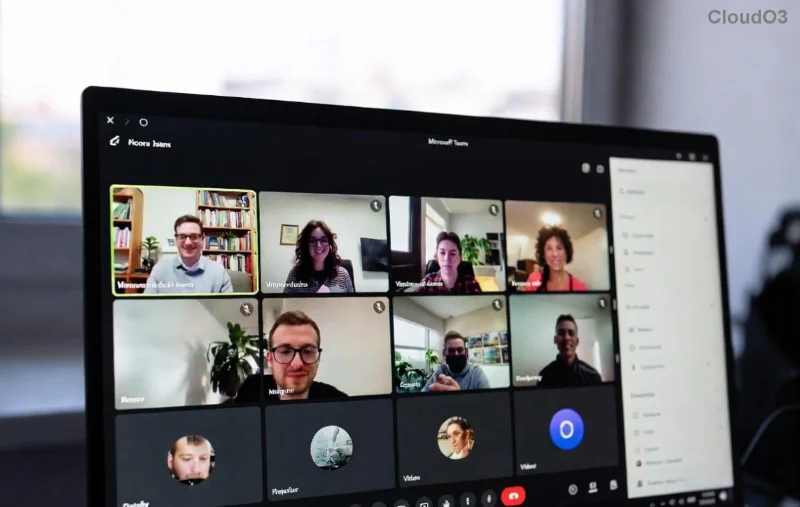
Ready to troubleshoot? Start with these quick wins—90% of users fix it here!
✅ Essential Quick Fixes Table
| Issue |
Quick Fix |
Expected Result |
| No Sound |
Press mic icon in Teams (ensure not red/muted) |
Instant audio feedback |
| Muffled Mic |
Select correct device in Teams > ... > Settings > Devices |
Clearer voice test |
| Permissions Error |
Allow mic in browser/OS settings |
Teams prompts success |
| Low Volume |
Increase mic volume slider in Windows Sound settings |
Louder test audio |
Didn't work? No worries—let's go deeper. These steps build on each other for foolproof results. 👍
Step-by-Step: How to Fix on Windows
- 1️⃣ Verify Teams Audio Settings
Open Teams > Click your profile > Settings > Devices. Test your mic under Make a test call. Switch devices if muffled. Pro tip: Enable Noise suppression for crystal-clear calls!
- 2️⃣ Windows Privacy Permissions
Search "Privacy & security" in Start menu > Microphone > Turn on "Allow apps to access your microphone" and enable for Teams. Restart app.
- 3️⃣ Update Audio Drivers
Right-click Start > Device Manager > Audio inputs > Right-click mic > Update driver. Or download latest from manufacturer site.
![Step-by-step Teams microphone troubleshooting on Windows]()
Stuck? macOS users, scroll down—your fixes are next! 👇
🍎 How to Fix Microsoft Teams Microphone on Mac
- 1️⃣ System Preferences Check
Apple menu > System Settings > Privacy & Security > Microphone > Enable Teams.
- 2️⃣ Audio MIDI Setup
Applications > Utilities > Audio MIDI Setup > Select input > Adjust format to 48kHz for optimal clarity. Test in Teams.
- 3️⃣ Reset Teams Cache
Quit Teams > ~/Library/Application Support/Microsoft/Teams > Delete contents > Relaunch. Boom—fresh start!
🌐 Browser/Web App Fixes (Teams Online)
For web.teams.microsoft.com:
- Chrome/Edge: Settings > Privacy > Site settings > Microphone > Allow teams.microsoft.com.
- Clear cache: Ctrl+Shift+Del > Clear browsing data.
- Official Microsoft Guide for more.
![Successful Microsoft Teams microphone test after fixes]()
🔧 Advanced Solutions for Stubborn Issues
If basics fail:
- Reinstall Teams: Download latest from official site. Uninstall old version first.
- Disable Exclusive Mode: Windows Sound settings > Device properties > Advanced > Uncheck "Exclusive mode."
- Run Teams as Admin: Right-click exe > Run as administrator.
- Check Network: Use wired connection; test speed at speedtest.net.
| Tool |
Purpose |
Download Link |
| SFC /scannow |
Fix system files |
Built-in (CMD as admin) |
| Teams Logs |
Diagnose errors |
Teams > Help > Download logs |
🛡️ Prevent Future Microsoft Teams No Sound Nightmares
- ⭐ Update Teams weekly via profile > Check for updates.
- ✅ Use wired headset for reliability.
- 🔒 Keep drivers current with tools like Driver Booster.
- 📞 Test mic before every important call!
Congrats—you've mastered how to fix Microsoft Teams microphone muffled or no sound issues! Your calls will sound professional again. Share your success in comments below—what fixed it for you? Stay tuned for more tech tips. 🎉