Encountering a frustrating Microsoft Teams "Webinar" Registration Error? 😩 You're not alone—thousands face this issue when trying to join or register for important webinars. Whether it's "Access Denied," "Registration Failed," or a blank page, it disrupts your schedule. But don't worry! This guide delivers quick, reliable fixes to get you registered and attending in minutes. Let's dive in and resolve it step-by-step. ✅
👆 Common Causes of Microsoft Teams Webinar Registration Error
Before fixing, understand the root. Most Teams webinar errors stem from:
- Browser cache or cookies blocking the process.
- Outdated Microsoft Teams app or web version.
- Account permissions—especially for guest or external users.
- Network firewalls or VPN interference.
- Webinar-specific limits set by the organizer.

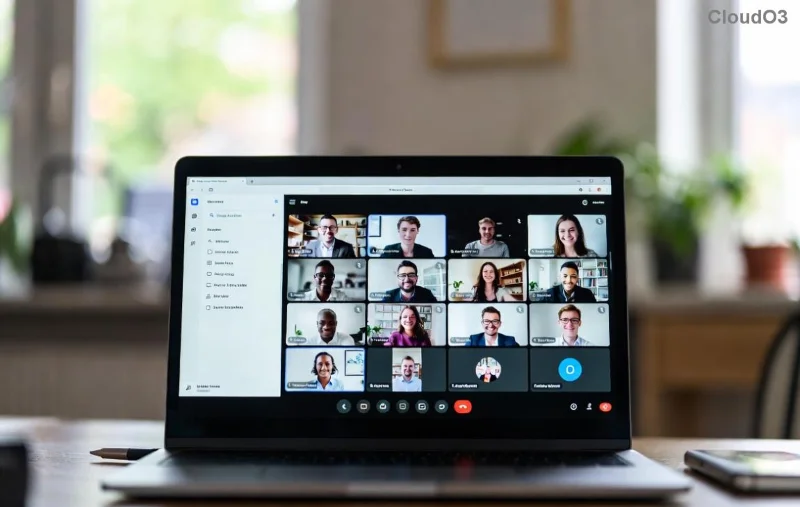
Seeing something like the image above? It's often a temporary glitch. Now, let's fix it! Follow these in order for the fastest results.
1️⃣ Quick Fixes: Resolve Teams Webinar Registration Error in Under 5 Minutes
Start here—90% of users fix it with these basics. No tech expertise needed! 🚀
- Refresh and Retry: Close the tab, clear your browser history (Ctrl+Shift+Del), and reopen the registration link. Pro tip: Use Incognito mode to bypass cache.
- Switch Browsers or Devices: Microsoft Teams works best on Edge or Chrome. Avoid Safari for webinars.
- Desktop app? Launch Teams desktop and join via the calendar invite.
- Check Internet Connection: Run a speed test. Switch to mobile data if Wi-Fi falters.
Still stuck? Move to advanced steps. You'll be registered soon! 😊
2️⃣ Advanced Troubleshooting for Stubborn Microsoft Teams Webinar Errors
If basics fail, target deeper issues. Here's a structured approach:
| Error Message |
Likely Cause |
Fix Steps |
| "Registration Failed" or "Something went wrong" |
Cache/Cookies |
1. Clear Teams cache: Settings > General > Clear cache.
2. Sign out/in to Teams.
|
| "Access Denied" or "Not Authorized" |
Permissions |
1. Verify your Microsoft account.
2. Ask organizer to approve external access. Check Microsoft's webinar guide.
|
| Blank Page or Loading Forever |
Network/VPN |
1. Disable VPN/ad-blockers.
2. Update Teams to latest version via Microsoft Store or Teams web.
|
| "Full Capacity" False Positive |
Sync Delay |
Wait 5-10 mins and retry. Or contact host. |
![Step-by-step guide showing how to clear cache in Microsoft Teams to fix webinar registration error]()
As shown in the image, clearing cache often does the trick. For Teams desktop users:
- Update Teams: Click profile icon > Check for updates. Restart app.
- Reset Teams: Win+R > %appdata%\Microsoft\Teams > Delete contents > Relaunch.
- Admin Check: If work account, ask IT to enable "Webinar" in Teams admin center.
Bonus: Enable Teams webinar notifications in Settings > Notifications for instant alerts. 🎉
⭐ Prevention Tips: Avoid Future Microsoft Teams "Webinar" Registration Error
Stay ahead:
- Always use the latest Teams version—auto-updates keep you secure.
- Join webinars early to beat capacity limits.
- Bookmark Teams Support for official troubleshooting.
- Test registration on a secondary device beforehand.
Still Not Fixed? Next Steps
If errors persist, gather details: Error code, browser version, account type. Submit via Teams Help (?) > Give feedback, or chat with Microsoft Support. Most resolve within hours! 👏
By now, your Microsoft Teams Webinar Registration Error should be history. Registered successfully? Share your success in comments below—we love hearing wins! Ready for seamless webinars? You've got this. 🌟