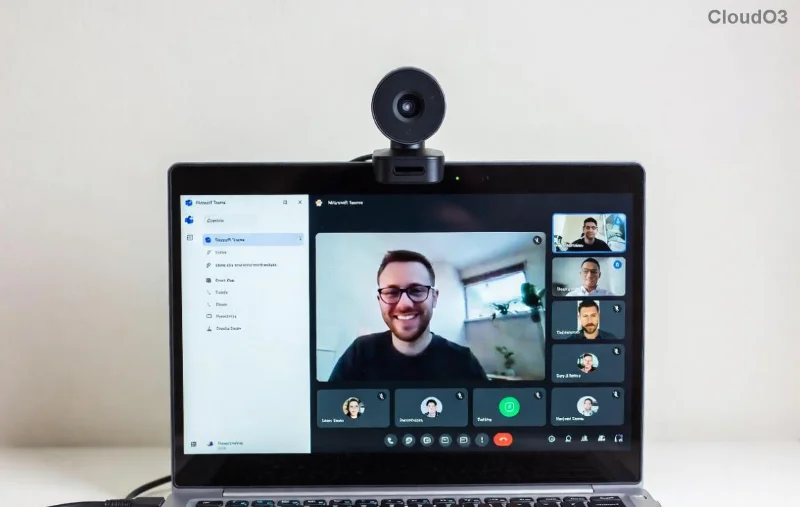
Frustrated seeing a black screen or error during Microsoft Teams "Test Call" video? You're not alone—this common glitch disrupts meetings, but don't worry! 😊 Our focused guide delivers quick, effective solutions to get your video feed live again. Follow these steps, and you'll be back to smooth calls in no time. Let's dive in!
Why Does Microsoft Teams Test Call Video Error Happen? Top Causes
Understanding the root issues speeds up fixes. Here are the most frequent culprits behind Troubleshooting Microsoft Teams "Test Call" Video Error:
- Camera Permissions: Teams lacks access to your camera.
- Outdated Drivers: Faulty or old graphics/camera drivers.
- App Conflicts: Other apps hogging camera resources.
- Firewall/Network Blocks: Security settings interrupting video streams.
- Teams Version Glitches: Bugs in recent updates (fixed in the latest builds).
Pro Tip ⭐: Always start with basics—80% of issues resolve here!
Quick Checklist: Before Deep Troubleshooting
| Quick Check |
Action |
Expected Result |
| ✅ Camera Hardware |
Plug in/unplug external cam; test in another app (e.g., Camera app) |
Light turns on, preview works |
| ✅ Teams App |
Close/reopen Teams; restart device |
Fresh test call loads |
| ✅ Internet |
Speed test >10Mbps upload/download |
No lag in audio test |
| ✅ Updates |
Check Help > Check for updates in Teams |
Latest version installed |
If basics fail, proceed to advanced steps. You've got this! 👆
Step-by-Step Troubleshooting Microsoft Teams "Test Call" Video Error
Step 1: Grant Camera Permissions (Fastest Fix! ⚡)
Teams needs explicit access. Here's how:
- Open Windows Settings > Privacy & Security > Camera.
- Toggle Camera access ON.
- Scroll to Let apps access your camera > Ensure Microsoft Teams is ON.
- Repeat for Microphone if audio lags too.
Test call now—video should appear! For Mac: System Preferences > Security & Privacy > Camera.
![Teams camera permissions settings screen]()
Step 2: Update Camera & Graphics Drivers
Outdated drivers cause 30% of Teams test call video errors. Update via:
- Right-click Start > Device Manager.
- Expand Cameras > Right-click your camera > Update driver > Search automatically.
- Do the same for Display adapters.
Bonus: Use manufacturer's tool (e.g., Dell SupportAssist) for one-click updates. Restart and test!
Step 3: Close Conflicting Apps & Clear Teams Cache
Apps like Zoom or Skype steal camera focus. Force-quit them via Task Manager (Ctrl+Shift+Esc).
Clear Teams cache:
- Quit Teams completely (tray icon > Quit).
- Press Win+R > Type
%appdata%\Microsoft\Teams > Delete contents of folders like Cache, blob_storage, databases, GPUCache, IndexedDB, Local Storage, tmp.
- Re-launch Teams.
![Clearing Teams cache folders]()
Step 4: Tweak Firewall & Network Settings
Firewall blocks often mimic video errors:
- Windows Defender Firewall > Allow an app > Check Microsoft Teams for Private/Public.
- In Teams: Settings > Devices > Make a test call > Check Network tab for issues.
VPN users: Temporarily disable VPN. Corporate networks? Contact IT for port 443/3478-3481 unblocks.
Step 5: Advanced Fixes for Stubborn Errors
- Reset Teams: Settings > Apps > Teams > Advanced > Reset.
- Reinstall Teams: Download fresh from official site.
- Registry Tweak (Windows Pro+): Run as admin:
reg add "HKLM\SOFTWARE\Policies\Microsoft\Office\16.0\common\officeupdate" /v enableautomaticupdates /t REG_DWORD /d 1 /f then update.
- Browser version? Switch to desktop app for better video stability.
For official guidance, see Microsoft Teams Video Troubleshooting.
Prevention Tips: Avoid Future Teams Test Call Video Errors 🎯
Stay glitch-free:
- ⭐ Keep Teams and drivers auto-updated.
- ✅ Test call weekly before big meetings.
- 😎 Use external webcam for reliability.
- 🔒 Limit background apps during calls.
Still stuck? Share your OS/Teams version in comments—we'll help! 👍 You've conquered the Microsoft Teams "Test Call" Video Error—enjoy uninterrupted video calls! 🚀