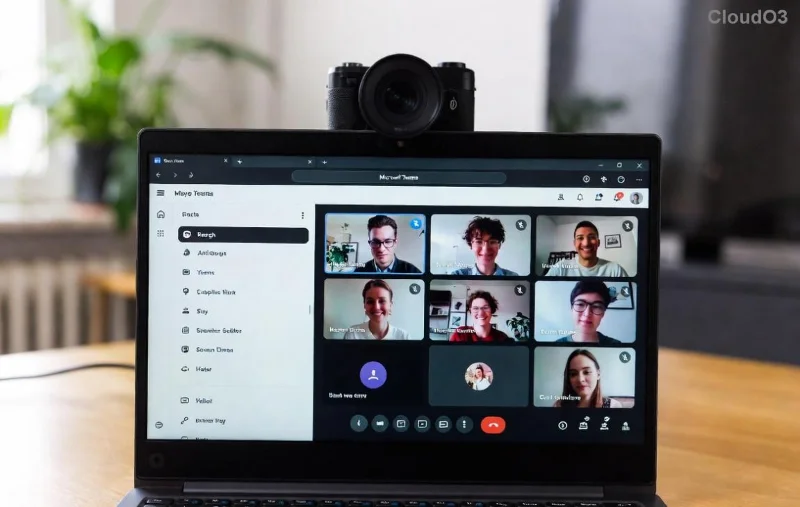
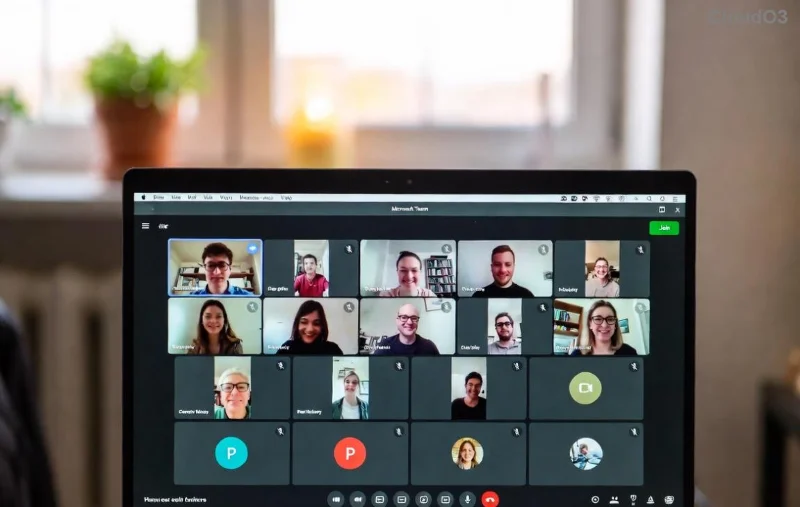
Imagine joining a crucial Microsoft Teams meeting only to face the dreaded voice call error – no sound, silent mic, or endless echo. Frustrating, right? 😩 Don't worry! This guide delivers quick, reliable fixes tested on the latest Teams updates. You'll restore crystal-clear audio fast and keep your productivity soaring. Let's dive in! ✅
Common Causes of Microsoft Teams Voice Call Error
Before fixing, understand the culprits. Most Teams voice call errors stem from simple issues:
- 🔇 Permissions blocked: Browser or app denying mic/speaker access.
- 📡 Network glitches: Unstable Wi-Fi or firewall blocking UDP ports.
- 🔧 Outdated software: Old Teams version or drivers.
- 🎛️ Wrong audio settings: Mic muted or wrong device selected.
- ⚙️ Hardware conflicts: Multiple audio devices or Bluetooth interference.
Spot your issue? Great – now let's fix it step-by-step. Follow along, and you'll be chatting smoothly in no time! 🌟
🔧 Step 1: Quick Checks for Microsoft Teams Voice Call Error
Start here – 80% of problems vanish with these basics.
- ✅ Test Your Hardware: Plug in headphones/speakers. Speak into the mic – does it work in another app like Voice Recorder? No? Update drivers via Device Manager (Windows) or System Settings (Mac).
- 🔊 Unmute & Volume Check: In Teams, click the mic/speaker icons during a call. Ensure volume sliders are up in system settings.
- 🌐 Restart Teams & Device: Close Teams fully (Task Manager > End Task), reboot your computer. Magic often happens! ✨
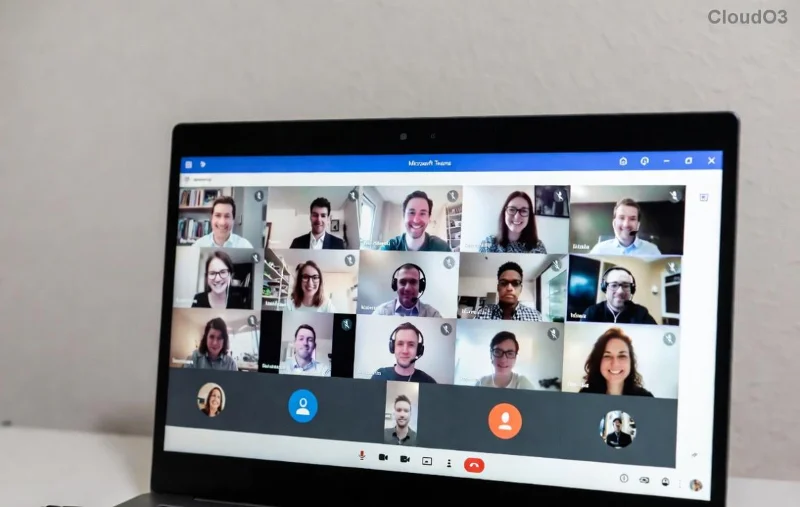
🔧 Step 2: Fix Permissions & Audio Devices
If basics fail, permissions are often the villain.
| Platform |
Steps to Grant Permissions |
| Windows |
Settings > Privacy & Security > Microphone > Allow apps. Toggle Teams ON. For browser: Edge/Chrome > site settings > Mic/Speaker. |
| Mac |
System Settings > Privacy & Security > Microphone > Enable Teams. Safari/Chrome: Preferences > Websites > Microphone. |
| Mobile (iOS/Android) |
App Settings > Teams > Permissions > Allow Mic & Audio. |
In Teams: Go to Settings > Devices. Select correct mic/speaker from dropdowns. Test with Make a test call button. 🎤
![Teams device settings menu with microphone selection]()
🔧 Step 3: Update & Optimize Teams for Voice Calls
Outdated Teams causes sneaky voice call errors. Here's how to stay current:
- Auto-Update Check: Teams > Profile > Check for updates. Install if available.
- Clear Cache: %appdata%\Microsoft\Teams > Delete contents in these folders: blob_storage, Cache, databases, GPUCache, IndexedDB, Local Storage, tmp. Relaunch!
- Reinstall Teams: Download latest from official site. Uninstall old version first.
Pro Tip: Enable Noise suppression in Settings > Devices for echo-free calls. 🎉
🔧 Step 4: Network & Advanced Fixes for Stubborn Voice Call Errors
Audio dropping mid-call? Network woes.
- 📶 Switch Networks: Try wired Ethernet over Wi-Fi. Test speed at speedtest.net – aim for 1.5Mbps upload/download.
- 🔥 Firewall/Antivirus: Temporarily disable, test call. Whitelist Teams ports: UDP 3478-3481.
- Bluetooth Fix: Disconnect all Bluetooth devices except your headset. Re-pair.
![Teams call interface showing network status and audio troubleshooting]()
For pros: Run Teams diagnostics – Help > Give feedback > Report a problem. Share logs with IT.
Bonus Tips to Prevent Future Microsoft Teams Voice Call Errors ⭐
- 👆 Use wired headsets for reliability.
- 📱 Keep Teams and OS updated automatically.
- 🛡️ Regularly clear cache weekly.
- 🔒 Join meetings early to test audio solo.
Still stuck? Check Microsoft Teams Support or community forums. You've got this – seamless calls await! 👏 Share your success in comments below.
Fixed your Microsoft Teams voice call error? High-five! 🙌 Stay tuned for more tech tips.